-
 hultonkim
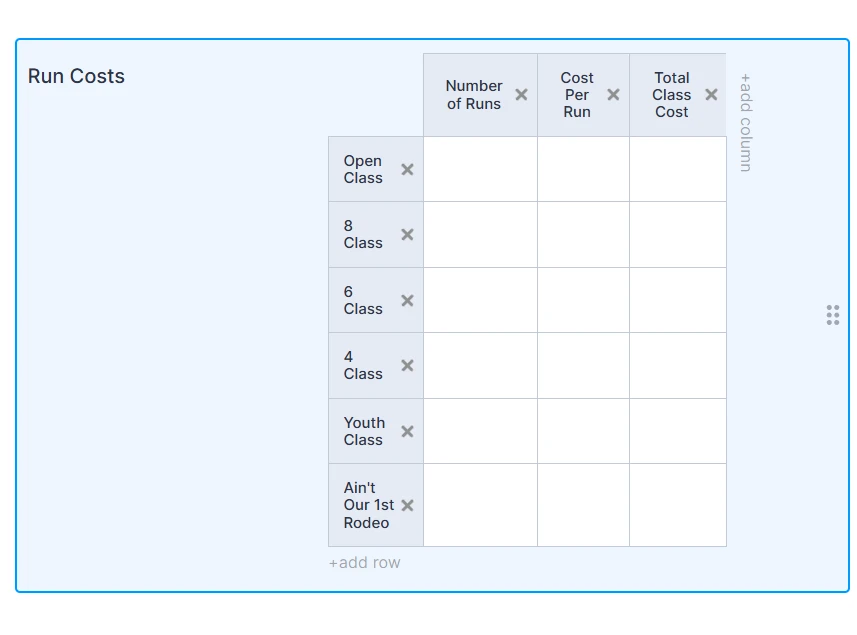
I have an input table in a form that I want people to use for registration for an event. The form gathers information through several element. Some is using the basic element short text. Some is just using drop downs in an input table but there is one table that I would like them to complete that will total their costs. They need to fill in information for column 1 and 2 of the table and then I would like column three to calculate the anser based on the info in 1 and 2,
For example:
If they enter the number 3 in column one and the number 50 in column two, I would like those two numbers multiplied together so that column three automatically populates 150. I have included a picture of the input table I created.
Thanks

-
 Podo: Support Specialist
Hi Kimberly,
Thanks for reaching out to Jotform Support. I'm an AI assistant here to assist you.
Let me help you with that:
To have column 3 in your input table automatically calculate the product of the values entered in column 1 and column 2, you can use Jotform's Update/Calculate Field conditional logic feature. Here's how to set it up:
- Set the columns involved in calculations to 'Number' fields in your input table to ensure proper multiplication.
- Go to the Form Builder's Settings tab and select Conditions on the left.
- Add a new condition of type Update/Calculate Field.
- Set the condition to trigger when column 1 is filled (e.g., If Column 1 Is Filled).
- Set the action to calculate the value of column 3 as the multiplication of column 1 and column 2 (e.g., Calculate a field's value: Column 1 * Column 2).
This will automatically populate column 3 with the product of the numbers entered in columns 1 and 2.
Make sure the fields in columns 1 and 2 are numeric to avoid any issues.
If you want to explore more about formulas and calculations in Jotform Tables, you can check the detailed guide on Using Conditional Logic for Calculations.
Give it a try and let us know how it goes.
-
hultonkim
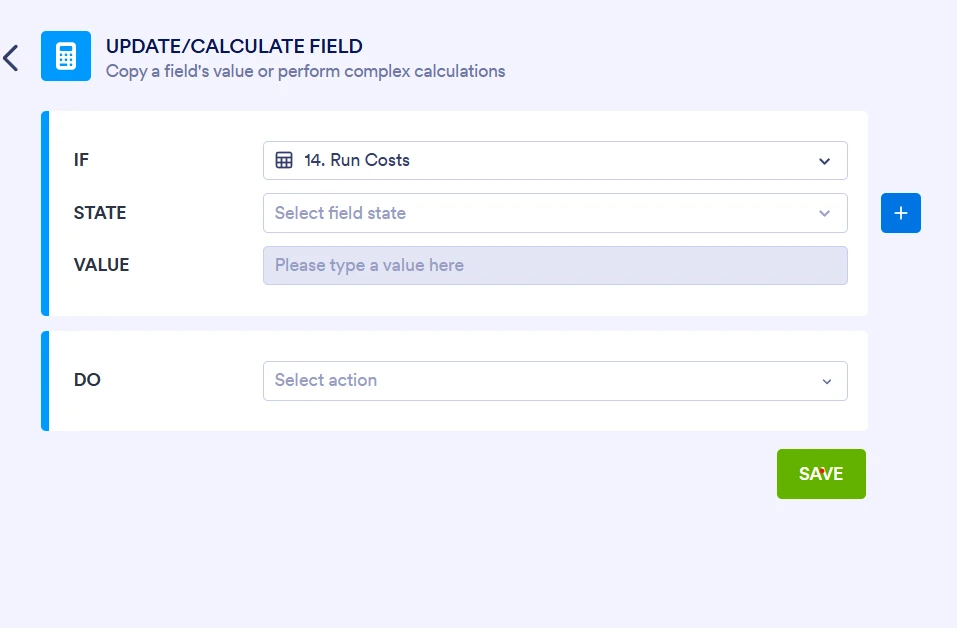
Thank you for this information. I am still having trouble because the If part of the condition is a dropdown so I cannot type in If Column 1 is Filled. I can only select from the drop down which contains all the different elements I have entered into the form. I have included a screenshot showing the dropdowns.
-
Podo: Support Specialist
Hi Kimberly,
When setting up conditional logic in Jotform, the "If" part requires you to select an element from the dropdown list of form fields. You cannot directly type "If Column 1 is Filled" if Column 1 is a dropdown field in your input table.
Here’s how to handle this situation:
- Select the dropdown field that corresponds to Column 1 from the list of elements in the condition builder.
- Set the condition state to "Is Filled" or "Is Not Empty" if available, which means the condition triggers when the user selects any option in that dropdown.
- In the action part, set the calculation for Column 3 as the multiplication of the numeric values from Column 1 and Column 2.
Make sure that the fields in Column 1 and Column 2 are set as Number fields or have numeric values for the multiplication to work correctly.
Unfortunately, you cannot type custom conditions manually; you must select from the available fields and states in the dropdown menus.
If you want, you can share the screenshot you mentioned, and I can guide you more precisely based on what you see.
Give it a try and let us know how it goes.
-
hultonkim
I entered Number of Runs 1 * Cost Per Run 1 and said Do for the first row, but I would like it do do this for other rows in the input table.
-
Podo: Support Specialist
Hi Kimberly,
To have the calculation apply to multiple rows in your input table, you need to set up the conditional logic to work dynamically for each row rather than just the first row.
Here’s how to do it:
- Ensure the columns in your input table are set as Number fields so that calculations can be performed correctly.
- Use the Update/Calculate Field conditional logic to multiply the values of the corresponding columns in each row.
- Set the condition to trigger when the first column of any row is filled (e.g., If Number of Runs is filled).
- In the calculation, multiply the values of the first and second columns for the same row and assign the result to the third column of that row.
Unfortunately, Jotform’s conditional logic does not allow you to create a single condition that automatically applies to all rows in an input table. You will need to create a separate condition for each row, specifying the fields for that row.
If you want a more advanced approach, you might consider using Jotform Tables with Advanced Formula columns to perform calculations after submissions are collected.
Here is a helpful guide on Using Conditional Logic for Calculations and Using Advanced Formula in Jotform Tables for more details.
Give it a try and let us know how it goes.
-
hultonkim
Can I make a Jotform Table using Advanced Formulas and then insert it into the Jotform form I am creating?
-
Podo: Support Specialist
Hi Kimberly,
Jotform Tables with Advanced Formulas allow you to create powerful calculations and expressions within the table itself. However, you cannot directly insert a Jotform Table with Advanced Formulas into a Jotform form as an input element.
Advanced Formulas are used within Jotform Tables to perform calculations on submission data after it has been collected, rather than as interactive fields inside the form builder.
If you want to perform calculations dynamically within your form (such as multiplying values in an input table), you need to use the Update/Calculate Field conditional logic in the form builder itself.
For more complex calculations and data management after submissions, you can use Jotform Tables with Advanced Formulas to analyze and process the collected data.
Here is a helpful guide on Using Advanced Formula in Jotform Tables for more details.
Let us know if you need further assistance.
-
hultonkim
Thank you
-
Podo: Support Specialist
Hi Kimberly,
You’re welcome.
Give it a try and let us know how it goes.


Your Reply
Something Went Wrong
An error occurred while generating the AI response. Please try again!