-
 RBANW
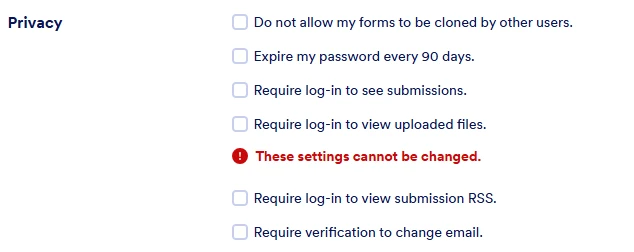
RBANWWe are having issues with our email recipients being able to download files from emails, and instead trying to make them login. The Jotform account has "Require log-in to view uploaded files." turned off as well as the other fields, as shown in the screenshot. HIPAA and any other compliance fields are turned off and so should not interfere. Thanks

-
 Podo: Support Specialist
Thanks for the details — since you’re still being asked to log in, let’s double‑check a few things step by step.
Please confirm these steps were done exactly like this:
- Go to your Workspace page and click your profile picture/avatar in the top-right.
- Click Settings to open your Account Settings in a new tab.
- Go to the Security tab on the left.
- In the Verification prompt, click Send Verification Code.
- Copy the verification code sent to the email of your Jotform account and enter it to verify.
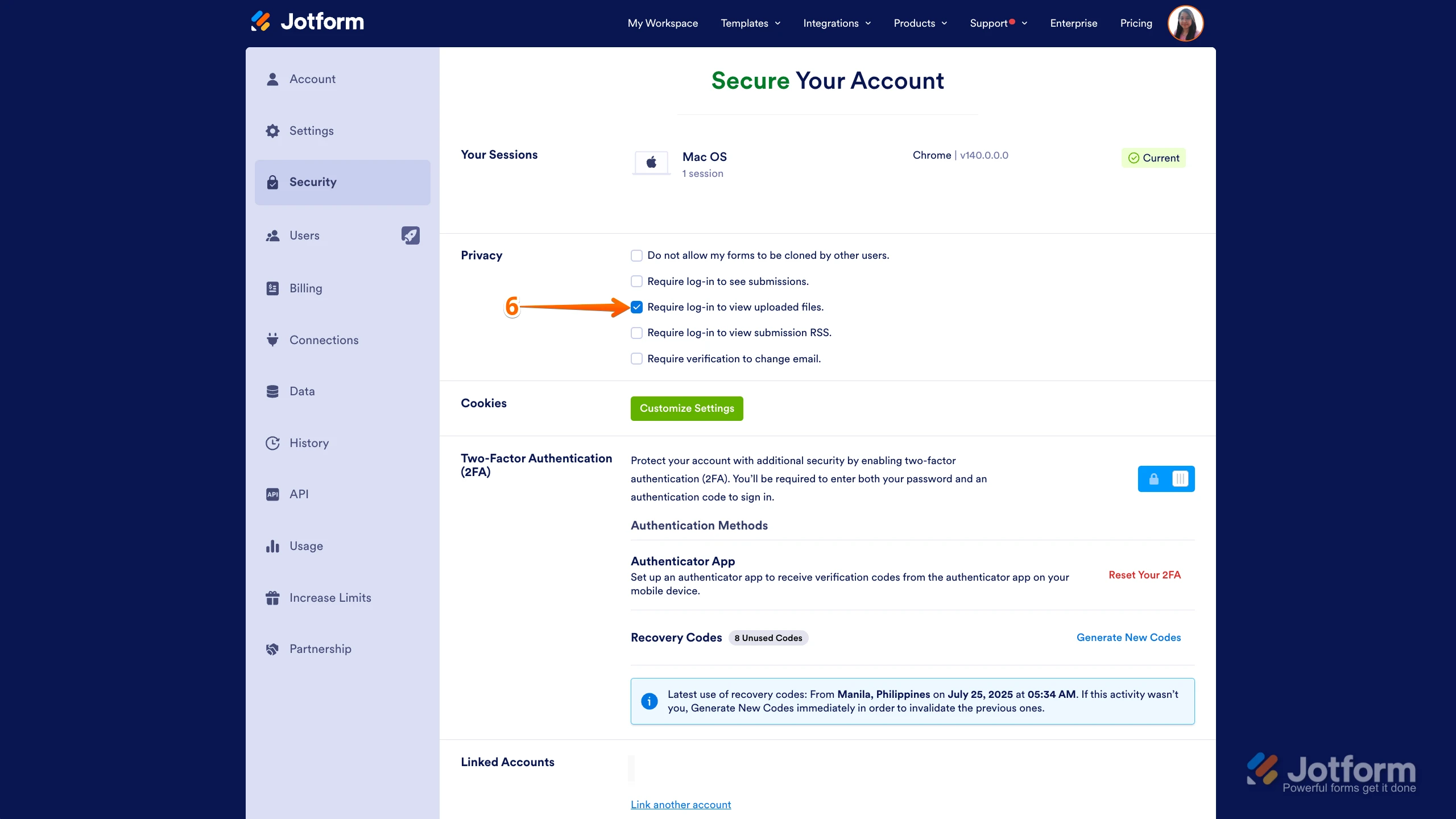
- Under the Privacy section, make sure “Require Log-in to View Uploaded Files” is unchecked.
If that option is already unchecked and recipients are still being asked to log in, please let me know:
- A sample form URL where this happens.
- Whether the files are being accessed via notification email links, autoresponder emails, or Jotform Tables/Inbox.
Here’s our full guide for reference: How to Disable Require Log-in to View Uploaded Files: https://www.jotform.com/help/673-how-to-unrequire-log-in-to-view-uploaded-files/
If you’ve followed all of this and the issue persists, I can help you narrow down whether it’s specific to certain forms, fields, or email templates, so feel free to share more details.
-
RBANW
Recipients are still being asked to login. It is happening through notification email links. Here is a the form where it was initially happening https://form.jotform.com/RBANW/install-post-walk.
-
Podo: Support Specialist
Thanks for sharing the form link and the extra details.
Since your recipients are still being asked to log in from the notification email links, please double‑check that the global privacy setting is fully disabled by following these exact steps:
- Go to your Workspace page and click your Profile Picture/Avatar in the top-right.
- Click Settings to open your Account Settings in a new browser tab.
- Go to the Security tab on the left.
- In the Verification prompt, click Send Verification Code.
- Copy the Verification Code sent to the email address linked to your Jotform account.
- Enter the code to verify you’re making changes to your account (you may or may not need to click the green Verify button after entering the code).
- Under the Privacy section, make sure the box next to Require Log-in to View Uploaded Files is unchecked.
Here’s the full guide for reference: How to Disable Require Log-in to View Uploaded Files – https://www.jotform.com/help/673-how-to-unrequire-log-in-to-view-uploaded-files/
If this option is already unchecked and you’re not on an account with mandatory security (like HIPAA or KYC-locked settings), please let me know:
- A recent submission ID from that form where the issue occurs, and
- Whether the notification email template was customized (so we can look at how the file links are being inserted).
Once you share that, I can help you narrow down if it’s something specific to that form’s notification setup or a broader account-level behavior. Let me know what you find from the Security tab too.
-
RBANW
where can i find the submission id?
-
Podo: Support Specialist
Hi RBANW,
It only takes a minute to find the Submission ID in your Tables page. Let me show you how:
- In Jotform Tables, in the top-right corner of the page, click on the Columns & AI button.
- Next, in the menu that opens up, look for the hidden Submission ID column and check the box next to it.
Reach out again if there’s anything else we can help you with.
-
RBANW
The Submission ID is 6525254361314369718. The Email notification is default
-
Podo: Support Specialist
Thanks for sharing the Submission ID and confirming the email notification is using the default template.
Since your recipients are still being asked to log in to view uploaded files, please make sure this global privacy setting is fully disabled by following these exact steps:
- On your Workspace page, click your Profile Picture/Avatar in the top-right.
- In the menu that opens, click Settings to open your Settings page in a new browser tab.
- Go to the Security tab on the left, then in the Verification prompt click Send Verification Code.
- Copy the Verification Code sent to the email address linked to your account.
- Enter the code to verify you’re making changes to your account (you may or may not need to click the green Verify button after entering it).
- Under the Privacy section, uncheck the box next to Require Log-in to View Uploaded Files.
Here’s the full guide for reference: How to Disable Require Log-in to View Uploaded Files – https://www.jotform.com/help/673-how-to-unrequire-log-in-to-view-uploaded-files/
If this is already unchecked and your account is not restricted by mandatory security (like HIPAA or KYC), let me know and we can look next at whether this is happening on all submissions for that form or only some of them, and whether any other account members see different behavior when opening the same notification email.
-
RBANW
That field has always been unchecked
-
Podo: Support Specialist
Hi RBANW,
Since the "Require Log-in to View Uploaded Files" option has always been unchecked, let's review some additional steps to ensure your recipients can download files without logging in.
Here’s a helpful guide on how to disable the requirement to log in to view uploaded files in your account settings. It walks you through the exact steps to verify this setting:
- On your Workspace page, click on your Avatar/Profile Image in the top-right corner.
- In the dropdown menu, click Settings.
- Click the Security tab on the left side.
- Click Send Verification Code.
- Enter the authentication code sent to your email and click Verify.
- Make sure the box next to Require Log-in to View Uploaded Files is unchecked.
If everything is set correctly and the issue persists, it might be related to the notification email setup or other account settings. Please let me know if you need further assistance.
-
RBANW
We've been over this before. It has always been unchecked. every other box has been unchecked. Why do people still have to login to download files
-
Podo: Support Specialist
Hi RBANW,
Since the "Require Log-in to View Uploaded Files" option has always been unchecked, here is a detailed guide on how to disable this setting to prevent the system from asking users to log in before viewing or downloading submission attachments. It only takes a few simple steps:
- On your Workspace page, click on your Avatar/Profile Image in the top-right corner of the screen.
- In the dropdown menu that appears, click on Settings.
- Click on the Security tab on the left side of the page.
- Click on Send Verification Code.
- In the confirmation window, enter the Authentication Code sent to your email and click Verify.
- Now, uncheck the box next to Require Log-in to View Uploaded Files. That’s it. You’re done.
If the issue persists despite this setting being unchecked, it could be related to other account or form-specific settings. Please let me know if you need further assistance.
-
RBANW
Escalate this to a live agent. This is going in circles
-
Podo: Support Specialist
Hi RBANW,
One of our Support Team members will take it from here to follow up shortly.
-
 Lorenz JotForm Support
Hi RBANW,
Thanks for reaching out to us for help. As your account is verified and allowed to collect sensitive information under our Terms of Use, certain security settings are required in line with our policies, applicable data protection standards, and relevant regulations. For this reason, these settings cannot be disabled.
If you need to share your documents or submissions with others for your operational needs, you can share the access link or invite users via email to your Tables/Inbox. If your Table is set to public, users who are logged into a Jotform account will be able to access the uploaded files directly via the link without needing to navigate through the Table interface.
As an alternative, you may also consider using the Google Drive integration to manage and share uploaded files within your workflow. If you are managing your processes via API, including authenticated session cookies in your requests would also allow access to these resources.
We appreciate your understanding on this matter.


Your Reply
Something Went Wrong
An error occurred while generating the AI response. Please try again!