-
 Bekkala
Ideally I would love to send it in the exact format it is in when i review the submission.

-
 Podo: Support Specialist
Hi Evan,
Thanks for reaching out to Jotform Support. I'm an AI assistant here to assist you.
You can easily let your users check their answers before completing the form with the Review Before Submit widget. Here9s how to add it to your form:
- In Form Builder, click on Add Elements in the upper left to open the Form Elements menu.
- Then, in the Form Elements menu on the left, go to the Widgets tab.
- Search for Review Before Submit, then drag and drop it to your form.
Check out the screencast below to see the Review Before Submit page that users will get before completing the form:
Let us know if you need any more help.
-
 Royce JotForm Support
Hi Evan,
It seems like creating a new PDF document in PDF Editor already includes the design you preferred since it's already simple to read. Here's how to do it:
1. In Form Builder, click on the Downward Arrow icon on the upper-left part of the screen.
2. Then, click on PDF Editor above Form Analytics.
3. In PDF Editor, click on New PDF on the blue navigation bar.
4. Next, click on Use Default Layout next to Use Template.
After that, you can attach the PDF document to Notification Email on your form. You can clone my demo form, or you can do it on your end. Let me show you how to do it:
1. In Form Builder, click on Settings on the orange navigation bar.
2. Under the Emails field, click on Edit on your preferred Notification Email.
3. Then, click on the Advanced tab next to the Recipients tab.
4. Next, enable the Attach PDF field.
5. Under the Attach PDF field, tick the checkbox of your preferred option.
6. Now, scroll down and click on Test Email to see if everything is working. If everything is good, then click on Save Email.
That's it. Take a look at the screencast below to see my results:
Let us know if there’s anything else we can help you with.
-
BekkalaRoyce,
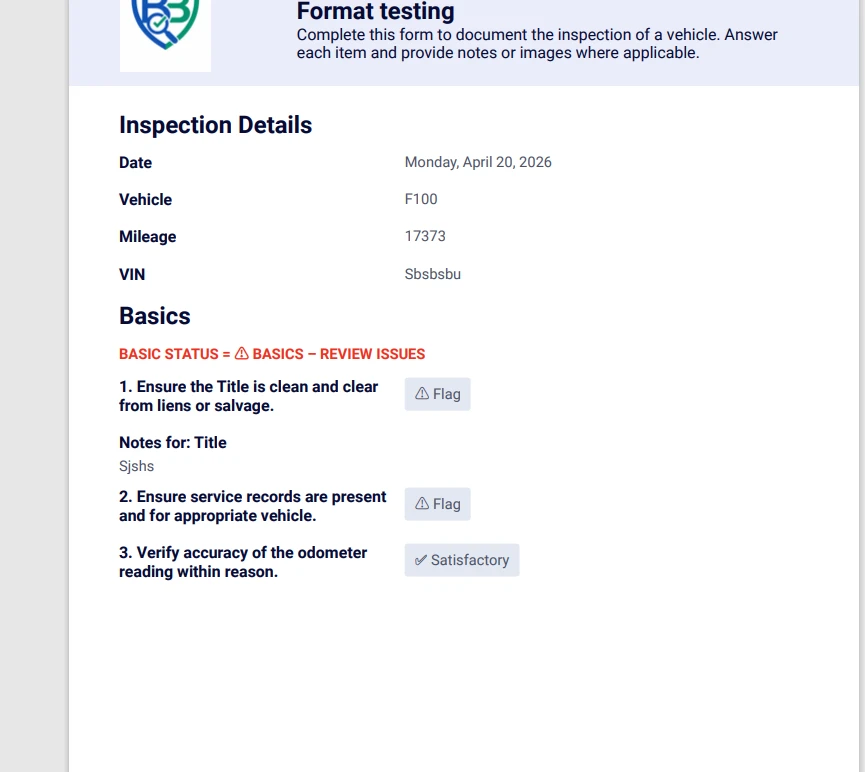
I would really love to send the form in the same format as I see it in
my submission box. See below. It has the quickly identifiable colors and
check mark and flag. It also has the pictures as images you can click and
open. It’s organized well and simple to skip through and see discrepancies.
Is it possible for me to send the submitted reports in this same format? I
don’t like the plain colors in the downloaded pdf and it also feels
jumbled. The pictures are not clickable as well. can you help me with this?
Regards,
*Evan Bekkala *
*President/CEO*
*Buyer Buddy *
Phone: 906-201-4069
Email: evan@buyerbuddy.co
... -
 Kris JotForm Support
Hi Evan,
Your recent response to us doesn't have an attached screenshot. Can you try again, or is it the same as with the screenshot you shared with us when you opened this support ticket? You can customize the PDF file through the PDF Editor. If you can share with us a screenshot of how you'd like it to show, we can try to look for ways to replicate it.
Once we hear back from you, we can help you sort this out.
-
EEvan Bekkala
did this work?
-
 Rica Support Team Lead
Hi Evan,
Yes, we received your screenshot. Unfortunately, there's no direct way to copy the format of the Jotform Mobile App's Submission view. Images in a downloaded PDF are not clickable because they are treated as static visual content rather than interactive elements. If you would like the Single Choice field’s answer to have a background color, you will need to manually set it in the PDF Editor. Let me show you how:
1. In PDF Editor, click on the Single Choice field to highlight it, then click on the Gear icon.
2. On the Radio Settings on the right side of the page, select Box as the Display Style, and then select the Box Color.
That’s it. Let us know if you have any other questions.


Your Reply
Something Went Wrong
An error occurred while generating the AI response. Please try again!