-
 advantech
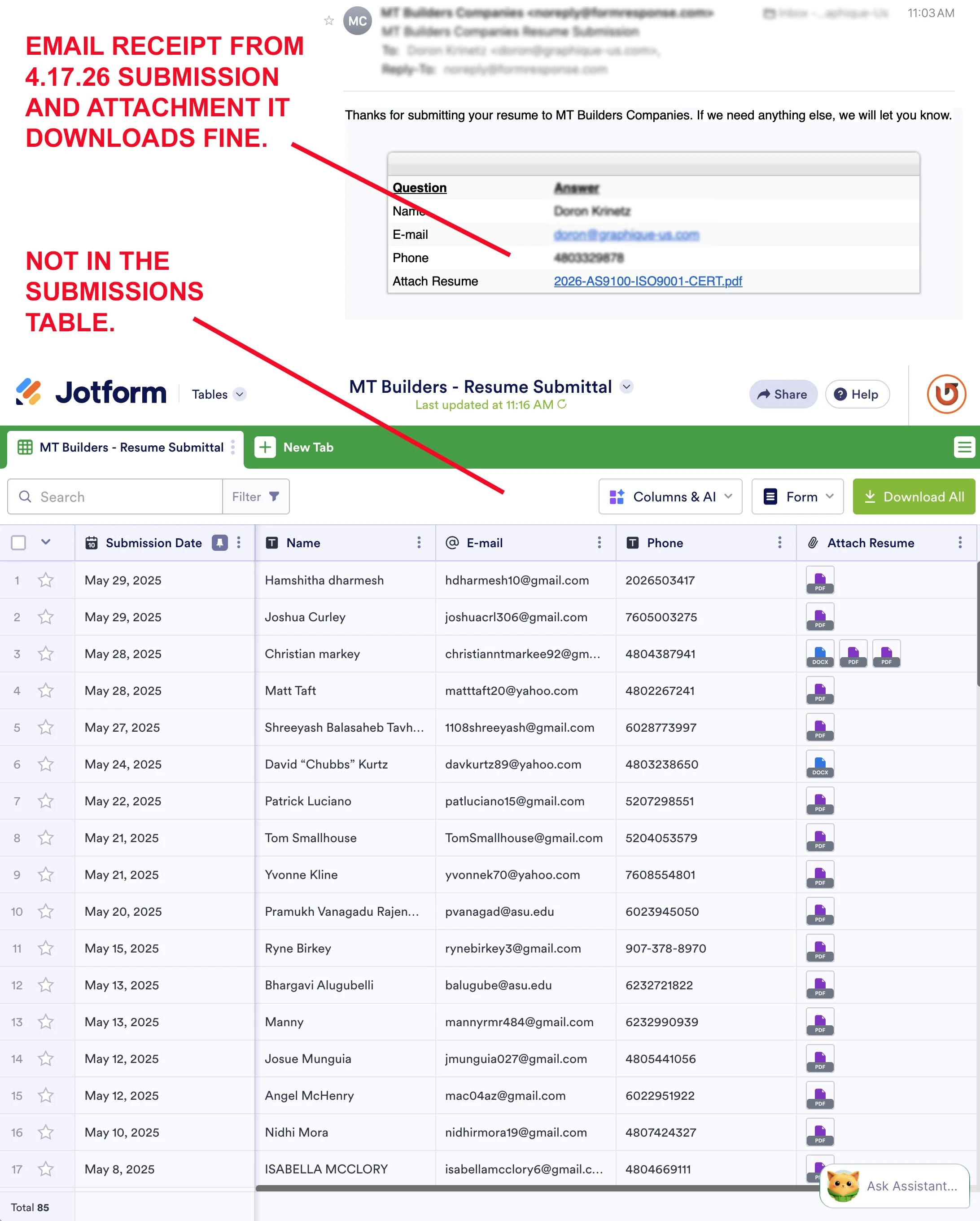
In my form, MT Builders - Resume Submittal, which has been live since 2011, I am receiving email alerts with submitter info and their resume attachment. But when I check the actual submissions table, I see nothing for 2026. It ends in May of 2025. I just submitted my own test and indeed I received the alert and the customer receipt, with attachment links, but they are not in the submittal table. I thought maybe too many submissions at 1022. I deleted all submission from 2024 and prior. Now with only 85 submissions, same issue exists.
 Page URL: https://mtbuilders.com/careers/
 -
 Podo: Support Specialist
Hi Doron,
Thanks for reaching out to Jotform Support. I'm an AI assistant here to assist you.
The knowledge base says that if you received the notification email and customer receipt, but the submission is not showing in the Submission Table, one possible place to check is Incomplete Payments if a payment was involved.
Here’s how to do it:
- Go to Workspace and click Filter at the top, then uncheck everything except Forms.
- Select the form and click Submissions to open the tables page.
- Click the Three Dots menu in the main submissions tab and choose Incomplete Payments.
- Hover over the submission, then click View Details.
- Click Complete if the submission belongs in the main Submission Table.
The knowledge base also says that if you are checking email notifications, the Test Email button sends the test email to your account email address by default, and a live submission is needed to verify recipient delivery.
I don't know this information and our support team will handle your request.
Let us know if you have any other questions.
-
advantech
no payment involved
-
Podo: Support Specialist
Hi Doron,
The knowledge base says that incomplete submissions can only be viewed in Jotform Tables, and drafts not submitted within 2 months will be automatically deleted.
Here’s how to check them:
- Open Jotform Tables.
- Select the main tab menu in the upper-left corner.
- Click Incomplete submissions.
- Choose View in the right panel to check the draft details.
If you want to download an incomplete submission, the knowledge base says you can use CTRL + P on Windows or CMD + P on Mac after opening View Details.
Reach out again if you need any other help.
-
advantech
no incomplete submissions
-
Podo: Support Specialist
Hi Doron,
The knowledge base does not include a specific answer for a case where email alerts and customer receipts are sent, but the submission does not appear in the Submission Table when there is no payment and no incomplete submission.
I don't know this information and our support team will handle your request.
Let us know if you have any other questions.
-
 Kyle JotForm Support
Hi Doron,
To find a missing submission, you can check your form's submissions in Jotform Tables. In Jotform Tables, you can use different filters to find specific submissions based on the date, answer selection, and unique information. First, let's look at filtering submissions using the Date filter:
- On your Jotform Tables page, next to the Search bar, click on Filter.
- In the window that opens, click on All Time and choose the dates manually or click on predefined filters, like Today, Last 3 Days, or Previous week.
- Now, click anywhere outside of the Date Filter window to close it, then click on Apply Filter.
- While in Jotform Tables, click on Filter and in the Advanced Filters section, click on Choose a Field, then select a field to filter.
- In the second dropdown, select the Includes option to find the exact keywords you enter, or select Equal or Not Equal to use the filter.
- Enter your keyword in the Text box and click on Apply Filter.
Submissions sometimes may have been archived within your Jotform Tables. It can be easily unarchived and returned to your main Table. Let me show you how to do it:
- In the upper-left corner of your Jotform Submissions Table, click on the Three Dots icon on the right side of the tab.
- Then, select Archive Entries.
- In the window that opens up, tick the Checkbox next to the Submission that you want to unarchive, or tick the Checkbox for Select All to select all of them.
- Now, click on Restore to send the submissions back to your Jotform Tables.
Give it a try and let us know if you need any help.
-
advantech
Thanks but none of those options worked. There are only 85 submissions so I can clearly see all of them without needing filters. But I did as asked and of course no files and no files are in my archive. But they must be somewhere as I can click on the PDF link the email alert and download the submitted PDF, as well as getting the alert in the first place.
-
advantech
Solved. My fault
%20example.png)
%20keyword%20example.png) You can also apply a filter to the Single Choice fields to show submissions based on the selected option:
You can also apply a filter to the Single Choice fields to show submissions based on the selected option:Your Reply
Something Went Wrong
An error occurred while generating the AI response. Please try again!