-
 SunshineVillage
Hi Team,
I have a workflow that has an Approve and Sign step, it then on approval goes to a flow report step.
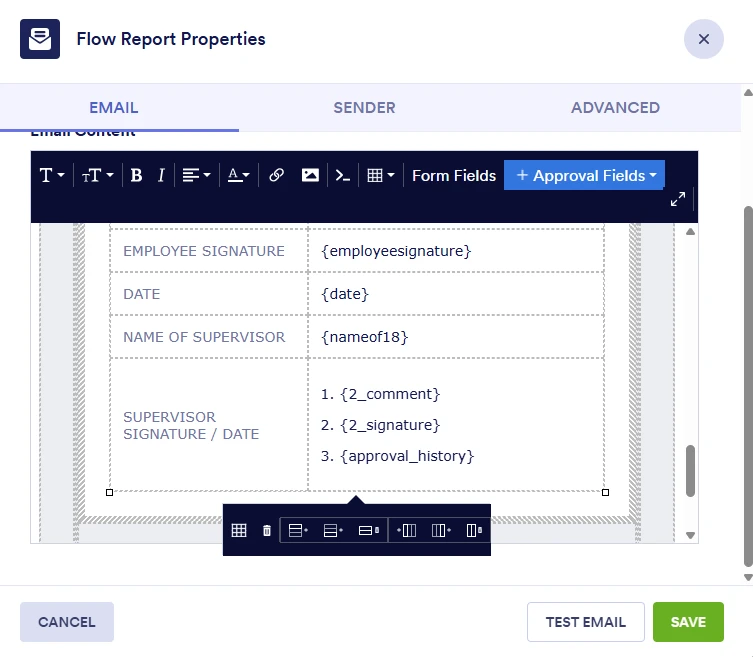
I am setting up the custom flow report email and I want to add the signature added from the approve and sign step to a specific spot. I can see the "Approval Fields" and add "Approve & Sign comment" which adds "{2_comment}" but not the signature.
I also tried "{2_signature}" but that didn't result in anything and I only get the comment from the "{2_comment}" and the "{2_signature}" field is blank.

-
 Podo: Support Specialist
Hi Lift,
Thanks for reaching out to Jotform Support. I'm an AI assistant here to assist you.
Here’s how to do it:
- Open your Workflow Builder and select the Approve & Sign element.
- Check the element properties and make sure the signature is required for the approval outcome you are using.
- Go to your Flow Report element, then select Settings and Edit to customize the email report.
- Use the available Approval Fields to insert the approval data into your email report.
The information available here confirms that Approve & Sign requires the approver to provide a signature when approving or denying an entry, and that Flow Report can include approval details such as comments. It does not include any confirmation that a signature field like {2_signature} is available for insertion in the custom flow report email.
If you want, I can help you review the workflow setup steps that are available in the knowledge base.
Let us know if you have any other questions.
-
 Joeni JotForm Support
Hi SunshineVillage,
It looks like you’d like to customize the Flow Report email content to include the approver’s signature. At the moment, signatures can’t be added directly to the email content, you can only include the approver’s comments.
As a workaround, you can enable the Show actor’s signature option in the Flow Report settings, which will display the approver’s signature in the report. Let me show you how:
- In Workflow Builder, select the Flow Report element and click on the Gear icon.
- Next, click on the Settings button of the Flow Report and put a check on the Show actor’s signature option in the Report settings.
Your Reply
Something Went Wrong
An error occurred while generating the AI response. Please try again!