-
 kartikeraj25
Hello Team,
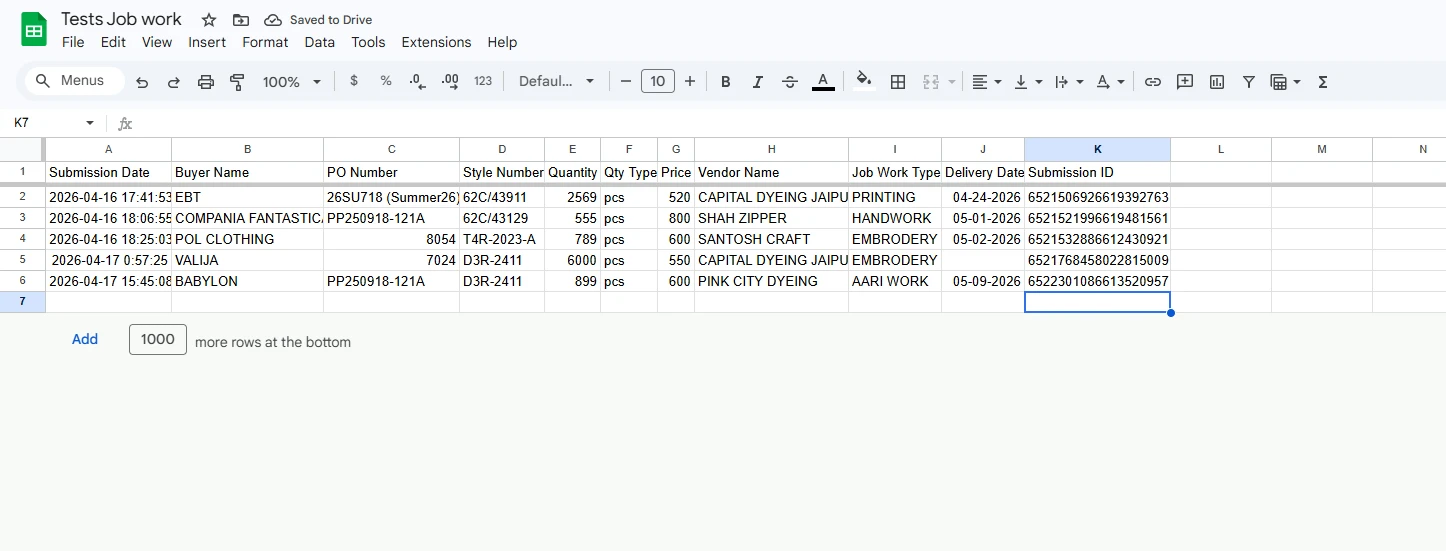
I am currently using Jotform to collect form responses and have integrated my form with Google Sheets. Additionally, I have created a PDF template using Jotform’s PDF Editor, where the submitted form data is automatically converted into a PDF.
The issue I am facing is that while the PDF is being generated successfully, the link to the generated PDF is not appearing in the connected Google Sheets where all the form responses are stored.
My requirement is to have the PDF link automatically available in the Google Sheet alongside each corresponding submission, so it can be easily accessed and used for further processing.
Could you please guide me on:
- Whether it is possible to send the generated PDF link to Google Sheets automatically?
- If yes, what is the correct way to configure this?
- If not, is there any recommended workaround to achieve this?
Looking forward to your support.
Thank you.

-
 Podo: Support Specialist
Hi Kartike,
Thanks for reaching out to Jotform Support. I'm an AI assistant here to assist you.
Let me help you with that:
- Google Sheets integration sends form submission data to your sheet, and the knowledge base confirms that the Submission ID can be included in the fields sent to Google Sheets.
- Google Sheets integration does not mention an option to automatically send the generated PDF link to the sheet.
- For Smart PDF Forms, the available PDF-related options in the knowledge base are:
- Preview PDF on the form
- Download PDF button on the Thank You page
- Attach PDF in email alerts
- Save the original PDF to cloud services like Google Drive
- A documented workaround is to use Google Drive integration to send the generated PDF to Google Drive, since the knowledge base confirms that the original PDF can be saved there.
- If you need the PDF to be available in Google Sheets specifically, the knowledge base does not provide a confirmed method for adding that PDF link automatically to the sheet.
I don't know this information and our support team will handle your request.
Let us know if you have any other questions.
-
 Eduardo_Ca
Hi Kartike,
As a workaround,k you can save the original PDF to Google Drive through the Google Drive integration. That integration includes a Send Submission PDFs to Google Drive option, and after saving the integration, you can access the created file in your Google Drive folder. It's quite easy to do that. Let me show you how:
1. In Form Builder, in the orange navigation bar at the top of the page, click on Settings.
2. Then, in the menu on the left side of the page, click on Integrations.
3. Now, search for Google Drive and click on it.
4. Next, select an email address to use a saved Google Account, then click on Authenticate on the right. Or click on Use Another Account below the Dropdown menu to log in and allow access for a different one.
5. Set up the Google Drive settings as you want and click on Save.
Reach out again if there’s anything else we can help you with.



Your Reply
Something Went Wrong
An error occurred while generating the AI response. Please try again!