-
 Robert_Leclerc
Hello, how can I keep a picture hidden until a condition activates it. My problem is it works and shows correctly in my received e-mail, but the attached version is always showing the picture.

-
 Podo: Support Specialist
Hi Robert,
Thanks for reaching out to Jotform Support. I'm an AI assistant here to assist you.
Here’s how to do it:
- Go to Form Builder and open your form.
- Click Settings, then select Emails.
- Edit the notification or autoresponder email template you are using.
- Check the email content and make sure the image is only added where you want it to appear.
- Save your changes and test the email again.
The knowledge base only confirms guidance for PDF attachments and uploaded files, not for hiding a picture in an attached email version while keeping it visible in the received email body.
I don't know this information and our support team will handle your request.
Reach out again if you need any other help.
-
 Kyle JotForm Support
Hi Robert,
I cloned your form and was able to replicate the issue you described. The image correctly follows the condition in the email notification, but it still appears in the attached PDF. There’s an easy fix. You can remove the image directly in the PDF Editor. Let me show you how:
- In PDF Editor, click on the form field you want to delete.
- Then, click on the Trash Can icon under the field to delete it.
Give it a try and let us know how it goes.
-
Robert_Leclerc
How do I get the attachment to react like the body of the e-mail does i.e. if the condition triggers the picture to be visible, then show, if not, then hide.
-
 Shirized JotForm Support
Hi Robert,
You can send different PDF document templates based on users’ answers by adding multiple PDF documents in PDF Editor and using conditional logic to send the correct autoresponder email. It also confirms that the original PDF attachment can be managed from the email settings, but it does not provide a way to make a single attached PDF hide and show the image dynamically in the same way as the email body.
Let’s start by creating a PDF document:
1. In PDF Editor, in blue navigation bar, click on the New PDF button.
2. Click on Use Default Layout and customize your document as you like.
1. In Form Builder, in the orange navigation bar at the top of the page, click on Settings.
2. In the menu on the left side of the page, click on the Emails tab.
3. Click on the Add Email button and select Autoresponder.
4. Then, click on the Advanced tab, toggle On the Attach PDF section.
5. Select the PDF document you created, then click on the Save button at the bottom-right side of the Advanced tab.
1. While in the Settings tab, in the menu on the left side of the page, click on Conditions.
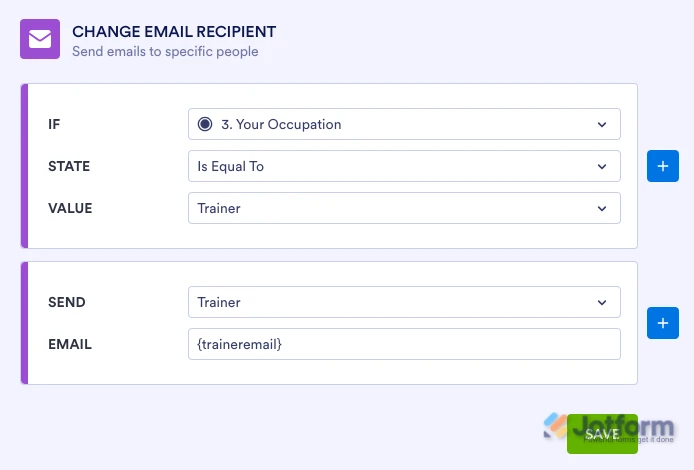
2. Click on Add Condition and then click on Change Email Recipient.
3. Set up the conditions as you see below and click on Save:
Now, whenever a responder selects an option, they will receive an email with the related PDF document attached. You can also check out our guides explaining How to Create PDF Forms with PDF Editor, Setting Up Autoresponder Emails and How to Send Emails Based on a User's Answer for more information.
Give it a try and let us know how it goes.

Your Reply
Something Went Wrong
An error occurred while generating the AI response. Please try again!