-
 ITFDT
ITFDTHave already, confirmed enabled Jotform as well as active stripe connection,
Removed and re-added payment option,
Tried using an incognito window,
For some reason the page doesn't allow the user to input credit card information other than the "first name" & "Last name"
-
 Podo: Support Specialist
Hi Jenny,
Thanks for reaching out to Jotform Support. I'm an AI assistant here to assist you.
Let me help you with that:
- Turn on Ask Billing Information to Customer in your Stripe payment form settings.
- Check the payment type you selected, since Stripe payment forms can use different payment setups.
- Add a Short Text element if you want to send custom data to Stripe as payment information.
- Save the form settings and test the form again.
Also, if you are trying to view full credit card details, Jotform does not store or display full credit card numbers. Only the first and last four digits are visible due to PCI compliance.
If the form is still only showing First name and Last name, please share a screenshot of the payment settings area so I can help you check what is currently enabled.
Give it a try and let us know how it goes.
-
 Gian_D JotForm Support
Hi Jenny,
I've cloned your form and tested it on my end to see if I can replicate the issue, and I was able to replicate the issue on my end. Can you try changing the theme of your form to see if it's going to work? Let me show you how to do it:
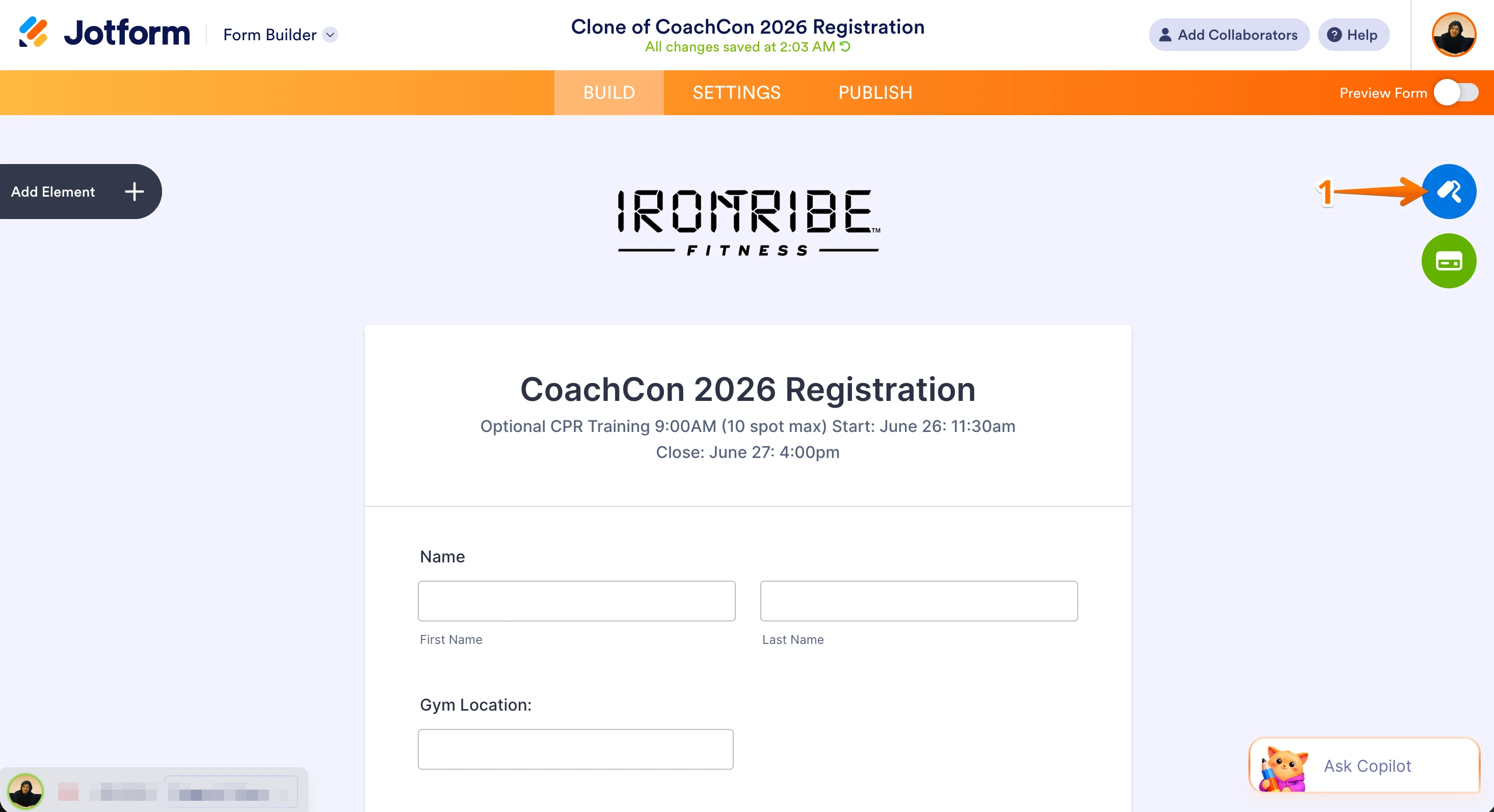
1. In Form Builder, click on the Paint Roller icon on the upper right side of the page.

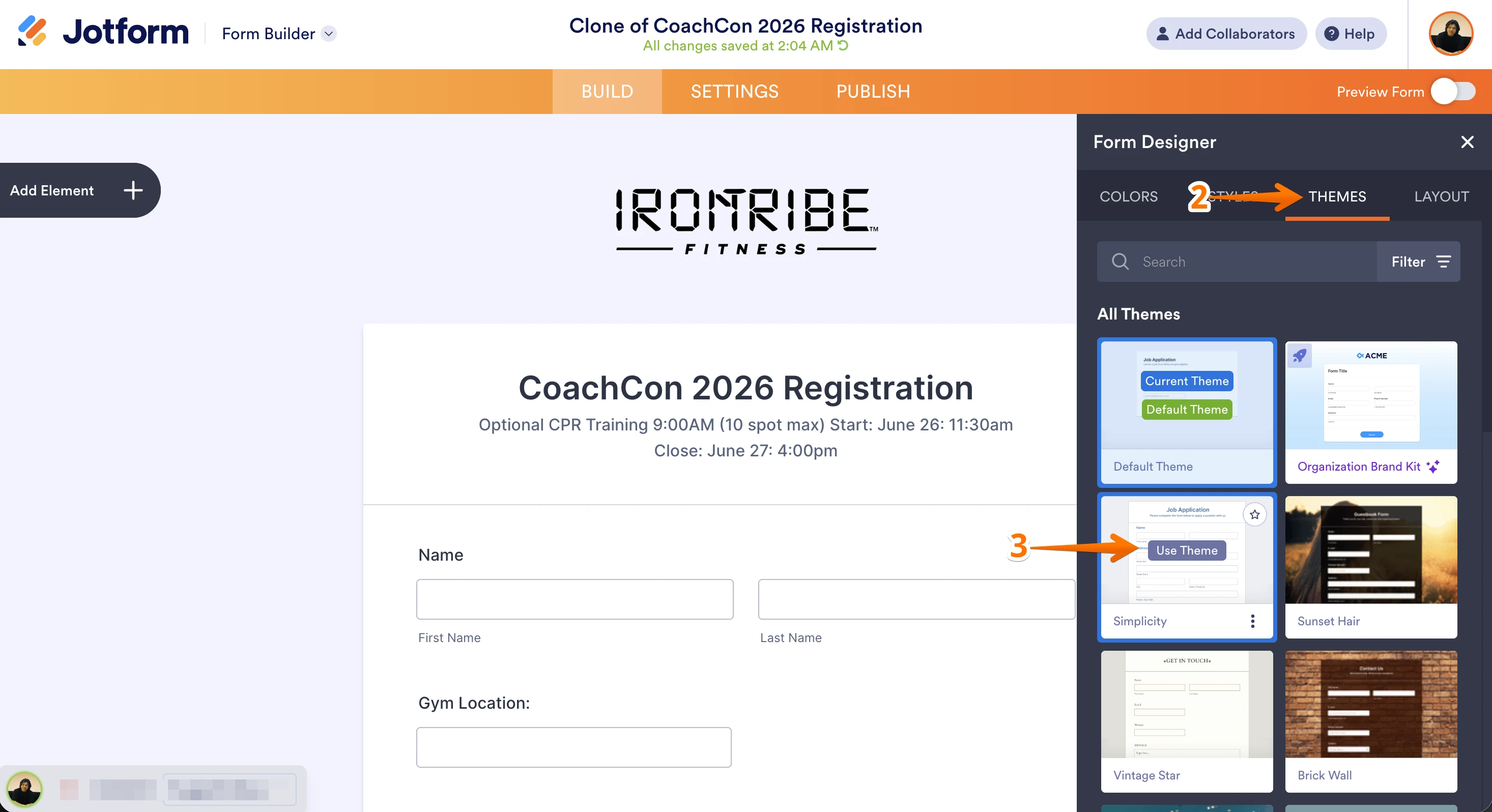
2. Then, click on Themes on the upper right side of the page.
3. Now, click on the theme that you want.Once done, can you test your form to see if it's going to work?
As soon as we hear back from you, we can work on getting you a solution for this.
-
ITFDT
This didn't fix the issue.
It's still not asking for credit card information and wouldn't let the process go through.
-
ITFDT
Shows the spaces to enter credit card information in the edit form but not in the live form.
-
 Royce JotForm Support
Hi Jenny,
When I cloned and tested your form, the same thing happened for me. After investigating it a bit, I found a solution. When integrating Stripe with your form, make sure to connect your Stripe account, and it will allow the users to input other payment information. Let me walk you through it:
1. In Form Builder, scroll down and click on the Credit Card icon in Product List field.
2. In the menu on the right side of the page, click on the Plug icon to connect your Stripe account (if you want to do a test, choose Test Mode in the Mode option).
3. Under the Payment Connections modal, select your preferred option and click on Use in the bottom-right corner.
That's it. Now your form is integrated with Stripe, and you can start collecting payments, and the user will be able to fill out the payment information. You can also check out our guides about How to Integrate Stripe With Jotform and How to Enable Payment Authorization for more detailed information. Take a look at the screenshot below to see my results:
Let us know if there’s anything else we can help you with.
-
ITFDTHi Royce -
Thanks for this - but this is already set up in Jotform, I just walked
through all the connections, and then unconnected and re-connected still
with no luck. Any other tips?
*JENNY AUVIL*
*director of operations*
300 27th street south
birmingham, al 35233
c. 205.226.8669 ext. 700
Operations Office Hours, Every Wednesday at 9:30 am CST
Click here for the Zoom link!
<https:>
passcode: tribe
</https:>... -
Royce JotForm Support
Hi Jenny,
I've cleared your form caches just to make sure it isn't causing any issues with your form. Does the issue only happen to this form, or does it also happen to your other forms as well? If so, can you try connecting a different Stripe account if it's possible?
Also, if the issue still persists in only one form, can you try cloning the form and then integrating your Stripe account into the cloned form? Cloning an Existing Form From a URL is easy. Let me walk you through it:
1. On your Workspace page, click on Create on the top-left side of the page.
2. Select Form from the assets, and then click on Import Form.
3. In the next window, click on From a Web Page.
4. Paste the form link into the Enter URL field and click on Create Form.
Keep us updated and let us know if you need any more help.


Your Reply
Something Went Wrong
An error occurred while generating the AI response. Please try again!