-
 info_info873_GROUP
Hello, I am trying to build the following workflow:
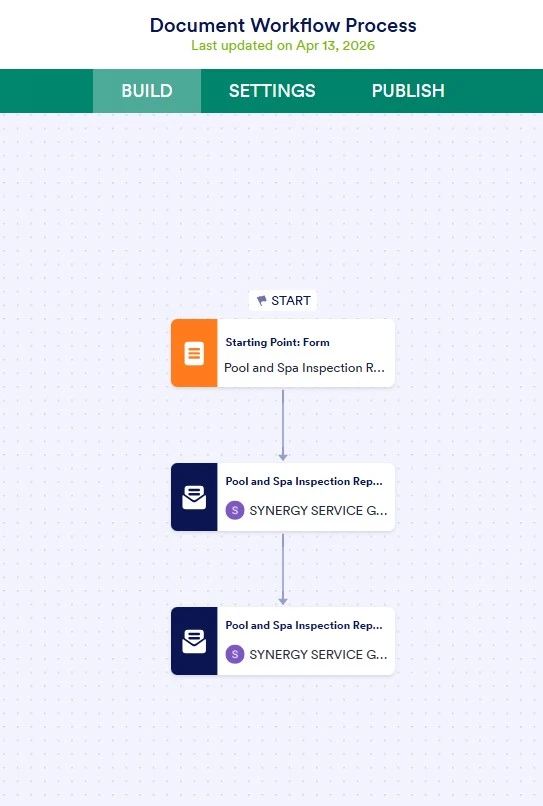
Step 1: Employee fills out and submits a form
Step 2: Submission gets routed to supervising company email with an edit link to make any changes
Step 3: Edited submission get routed to the customer email in the form with an edit link where they can check desired boxes and sign the form for approval.
My issue is that the form works at step 1 and 2 but does not work at step 3. I even tried duplicating step 2 into step 3 with the same company email just to test it and it will not send me an edit link at step 3 after doing just that at step 2.
I would really appreciate your help with this by pointing out what I am doing wrong.
Thank you,
Alia Abrams
 Page URL: https://form.jotform.com/260983726449067
 -
 Podo: Support Specialist
Hi Alia,
Thanks for sharing the details of your workflow. It sounds like the issue is with the edit link not being sent at step 3 after the submission is edited at step 2.
Let me help you with that:
- Check the email notification settings for step 3: In your form's Settings under Emails, make sure the notification email that sends to the customer includes the Edit Link in the email content. Sometimes the Edit Link might be missing or removed accidentally.
- Verify the workflow conditions: Ensure that the email notification for step 3 is properly triggered after the submission is edited at step 2. The routing and conditions must be set so that the edited submission triggers the customer email.
- Test with a duplicated notification: You mentioned duplicating step 2's notification for step 3. Make sure to update the recipient email to the customer's email field and confirm the Edit Link is included in the duplicated email content.
If you want to check or remove the Edit Link in any autoresponder email, here is how you can do it:
- In Form Builder, click on Settings in the top navigation bar.
- Click on Emails on the left menu.
- Hover over the Autoresponder Email and click the Pencil icon to edit.
- Scroll down in the Email Content window to find and remove the Edit Link if needed, then click Save.
Make sure the Edit Link is present in the email for step 3 and the notification is set to send after the submission is edited at step 2.
Give it a try and let us know how it goes.
-
info_info873_GROUP
That did not work and I am looking for workarounds now. I added approval step, but the approval email also not coming through as intended. It does not allow me to approve or deny and just has the following text in the body "Approval => taskID => 18271261033451562036" (screenshot attached). Co-pilot was not able to fix the issue.
-
 Lorelie Enterprise Support
Hi info_info873_GROUP,
I checked the approval email notification and checked that it was empty. I've included a screenshot below for reference:
To fix the issue, can you try to remove the Approval element in the flow and add it back? Here's a screenshot of the Approval's email content in the cloned version of your form after re-adding the Approval element to the flow:
Here's my result:
Let us know if there's anything else we can help you with.


Your Reply
Something Went Wrong
An error occurred while generating the AI response. Please try again!