-
 itservicedesk253
Hello, support
For better Task Response, I need my assignee can read the information submitted in the Form.For an example, lets use an it support case , form will be :
- name
- div
- date
- support category ( can be field or radio box )
- description ( not mandatory
On the Task, the assignee can see the 5 fields in the form in his/her Task Response.
I tried adding fields in the Task Properties, Customize. but i can only see one field when tried in a paragraph.

WIll be looking forward for some answer,
Thank You -
 Podo: Support Specialist
Hi,
Thanks for reaching out to Jotform Support. I'm an AI assistant here to assist you.
Let me help you with that:
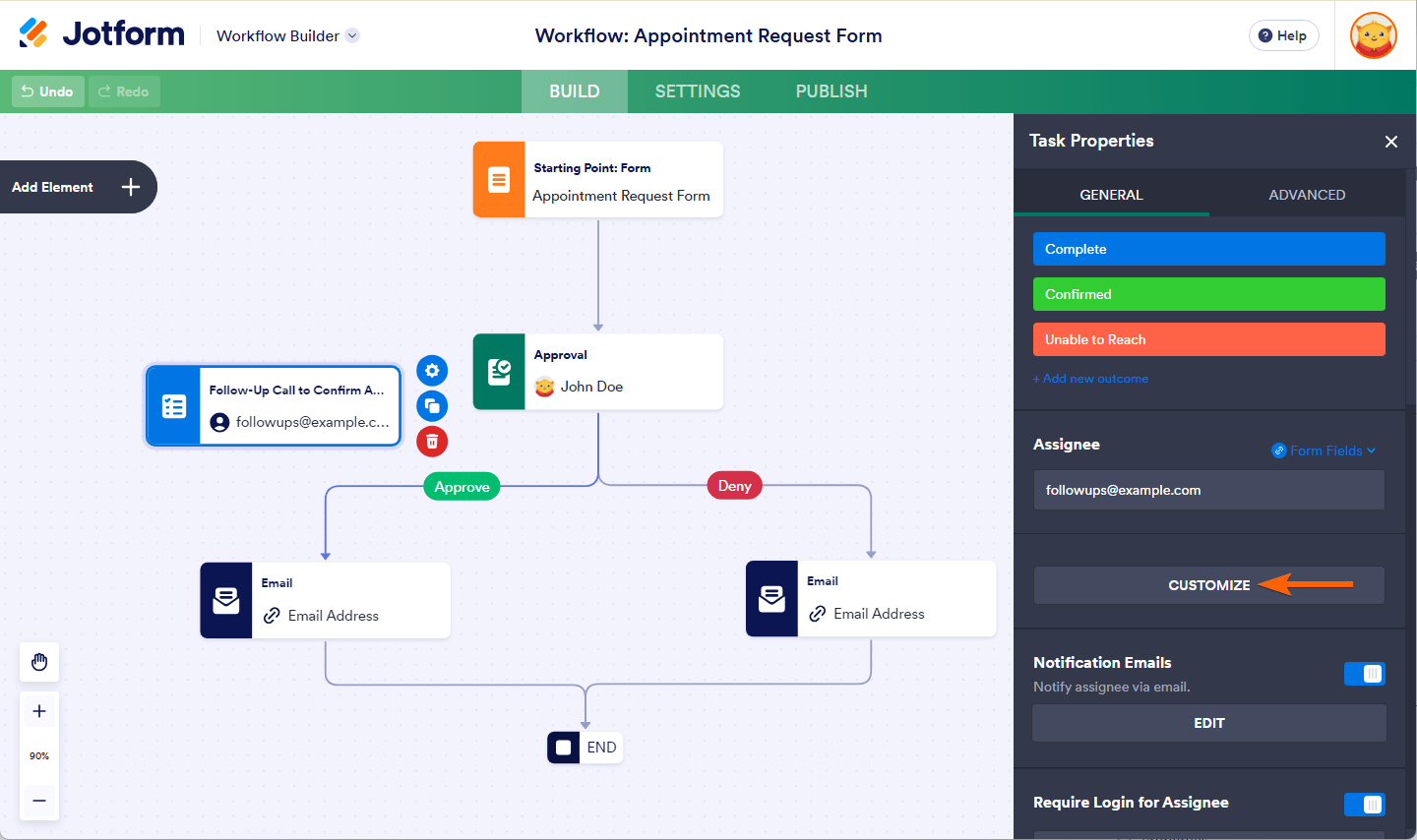
To allow your assignee to see multiple fields from the submitted form in their Task Response, you need to customize the Task Response Form in the Workflow Builder. Here’s how to do it:
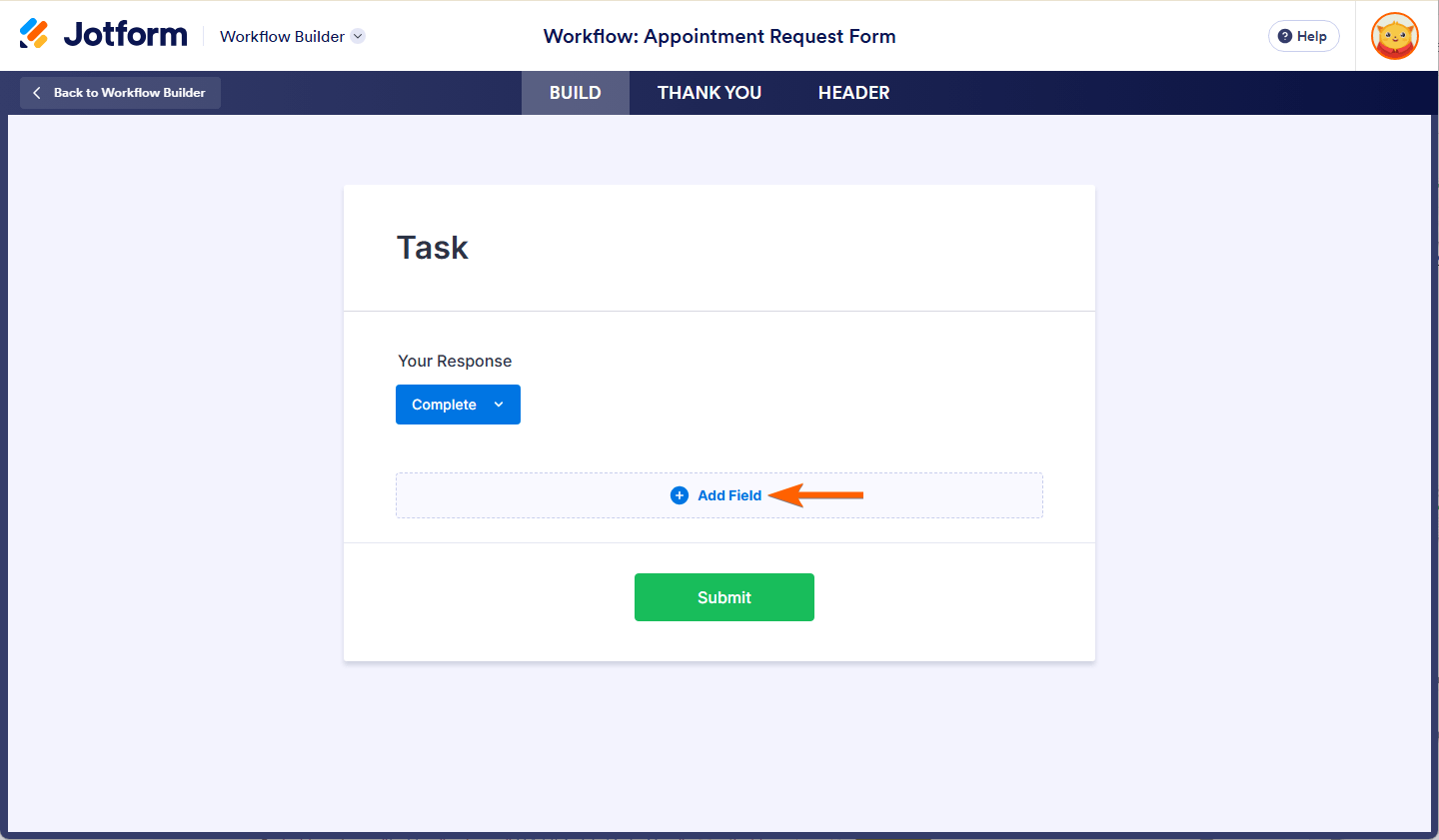
- Open Task Properties and click on the Customize button to open the Task Response Form Builder.
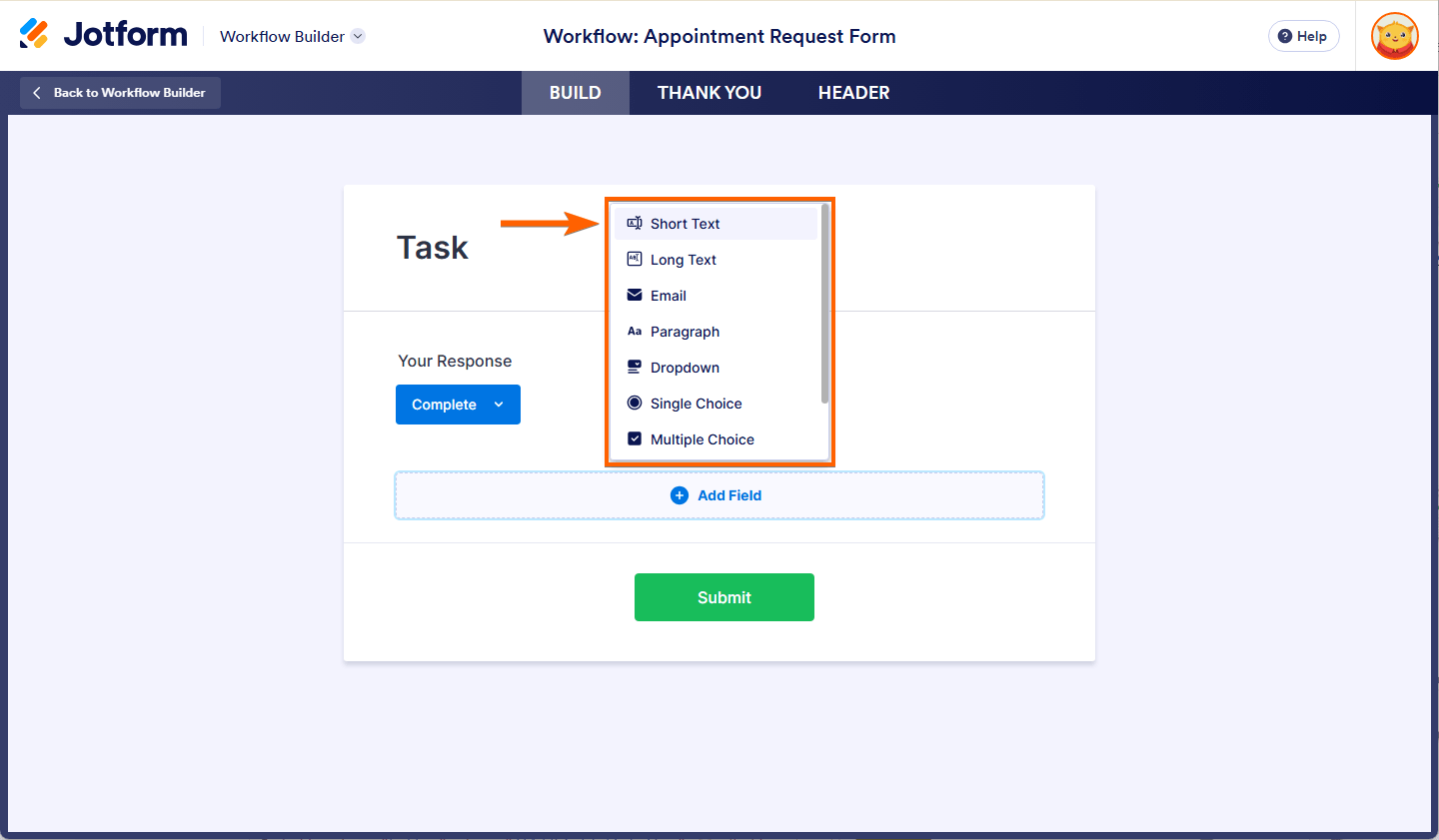
- Add Fields by clicking the Add Field button under the Build tab. You can add multiple fields such as Short Text, Long Text, Paragraph, Dropdown, Single Choice, Multiple Choice, Date Picker, and more.
- Select and configure each field you want the assignee to see. You can modify labels, make fields required, and adjust settings.
- Arrange fields by dragging and dropping them to position as needed.
- Save changes. The Task Response Form will now include all the fields you added, and the assignee will be able to see them in their Task Response.
This way, your assignee can view and respond to all relevant fields like name, division, date, support category, and description within the task.
Here are some images illustrating key steps:
If you only see one field when adding in a paragraph, ensure you are adding each field individually using the Add Field button rather than trying to combine multiple fields into one paragraph element.
Give it a try and let us know how it goes.
-
itservicedesk253
Dear Support
The answer you given is creating a new field which the assignee has to be filled in. What i want is a field, which value is from the filled Form from the submitter there's no option to provide values from the filled Form. Or a label with values from the same source. -
 Kris JotForm Support
Hi itservicedesk253,
Adding fields in the Task Properties is unsupported. The fields that you can add can only be filled out by the assigned task user. While the feature you're looking for isn't available at Jotform right now, we've gone ahead and escalated your request to our developers.
Exactly when or if it's developed depends on their workload, how viable it is, and how many other users also request it. If there are any updates, we’ll circle back to this thread and let you know.
In the Task email that the assigned user receives, there are already the submission details. You can also customize which form fields the Task user can see in the email. Let me show you a demo:
- In Workflow Builder, select the Task element and click on the Gear icon on the right side.
- Now, in the Task Properties on the right side, click on the Edit button below the Notification Email.
- A notification message will pop up. Customize the Email Content. Click on the Form Fields in the navigation tools on top and select the form elements.
- Finally, click on the Save button.
Thanks for your patience and understanding, we appreciate it.
-
 fatima574777
Hi, thank you so much for the detailed explanation and for escalating the feature request — I really appreciate the support 🙌
That makes sense regarding the limitation with adding fields in Task Properties. Your workaround using the Notification Email customization is actually very helpful. I didn’t realize we could control which form fields are visible to the assigned task user through the email like that, so I’ll definitely give it a try using the steps you shared.
I’m currently working on a website related to where I’m trying to build a more guided workflow for users, so this solution might still help me manage submissions more efficiently on the backend.
Thanks again for the clear demo and guidance — I’ll test this setup and see how it fits into my use case 👍
-
fatima574777
Hi, thank you so much for the detailed explanation and for escalating the feature request — I really appreciate the support 🙌
That makes sense regarding the limitation with adding fields in Task Properties. Your workaround using the Notification Email customization is actually very helpful. I didn’t realize we could control which form fields are visible to the assigned task user through the email like that, so I’ll definitely give it a try using the steps you shared.
I’m currently working on a website related to, where I’m trying to build a more guided workflow for users, so this solution might still help me manage submissions more efficiently on the backend.
Thanks again for the clear demo and guidance — I’ll test this setup and see how it fits into my use case 👍

 there's no option to provide values from the filled Form. Or a label with values from the same source.
Your Reply
Something Went Wrong
An error occurred while generating the AI response. Please try again!