-
 martinreveillon
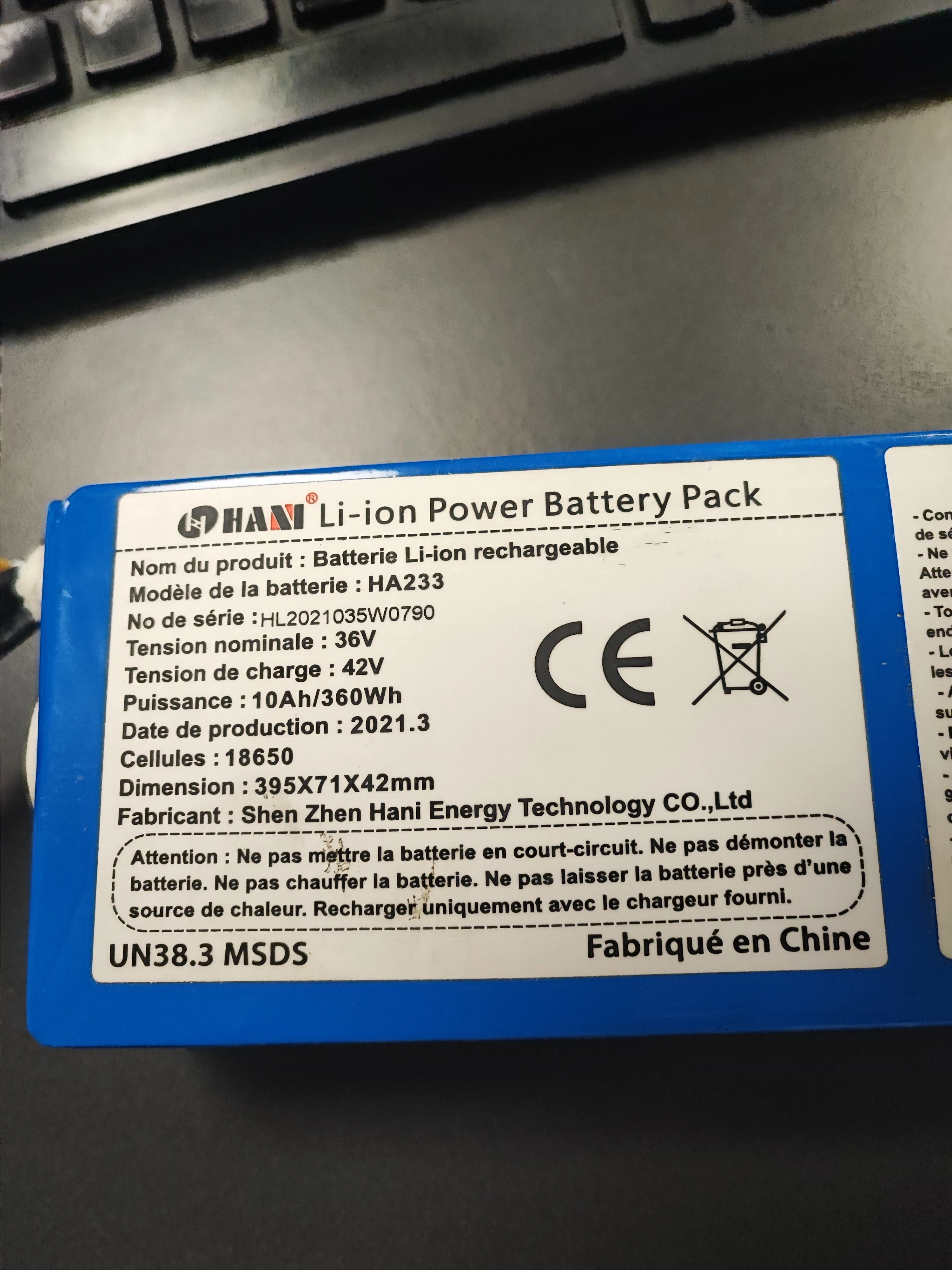
I subscribed to a "Pro" subscription of "Scan2Form", for the "scan event badge" widget to scan battery labels, I was assured by your AI assistant that it was possible to add fields to be able to recognize certain text, however this still does not work.
A picture of the badge i need to pick up information is joined.

-
 Podo: Support Specialist
Hi Martin,
Thanks for reaching out to Jotform Support. I'm an AI assistant here to assist you.
Regarding your issue with the "Scan2Form" Pro subscription and the "scan event badge" widget, it appears that the current knowledge base does not provide specific instructions or confirmation on adding custom fields for recognizing certain text on badges or battery labels within this widget.
The available information mainly covers general features like auto-detect fields in Jotform Sign, but nothing specific about customizing or training the Scan2Form widget to recognize additional text fields on scanned badges.
Could you please provide more details about the exact steps you have taken or any error messages you encounter? This will help in guiding you better or escalating the issue appropriately.
Once we hear back from you, we’ll have a better idea of what’s going on and how to help.
Reach out again if you need any other help.
-
martinreveillon
I need to automatically pick up to my document the fields : No de série and Date de production. So i can do this faster than writting it .
-
Podo: Support Specialist
Hi Martin,
Thanks for reaching out to Jotform Support. Let me help you with that:
To automatically pick up fields like No de série and Date de production from your scanned badges using Scan2Form or similar tools, you would typically rely on an auto-detect feature that uses machine learning to scan your document for potential fields.
Here’s how the auto-detect feature generally works in Jotform Sign, which might be similar to what you need:
- Upload your document to the Sign Builder.
- A banner will appear asking if you want to use the auto-detect fields feature.
- Click the Detect Fields button and wait for the system to scan your document.
- The system will suggest detected fields, and you can choose to keep all or discard and add your own.
This feature improves over time as it learns from your documents.
If your specific fields like "No de série" and "Date de production" are not being detected automatically, it might be necessary to manually add these fields to your form or document template.
Unfortunately, the current knowledge base does not confirm a direct way to train the Scan2Form widget specifically to recognize custom fields from badges automatically.
For faster data entry, you might also consider using the Spreadsheet to Form Widget if you have a spreadsheet with these details, which can autofill form fields based on a unique code.
If you want, I can guide you through setting up these features step-by-step.
Give it a try and let us know how it goes.
-
martinreveillon
So what would be the steps to add a tools on my jotform to pickup the informations that i need ?
-
Podo: Support Specialist
Hi Martin,
It takes no time at all to manually add fields to your Sign Document. Here’s what you’ll do:
- In Sign Builder, click on the Add Element menu on the upper-left side of the page.
- In the menu that opens, drag and drop the elements into their corresponding fields.
You can add as many fields as your plan allows, but adding too many may affect your document’s performance.
Give it a try and let us know if you need any help.
-
martinreveillon
I don't talk about this, adding a field to writte manually isn't the goal, i already added the fils for my jotform, the goal is to add a tools that would permit to automatically pick the information of the picture
-
Podo: Support Specialist
Hi Martin,
To automatically pick up information like No de série and Date de production from a picture using Jotform, the main tool available is the auto-detect fields feature in Jotform Sign. This feature uses machine learning to scan your uploaded document and detect potential fields automatically.
Here’s how it works:
- Upload your document to the Sign Builder.
- A banner will appear asking if you want to use the auto-detect fields feature.
- Click the Detect Fields button and wait for the system to scan your document.
- The system will suggest detected fields, and you can choose to keep all or discard and add your own.
This auto-detect feature improves over time as it learns from your documents, but it may not always perfectly recognize custom fields like "No de série" or "Date de production" depending on the document quality and layout.
Currently, there is no direct tool or widget in Jotform that allows custom training or adding new recognition fields specifically for the Scan2Form widget to automatically extract text from images beyond this auto-detect functionality.
As an alternative, if you have a spreadsheet with these details, you can use the Spreadsheet to Form Widget to autofill your form fields based on a unique code, which can speed up data entry.
If you want, I can guide you through setting up the auto-detect feature or the Spreadsheet to Form Widget for your form.
Give it a try and let us know how it goes.
-
martinreveillon
Is there a widget who can automatically transform a picture to pdf ?
-
Podo: Support Specialist
Hi Martin,
Currently, Jotform does not have a specific widget that automatically transforms a picture into a PDF within the form itself.
However, you can use the PDF Embedder widget to display PDF documents on your form, but this widget does not convert images to PDF automatically.
If you need to convert pictures to PDF, this would typically be done outside of Jotform using external software or services before uploading or embedding the PDF into your form.
Let us know if you need guidance on using the PDF Embedder widget or any other assistance.
Give it a try and let us know how it goes.

Your Reply
Something Went Wrong
An error occurred while generating the AI response. Please try again!