-
 camp_camp56
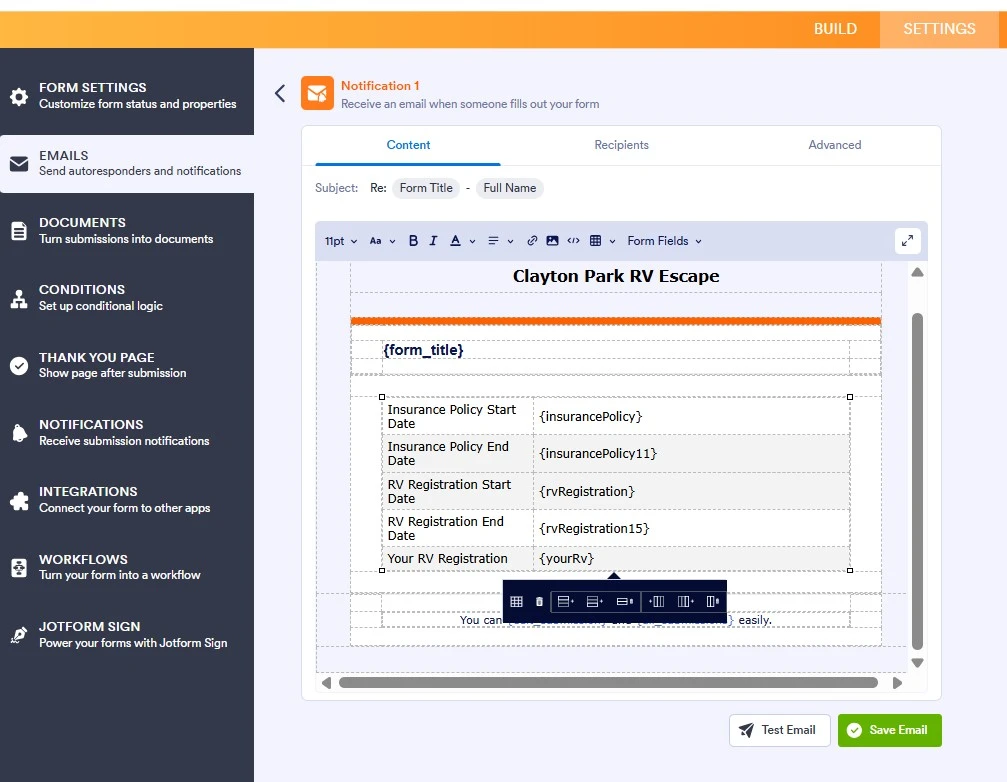
My form, CPRVE Papers Please — Insurance and Registration, is not letting me add a row in the Notification email. For whatever reason, it eliminated the row that would allow the rv registration link to be part of the notification email we receive. It isn't letting me add it back. I click on the add row and nothing happens.

-
 Podo: Support Specialist
Hi Clayton,
Thanks for reaching out to Jotform Support. I'm an AI assistant here to assist you.
You can easily add rows to your email content in Notification or Autoresponder Emails. Let me show you how:
- In Form Builder, in the orange navigation bar at the top of the page, click on Settings.
- In the menu on the left side of the page, click on Emails.
- Hover your mouse over your Notification or Autoresponder and click on the Pencil icon to customize it.
- In the Email Content window, click on the table and select Insert Row Before or Insert Row After.
- Once you’re done, click on Save on the bottom-right side of the Email Content window.
Give it a try and let us know how it goes.
-
camp_camp56
The add a row function is not working as intended
-
Podo: Support Specialist
Hi Clayton,
Since the add row function is not working as intended in your Notification email, here are some steps you can try to resolve the issue:
- Clear your browser cache and refresh the Form Builder page.
- Try using a different browser or open the Form Builder in an incognito/private window to check if the issue persists.
- Delete the existing Notification Email and create a new one. This can help if the email content is corrupted or not updating properly.
Here’s how to delete and create a new Notification Email:
- In Form Builder, click on Settings in the top orange navigation bar.
- Click on Emails in the left menu.
- On the right side of the Notification Email field, click the Three Dots icon and select Delete.
- Confirm by clicking Yes, Delete.
- Then, click on Add Email, select Notification Email, and configure the recipient email.
- Click Save Email to finish.
If the problem continues after these steps, please let us know.
Give it a try and let us know how it goes.
Your Reply
Something Went Wrong
An error occurred while generating the AI response. Please try again!