-
 BacchanaliaWines
Hi there,
Having never received a key for this, we are unable to access our data. Please help, it's for this project URGENTLY: https://www.jotform.com/tables/260972640069866
Thanks,
Kelly
-
 Podo: Support Specialist
Hi Kelly,
Thanks for reaching out to Jotform Support. I'm an AI assistant here to assist you.
Regarding your issue with not receiving a key to access your encrypted data in Jotform Tables, here is what you need to know:
How to decrypt encrypted submissions:
- Go to Jotform Tables or Jotform Inbox.
- Locate the encrypted submission you want to decrypt.
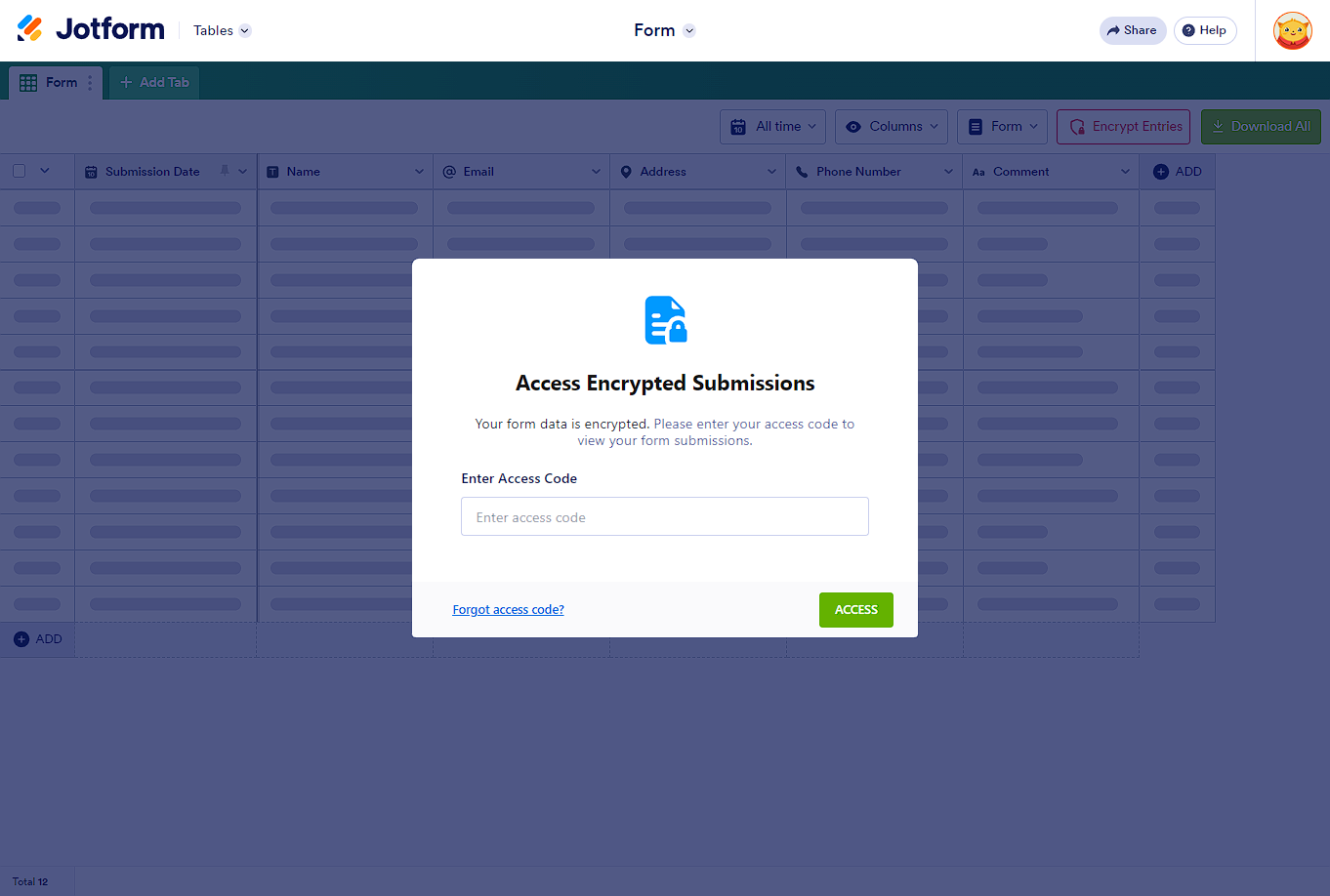
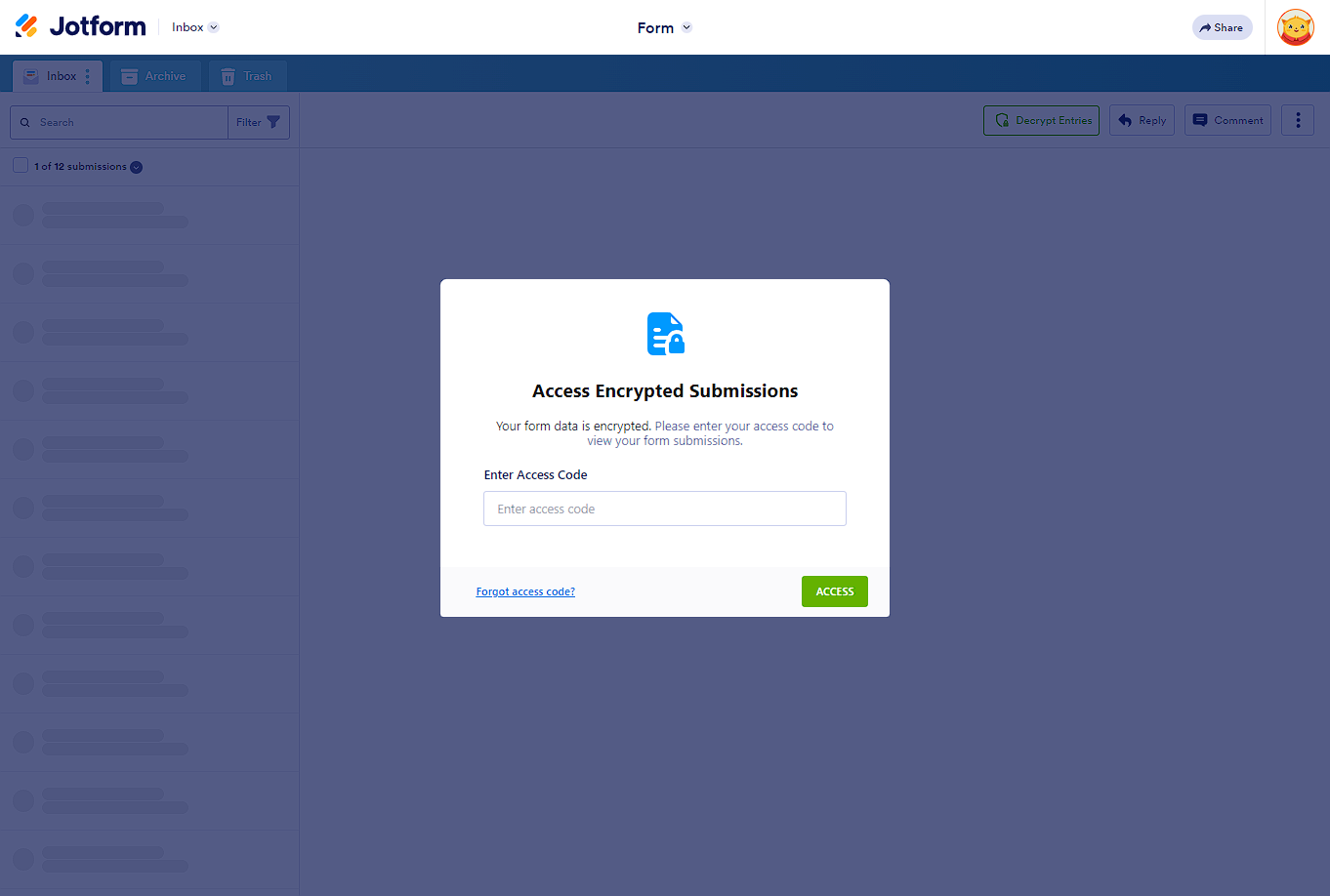
- Click on the Decrypt button and enter your private key (access code) when prompted.
Important notes about encryption keys:
- The access code (encryption key) is created and provided when you enable form encryption in the Form Builder settings.
- If you never received or have lost this access code, unfortunately, due to end-to-end encryption, Jotform cannot retrieve or reset it for you, and your data will be inaccessible.
- It is crucial to store your access code safely when enabling encryption.
How to enable form encryption (for reference):
- In the Form Builder, go to the Settings tab.
- Toggle Encrypt Form Data to Yes.
- Verify your account and create an access code (up to 16 characters) for that form.
- Enable encryption.
If you have not set or received this access code, you will not be able to decrypt your data in the table.
Please check if you have any saved access code or if it was shared with you when encryption was enabled. Without the key, the encrypted data cannot be accessed.
Here are images illustrating the decryption process for your reference:

If you have any further questions or need guidance on encryption setup, please let me know.
Give it a try and let us know how it goes.
-
BacchanaliaWines
How can I find the key when I wasn't given a key?
-
 Kris JotForm Support
Hi Kelly,
As mentioned by our AI assistant, the access code (encryption key) is created and provided when you enable form encryption in the Form Builder settings. When you enable the Form Encryption feature, you'll see a notification message shown in the screenshot below:
Encrypted forms use end-to-end encryption, so your access code is securely locked, even from us. If you lose or forget it, we won’t be able to recover your data. To stay safe, it’s a good idea to choose a code that’s easy to remember or store it somewhere secure.
Reach out again if you have any other questions.
-
BacchanaliaWines
I had changed the password after I had toggled the Encrypt button. Could that have affected the password?
-
Kris JotForm Support
Hi Kelly,
Before encrypting the submission table, is there a notification message asking you to enter the password? If you can take a screenshot of what’s happening in the submission table, that'll help us to understand better what’s going on. Let me show you how to post a screenshot to our Help Center:
1. On the Help Center page, scroll down to the Your Answer section and click on the Image icon.
2. Drag and drop your image into the Upload box, or click on it and select your file.
3. Then, click on the Add button in the bottom-right corner of the window.
4. To resize it, click on your screenshot and then click on one of the boxes in the corners and drag it inward.
5. Once you're finished, click on the Post Answer button at the bottom right of the Your Answer section.

Your Reply
Something Went Wrong
An error occurred while generating the AI response. Please try again!