-
 MannaJS
Can you help me to get this pdf https://www.jotform.com/pdf-editor/10260994925301057 to automatically be sent over.. after submission?
-
 Podo: Support Specialist
Hi MannaJS,
Thanks for reaching out to Jotform Support. I'm an AI assistant here to assist you.
Let me help you with that:
To automatically send the PDF of your form submission after someone submits your form, you can enable the PDF attachment option in your email settings. Here’s how to do it:
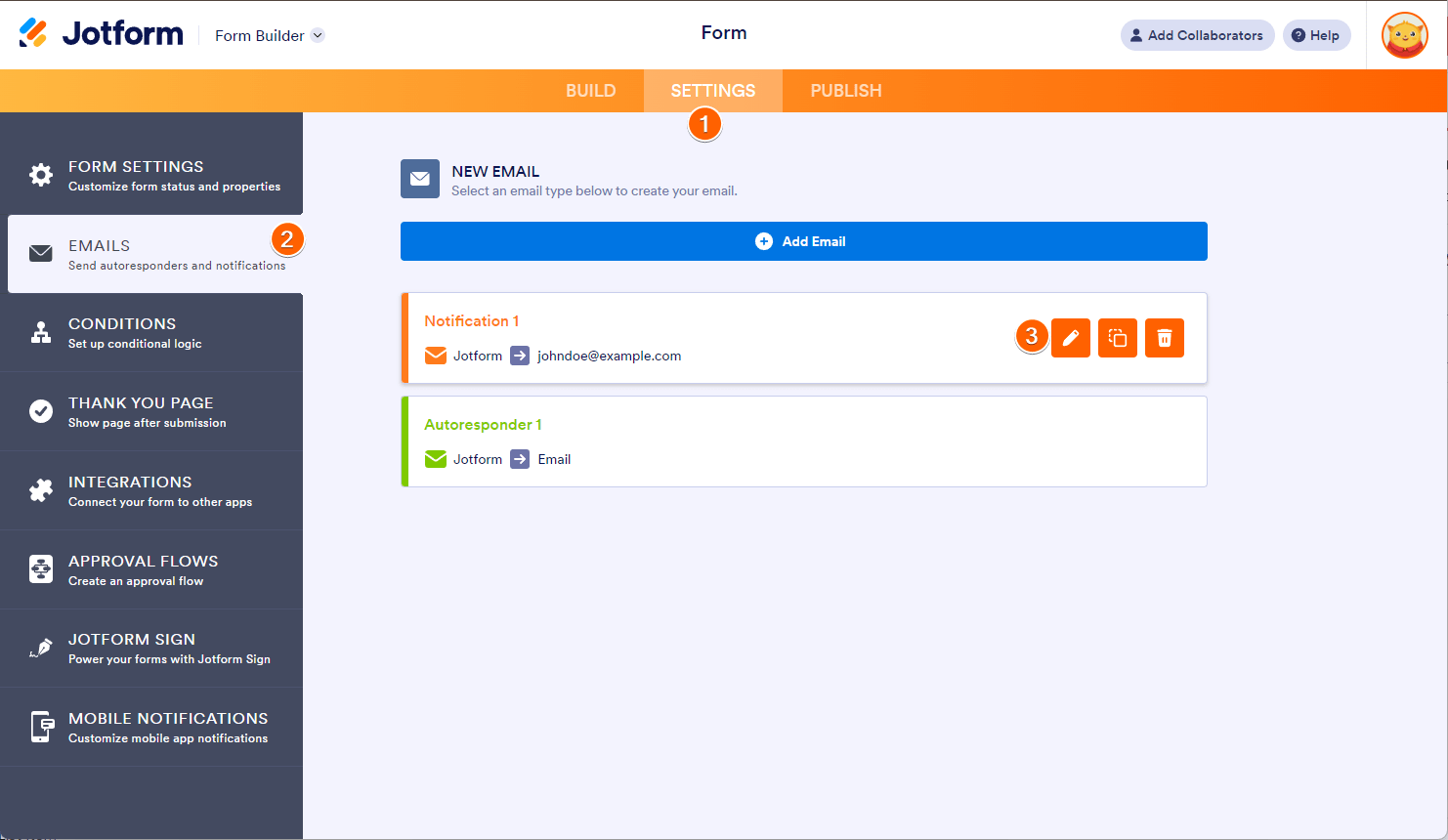
- Open your form in Form Builder and go to the Settings tab.
- Click on Emails on the left panel.
- Edit the Notification or Autoresponder email by clicking the pencil icon.
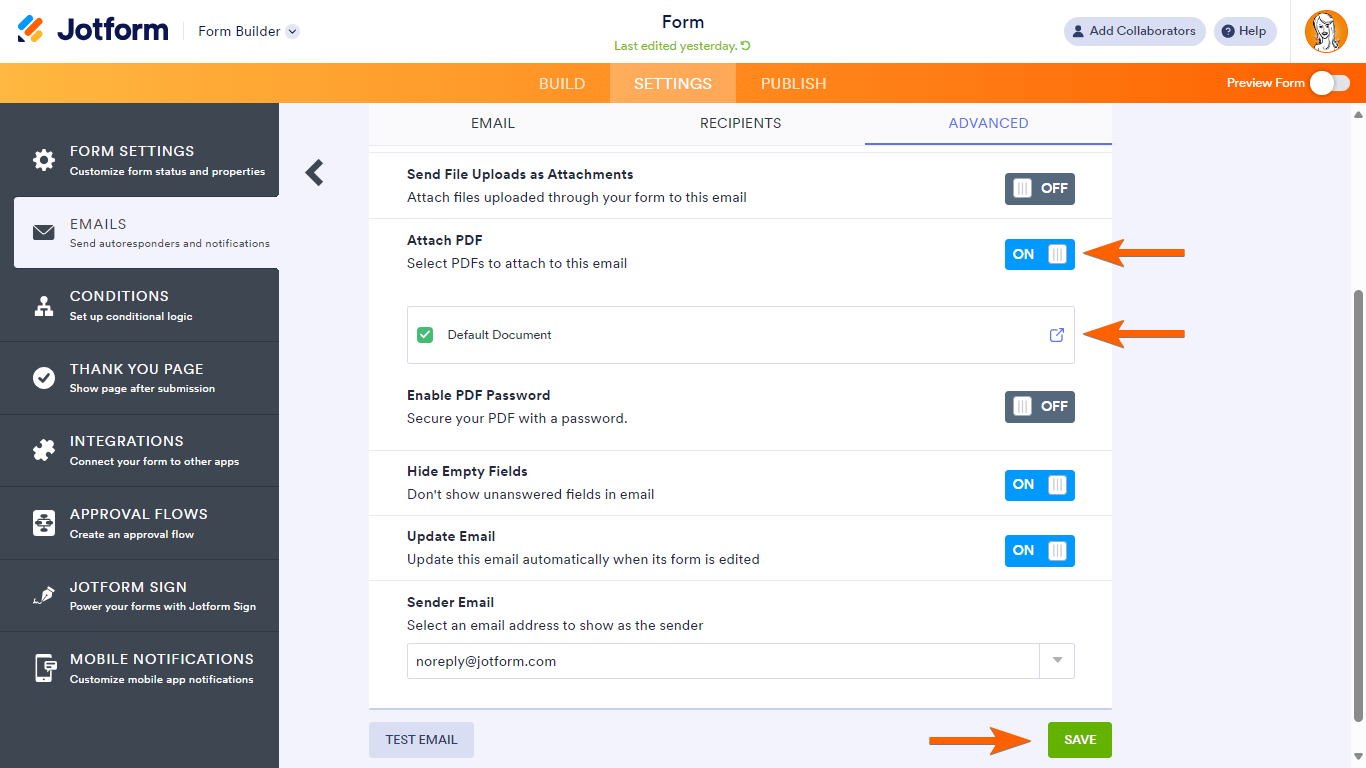
- Go to the Advanced tab and enable the PDF attachment option.
- Save your changes.
This will automatically attach the PDF version of the submission to the email sent after each submission.
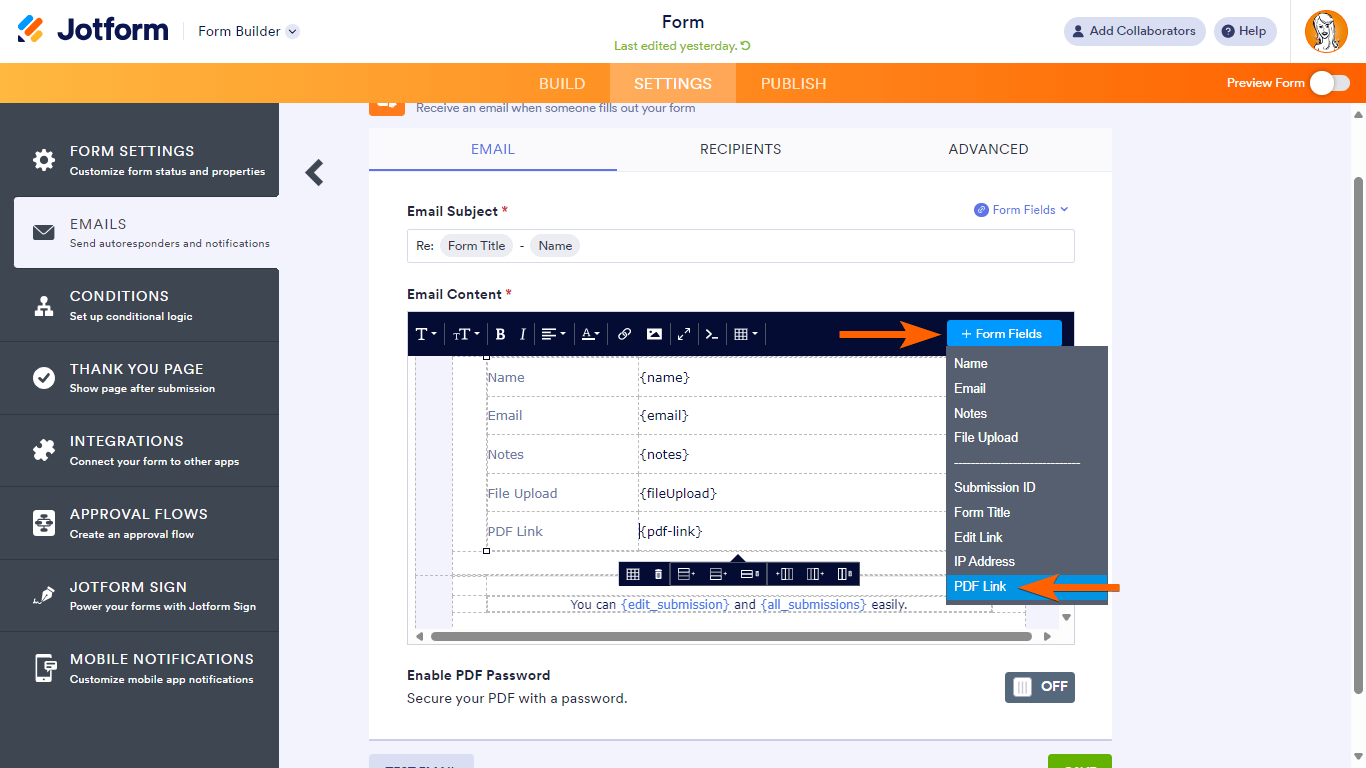
If you want to include a download link to the PDF instead of attaching it (useful if the PDF is large), you can add the {pdf-link} tag in the email content. This tag will be replaced with a link to download the submission PDF.
Here are some helpful images to guide you:

For more detailed guidance, you can also visit the Jotform guide on How to Include Submissions as PDF Attachment in Email Notifications.
Give it a try and let us know how it goes.
-
MannaJS
no thats not what i want ... I want this.. to automatically go out after they fill out the form... can you help me establish that
-
 Jeric_T
Hi MannaJS,
In my understanding, you want the PDF document sent via email. Podo's suggestion is correct, but instead of the Notification email, you need to attach it to the Autoresponder email, which will be sent to the form filler. You can easily attach PDF submissions to your Autoresponder email. Let me show you how:
1. In Form Builder, in the orange navigation bar at the top of the page, click on Settings.
2. Then, in the menu on the left side of the page, click on Emails.
3. Now, hover your mouse over the Autoresponder Email and click on Edit.
4. Next, click on the Advanced tab, toggle on Attach PDF, and select the PDF file you created.
5. Now, scroll down, and then click on Save.
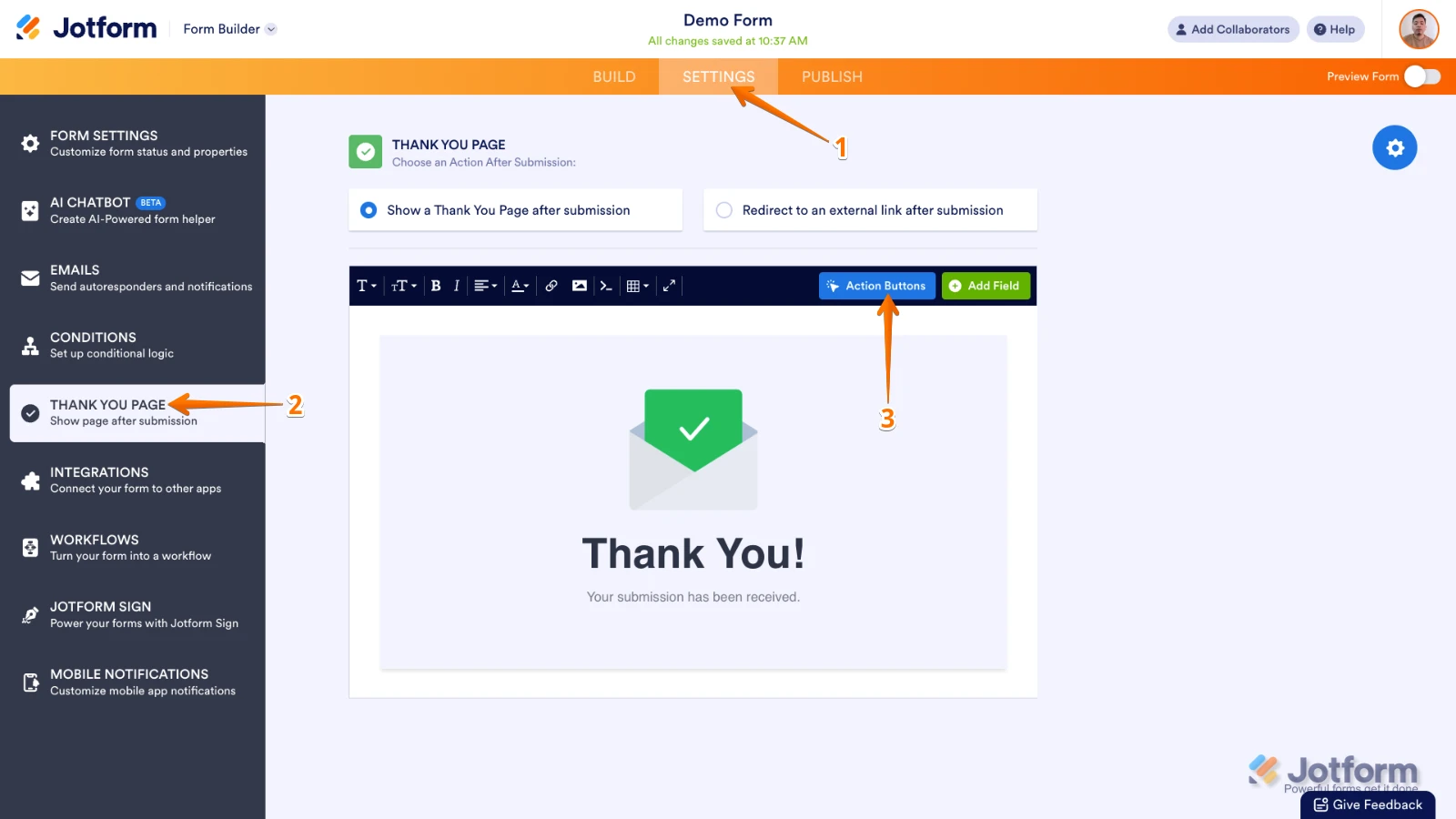
1. In Form Builder, in the orange navigation bar at the top of the page, click on Settings.
2. Next, in the menu on the left side of the page, click on Thank You Page.
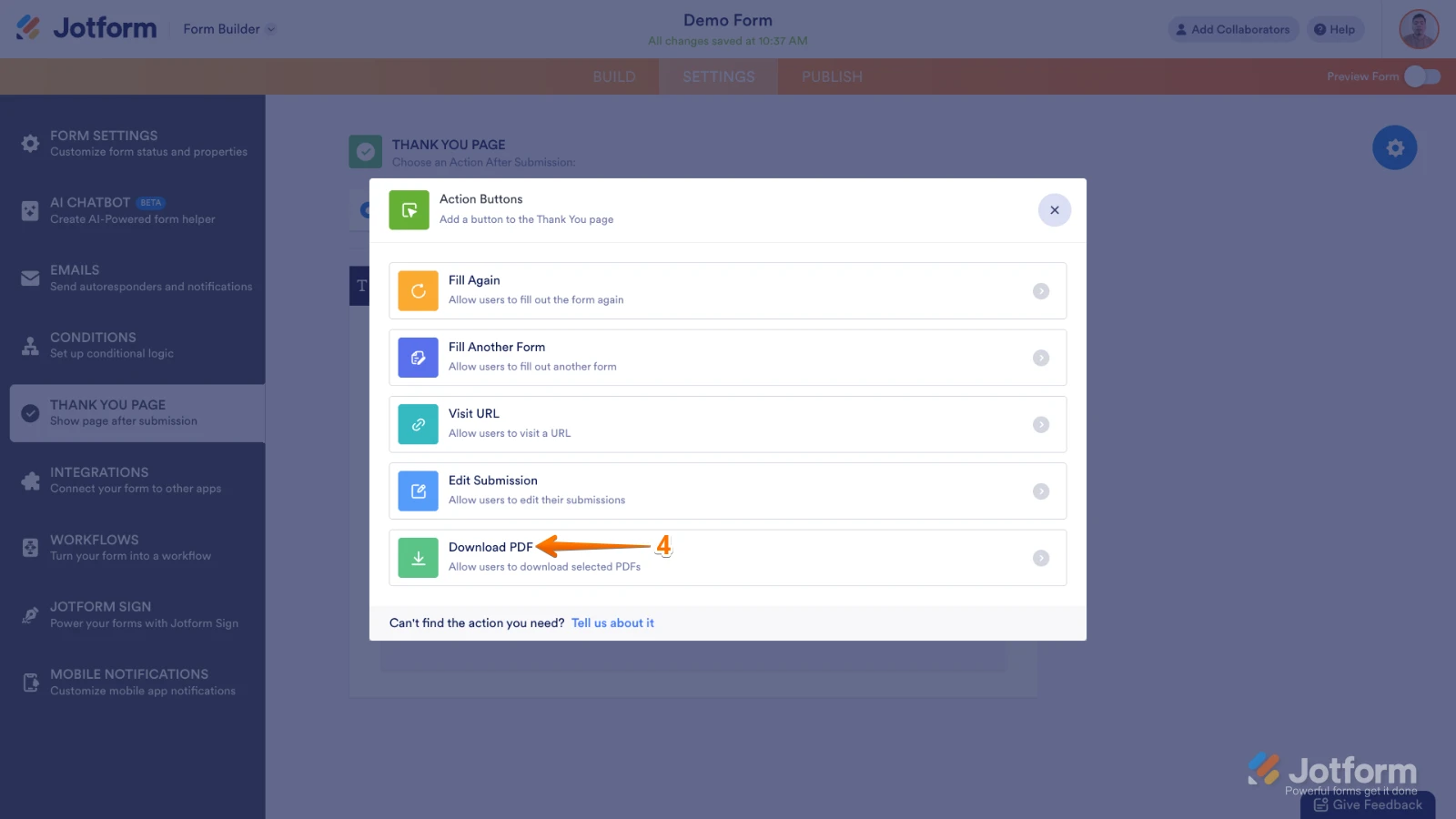
3. In the Thank You Page Editor Toolbar, click on Action Buttons.
4. After that, in the window that pops up, click on Download PDF.
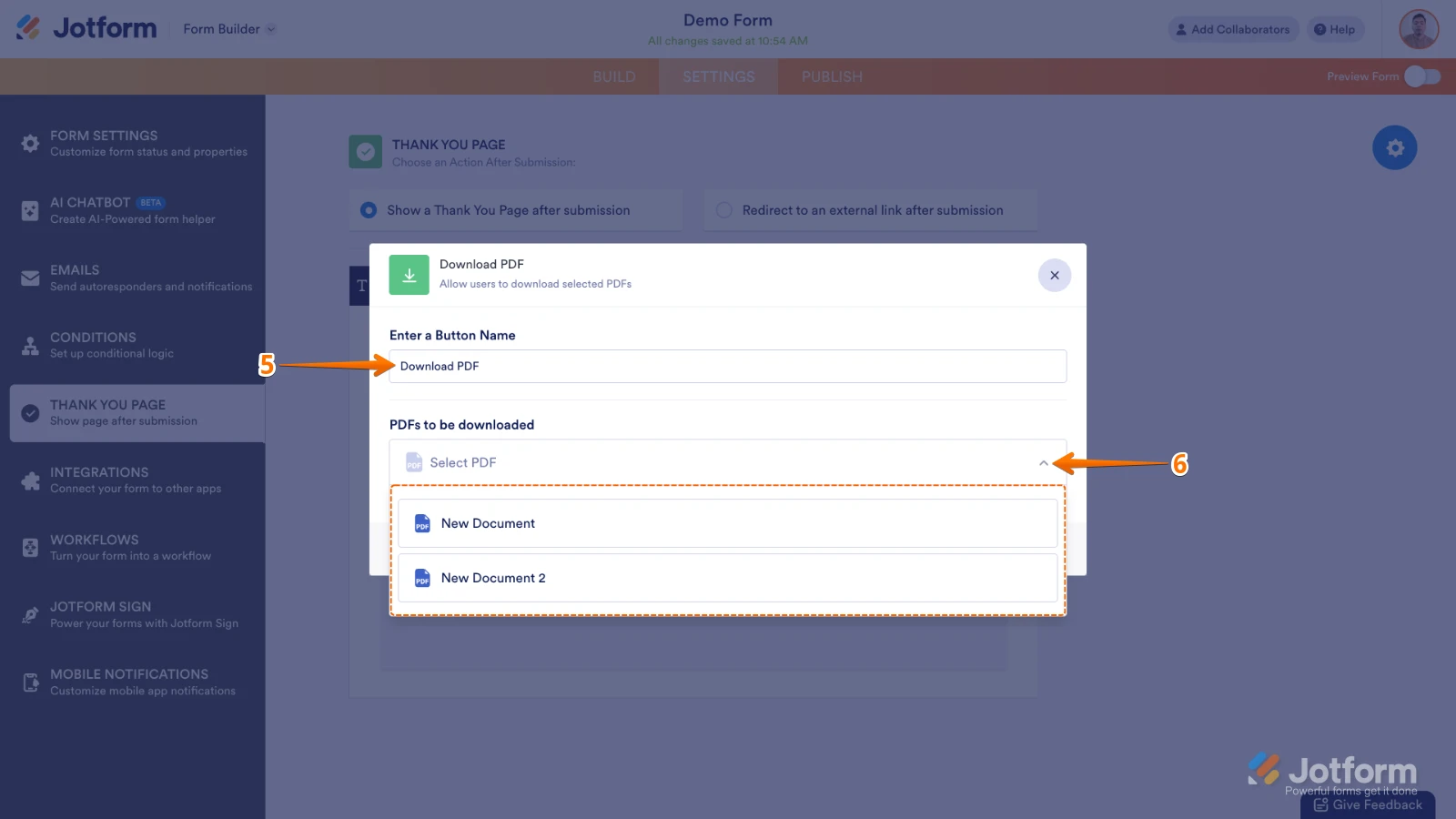
5. Then, in the Download PDF menu, enter a label in the Enter a Button Name field.
6. Select the PDF template in the PDFs to be Downloaded Dropdown menu.
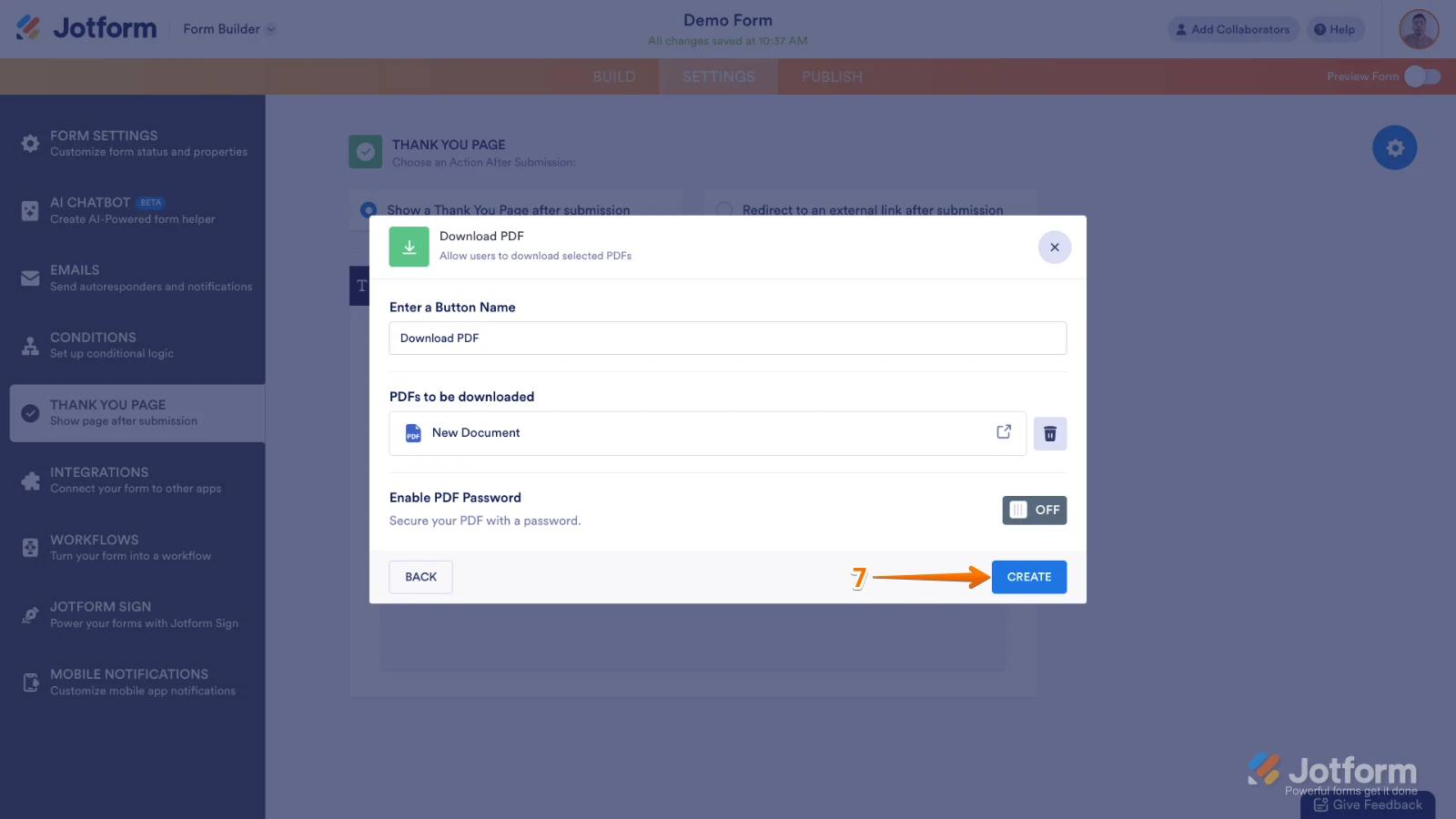
7. Finally, click on Create.
Give it a try, and let us know if you have any other questions. -
MannaJS
I WANT THE PDF EDITOR PROOF TO GO OUT AFTER SUMISSION .. IS THAT AN OPTION?
-
 Sheena JotForm Support
Hi MannaJS,
You can add a link to the PDF in your email instead of attaching the PDF file. This way, your email recipients will receive a clickable link to download the PDF instead of the PDF being attached directly to the email. You can add a Download PDF Link to your Autoresponder Email in just a few steps. Here’s how:
1. In Form Builder, in the orange navigation bar at the top of the page, click on Settings.
2. Then, in the menu on the left side of the page, click on Emails.
3. Now, hover your mouse over the Autoresponder Email and click on Edit.
4. In the Email Content window, click on the area where you want to place the PDF Link.
5. Then, click on Form Fields, and select PDF Link. You can also toggle on Enable PDF Password to set a password for the PDF file.
6. Now, click on Save.
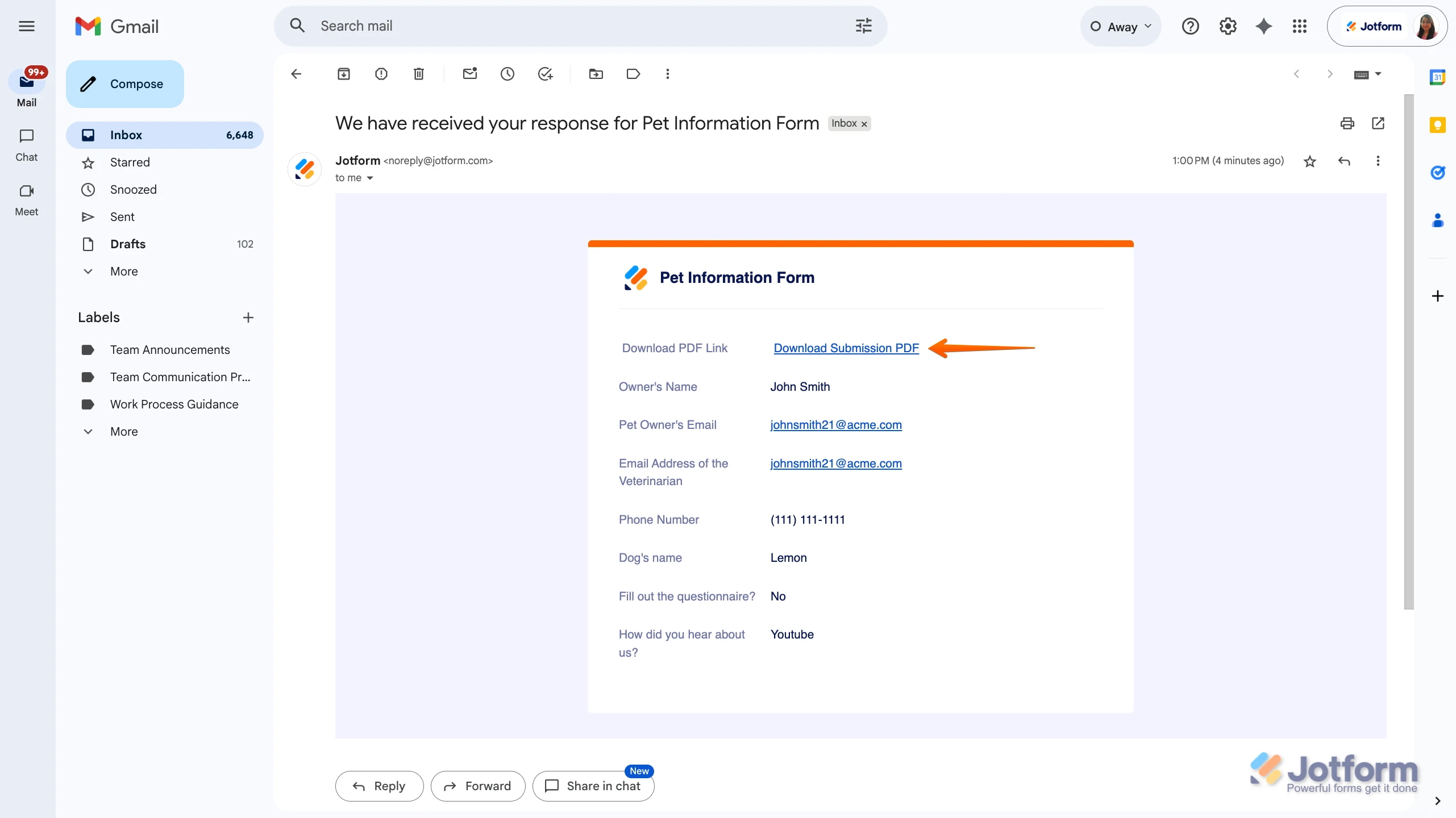
Now, anyone filling out your form will get an email with a link to download the submission PDF:
Reach out again if there’s anything else we can help you with.

Your Reply
Something Went Wrong
An error occurred while generating the AI response. Please try again!