-
 safeandefficientdrivertraining
Thank you of your previous response on this matter.
I have fooled your instructions in regard to connect a payment.
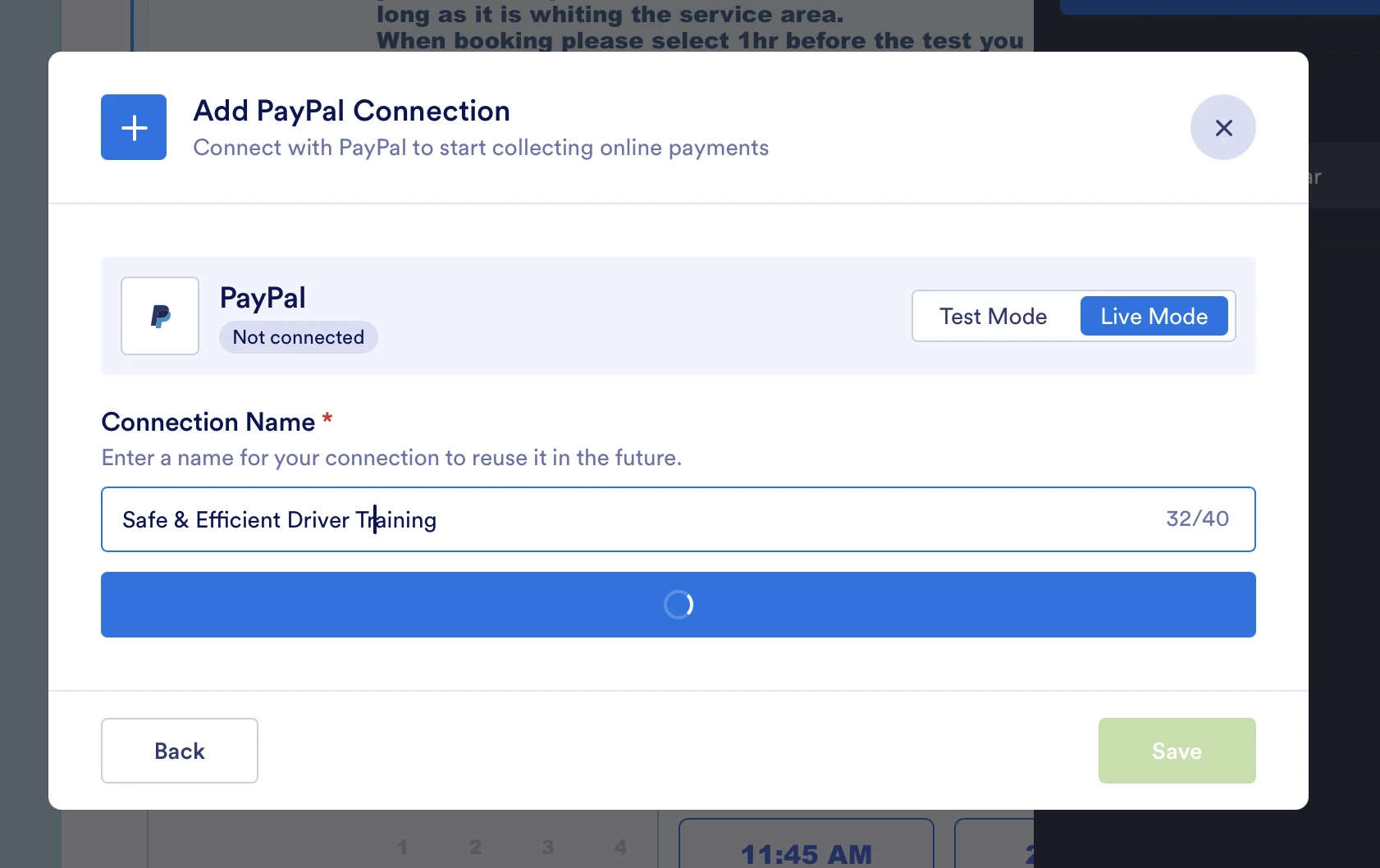
I have opened a new PayPal business account and try to follow the steps but when I click on continue with PayPal the little wheel keeps going around and around and nothing happens.

-
 Podo: Support Specialist
Thanks for the update — the spinning wheel usually means the PayPal window isn’t completing the connection. To check what’s going on, could you please share either the direct link to your form or its form ID so I can take a look at how the PayPal integration is set up on that specific form?
-
safeandefficientdrivertraining
-
Podo: Support Specialist
Hi Stefania,
It seems the spinning wheel issue when clicking "Continue with PayPal" usually indicates that the PayPal window is not completing the connection properly. Here are some steps you can try to resolve this:
- Disconnect and reconnect your PayPal account in the form: Open your form in the Form Builder, click on the PayPal payment field, then go to Payment Properties > Settings. Click the green Connected button, choose Disconnect, then Connect again and sign in to your PayPal Business account.
- Ensure your PayPal Business account is verified: Your PayPal account must be verified to process payments smoothly.
- Check for any browser issues: Try clearing your browser cache or using a different browser to see if the issue persists.
- Verify you are not mixing sandbox and live environments: Make sure your PayPal account and form integration are both set to live mode, not sandbox/testing mode.
If these steps do not resolve the issue, please let me know, and we can explore further troubleshooting options.
Give it a try and let us know how it goes.
-
safeandefficientdrivertraining
PayPal account hasn't been connected yet, that's what I am trying to do
-
Podo: Support Specialist
Hi Stefania,
Since your PayPal account hasn't been connected yet and you're experiencing the spinning wheel issue when trying to connect, here are some important points and steps to help you successfully connect your PayPal Business account to your Jotform:
- Use the latest PayPal integration: Older PayPal products like PayPal Invoicing, PayPal Express, and PayPal Checkout have been discontinued. You need to use the updated PayPal integration for your form.
- Ensure your PayPal Business account is verified: A verified PayPal Business account is required to connect and process payments smoothly.
- Set up reusable payment connections: Jotform now uses reusable payment connections by default. When adding PayPal to your form, you should create or select an existing payment connection instead of reconnecting each time.
- Follow these steps to connect PayPal in your form:
- In Form Builder, click Add Element.
- Under the Payments tab, click PayPal to add it to your form.
- In the PayPal Integration window, select the mode (Live or Test) and click Connect.
- Log in to your PayPal Business account when prompted.
- Complete the setup by selecting currency, payment type, and other options, then save.
If the spinning wheel issue persists during connection, try clearing your browser cache, using a different browser, or checking your internet connection. Also, ensure you are not mixing sandbox and live modes.
For detailed instructions, you can refer to the guide on How to Integrate PayPal Business with Jotform.
Give it a try and let us know how it goes.
Your Reply
Something Went Wrong
An error occurred while generating the AI response. Please try again!