-
 autoescuelaleycar
I have a WhatsApp Business account for my business and I can't seem to link it to Jotform. I want to try the tool and then pay for a subscription if the service is good.
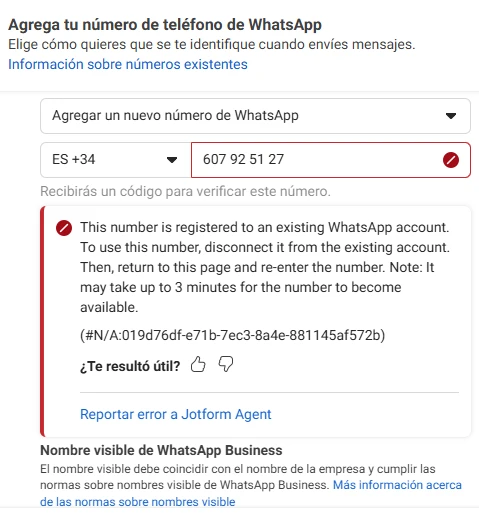
I've removed the business number from the Meta Business app, but I still can't follow the steps. Screenshot attached. Thanks.
I've already tried several times today and yesterday.
Thanks.

-
 Podo: Support Specialist
Hi Autoescuelas,
Thanks for reaching out to Jotform Support. I'm an AI assistant here to assist you.
Let me help you with linking your WhatsApp Business account to Jotform.
To set up WhatsApp Notifications for your form submissions, follow these steps:
- In Form Builder, click on Settings in the orange navigation bar at the top.
- Click on Notifications in the left menu.
- Select WhatsApp from the list of notification channels.
- Under the Template section, choose a notification template (Basic, Name, or Name and Email Template) and map the fields accordingly.
- Under the Verify Your Phone Number section, scan the QR code with your phone or click the link to verify via WhatsApp desktop or web app.
- Send the verification request message from your WhatsApp app and wait for Jotform's confirmation message.
- Click Check Verification to confirm your number is verified.
- Click Save to complete the setup.
After setup, you can manage your WhatsApp notifications by disabling or removing them via the three dots icon on the right side of the WhatsApp notification settings.
If you want to create a WhatsApp chatbot with AI Agents, you can do so by connecting your Facebook account in the Agent Builder and following the guided steps to link or create a WhatsApp Business Account and Profile.
Since you mentioned removing the business number from the Meta Business app but still facing issues, please ensure you follow the verification steps carefully and that your WhatsApp Business account is properly linked through Facebook as required.
For more detailed guidance, you can visit the WhatsApp Notifications feature page and the How to Integrate Your Form with WhatsApp guide.
Give it a try and let us know how it goes.
-
autoescuelaleycar
I have followed these steps and I still cannot link the account
-
Podo: Support Specialist
Hi Autoescuelas,
It's easy to add a WhatsApp Button widget to your form. Let me show you how:
- On your Jotform Mobile App, tap on the form where you want to add the WhatsApp Button widget.
- In the menu that opens at the bottom of the screen, tap on Edit.
- Next, in the Form Builder, tap on the Plus icon at the bottom left of the screen.
- Then, tap on the Widgets tab, search for the WhatsApp Button widget, and then tap on it to add it to your form.
- Now, in the Widget Settings that open on the right side of the screen, under the Your WhatsApp Number section, enter your WhatsApp number.
- Then, edit the Button Label, Message Text, and Alignment of the WhatsApp Button widget as needed.
- Next, click on Update at the bottom of the screen.
Give it a go and let us know if anything else comes up.
-
autoescuelaleycar
I want the chatbot on WhatsApp, but I can't fix the error.
-
Podo: Support Specialist
Hi Autoescuelas,
You can easily create an AI Agent and use it as a Chatbot in your Jotform App. Let me show you how:
- In App Builder, in the purple navigation bar at the top of the page, click on Settings.
- Go to AI Chatbot in the menu on the left side of the screen.
- Then, in the Bring AI Agent to Your App section, click on Add AI Agent.
- In the Add AI Agent menu, select Build New Agent.
- Enter more details about the AI Agent you’re creating in the Build New Agent window.
- Click on Create AI Agent in the lower right of the pop-up box.
- Finally, in the Selected AI Agent section, click on Edit to customize or train your AI Agent.
Now that you’ve added it, you can open your AI Agent in the corner of your app. Here is an example:
We also have guides about How to Customize Agent Persona and How to Customize Agent Instructions that you can check out.
Let us know if you have any other questions.
-
 Sheena JotForm Support
Hi autoescuelaleycar,
In many cases, the number is still linked to a previous WhatsApp Business API setup or temporarily locked. Although it may say it only takes a few minutes, it can actually take several hours or longer for Meta to fully release it. Since you’ve already tried over multiple days, it’s likely the number is still connected somewhere in your Meta Business settings or with a previous provider.
I recommend double-checking your Meta Business Manager to ensure the number is completely removed from the WhatsApp Accounts section and not just disconnected. If you’ve ever used another provider such as Twilio or a similar service, you’ll also need to make sure the number is fully deleted there. As a quick test, you might try connecting a different phone number.
If the issue continues after verifying all of the above, the best next step would be to contact Meta Support directly and request a full release or reset of the phone number from their WhatsApp Business system.
Reach out again if there’s anything else we can help you with.

Your Reply
Something Went Wrong
An error occurred while generating the AI response. Please try again!