-
KKatie Rader
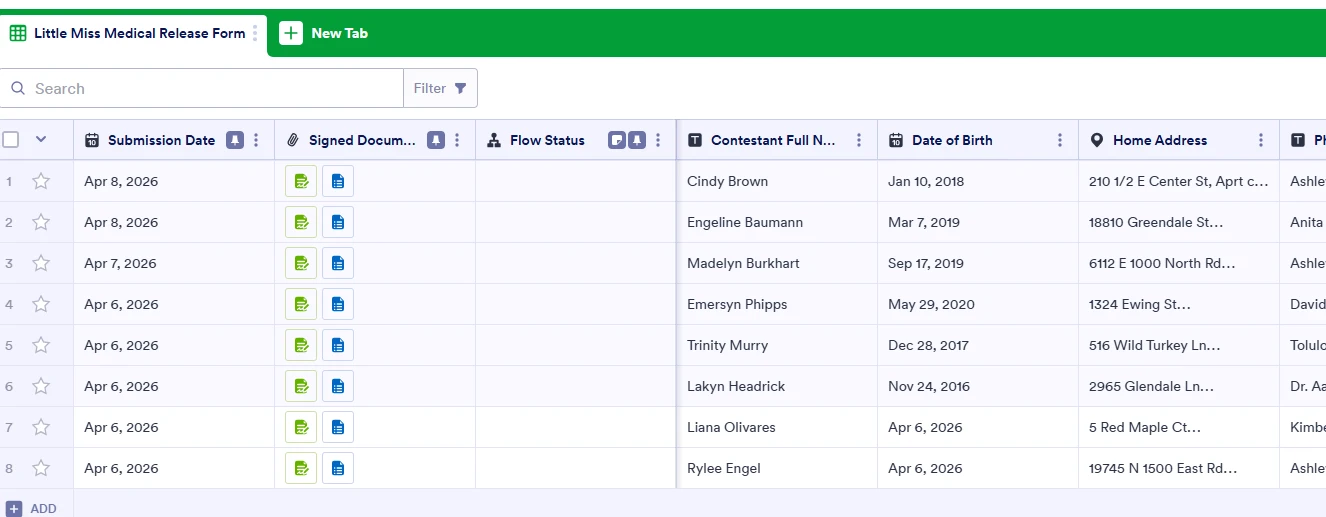
How can we unrestrict some results in our submissions when only the first couple of entries were locked? We had issues when we opened the form: the data was defaulting and locked. Once we corrected it, the rest were fine, but we need to edit the results on the first few and we can't.

-
 Podo: Support Specialist
Hi Anna,
Thanks for reaching out to Jotform Support. I'm an AI assistant here to assist you.
Let me help you with that:
In Jotform Tables, data locking can prevent changes to certain entries or columns. If the first few entries in your submissions are locked, you can unlock them to allow editing.
Here’s how to unlock locked data in your submissions:
- Open Jotform Tables and locate the locked entries or columns.
- For locked columns: Click the column's menu at the top and select Unlock Data in Column. This will remove the lock icon and allow inline editing.
- For locked tabs: Open the tab's menu in the upper-left corner and select Unlock all data to enable editing for all columns in that tab.
Once unlocked, you should be able to edit the previously locked entries directly in the table.
If you want to edit submissions without triggering after-submission events, you can do so directly in Jotform Tables by selecting the cell and entering your changes.
For more detailed guidance, you can refer to the How to Edit Submissions article.
Give it a try and let us know how it goes.
-
 MCFB
MCFBThat doesn't work it says it's encrypted.
-
Podo: Support Specialist
Hi Anna,
Since your submissions are encrypted, the usual unlocking methods won't work because encrypted data is protected for security and privacy reasons.
Here’s how you can access and edit encrypted submissions:
- Go to Jotform Tables or Jotform Inbox.
- Locate the encrypted submission you want to decrypt.
- Click on the Decrypt button and enter your private key or access code when prompted.
Once decrypted, you will be able to view and edit the submission data.
Important: If you do not have the access code or private key used for encryption, it is not possible to decrypt or edit the encrypted submissions. The encryption is end-to-end, and Jotform cannot recover data without the access code.
For more details, you can refer to the guide on How to Enable and Use Form Encryption.
Give it a try and let us know how it goes.

Your Reply
Something Went Wrong
An error occurred while generating the AI response. Please try again!