-
 AnneJones
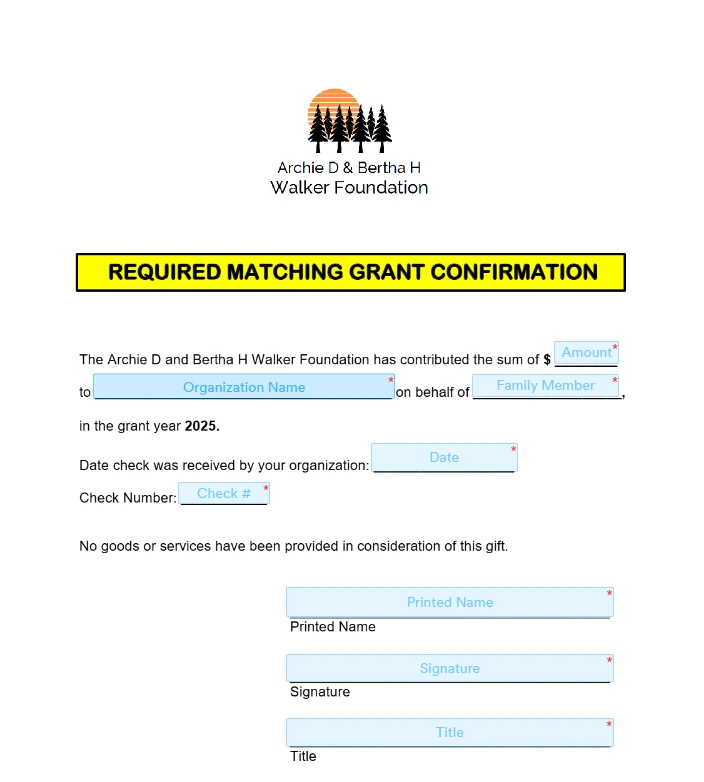
I need help changing the text in this document from 2025 to 2026

-
 Podo: Support Specialist
Hi Archie,
Thanks for reaching out to us for help. It
is easy to change the title of your Sign Document. Let me show you how:
- In Sign Builder, in the green navigation bar at the top of the page, click on Settings.
- Under the General Settings tab, edit the title of the document in the Document Title text section. That
is it.
Give it a try and let us know if you need any help.
-
AnneJones
It isn't the title that needs changing, it is in the body of the document.
-
Podo: Support Specialist
Hi Archie,
Let me help you with that:
To change the text in the body of your Sign Document, you need to edit the document template itself in the Sign Builder. Here’s how to do it:
- Go to the Jotform Sign templates page and click "Use Template" to open the Sign Builder.
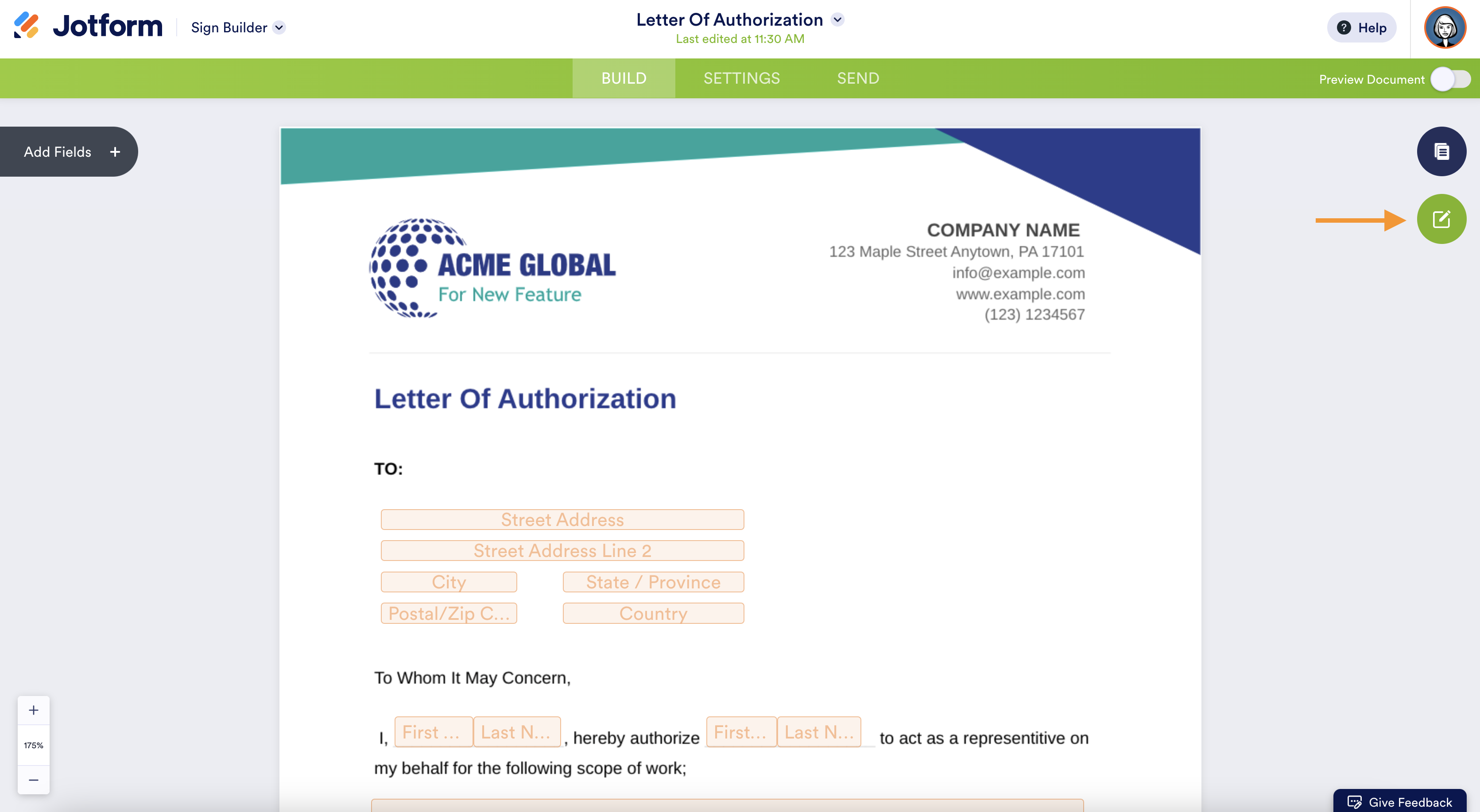
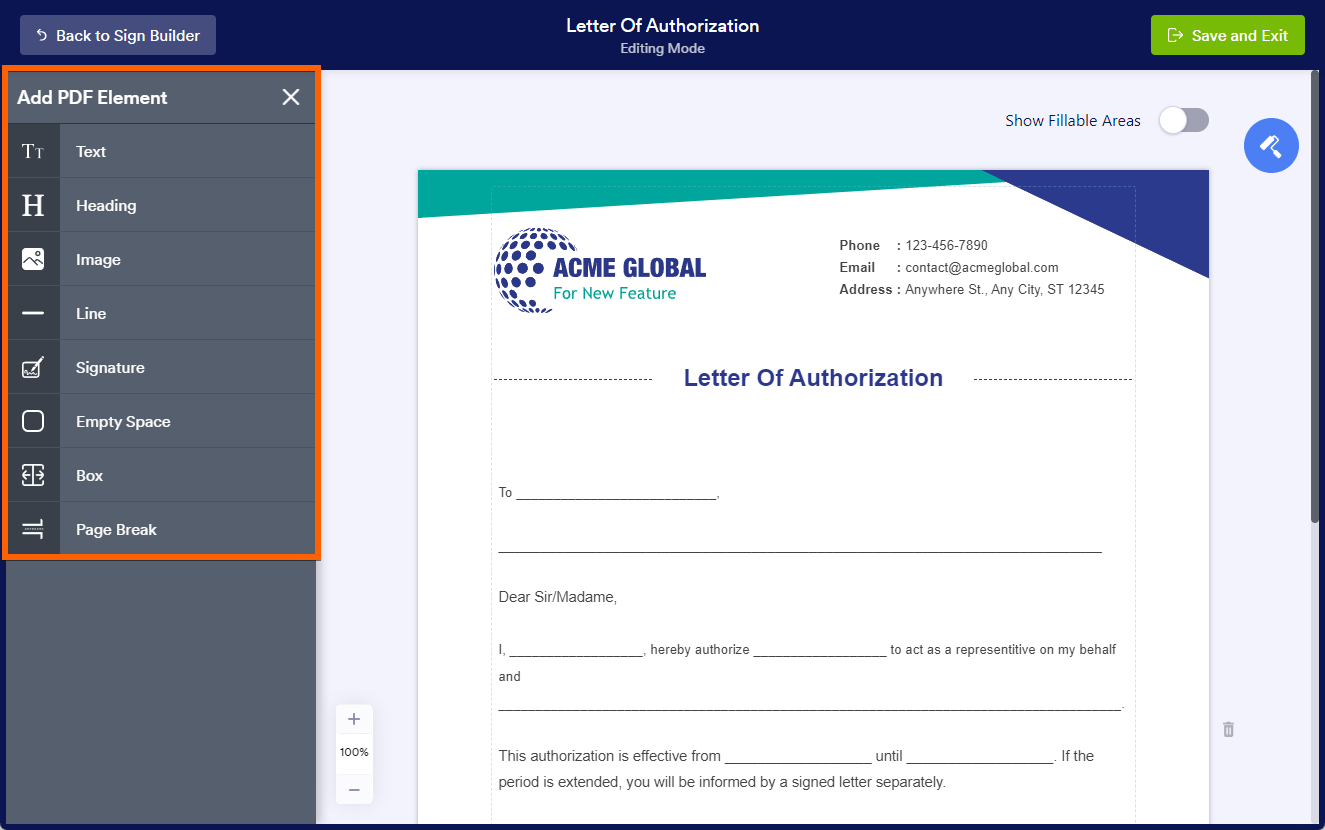
- Click on the Edit Template button on the right side of the page to open the PDF Editor within the Sign Builder.
- Find the text element in the body of the document that contains the year 2025 and double-click it to edit.
- Change the text from 2025 to 2026 in the text editor.
- Save and exit the editor to apply your changes and return to the Sign Builder.
You can also add other elements or adjust layout settings if needed using the options in the editor.
Here is an image showing the Edit Template button in the Sign Builder:
And here is the PDF Editor interface where you can edit text elements:
Give it a try and let us know how it goes.
-
AnneJones
It was a custom document, not one of the standard templates.
-
Podo: Support Specialist
Hi Archie,
For custom documents, you will need to edit the document directly within the Sign Builder where you originally uploaded or created your custom document.
Let me walk you through it:
- Open your custom document in Sign Builder.
- Locate the text field in the body of the document that contains the year 2025.
- Double-click the text field to enter edit mode and change the year from 2025 to 2026.
- Save your changes to update the document.
If your custom document is a PDF, you should be able to edit text fields if they were added as editable fields. If the text is part of the PDF itself and not editable, you may need to update the original PDF outside of Jotform and re-upload it.
Give it a try and let us know if you need any further assistance.
-
AnneJones
It was uploaded as a PDF. Is there any other way to edit it? I am unable to locate the original document.
-
Podo: Support Specialist
Hi Archie,
If your document was uploaded as a PDF and you cannot locate the original file, editing the text directly within Jotform Sign may not be possible if the text is part of the PDF itself and not an editable field.
Here’s what you can do instead:
- Check if the PDF has editable fields: If the text you want to change is inside editable fields added in Sign Builder, you can double-click those fields to edit them.
- If the text is not editable: You will need to update the original PDF outside of Jotform using a PDF editor software to change the text from 2025 to 2026.
- Re-upload the updated PDF: After editing the PDF externally, upload the new version to Jotform Sign to replace the old one.
Unfortunately, without the original document or an editable field in the PDF, there is no direct way to edit the text inside the uploaded PDF within Jotform Sign.
Give it a try and let us know if you need any other help.
-
AnneJones
Not helpful!
-
Podo: Support Specialist
Hi Archie,
One of our Support Team members will take it from here to follow up shortly.
-
 Anna JotForm Support
Hi Archie,
Take note that the text on Jotform Sign Documents that are created using a PDF can't be edited. You'll have to edit the source PDF first, then create a new Jotform Sign with the PDF document that you've already updated.
Reach out anytime if more questions come to mind.

Your Reply
Something Went Wrong
An error occurred while generating the AI response. Please try again!