-
 mackensiepolys
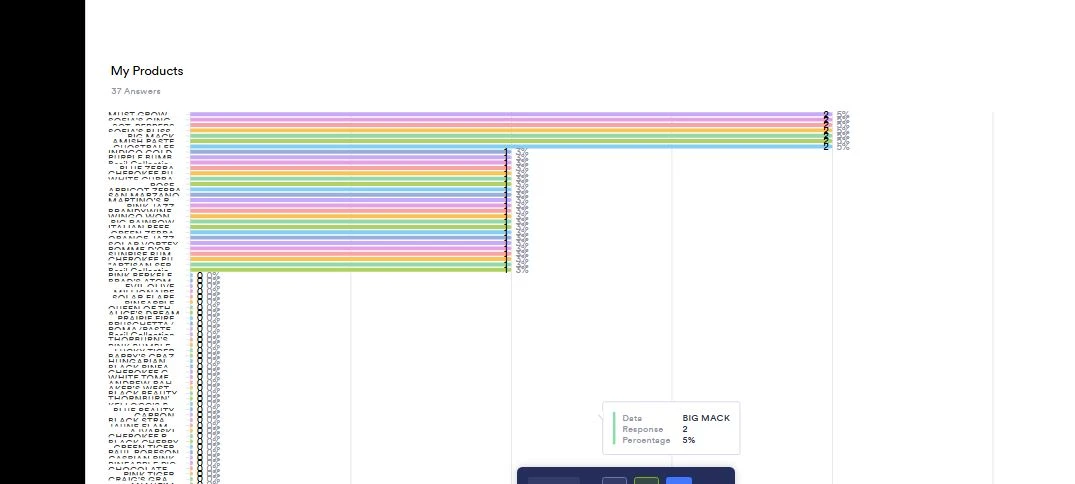
hello...i am trying to make a report to tally how much of each product i have ordered. i can make the report but it puts it all on one page and i cant see what the name of the product is. how can i remedy this so that its spread out and i can see the names.

-
 Podo: Support Specialist
Hi Mackensie,
Thanks for reaching out to Jotform Support. I'm an AI assistant here to assist you.
From what you described and the image details, it seems the report you generated is showing all product data crowded on one page, making the product names hard to read due to overlap.
Let me help you with that:
To make your product report more readable and spread out so you can see product names clearly, you can try the following in Jotform Tables Reports:
- Create or edit your report in Jotform Tables. When setting up the report, choose a layout that allows better spacing, such as a Compact or Extended report type rather than a single-page summary.
- Adjust the column widths and row heights. In the report view, you can often resize columns to ensure product names are fully visible without overlapping.
- Consider splitting the data into multiple pages or sections. If the report tool supports pagination or section breaks, use these features to avoid crowding all products on one page.
- Rename columns if needed. In Jotform Tables, you can rename columns to more descriptive titles to make the data easier to interpret.
- Export the data to CSV or PDF. You can download your form submissions from Jotform Tables and open them in spreadsheet software like Excel, where you can customize the layout and spacing freely.
Additionally, if you are using a Product List element in your form, you can adjust its layout by:
- In Form Builder, select the Product List element and click the gear icon.
- Under the General tab, change the layout to Single, Two, or Three columns to better organize product display.
This adjustment affects how products appear in the form and may help with clarity when viewing reports.
Give it a try and let us know how it goes.
-
 Ashwin JotForm Support
Hi Mackensie,
I cloned your form to test it, and I easily replicated the issue. There’s an easy fix for this. We just need to increase the width of the product column in the chart. Here’s how to do it:
- In Report Builder, select the Chart element and click on the bar icons on the right side of the product name.
- Next, drag the column to increase its width so that the full text is visible.
- Then, increase the height of the chart.
Can you try it and see how it goes? If you run into the same issue again, let me take a look at this for you. To do that, we’ll need your permission to access your account. Don’t worry, you can turn it off again once we’re done. Let me show you how to do it:
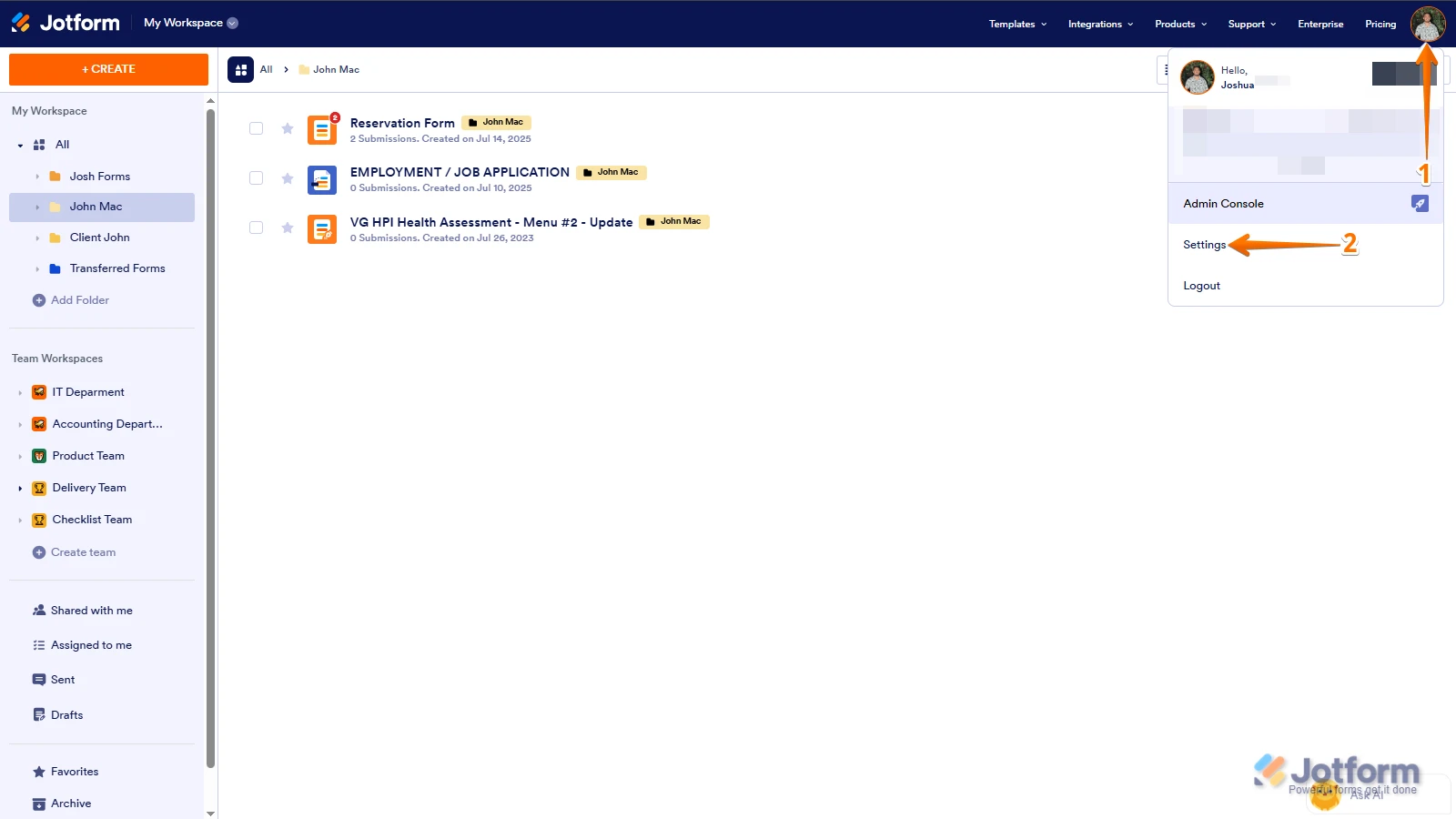
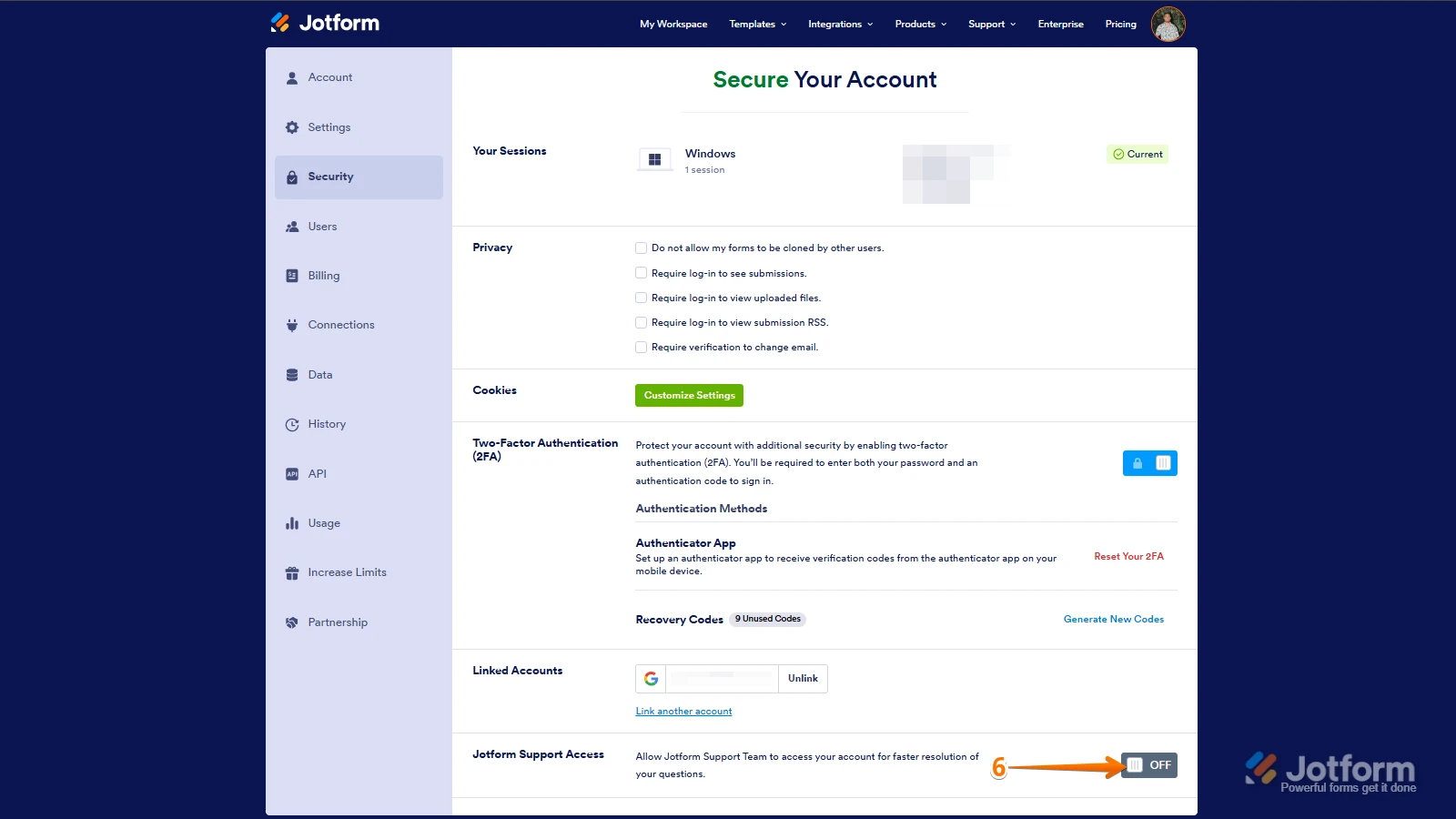
1. In the top-right corner of your Workspace page, click on your Avatar/Profile Image icon.
2. Then, in the Dropdown menu that opens, click on Settings.
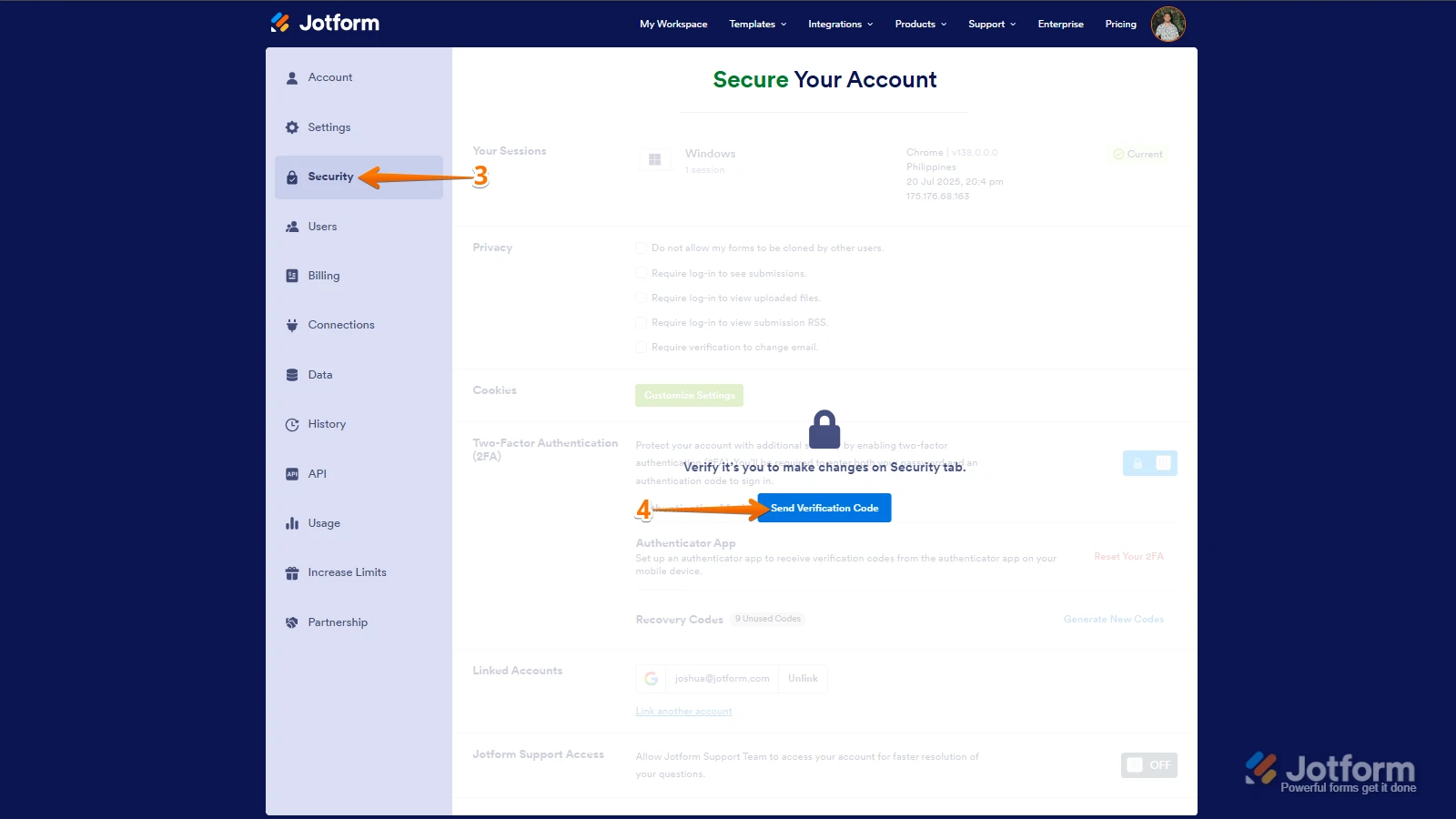
3. Next, in the panel on the left, click on the Security tab.
4. If you haven’t opened your Security page in a while, it’ll ask you to verify. To do that, click on Send Verification Code.
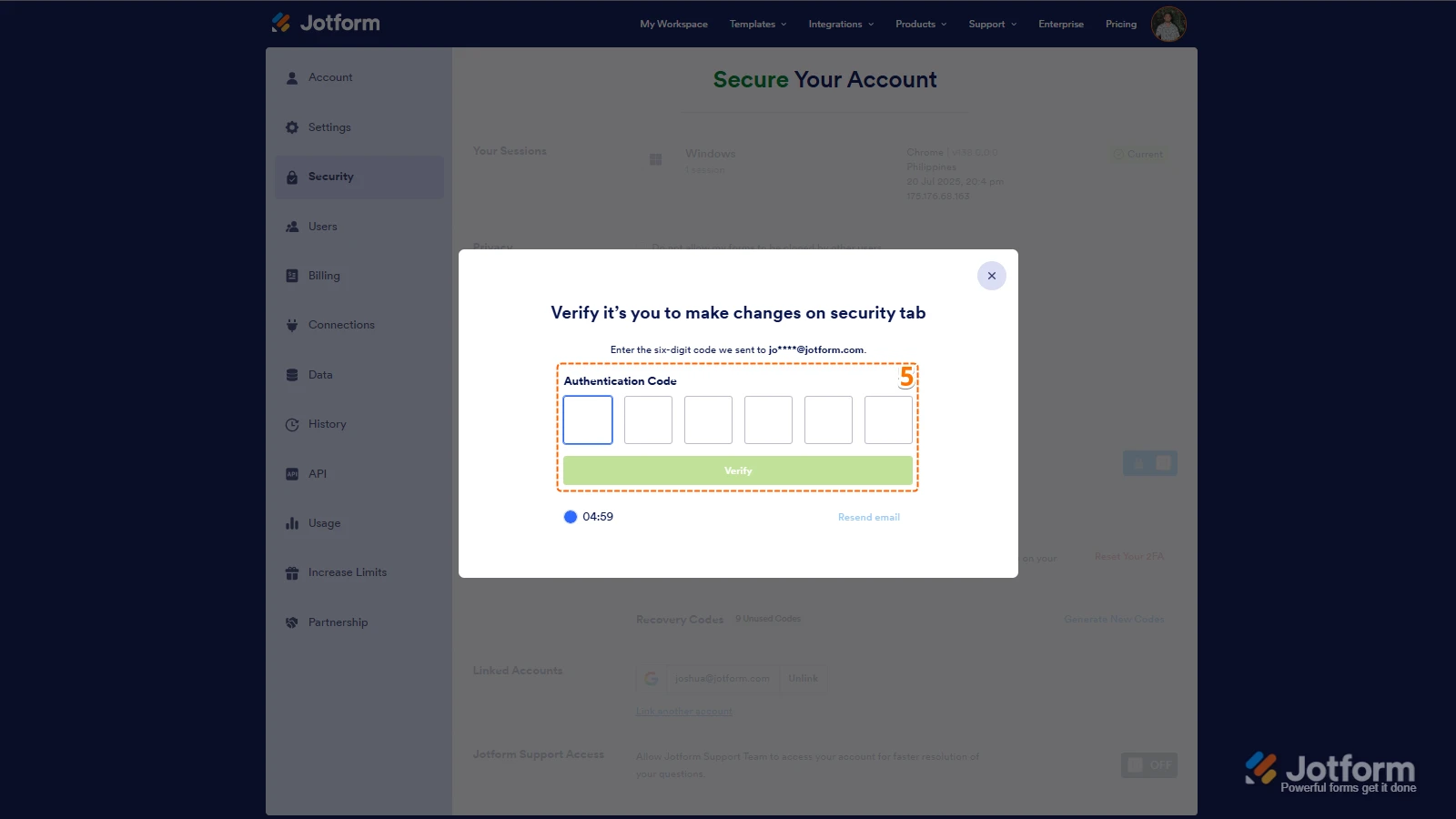
5. Then, enter the Verification Code you receive in your email.
6. Finally, at the bottom of the page, toggle on Jotform Support Access.
After we hear back from you, we’ll have a better idea of what’s going on and how to help. -
mackensiepolysI couldn't figure it out. I enable my access. Sent from my iPhoneOn Apr 9, 2026, at 12:18 PM, Jotform <noreply@jotform.com> wrote:
... -
 Jerlan JotForm Support
Hi Mackensie,
I have accessed your account and checked the report that you have created. Can you allow us to create a new report on your account so that we can check for a workaround?
When we hear back from you, we’ll be ready to move forward.
-
mackensiepolysYes please Sent from my iPhoneOn Apr 9, 2026, at 2:08 PM, Jotform <noreply@jotform.com> wrote:
... -
 Joseph Christian JotForm Support
Hi Mackensie,
I created a new report for your 2026 Heirloom Tomato Plant Order Form and adjusted the chart so the product names are more visible and spread out. Can you check the report named Untitled Report and see if that layout works better for you? Take a look at the screenshots below to see my results:
It's also easy to generate visual reports that are based on your submission data with Jotform Report Builder. Let me show you how:1. On your My Forms page, select the form that you want to create a report for.
2. Click on Reports at the top of the page, and then click on Add New Report.
3. Now, select Visual Report Builder, which will open Report Builder.
4. Enter a Report name and choose a Report Type.
5. Then, click on Create and that’s it. You’re done.
Give it a try and let us know if you need any help.
-
mackensiepolysGood Morning! This is great! Thank you! Only thing I need though is for all of the varieties to show up instead of the rest just showing in the "other entries" column. Could you get on with me today and show me how you did what you did here? I'll keep an eye on my email today. Thank you! Sent from my iPhoneOn Apr 9, 2026, at 5:23 PM, Jotform <noreply@jotform.com> wrote:
... -
 Joeni JotForm Support
Hi Mackensie,
To make sure every product variation shows up in the report, increase the option limit and confirm that all options are selected under the Data tab. Let me show you how:
- In Report Builder, click on the Product field and click on the Gear icon.
- Now, go to the Data tab, click on the Upward Arrow icon of the Option Limit to increase it and make sure that all the products is selected.
Let us know if you have any other questions.
-
mackensiepolysThat helped but still not exactly what I need. Lmk if we can get on computer at the same time Sent from my iPhoneOn Apr 10, 2026, at 7:47 AM, Jotform <noreply@jotform.com> wrote:
... -
 Sidharth JotForm Support
Hi Mackensie,
We handle support requests here instead of by phone or screen share. I’ll make sure you get the answers you need. Can you tell me what’s happening and how you want the products to show? A screenshot of what you’re seeing would be really helpful. Our guide on How to Post Screenshots to Our Help Center shows you how to take one.
After we hear back from you, we’ll know what’s going on and how to help.


 After we hear back from you, we’ll have a better idea of what’s going on and how to help.
 It's also easy to generate visual reports that are based on your submission data with
 Your Reply
Something Went Wrong
An error occurred while generating the AI response. Please try again!