-
 ResortPassPartners
I need to update the recipient email address and it's not letting me. It needs to be the one shown. We have enabled the option to attach the PDF. THIS IS URGENT!

-
 Podo: Support Specialist
Hi ResortPass,
Thanks for reaching out to Jotform Support. I'm an AI assistant here to assist you.
From what I understand, you are trying to update the recipient email address in your notification settings but are unable to save the changes. The issue seems to be related to the email content exceeding 65,000 characters, which prevents saving the email settings.
Here’s how to address this:
- Reduce the email content size: The warning indicates your email content is too large to save. This often happens when attaching PDFs or including a lot of content in the email body.
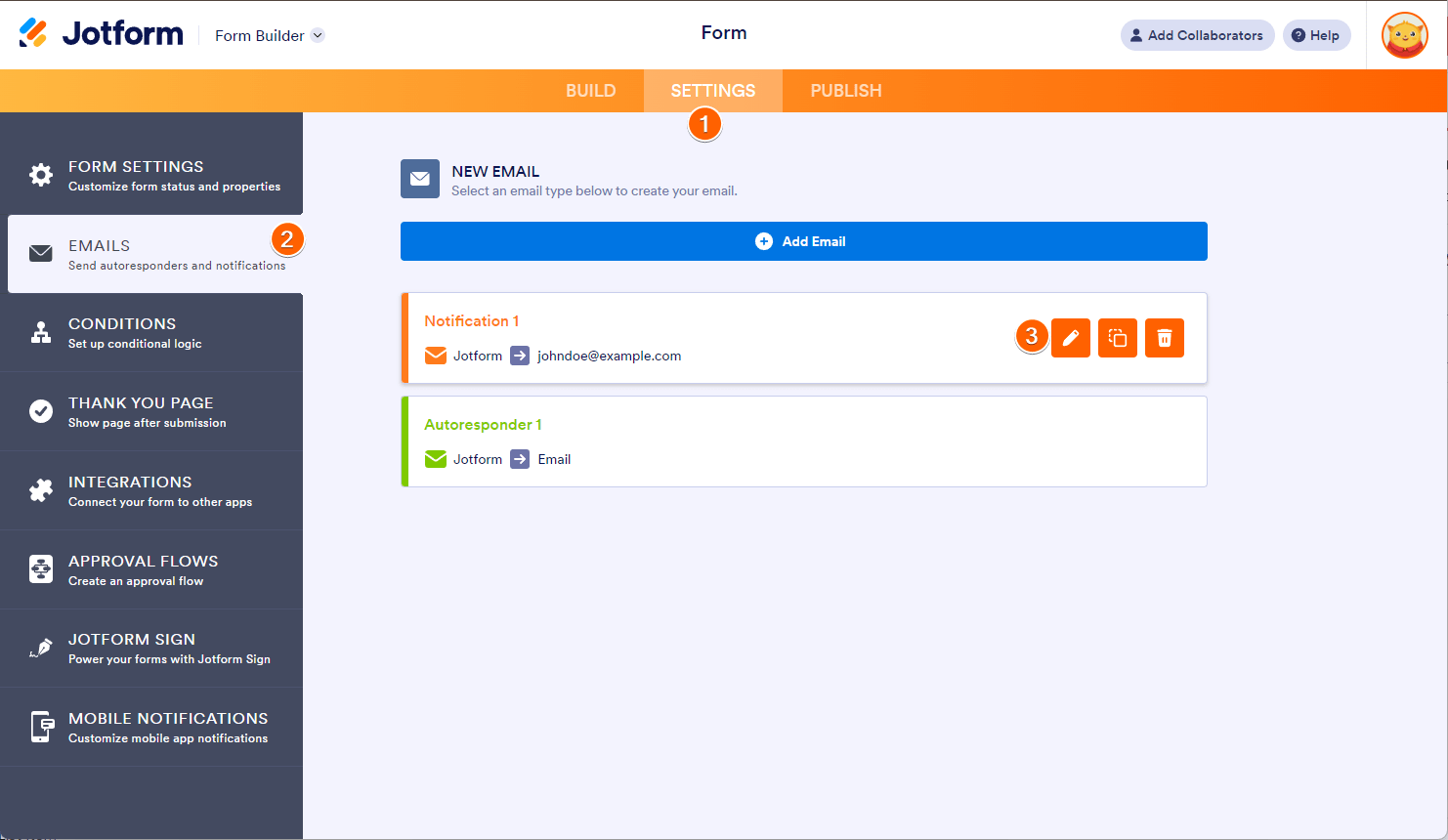
- Use the PDF Link tag instead of attaching the PDF: Instead of attaching the PDF file directly, you can add a download link to the PDF in your email content. This reduces the email size significantly. To do this:
- Go to the Settings tab in Form Builder.
- Select Emails from the left menu.
- Edit your notification email by clicking the pencil icon.
- In the email content, click where you want to add the PDF link.
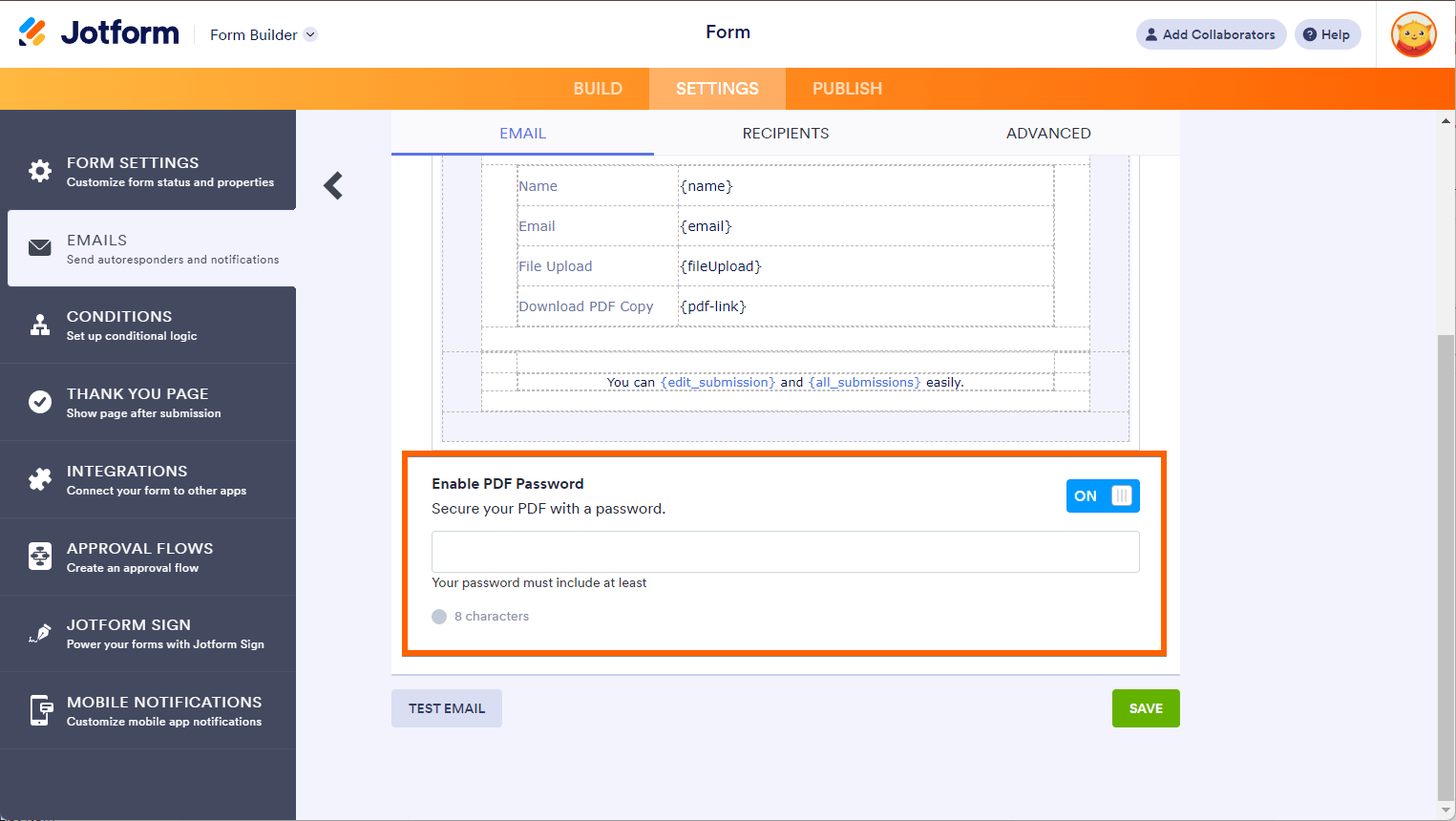
- Click the Form Fields button in the toolbar and select PDF Link to add the {pdf-link} tag.
- Save the email.
This will send a link to download the PDF instead of attaching the file, avoiding the size limit issue.
If you still want to attach the PDF and your attachments exceed 5MB, consider setting up a custom SMTP sender using your email provider, which may allow larger attachments.
Also, if you have already attached the PDF and want to fix attachment issues, try removing and re-adding the PDF attachment in the email settings.
Here is an image showing the notification email settings where you can edit the recipient email and attach PDFs:
Give it a try and let us know how it goes.
-
ResortPassPartners
You guys never had that 65K character limit on the forms before and we were able to view the submission without having to download it. It only cut off if it exceeded the limit, but now it's not letting us see any of the submissions and less than 65K?
-
Podo: Support Specialist
Hi ResortPass,
Regarding your concern about the 65K character limit and viewing submissions, here’s some clarification:
Jotform has a limit on the email content size for notifications, which is 65,000 characters. This limit affects the ability to save changes in email notifications if the content exceeds it.
Previously, you might have been able to view submissions directly in the notification email without downloading, but if the content size approaches or exceeds this limit, the system restricts saving or displaying the full content to ensure email deliverability and performance.
To manage this, Jotform recommends using the {pdf-link} tag in your email notification content instead of attaching the entire PDF. This way, recipients receive a download link to the PDF submission rather than the full content embedded in the email, which helps keep the email size manageable.
Also, submissions can be viewed conveniently in Jotform Inbox or Submission Tables within your account, where you can download or filter submissions as needed.
Here’s how to add the PDF download link in your email notification:
- Go to the Settings tab in Form Builder.
- Select Emails from the left menu.
- Edit your notification email by clicking the pencil icon.
- Click in the email content where you want to add the PDF link.
- Click the Form Fields button in the toolbar and select PDF Link to add the {pdf-link} tag.
- Save the email.
This method ensures the email content stays within limits while still providing access to the full submission PDF.
If you want to view submissions without downloading, using the Jotform Inbox or Submission Tables in your account is the recommended approach.
Give it a try and let us know how it goes.
-
ResortPassPartners
how do i cut out some of the form so that I can see the rest under 65K
-
Podo: Support Specialist
Hi ResortPass,
Let me help you with that:
To reduce the email content size and keep it under the 65,000 character limit, you can edit your notification email settings to exclude some form fields or content. Here’s how to do it:
- Go to the Settings tab in your Form Builder.
- Select Emails from the left menu.
- Edit your notification email by clicking the pencil icon next to the email template.
- In the Email tab, you will see the email content section where form fields are included. You can remove or modify the content here to reduce the size.
- Consider removing less important fields or large text fields from the email content to reduce the total characters.
- Use the {pdf-link} tag instead of attaching the full PDF to reduce size.
- Save your changes.
This way, you can cut out some parts of the form data from the email notification to keep it under the limit and still receive the essential information.
Give it a try and let us know how it goes.
-
ResortPassPartners
-
Podo: Support Specialist
Hi ResortPass,
One of our Support Team members will take it from here to follow up shortly.
-
 Keenly JotForm Support
Hi ResortPass,
I separated your other question into a new thread so we can focus on it properly. You can view and follow it here.
Try that and reach out again if you need more help.


Your Reply
Something Went Wrong
An error occurred while generating the AI response. Please try again!