-
 BondiSushi
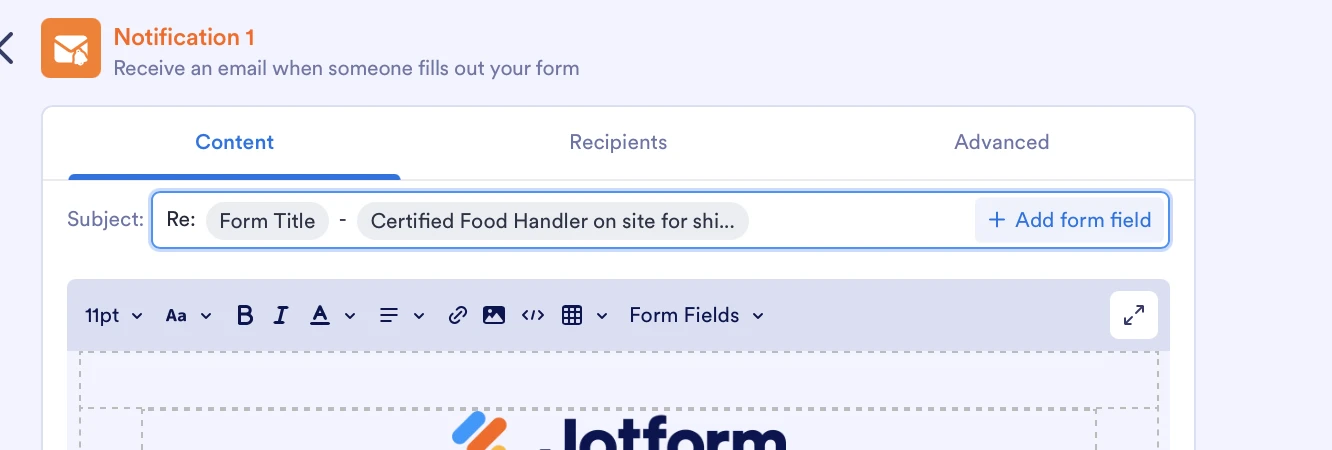
the button to select goes no where. you click "add form field" and nothing happens.

-
 Podo: Support Specialist
Hi Brian,
It seems like you're having trouble with the "Add Form Field" button not responding. Let me show you how to add form fields properly in Form Builder:
- Open Form Builder and locate the Add Element menu on the left side of the page.
- Click on the Add Element menu to expand it, then browse through the available fields under the Basic tab.
- Drag and drop the desired form field into your form where you want it to appear.
If clicking "Add Form Field" does nothing, try refreshing your browser or clearing your cache, as this can sometimes resolve interface issues.
Give it a try and let us know how it goes.
-
BondiSushi
This does not work I need to be able to condition the name of the email based on the form field. I reset my safari cache. the button is still inoperable to add the correct email headline
-
Podo: Support Specialist
Hi Brian,
Thanks for reaching out. To condition the name of the email based on a form field, you can use Jotform's conditional logic to change the email recipient or customize the email subject dynamically.
Let me show you how to set up conditional email recipients and customize the email headline:
- Open your form in Form Builder and go to the Settings tab.
- Click on Conditions on the left menu, then select Change Email Recipient.
- Create a condition that changes the recipient email based on the user's answer or form field value.
- To customize the email subject line dynamically, go to the Emails tab under Settings, select your Notification or Autoresponder email, and use form fields in the subject line by clicking the Form Fields dropdown to insert the field you want.
This way, you can condition the email recipient and customize the email headline based on form fields.
Give it a try and let us know if you need any other help.
-
 Reymae JotForm Support
Hi Aiden,
Thanks for reaching out to Jotform Support. I cloned your form and tested it to see if I could replicate the issue, but everything was working properly. Check out the screencast below to see my results:
Reach out again if there’s anything else we can help you with.
-
BondiSushi
Im not sure what to say. it doesnt work. I reset the cache, deleted everything, restarted my comp. It is not selectable. when you click the + the drop down doesnt show up. it switches to the little pen.
-
Reymae JotForm Support
Hi Aiden,
Can you share a quick screen recording of what’s happening so we can try to replicate it on our end? You can upload it to Google Drive, Dropbox, or record with Loom and send us the link. Also, can you share the device and browser you are currently using?
Once we hear back from you, we can help you sort this out.


Your Reply
Something Went Wrong
An error occurred while generating the AI response. Please try again!