-
 stormingrobots
form 260959275741064
- tested with access key
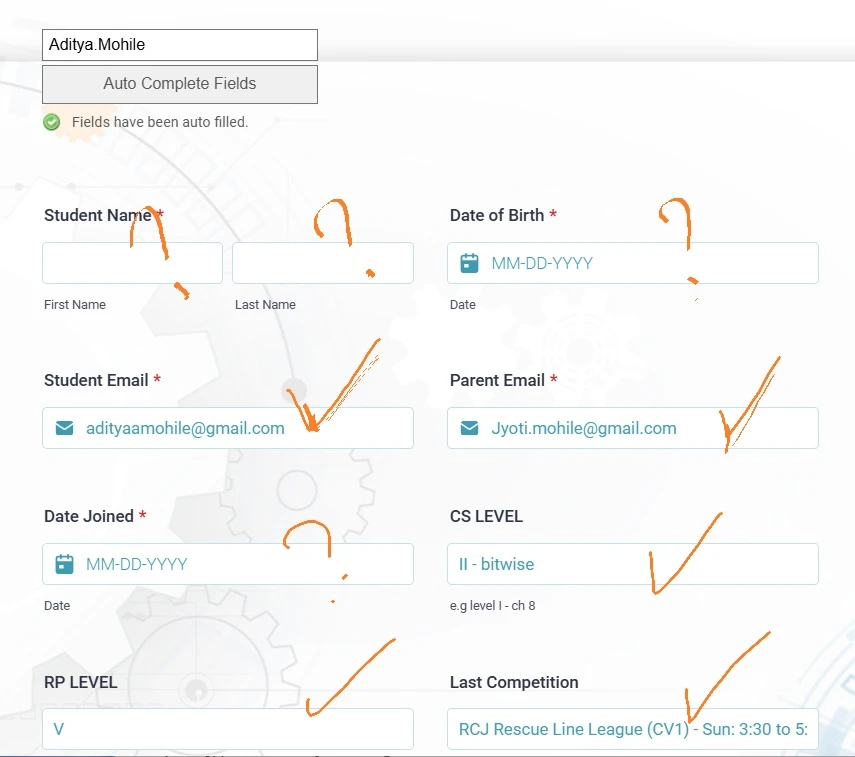
- most part of the forms are automatically field, except a few. Please see below.
Advice?

-
 Podo: Support Specialist
Hi,
Thanks for reaching out to Jotform Support. I'm an AI assistant here to assist you.
Regarding your form 260959275741064 and the Spreadsheet to Form widget, it is designed to autofill form fields based on data from an uploaded spreadsheet using a unique access code. Most fields should fill automatically if the form field labels exactly match the column names in your spreadsheet, and the access code entered matches the unique code in the spreadsheet (case-sensitive).
If some fields are not autofilling, here are some points to check:
- Ensure the spreadsheet is in XLS or XLSX format (CSV or Google Sheets are not supported).
- Verify that the column names in your spreadsheet exactly match the form field labels for the fields you want to autofill.
- Check that the unique access code you are using matches exactly (including case) the code in the spreadsheet.
- Confirm that the unsupported field types are not expected to autofill, as the widget supports only specific field types such as Full Name, Email, Short Text, Dropdown, Single Choice, Multiple Choice, Scale Rating, and Star Rating.
- Make sure the widget settings are correctly configured, including the Access Code column and other options like autofill conditions.
If the fields that are not autofilling fall outside the supported types or if there is a mismatch in labels or codes, they will not populate automatically.
Let me know if you need detailed guidance on configuring the widget or troubleshooting specific fields.
Give it a try and let us know how it goes.
-
stormingrobots
I copied the column names from the downloaded xls file from the submission data. So, they all matched.
-
Podo: Support Specialist
Hi,
Since you have confirmed that the column names in your spreadsheet exactly match the form field labels, here are a few additional points to consider for the Spreadsheet to Form widget:
- The widget only supports specific field types for autofill, including Full Name, Email, Time, Short Text, Long Text, Dropdown, Single Choice, Multiple Choice, Scale Rating, and Star Rating. Fields outside these types will not autofill.
- Ensure the unique access code you are using matches exactly (case-sensitive) the code in your spreadsheet.
- Check the widget settings to confirm the correct Access Code column is selected and other options like autofill conditions are properly configured.
- The widget clears existing values in supported fields and replaces them with spreadsheet data when a valid unique code is entered.
If some fields still do not autofill, it might be due to unsupported field types or configuration issues. If you want, I can guide you through the widget setup step-by-step to ensure everything is configured correctly.
Give it a try and let us know how it goes.
-
stormingrobots
header columns all match
access key works too, as majority of the fields are filled correctly, but the date of brith and names do not fill .
-
Podo: Support Specialist
Hi,
Since the majority of your fields are autofilling correctly but the Date of Birth and Name fields are not, here are some important points to consider:
- The Spreadsheet to Form widget supports autofill for specific field types including Full Name, Email, Short Text, Dropdown, Single Choice, Multiple Choice, Scale Rating, and Star Rating.
- Make sure the Date of Birth field is using a supported field type. Date fields might not be supported by the widget for autofill.
- For the Name field, ensure it is set as a Full Name field type, as this is the supported type for names.
- Check that the column names in your spreadsheet exactly match the form field labels, including case sensitivity and spacing.
- Verify that the data format in your spreadsheet matches what the form expects, especially for dates and names.
If the Date of Birth field is a Date Picker or similar unsupported type, it will not autofill with this widget. You may need to use a Short Text field for dates as a workaround.
Let me know if you want detailed guidance on adjusting your form fields or spreadsheet to ensure compatibility with the widget.
Give it a try and let us know how it goes.
-
stormingrobots
They do match . See below.
I have all Student Name, First Name, Last Name, as neither one works.
Date Joined, Date of Birth are not filled. But all others work.
-
Podo: Support Specialist
Hi,
Thank you for sharing the details. Based on the information, here are some important points regarding the Spreadsheet to Form widget:
- The widget supports autofill for specific field types only, including Full Name, Email, Time, Short Text, Long Text, Dropdown, Single Choice, Multiple Choice, Scale Rating, and Star Rating.
- Fields like Date Picker (used for Date of Birth and Date Joined) are not supported for autofill by this widget.
- For name fields, ensure you are using the Full Name field type in your form. The widget does not support autofilling separate First Name and Last Name fields individually.
- The column names in your spreadsheet must exactly match the form field labels, which you have confirmed.
- The unique access code must match exactly (case-sensitive) between the form and spreadsheet.
To resolve the issue with Date of Birth and Date Joined not autofilling, consider changing these fields from Date Picker to Short Text fields as a workaround.
For the name fields, use a single Full Name field instead of separate First Name and Last Name fields to ensure autofill compatibility.
Let me know if you want me to guide you through adjusting your form fields or spreadsheet for better compatibility with the widget.
Give it a try and let us know how it goes.
-
stormingrobots
Need an agent to look at this.. The column headers all matched, as I literally exported the spreadsheet from the submission data table.
Can someone, a real person, help?
-
Podo: Support Specialist
Hi,
One of our Support Team members will take it from here to follow up shortly.
-
 Lorenz JotForm Support
Hi stormingrobots,
The spreadsheet to form widget currently don't support date fields, which is why the date fields in your form isn't populated with data from your excel sheet. As for the student name, it is shown in your screenshot that the column name matches the label name in the form.
I tried it on my test forms and the spreadsheet to form widget works correctly with the name field. Can you share with us the excel file you're using in the widget, so we can further inspect the issue? You can upload it to Google Drive and share with us the link.
Once we hear back from you, we can help you sort this out.
-
stormingrobots
do you mean "First Name" and "Last Name" should be the column header?
-
 Eduardo_Ca
Hi stormingrobots,
The widget supports autofill for the Full Name field type, which means your form should have a single Full Name field rather than separate First Name and Last Name fields for the widget to autofill the name correctly.
Accordingly, your spreadsheet should have a single column header that exactly matches the label of the Full Name field in your form, such as "Student Name" or whatever your Full Name field label is. The widget doesn't support autofilling separate First Name and Last Name fields individually.
Also, please note that the widget supports only specific field types for autofill, including Full Name, Email, Short Text, Dropdown, Single Choice, Multiple Choice, Scale Rating, and Star Rating. Date fields like Date of Birth are not supported for autofill by this widget.
Let us know if there’s anything else we can help you with.
-
stormingrobots
Ok. I finally realize that I kept pulling in the old data. I have to delete the input field "Auto Complete Field" which ultimately links to an old copy of the xlsx. I had to re-uploaded the new one.
Question though:
1) if I have an update to the content, do I need to delete the old input field "Auto Complete Field" and re-upload an updated one?
OR
there is a way that I can make the update thru the form itself ?
-
 Mikhail JotForm Support
Hi stormingrobots,
You do not need to delete the old "Auto Complete Field" input field and re-upload a new one every time you update your spreadsheet data. The widget allows you to replace or update the existing spreadsheet file within the widget settings. You can simply upload the new or updated XLS/XLSX file in the widget's settings to refresh the data it uses for autofill.
Make sure the updated spreadsheet maintains the same column headers and structure as before to ensure the widget continues to work correctly. After uploading the updated file, save or update the widget settings, and the form will use the new data for autofill based on the access code.
Give it a try and let us know how it goes.
-
stormingrobots
Mikhail,
Sorry, I'd like to clarify my question:
I want to do:
- i enter the access key, thus the data is auto-complete <-- works great.
- now - > I want to modify just a single field for multiple students.
- each submission ultimately updates the default jotform submission table.
Issue - it looks like it is not possible to update the initial xlsx, and redownload the change.
So, the workaround for me:
- after submitting all the changes.
- download the jotform submission table and merge the changes back to the xlsx.
- return back to the "build" of the form
- Go to the widget to replace or update the existing spreadsheet file within the widget settings.
Is this process correct? Or, you have a better solution to it.
-
Mikhail JotForm Support
Hi stormingrobots,
Your workaround is correct. If it still doesn't work, you can share the Excel file to us so we can try to replicate it on our end. You can upload the file to any cloud storage service (like Google Drive, Dropbox, or OneDrive) and share the public link with us.
Keep us updated and let us know if you need any more help.
-
stormingrobots
thank you. All good.
-
stormingrobots
thank you. All good.
-
Podo: Support Specialist
Hi stormingrobots,
Your request has been answered and the thread is closed.
If you have another question or need more help, feel free to reply here and we'll assist you right away.

Your Reply
Something Went Wrong
An error occurred while generating the AI response. Please try again!