-
 cathysacco
I have an employee that is set up to be able to see the submissions for these 3 forms, and she it's not allowing her access or providing her visibility into them.

-
 Podo: Support Specialist
Hi Sacco,
Thanks for reaching out to Jotform Support. I'm an AI assistant here to assist you.
Regarding your employee not being able to see submissions for the three forms despite being set up for access, here are some important points and steps to check:
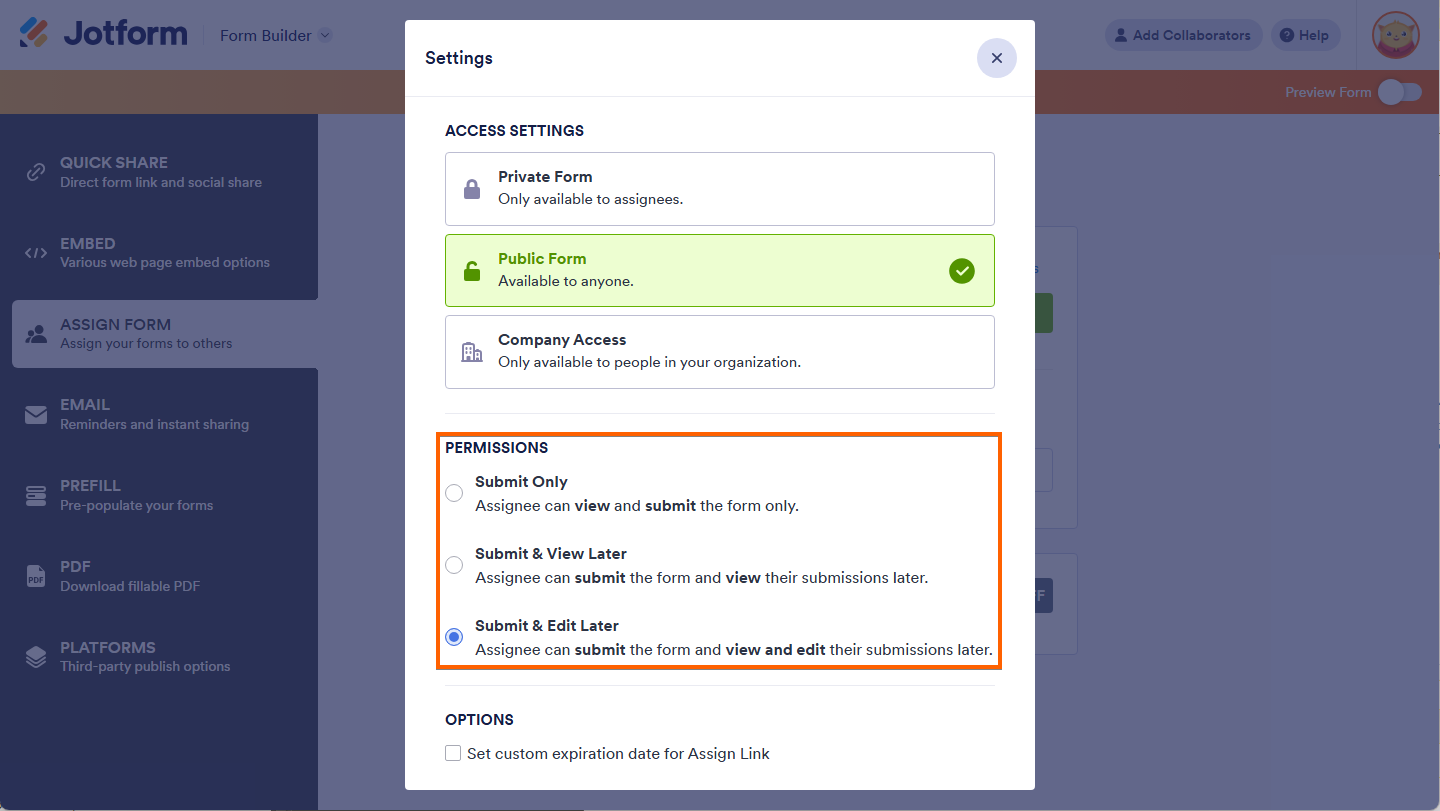
- Jotform allows you to assign forms to team members with specific permissions such as Submit Only, Submit & View Later, or Submit & Edit Later. Make sure the employee has the correct permission to view submissions.
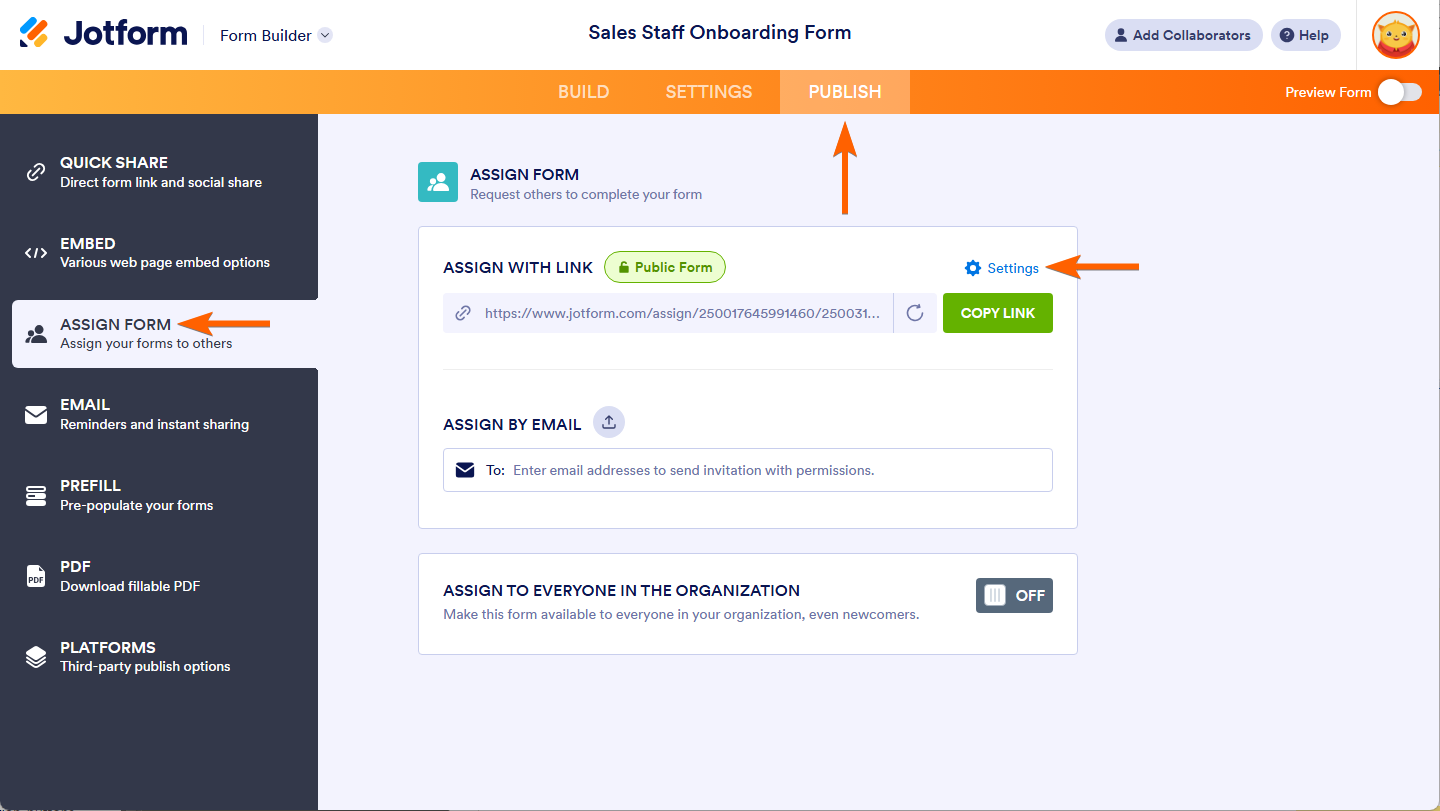
- To verify or update permissions, go to Form Builder > Publish > Assign Form, then check the Settings for the assigned user and their permission level.
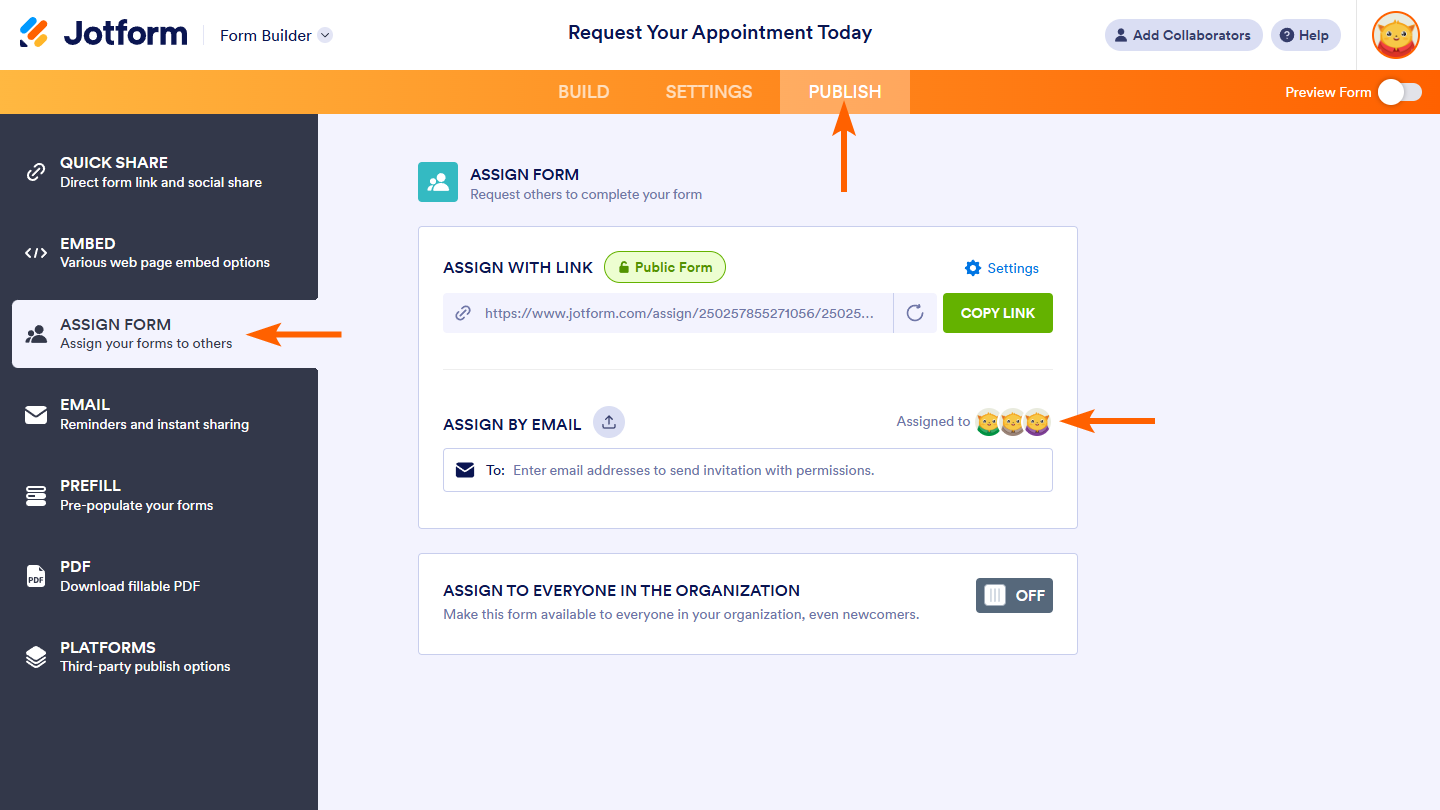
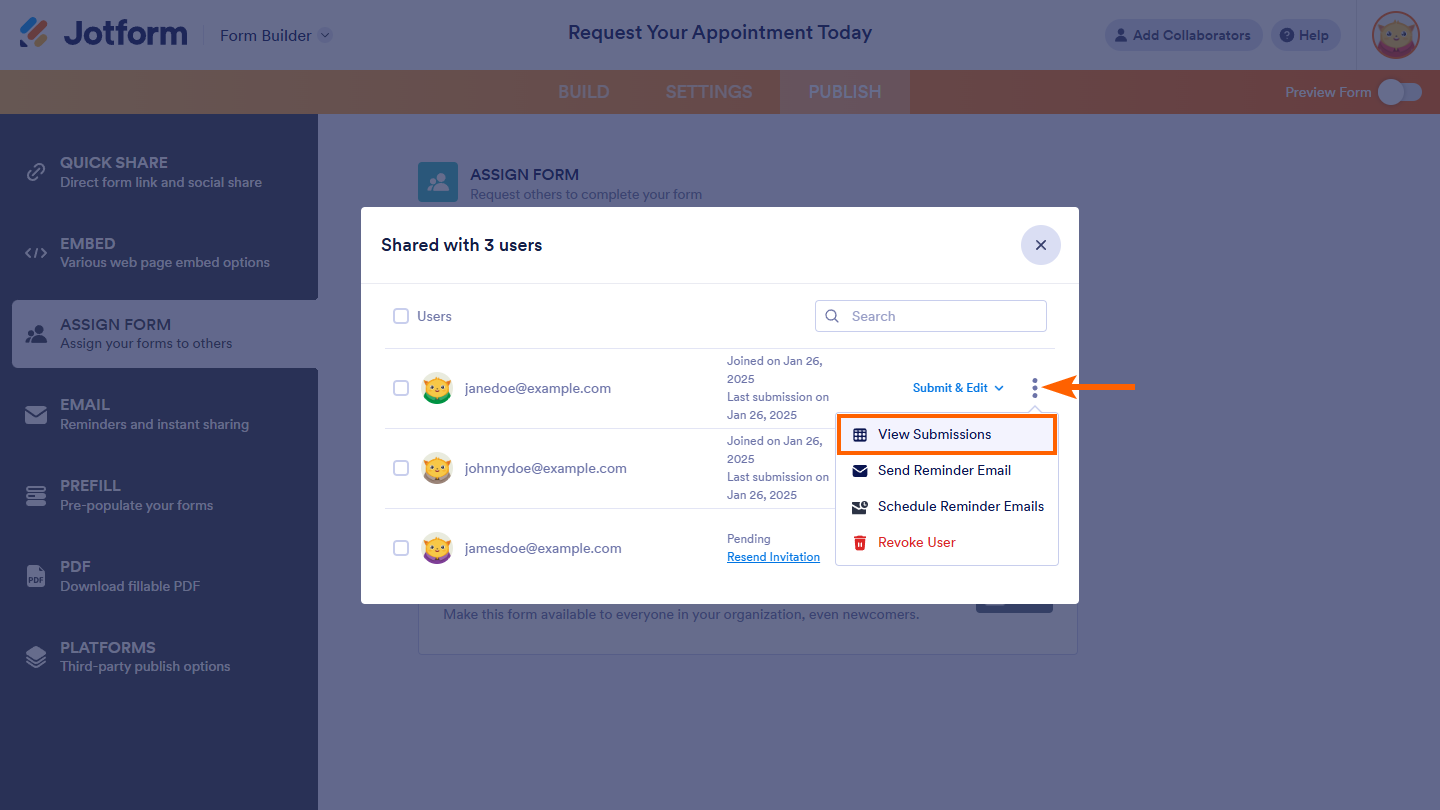
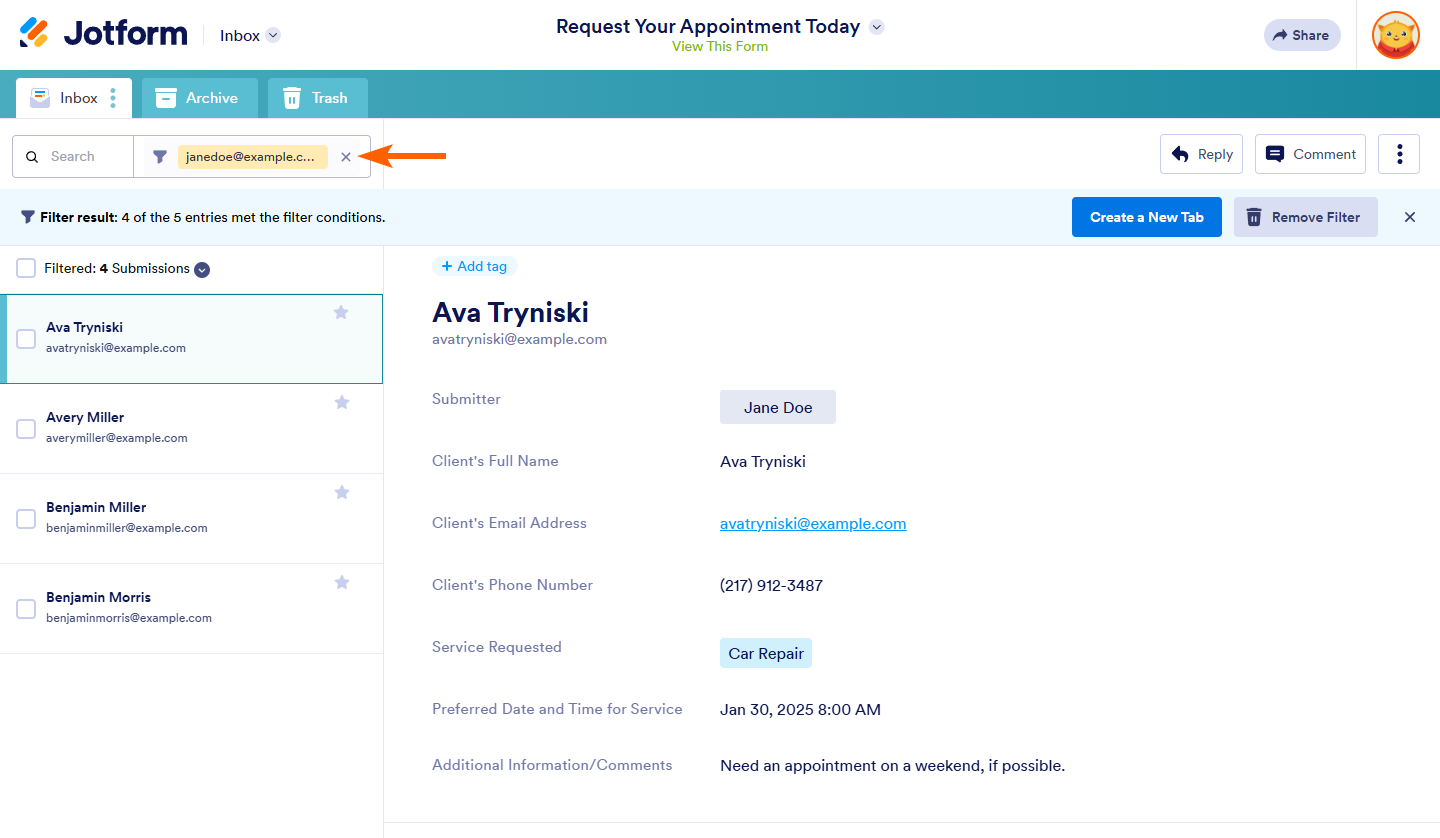
- You can also view assignee submissions by clicking the Assigned To button in the Assign Form tab, then selecting the three dots next to the assignee and choosing View Submissions. This will open Jotform Inbox filtered by that assignee's submissions.
- If your employee still cannot access submissions, ensure that the forms are properly assigned and that the employee is logged in with the correct account that has the assigned permissions.
Here are some helpful images illustrating these steps:
Give it a try and let us know how it goes.
-
cathysacco
Mine doesn't let me get past the point of Assigned To - I don't have the 3 dots.
-
Podo: Support Specialist
Hi Sacco,
It seems you don't see the three dots after clicking the Assigned To button, which is usually used to access options like viewing submissions for assignees.
Here’s how you can manage and view assigned forms and their submissions:
- Go to your Workspace page and click on Assigned To Me on the left menu to see forms assigned to the employee.
- Hover over the assigned form and click View Form to access it.
- Note that assigned forms cannot be moved to folders or edited by the assignee unless they are added as a Form Collaborator.
If you want to manage assignees or their permissions, you can do so from the Assign Form section in the Form Builder under the Publish tab.
Let me know if you need more detailed steps or screenshots to help with this.
Give it a try and let us know how it goes.
-
cathysacco
Nothing shows up in My workspace page. I'm just trying to provide her with access to view submissions and export them.
-
Podo: Support Specialist
Hi Sacco,
If nothing shows up in the My Workspace page for your employee, here are some things to check and try:
- Check Workspace Filters: On the Workspace page, click the Filter button near the +Create button and make sure the filters are set to show Forms and any other relevant assets. Sometimes filters hide assigned forms.
- Access Assigned Forms: Your employee should click on Assigned To Me on the left menu in Workspace to see forms assigned to them.
- Verify Assignment: Confirm that the forms are properly assigned to your employee's correct Jotform account email.
- Permissions: Ensure the employee has permission to view and export submissions in the form's Assign Form settings under the Publish tab.
Assigned forms cannot be moved to folders, so they will only appear in the Assigned To Me section if assigned correctly.
Give these steps a try and let us know how it goes.
-
cathysacco
Unless I'm missing something, I don't have a filter's button - see screen shot.
-
Podo: Support Specialist
Hi Sacco,
Based on what you described, it seems the Filter button on the Workspace page might not be visible or available in your current view. This button is usually located near the +Create button at the top of the page and allows you to filter assets such as Forms, Tables, and other items to be displayed.
Here’s what you can try instead to ensure your employee can see the assigned forms and access submissions:
- Check the Assigned To Me section: Have your employee click on Assigned To Me in the left menu of the Workspace page to see forms assigned to them.
- Verify the assignment: Confirm that the forms are correctly assigned to the employee’s email address in the Assign Form settings under the Publish tab.
- Permissions: Make sure the employee has the permission to view and export submissions.
If the filter button is truly missing or the interface looks different, it might be related to the version or type of workspace you are using. If possible, please share a screenshot of your Workspace page so I can better understand the layout and assist you further.
Give these steps a try and let us know how it goes.
-
cathysacco
Perhaps someone can reach out - that's not working for me.
-
Podo: Support Specialist
Hi Sacco,
One of our Support Team members will take it from here to follow up shortly.
-
 Rose Enterprise Support
Hi Cathy,
Can you confirm if the user is trying to view the submissions on the Shared with me section on her My Workspace page? I'm sharing a screenshot highlighting that section:
If the user can't still view the submissions, please answer the following:
- Can you share a screenshot of what the user can see on her end?
- Can you confirm if you set the user's access settings to View Submissions?
After we hear back from you, we’ll have a better idea of what’s going on and how to help.
-
cathysacco
-
 Jerlan JotForm Support
Hi Cathy,
Can you try to share the Jotform tables of the 3 forms to her email address? Let me show you how:
1. On your Jotform Submissions Table, click on the Share button on the top-right side of the page.
2. Click on Share Settings and set your Table’s privacy options.
3. Now, click on Go Back in the top-right corner of the panel and use the Generated Link or the Invite by Email feature to invite people.
1. In the top-right corner of your Workspace page, click on your Avatar/Profile Image icon.
2. Then, in the Dropdown menu that opens, click on Settings.
3. Next, in the panel on the left, click on the Security tab.
4. If you haven’t opened your Security page in a while, it’ll ask you to verify. To do that, click on Send Verification Code.
5. Then, enter the Verification Code you receive in your email.
6. Finally, at the bottom of the page, toggle on Jotform Support Access.
After we hear back from you, we’ll have a better idea of what’s going on and how to help.



 After we hear back from you, we’ll have a better idea of what’s going on and how to help.
Your Reply
Something Went Wrong
An error occurred while generating the AI response. Please try again!