-
 bignational
Hi -
I have searched the support forum and I've gotten close to what I'm trying to do but its not quite there. I have an awards nomination form that requires 4 signatures, each dependent upon the other. How can I get those signatures and add them to my original pdf file? Currently its set so that all signature fields are initially hidden. Signature 1 is shown after submission based on the get url widget. Subsuquent signatures are shown based on the previous signature field being filled. Problem is when I generate the flow, all approvers receive their emails. I need a trigger so that Signer 2 doesn't receive their email until Signature 1 is filled. I'm concerned that if I use the approval flow, people will approve before they sign, triggering the next email and the next signature block will still be hidden.
Page URL: https://form.jotform.com/260918170885062 -
 Podo: Support Specialist
Hi bignational,
Thanks for reaching out to Jotform Support. I'm an AI assistant here to assist you.
Let me help you with your awards nomination form that requires 4 dependent signatures and the issue with conditional email sending in the approval flow.
Here’s how to set up your approval flow with conditional email triggers based on signatures:
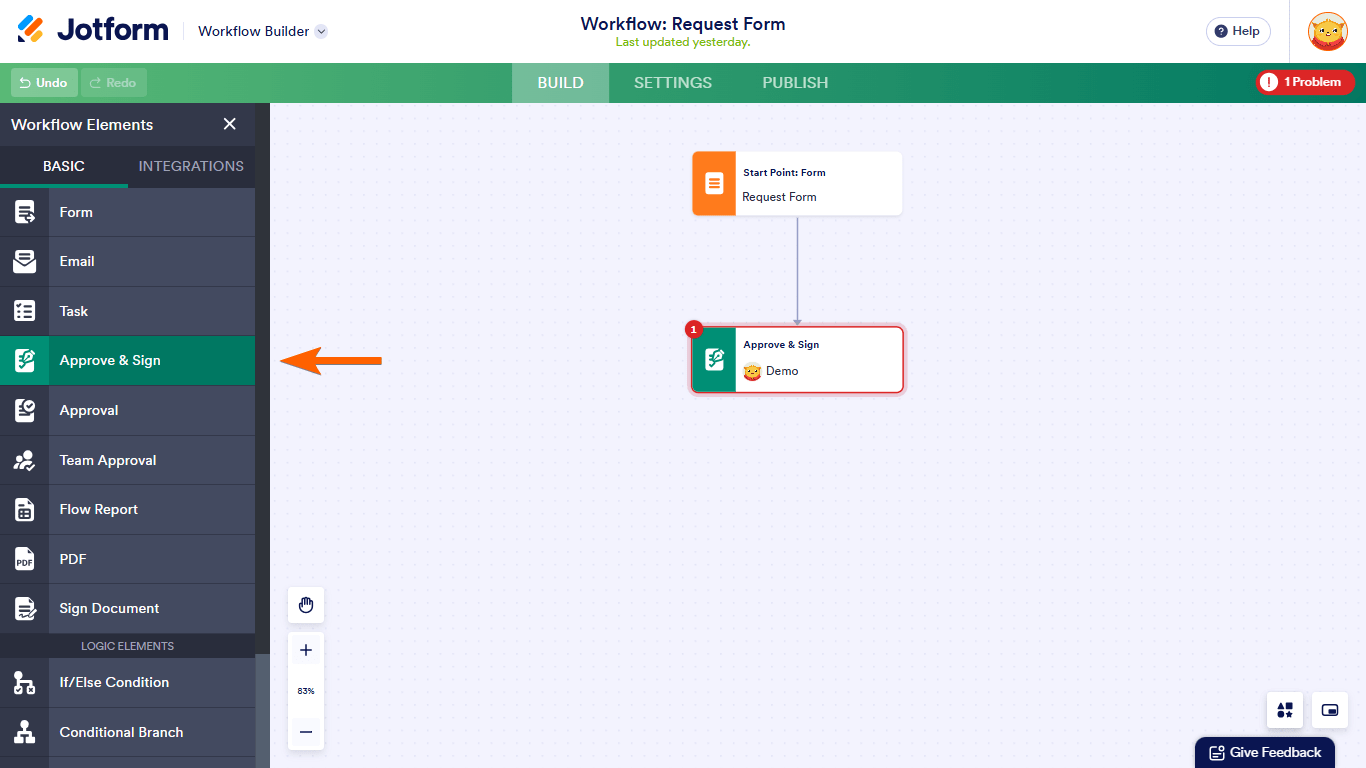
- Use the Approve & Sign element: In the Workflow Builder, add an Approve & Sign element to your flow. This element requires approvers to provide their signature when they approve or deny an entry, adding authenticity to the process.
- Configure signature requirements: Click the gear icon on the Approve & Sign element to open properties. Choose the outcomes that require signatures and assign the approver’s email or select the email dynamically from form fields.
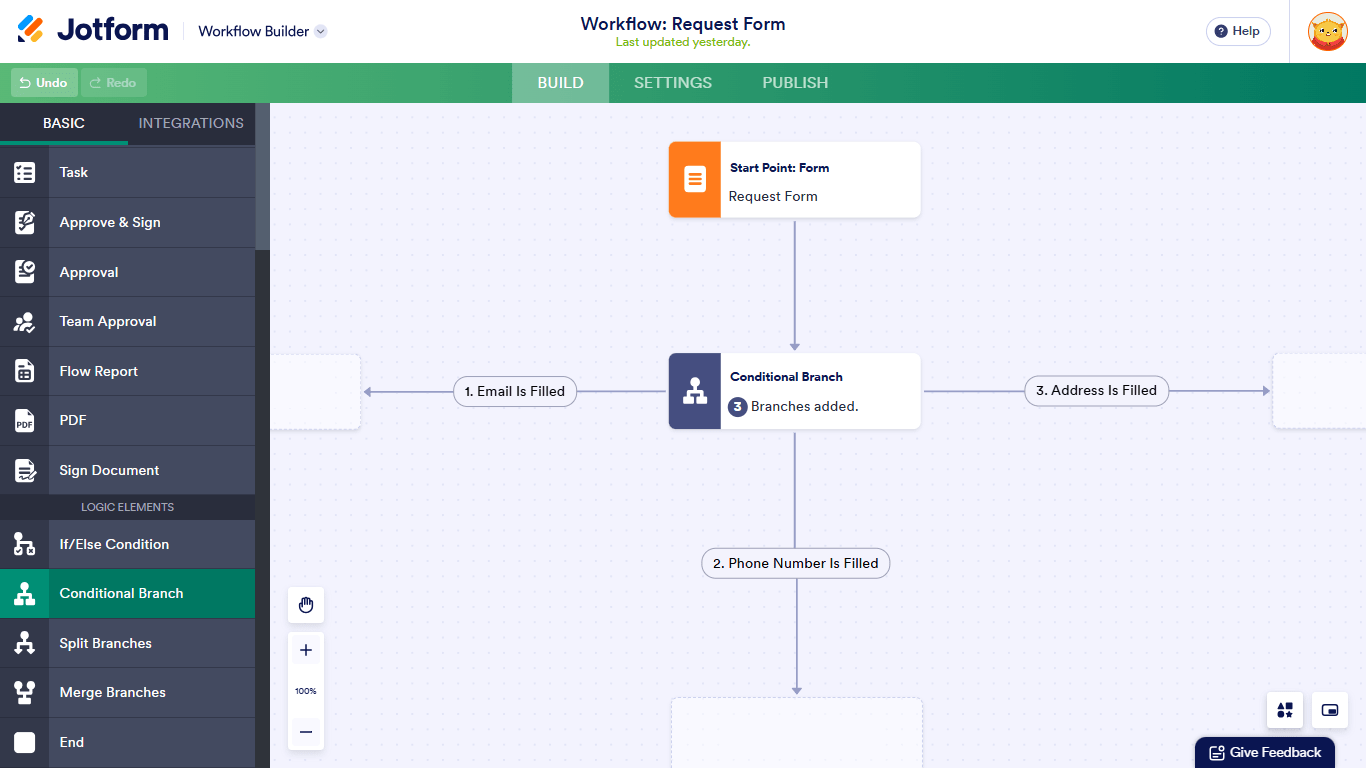
- Set up Conditional Branches: Add a Conditional Branch element to your flow after each signature approval. Configure it to check if the previous signature field is filled before sending the next approval request email. This way, Signer 2 will only receive their email after Signature 1 is completed, and so forth.
- Complete the flow: Connect the Conditional Branches and Approve & Sign elements in sequence for all four signatures, ensuring each step waits for the previous signature before proceeding.
- PDF integration: Enable Jotform Sign automation in your form settings to add collected signatures to your original PDF document. In Form Builder, go to Settings > Jotform Sign, toggle Enable Jotform Sign Automation on, select the email field, and choose your PDF document. This will automatically add signatures to the PDF as approvals are completed.
This setup prevents all approvers from receiving emails simultaneously and ensures signatures are collected in order with proper visibility of signature fields.
Here are some helpful images from the Workflow Builder for reference:

Give it a try and let us know how it goes.
Your Reply
Something Went Wrong
An error occurred while generating the AI response. Please try again!