-
 Jamie_Tovy
 -
 Podo: Support Specialist
Let’s sort this out together. First, what email address are you expecting the notification emails to be sent to?
Once I have that, here are a few things you can already double-check on your side for the email issue:
- In Form Builder, go to Settings > Emails and confirm there is a Notification Email set up.
- Edit that notification and under the Recipients tab, make sure your Recipient Email is the address you want.
- Check your spam/junk folder and mark any Jotform emails as “not spam”.
- In your Account Settings, confirm your email is not on the bounce list.
For the SMS/phone verification code not arriving, please also confirm:
- Which country your phone number is in.
- That you entered the correct number (including country code) under Settings > Notifications > SMS/Text Message (or via Settings > Integrations > search for SMS).
After you share your email address and country/number details (no screenshots needed), I can guide you more precisely on the next steps.
-
Jamie_Tovy
+1 972 529 8828
-
Podo: Support Specialist
Hi Jamie,
Thanks for providing your email and phone number details. Let me walk you through the next steps to check your notification settings:
- Open your form in Form Builder.
- Go to Settings > Emails. Confirm that a Notification Email is set up.
- Edit the Notification Email. Under the Recipients tab, ensure the Recipient Email is set to jamie@jato-bookkeeping.com.
- Check your email's spam or junk folder for any Jotform emails and mark them as not spam if found.
- In your Jotform Account Settings, verify that your email address is not on the bounce list.
For the SMS verification code issue, please double-check that you have entered your phone number correctly with the country code in the form's SMS notification settings under Settings > Notifications > SMS/Text Message or via Settings > Integrations > SMS.
If these steps don't resolve the issue, please let me know, and we can explore further solutions.
Give it a try and let us know how it goes.
-
 Jeric_T
Hi Jamie,
I checked the email address, and it's not in our Bounce list. I also see in our email log that you did a test email, and it was sent from our side. I suggest that you contact your email service provider and whitelist Jotform. Whitelisting Jotform can improve your email deliverability and help your messages reach the inbox. You can check this guide on Whitelisting Jotform IP Addresses and Domains.
If that does not work, we recommend setting up SMTP in your account. It will use your email service provider's facility to send the email. If you are using Google or Microsoft, you can follow the steps below:
1. On your Settings page, in the Sender Emails section, click on the Add Sender Email button.

2. In the window that opens, select Google or Microsoft and click on Continue.
3. In the next window that pops up, connect your Google or Microsoft Account.
4. After connecting your account, click on Send Test Email in the Google/Microsoft SMTP Configuration menu to check if it’s set up correctly, then click on Save and that's it.
Now, when setting up your notification or autoresponder emails, you'll be able to select your Google/Microsoft account as the sender:If you change your Google/Microsoft password or permissions for Jotform, this setup will no longer be valid, and you’ll need to click on the Refresh button on your Settings page:You might also want to check out these guides about How to Use Your Gmail Account as Your Email Sender via SMTP and Setting Up Email Notifications. For all other email providers, you can follow this guide.I’ve gone ahead and moved your other question to a separate thread to keep things tidy, and someone from our Support Team will help you out with it here.
Reach out anytime if more questions come to mind.
-
Jamie_Tovy
Actually, my email was in the bounce list and I removed it. So that works now.
Can you tell me why an email gets put in the bounce list?
-
Jeric_T
Hi Jamie,
This typically occurs when there’s a delivery issue, such as a full inbox, an inactive or invalid email address, temporary server downtime, or the message being flagged by the recipient’s spam filters. You can check this guide about emails being added to the Bounce list.
Reach out anytime if more questions come to mind.

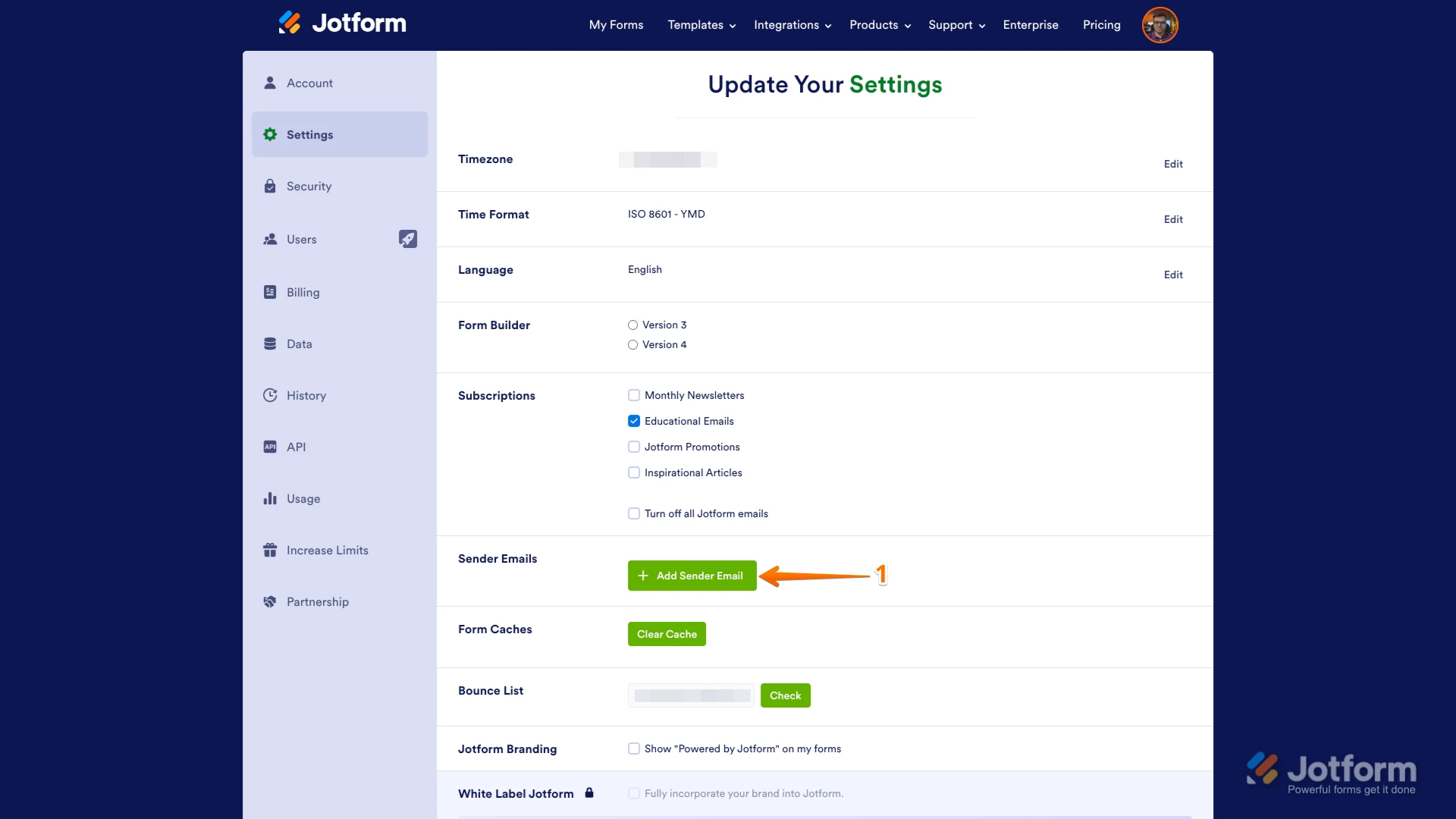
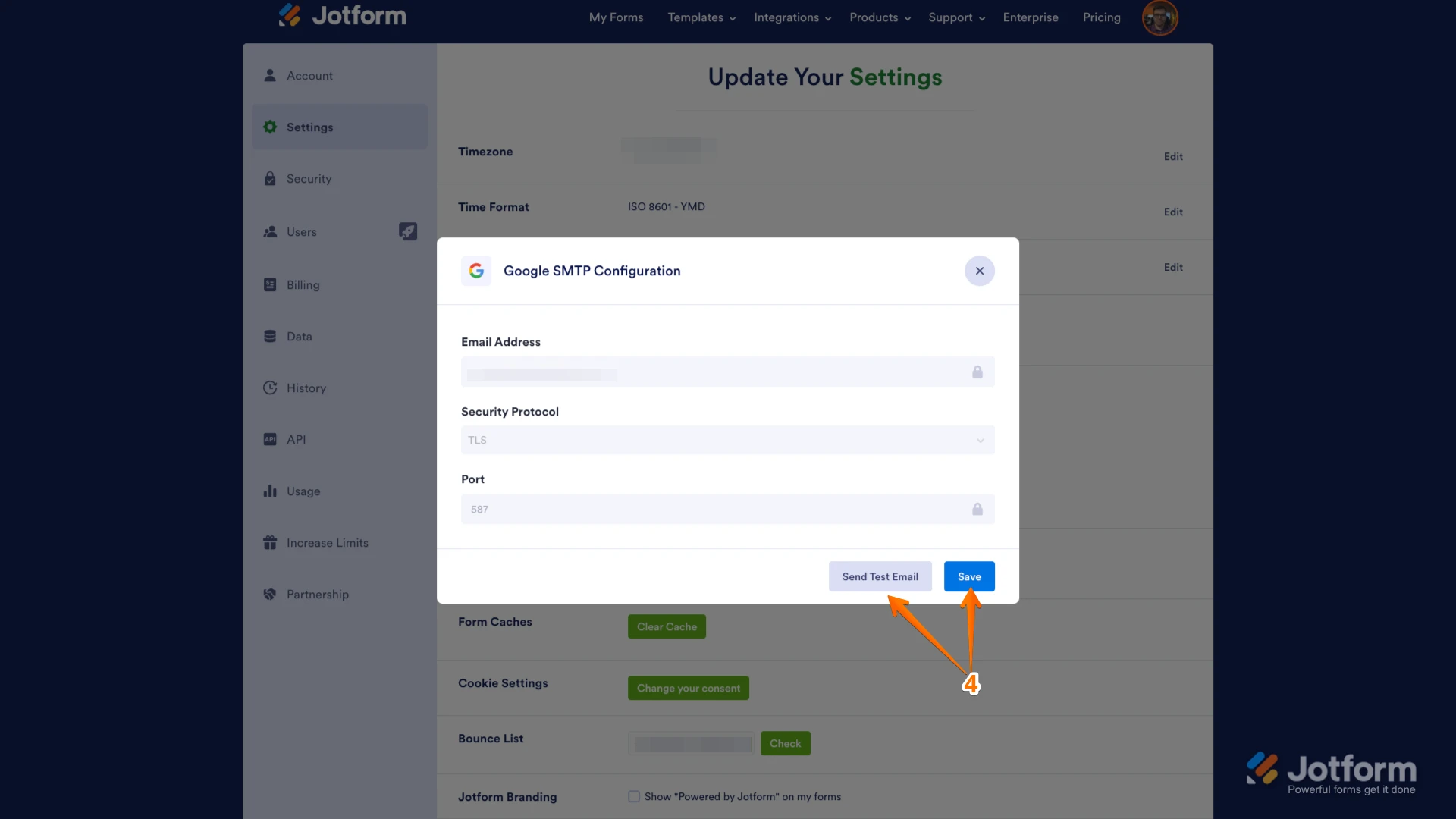 Now, when setting up your notification or autoresponder emails, you'll be able to select your Google/Microsoft account as the sender:
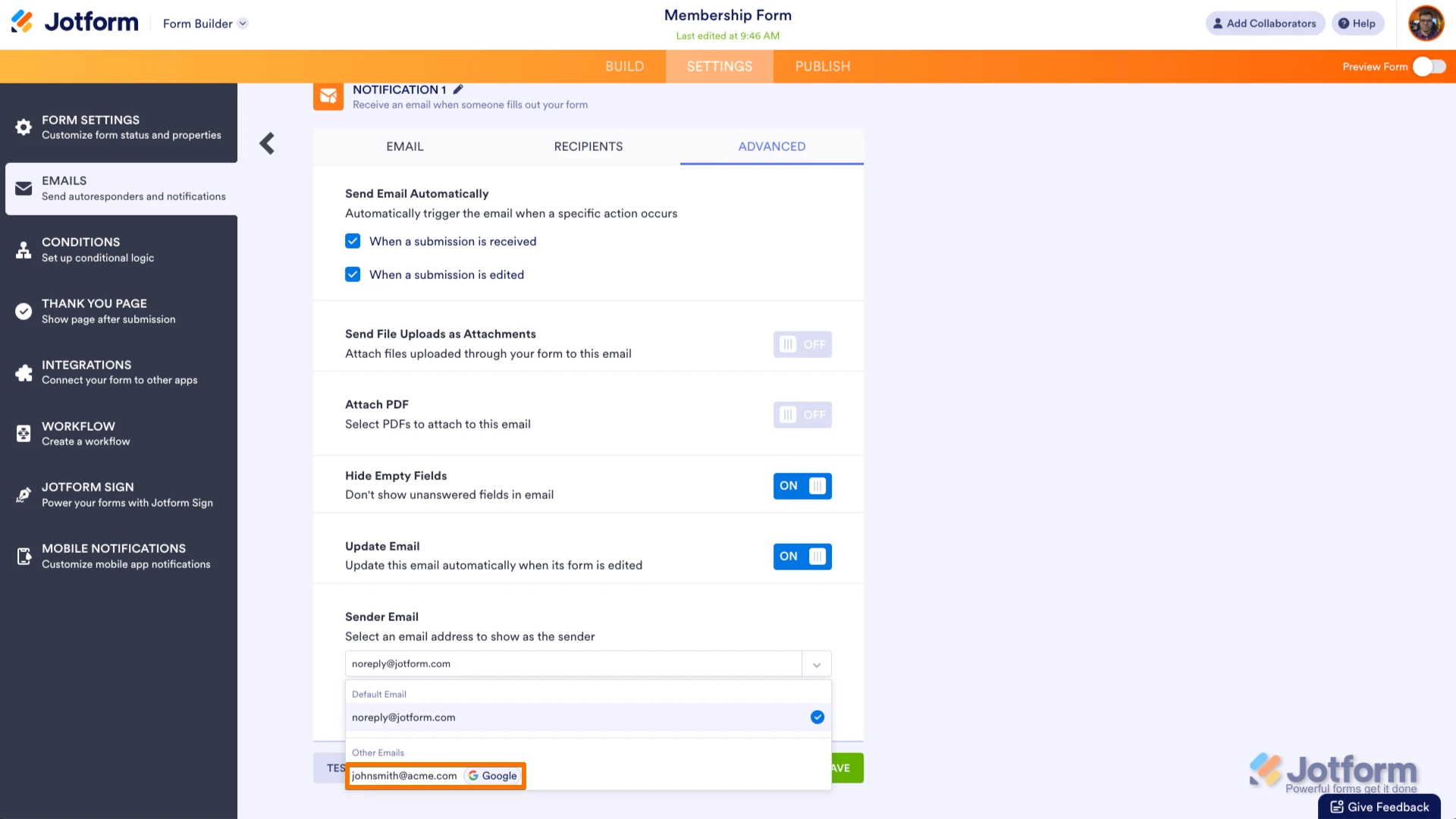 If you change your Google/Microsoft password or permissions for Jotform, this setup will no longer be valid, and you’ll need to click on the Refresh button on your Settings page: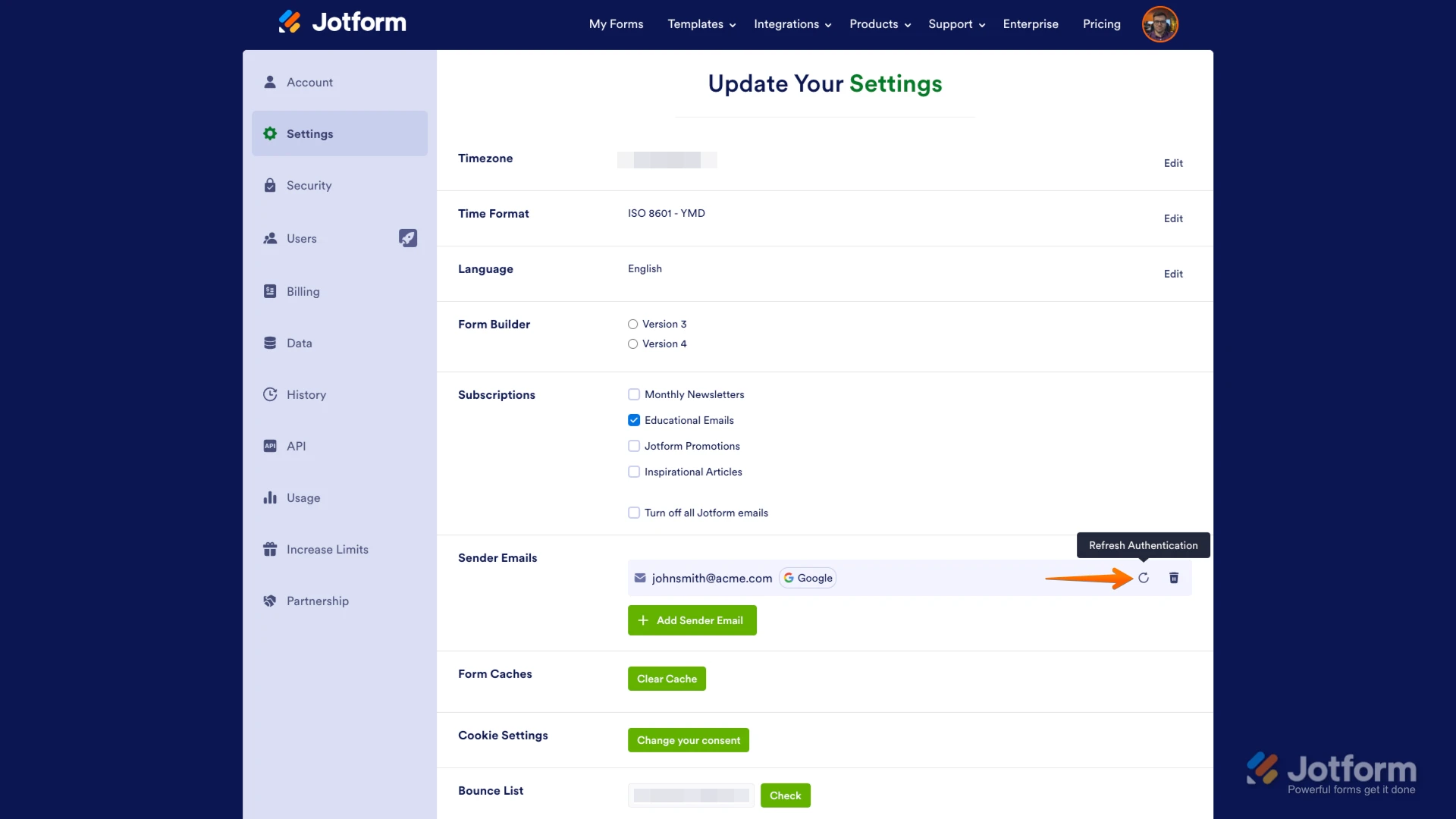
Your Reply
Something Went Wrong
An error occurred while generating the AI response. Please try again!