-
 gandyink
I've seen how you can auto- some forms on this complete some forms here: https://www.jotform.com/answers/27240501-user-qr-code-scanner-to-autopopulate-field
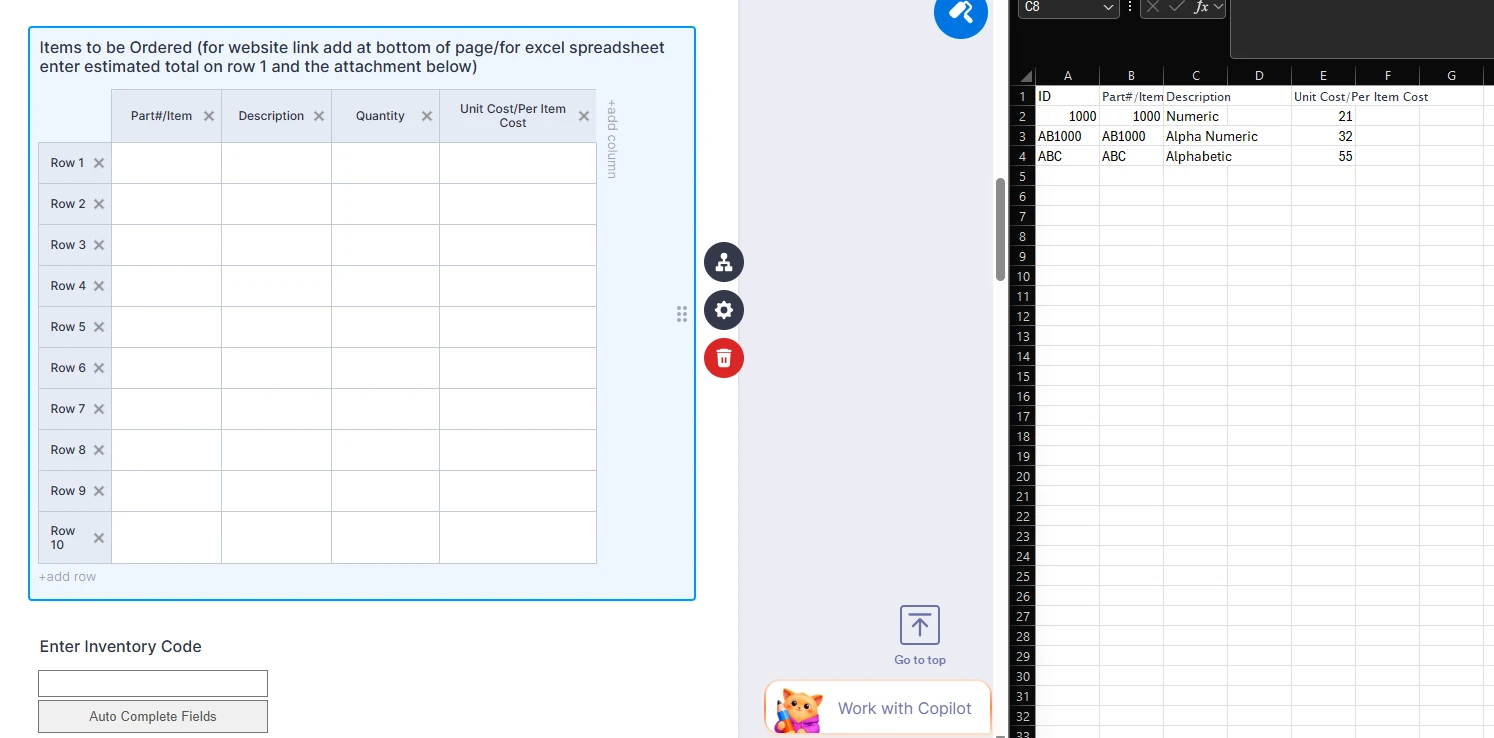
However, I'm trying to get the same functionality for this table
Any help is much appreciated!
-
 Podo: Support Specialist
Hi Gandy,
Thanks for reaching out to Jotform Support. I'm an AI assistant here to assist you.
Let me help you with that:
You can achieve the functionality of autofilling your input table based on an inventory code by using the Spreadsheet to Form widget in Jotform. This widget allows you to upload an Excel spreadsheet and use a unique code (such as your inventory code) to automatically fill out form fields, including table fields, with the corresponding data from your spreadsheet.
Here’s how to do it:
- In Form Builder, click on Add Element on the left side.
- Search for the Spreadsheet to Form widget under the Widgets tab and add it to your form.
- Upload your Excel spreadsheet (XLS or XLSX format) containing your inventory data.
- Select the column in your spreadsheet that contains the unique inventory code as the Access Code.
- Configure the widget settings such as button text, loading text, valid/invalid code messages, and autofill options.
- Make sure your form field labels exactly match the column names in your spreadsheet for the data to populate correctly.
- Click Update to save the widget settings.
When a user enters a valid inventory code in the form, the widget will autofill the corresponding fields in your table, such as Part#/Item, Description, and Unit Cost.
Important notes:
- The widget supports various field types including Short Text, Long Text, Dropdown, Single Choice, and more.
- The unique code is case-sensitive and must match exactly.
- The widget only accepts Excel files (XLS or XLSX).
This solution is ideal for your use case where you want to enter an inventory code and have the related item details automatically populate your table rows.
For more details and visual guidance, you can check the Spreadsheet to Form widget page.
Give it a try and let us know how it goes.
-
gandyink
I'm trying to get it to autofill specifically an input table. It all matches, but it is not auto filling
-
Podo: Support Specialist
Hi Gandy,
Thanks for your follow-up. Regarding the issue with the Spreadsheet to Form widget not autofilling your input table despite matching labels, here are some important points and troubleshooting tips to consider:
- The widget only supports certain form field types such as Short Text, Long Text, Dropdown, Single Choice, Multiple Choice, Scale Rating, and Star Rating. Input Table fields are not currently supported for autofill by this widget.
- Make sure the unique inventory code you use as the access code is case-sensitive and exactly matches the spreadsheet entry.
- Ensure your spreadsheet is uploaded in XLS or XLSX format. Other formats like CSV or Google Sheets are not supported.
- The column names in your spreadsheet must exactly match the form field labels for the autofill to work correctly.
- The widget clears existing values in supported fields and replaces them with spreadsheet data when a valid code is entered.
Since the widget does not support autofilling input tables directly, you might need to consider alternative approaches such as using individual fields for each table cell or custom scripting outside of the widget's capabilities.
For more details, you can review the Spreadsheet to Form widget page which explains the supported field types and limitations.
Let us know if you want guidance on alternative methods or have other questions.
-
 Rose Enterprise Support
Hi Gandy,
Thanks for reaching out to Jotform Support. The Spreadsheet to Form widget can only prepopulate the following field types:
- Full Name
- Time
- Short Text
- Long Text
- Dropdown
- Single Choice
- Multiple Choice
- Scale Rating
- Star Rating
This feature isn’t currently available in Jotform, but we're always on the lookout for new and exciting functionality to add to the Platform, and we definitely understand the value this would bring to you and your users.
We’ve gone ahead and submitted this as a feature request. Please note that when/if a feature is developed can vary, based on our developer's workloads, how viable the feature is, and how many other users have requested similar improvements. We’re unable to provide any specific timelines for this process, but rest assured that we’ll reach out and let you know if/when your feature is implemented. We appreciate your patience with this process.
Thanks again for taking the time to provide candid feedback on this. Let us know if you have any other ideas for possible improvements to the system.

Your Reply
Something Went Wrong
An error occurred while generating the AI response. Please try again!