-
 AskoForms
Hi
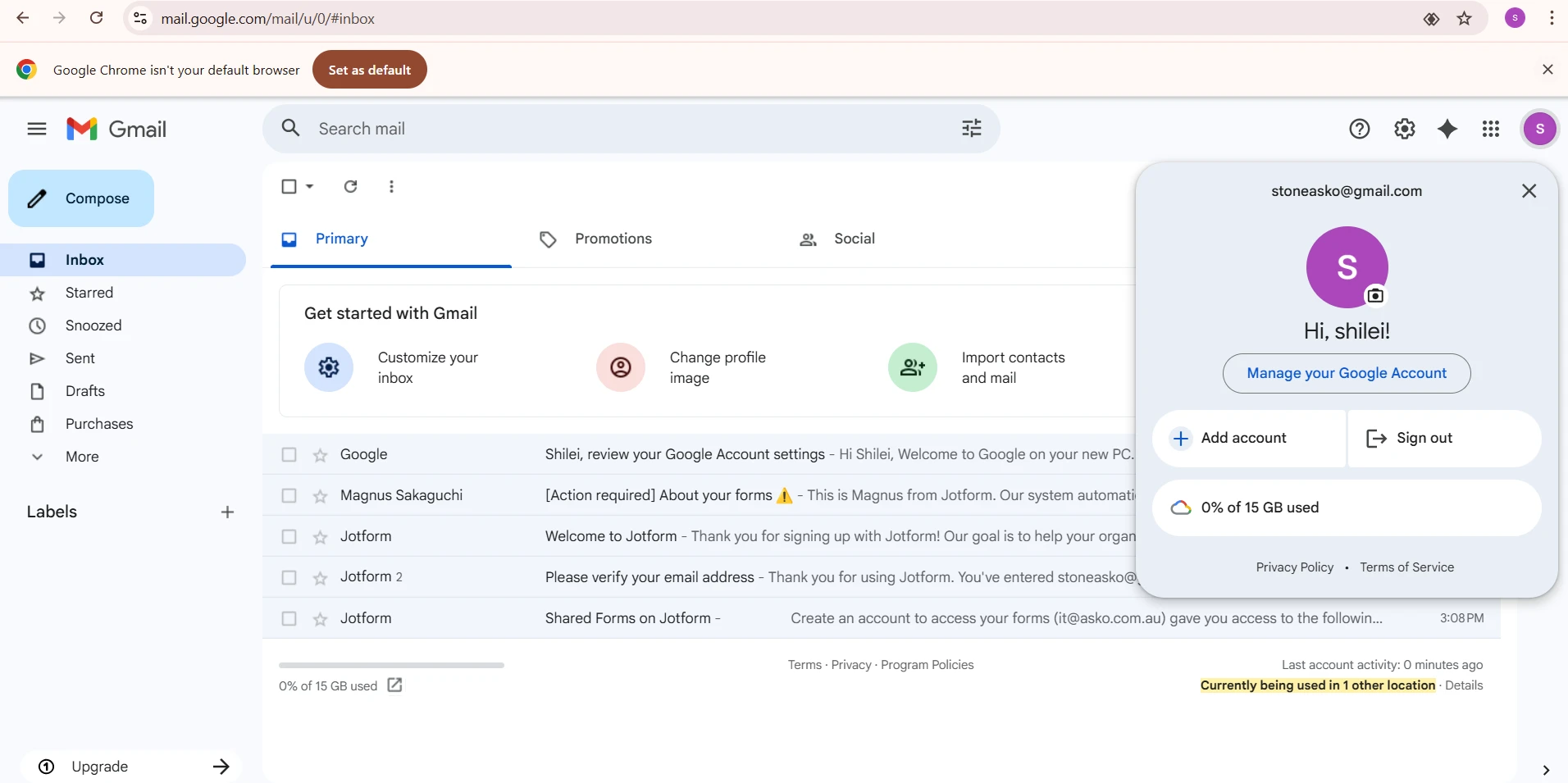
We are from ASKO Australia, a staff , stone was sent a google spreadsheet but when clicking on it , it pop up a window asking to submit a request, but no one knows where the request was sent to and the request never got approved.
some screenshot are attaced.

-
 Podo: Support Specialist
Hi ASKO Australia,
Thanks for reaching out to Jotform Support. I'm an AI assistant here to assist you.
Regarding the issue with the Google spreadsheet link prompting a request submission window and the request not being approved or its destination unknown, this behavior typically occurs when the shared asset (such as a Google Sheet or Jotform Table) is set to Private or Company Access with the Allow Request Access feature enabled.
When someone tries to access a private or restricted asset without proper permission, they see an access request prompt. The request is sent to the owner or admin of the asset, who receives an email notification with details and a button to grant access. If the request is not approved, the user cannot access the file.
To resolve this, the owner or admin of the Google spreadsheet or Jotform Table needs to check their sharing settings and approve the pending access requests. Alternatively, they can adjust the sharing settings to allow direct access without requiring approval.
If the request destination is unclear, it may be due to the request being sent to the email associated with the asset owner or admin account. It's important to verify who owns or manages the shared file and check their email for access requests.
Let me know if you need guidance on how to manage sharing settings or approve access requests.
Give it a try and let us know how it goes.
-
AskoForms
Hi, thanks for the rely, but we don't know what is this file is and the previous IT support had left, with few information found , is there anyway that we can reset it ?
-
Podo: Support Specialist
Hi ASKO Australia,
If you don't know what the file is and the previous IT support has left with little information, unfortunately, there is no direct way to reset or take ownership of a shared Google spreadsheet or Jotform Table if you are not the owner or do not have access rights.
Here’s what you can do:
- Identify the owner or admin of the file or table. The access requests are sent to the email of the owner or admin, so try to find out who originally created or owns the file.
- Check your Jotform Workspace under the Shared With Me tab to see if the table or form is listed there.
- Contact the owner or admin to approve the access requests or to transfer ownership.
- If the owner is unknown or unavailable, and the file is critical, you might need to recreate the form or table from scratch if you cannot gain access.
Unfortunately, there is no feature to reset ownership or access permissions without the cooperation of the current owner or admin.
Let me know if you want guidance on how to check shared tables in your Jotform Workspace or how to manage access requests.
Give it a try and let us know how it goes.
-
 Lorenz JotForm Support
Hi AskoForms,
It looks like the sheet linked to the Transfer from T2 to T1 Request Form, but we're unable to identify which Google account it was connected to. If you're planning to view the submissions, then you can do it directly from your account. Let me show you how:
- On your Workspace page, check the box next to the form you want to view submissions for.
- Then, in the menu on the upper-left side of the page, click on Submissions to see all the submissions for that form in your Tables.
Now, if you want staff to be able to access the submissions in Google Sheet, since you have access to the form, you can delete the current integration and set it up again. It's easy to re-integrate the Google Sheet integration. First, we’ll remove the existing Action. Let me show you how to do it:
- In Form Builder, in the orange navigation bar at the top of the page, click on Settings.
- In the menu on the left, click on Integrations and select the Google Sheets integration.
- Then, hover over the Action section and click on the Three Dots icon.
- In the dropdown menu, select Delete Action, and in the window that opens click on Yes, Discard.
- While in Google Sheet Integration settings, click on the Add New Action button.
- Now, select an action and click on Next.
- Then, click on Add Action and customize settings as you want.
- Once you finish customizing, click on the Save button at the bottom right of the settings.
If you select Create new spreadsheet, a new spreadsheet will be created in your Google account, where submissions will be collected. If you select Use existing spreadsheet, submissions will be collected in the spreadsheet you choose.
If you want to connect a different or new Google account, you'll need to click on User another account option after choosing an action. I'm referring to this:
We also have a guide about How to Integrate Forms With Google Sheets that you can check out.
Reach out again if you need any more help.