-
EElise
I accidentally created my account with the email elise@soulspacestudio.com
My actual email is elise@soulspacestudio.net.
I added my .net email as a backup email to the account.
I need help updating the primary email and getting 2FA enabled.
-
 Podo: Support Specialist
Hi Elise,
Thanks for reaching out to Jotform Support. I'm an AI assistant here to assist you.
Regarding updating your primary email and enabling two-factor authentication (2FA), here’s how you can do it:
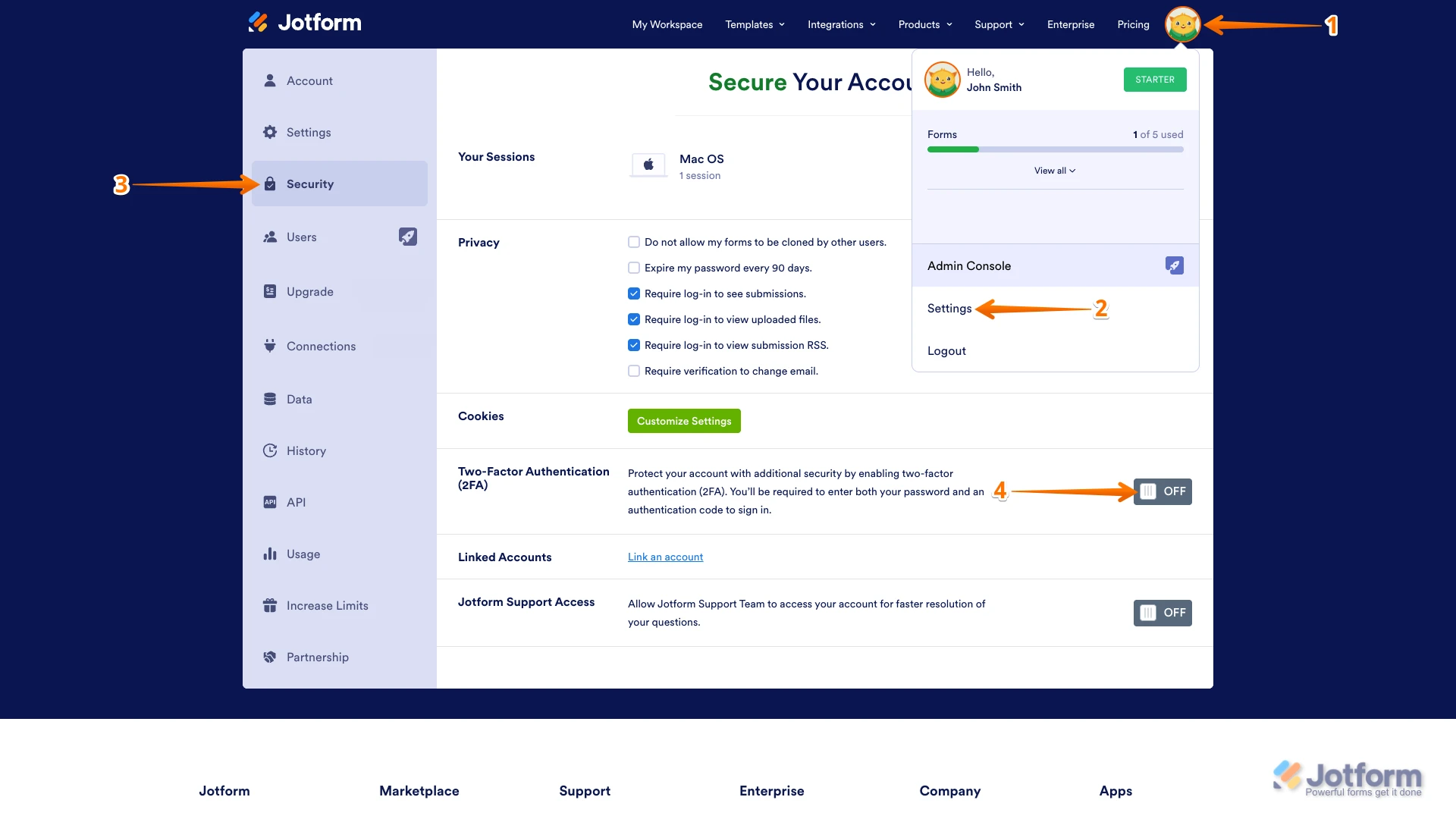
To enable Two-Factor Authentication:
- On your Workspace page, click on your Profile Image/Avatar in the upper right.
- In the menu, click on Settings.
- Go to the Security tab on the left side of the screen.
- Toggle Two-Factor Authentication to the On position.
- Enter your Jotform password and click Verify.
- Scan the QR code using an authenticator app like Google Authenticator, Duo, or Authy.
- Enter the 6-digit code generated by your authenticator app and click Enable 2FA.
- Save or download your recovery codes for backup access.

For updating your primary email, since you have added your .net email as a backup, if you want to switch the primary email and are unable to do so directly, you may need to follow the account recovery or email update process if verification is required on the current primary email.
If you cannot update your email because you cannot access the current primary email for verification, you can submit a form on the How to Recover Your Jotform Account page for the team to review and assist you.
Please let me know if you need detailed steps on updating the primary email or further assistance with 2FA.