-
 haroldd79
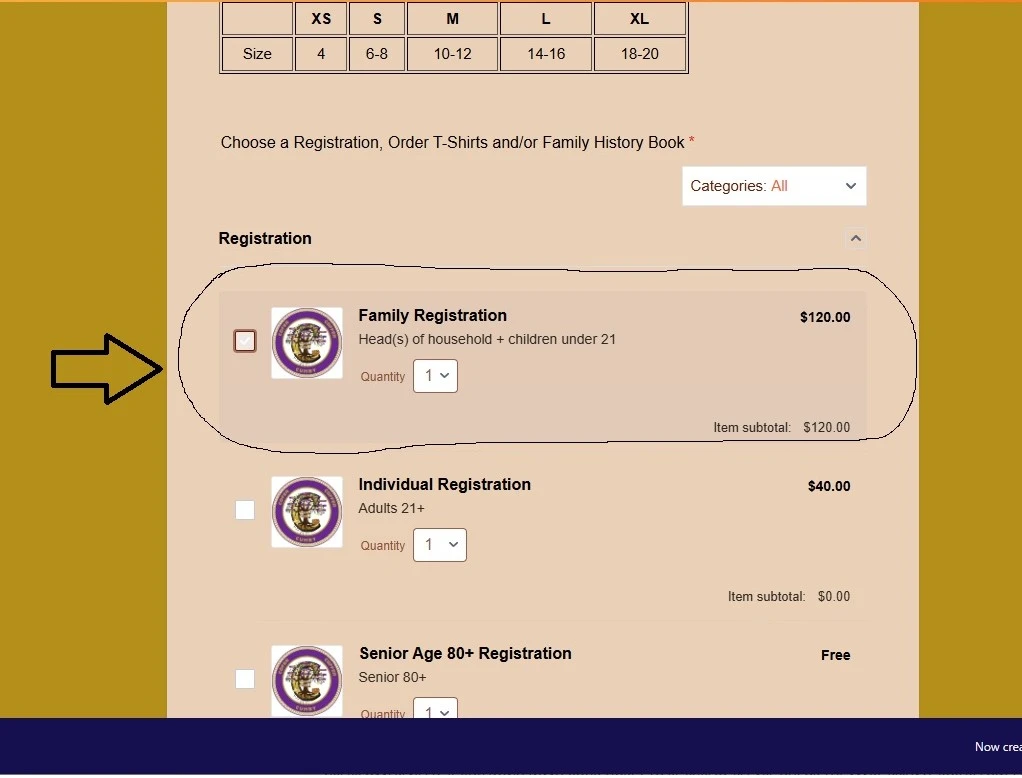
What is the custom CCS to change the background color of the selected product Item and checkbox color in the Product Field.
I've tried the suggested code below, but it doesn't work.
/* Selected product item background */
.form-product-item.jfProduct-selected, .form-product-item.selected {
background-color: #ffe9b3 !important;
/* change to your color */
}
/* Checkbox border and check color */
.form-product-item .jfCheckbox, .form-product-item .jfCheckbox span {
border-color: #ff9900 !important;
/* checkbox border color */
}
.form-product-item .jfCheckbox span:before {
color: #ff9900 !important;
/* checkmark color */
}

-
 Bojan Support Team Lead
Hi Harold,
Thanks for reaching out to Jotform Support. This is possible to solve with custom CSS code. Here's how:
1. Copy the following CSS:
.form-product-item-detail:has(input[type="checkbox"]:checked) {

  background-color: #d1fae5; /* Light green */

  border-color: #10b981;

}
2. Open your form in the Form Builder, and click on the Paint Roller icon from the right.
3. Open the Styles tab.
4. Paste previously copied CSS here.Give it a try and let us know how it goes.
You can also check out this guide for more information.
-
haroldd79
It works. Except, the other products that have sub-products (T-Shirts) change the background color by default without the checkbox being "checked". No way to tell which T-Shirt product is selected.
-
 John JotForm Support
Hi Harold,
You can try using this one instead and see if it'll work for you:
.form-product-item-detail:has(.form-checkbox:checked) {

 background-color: #d1fae5; /* Light green */

 border-color: #eb24dd;

}
Check out the screenshot below to see how it works on a cloned form: