-
 yuliwang
 -
 Podo: Support Specialist
Hi YuLi,
Thanks for reaching out to Jotform Support. I'm an AI assistant here to assist you.
Transferring Your Forms and Data to Another Account is easy. When you transfer a form, all its submission data moves with it, and the receiving account becomes the new owner. There are a few things you need to be aware of:
- If you're using a custom URL, it’ll automatically update from https://form.jotform.com/{yourUsername}/{your-custom-url-slug} to https://form.jotform.com/{New_Owner_Username}/{your-custom-url-slug}.
- The transfer can’t be undone unless the new owner agrees to send the forms back.
- It's not possible to transfer forms to or from HIPAA-friendly accounts.
Now, let me show you how to do it:
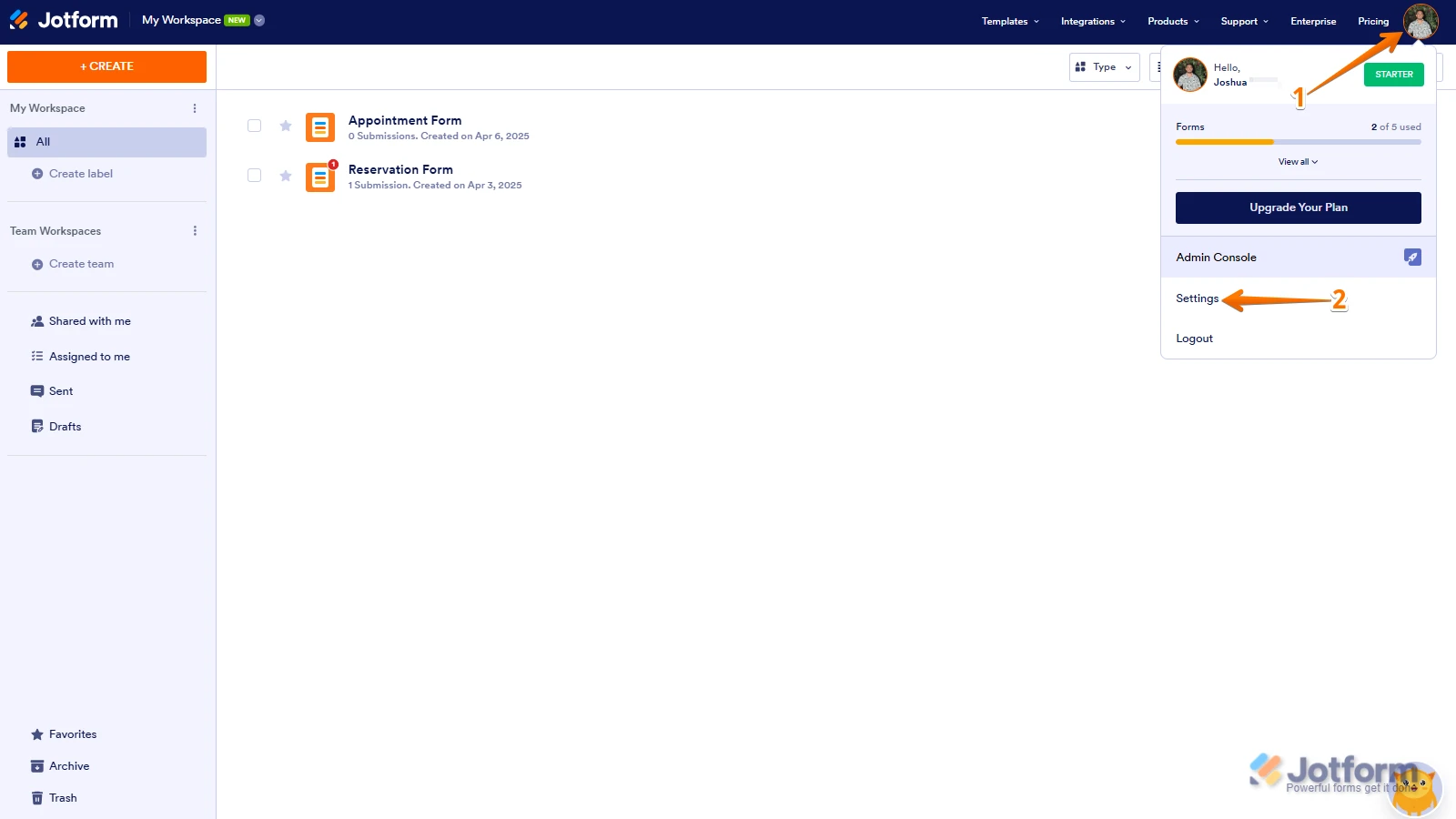
1. On your Workspace page, click on your Avatar/Profile Image in the top-right corner of the screen.
2. In the window that opens, click on Settings.

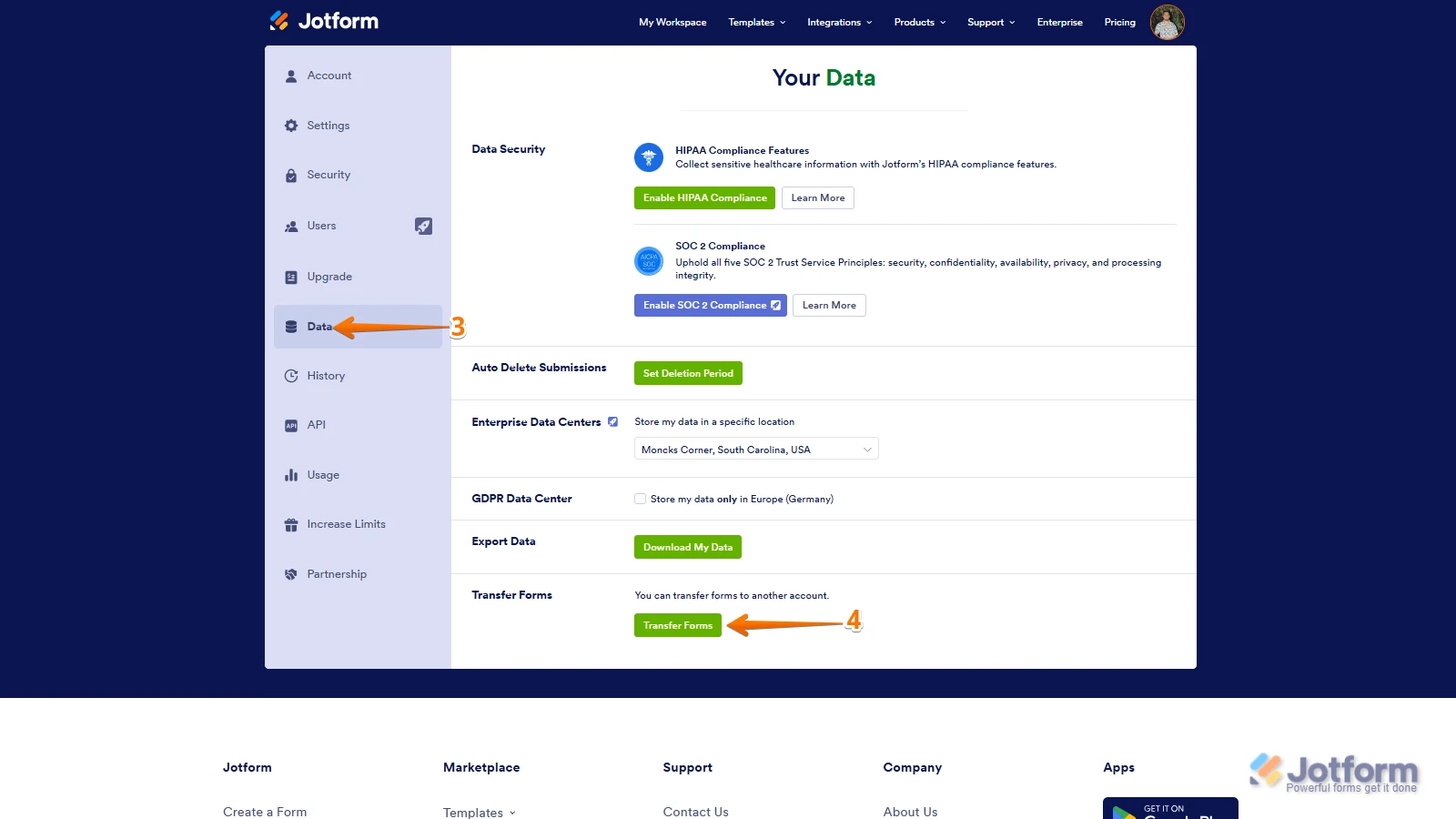
3. Then, click on the Data tab on the left.
4. In the Transfer Form section, click on Transfer Form.
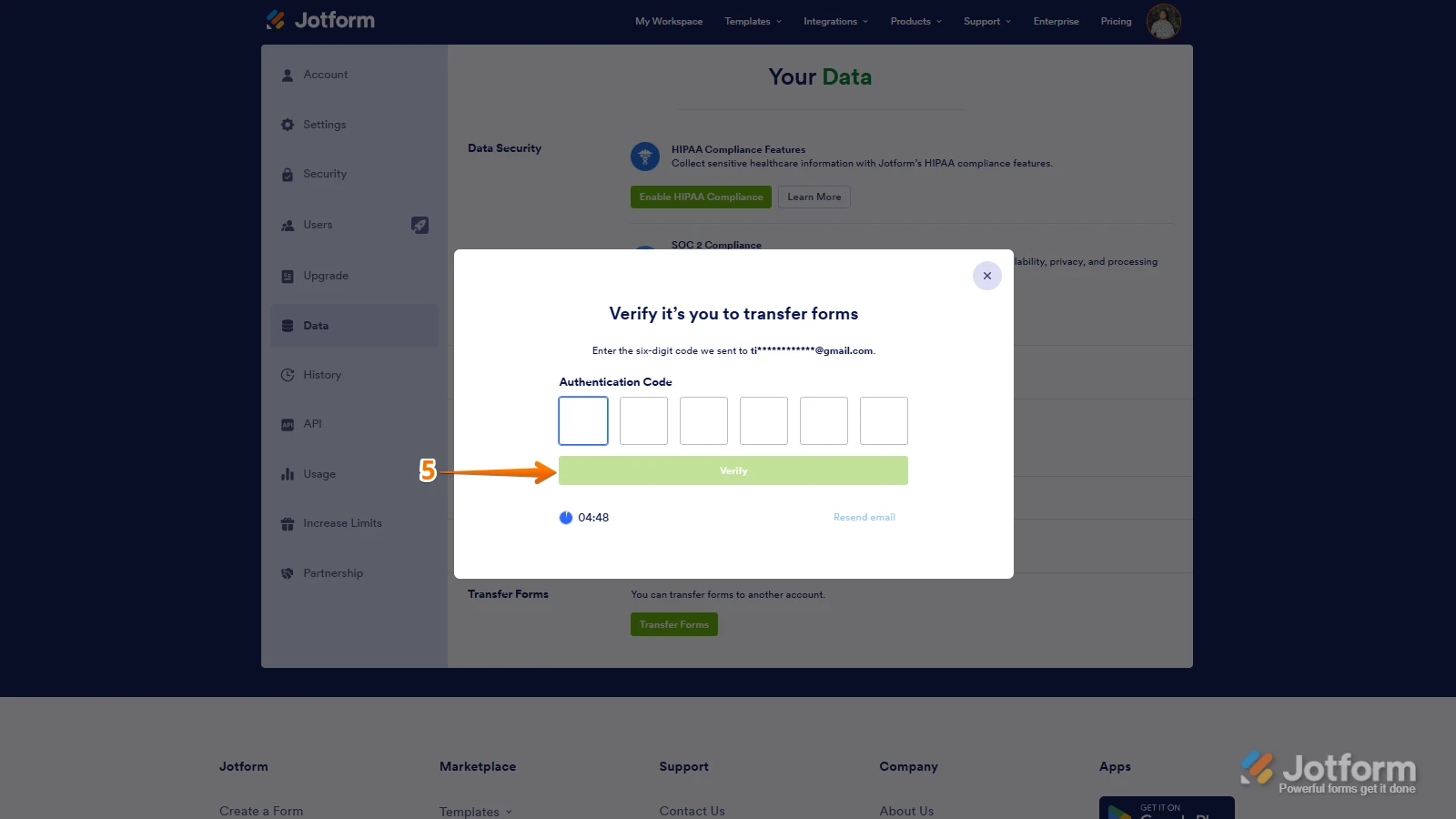
5. Next, enter the Authentication Code that is sent to your email address, and click on Verify.
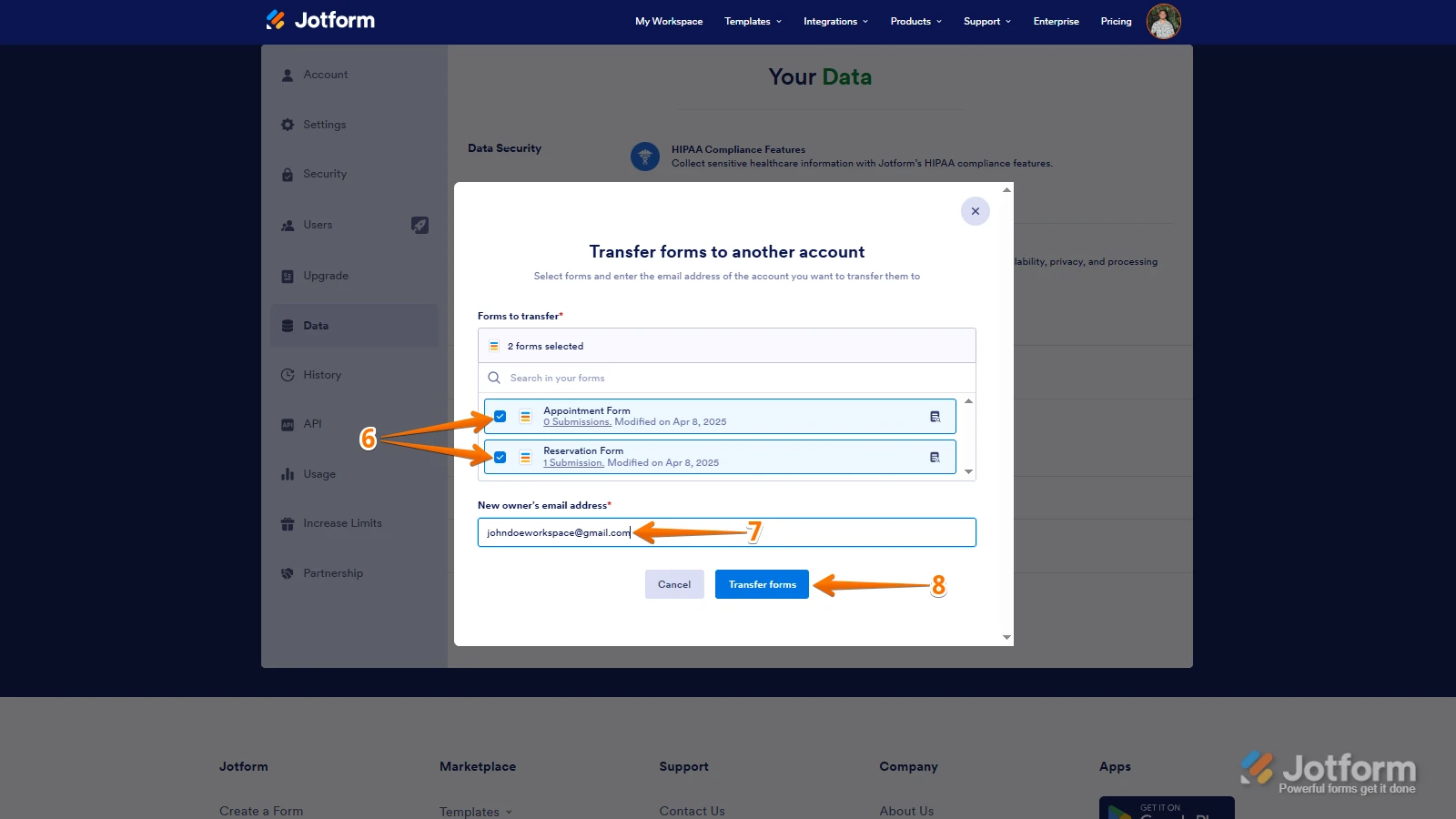
6. In the window that opens, tick the box next to the name of the form you want to transfer.
7. In the New Email Owner’s Email Address field, enter the email address of the account that you want the forms to be transferred to (hello@uscec-sf.org).
8. Now, click on Transfer Form.
Keep in mind that you can only send one form transfer at a time. You can also cancel the current transfer request. Let me show you how:1. While you are still on the Data page, click on the View Details button in the Pending Transfer section.
2. Then, click on Cancel Request.
3. Finally, click on Yes, Cancel.
Once the forms are transferred, the owner of the account receiving the forms will get an email notification. From that email, they can click on the View Transfer button, then click on Accept to complete the transfer. Check out the screencast below:Reach out again if you have any other questions.
 Keep in mind that you can only send one form transfer at a time. You can also cancel the current transfer request. Let me show you how: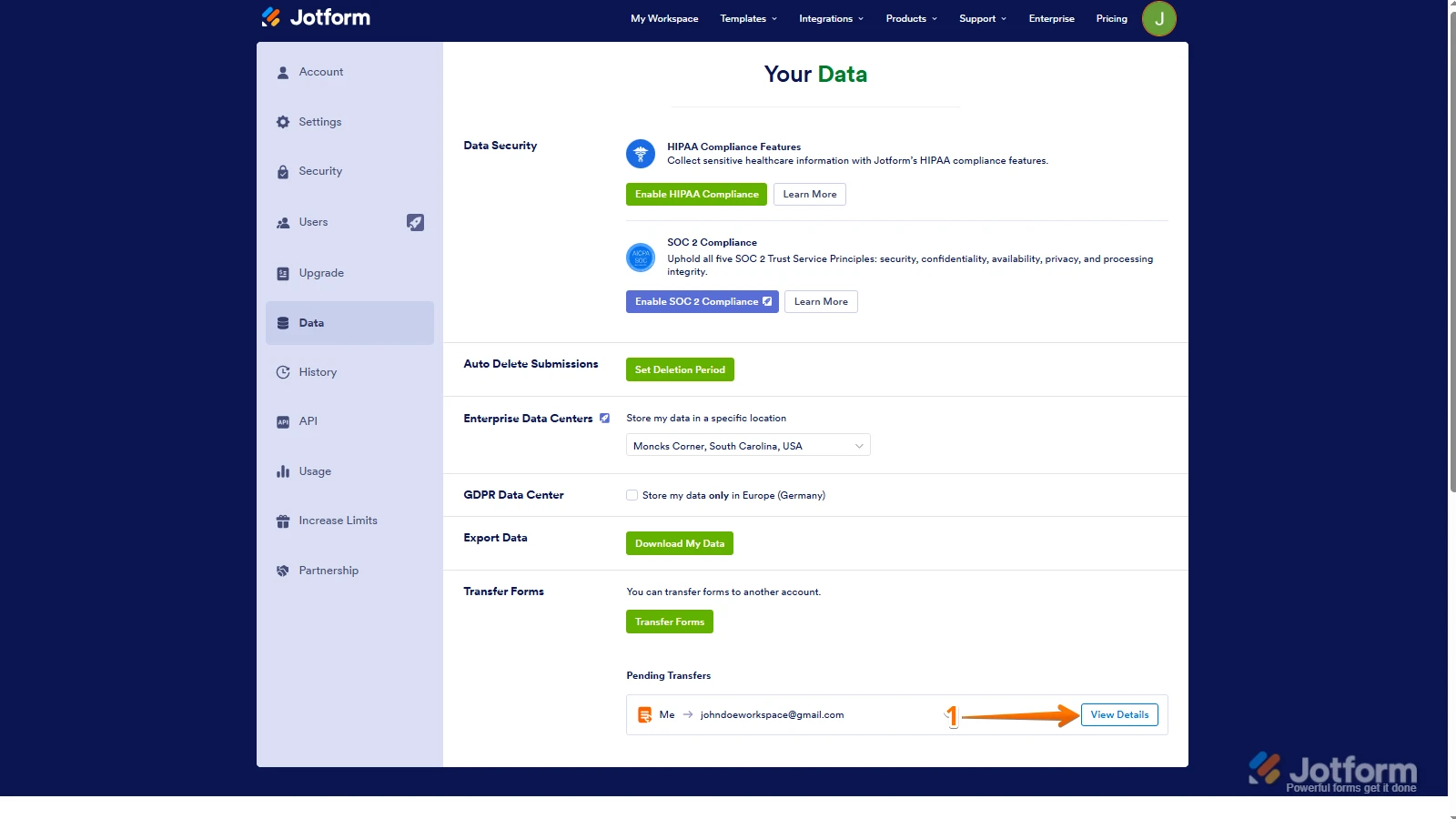
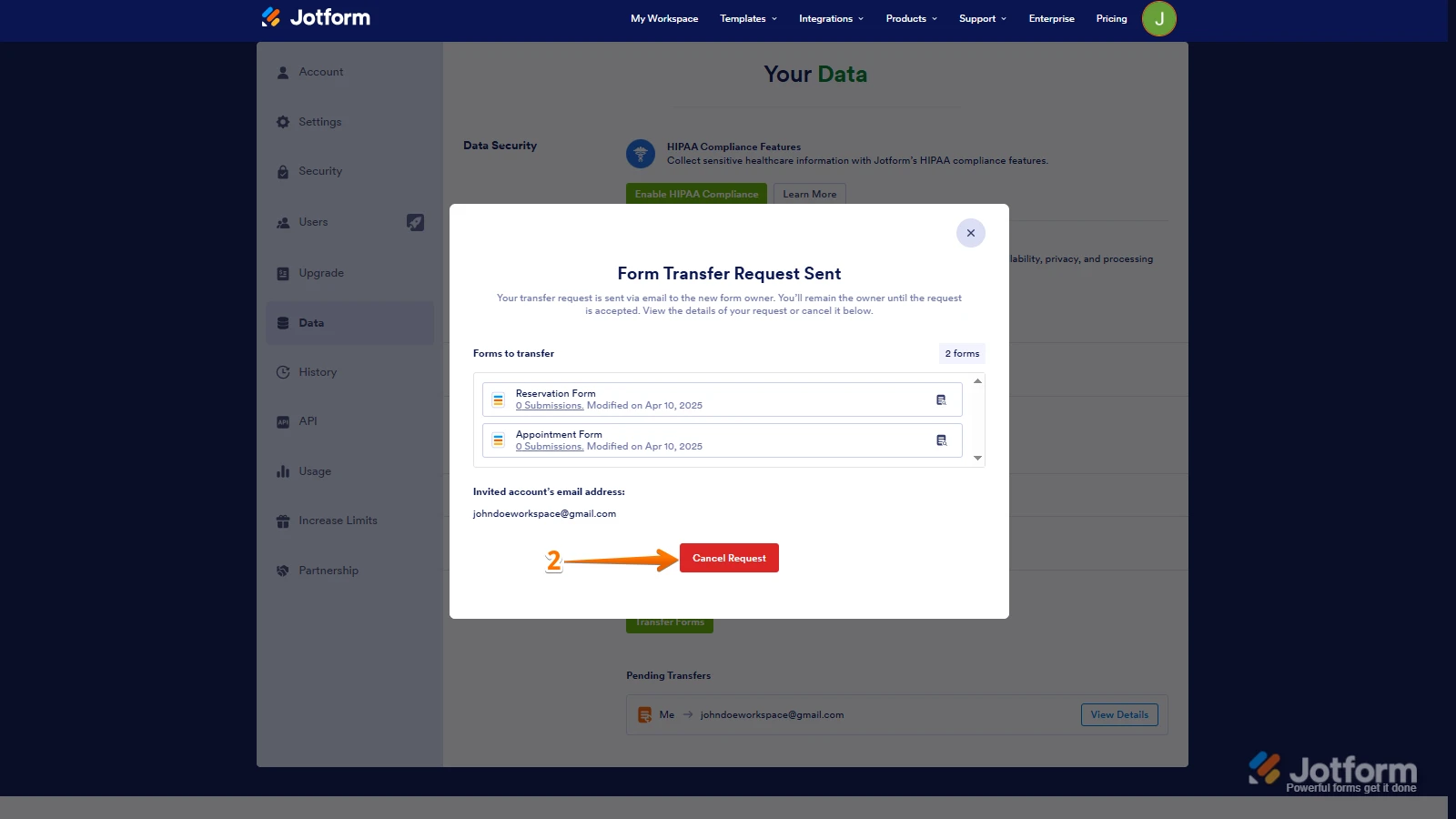
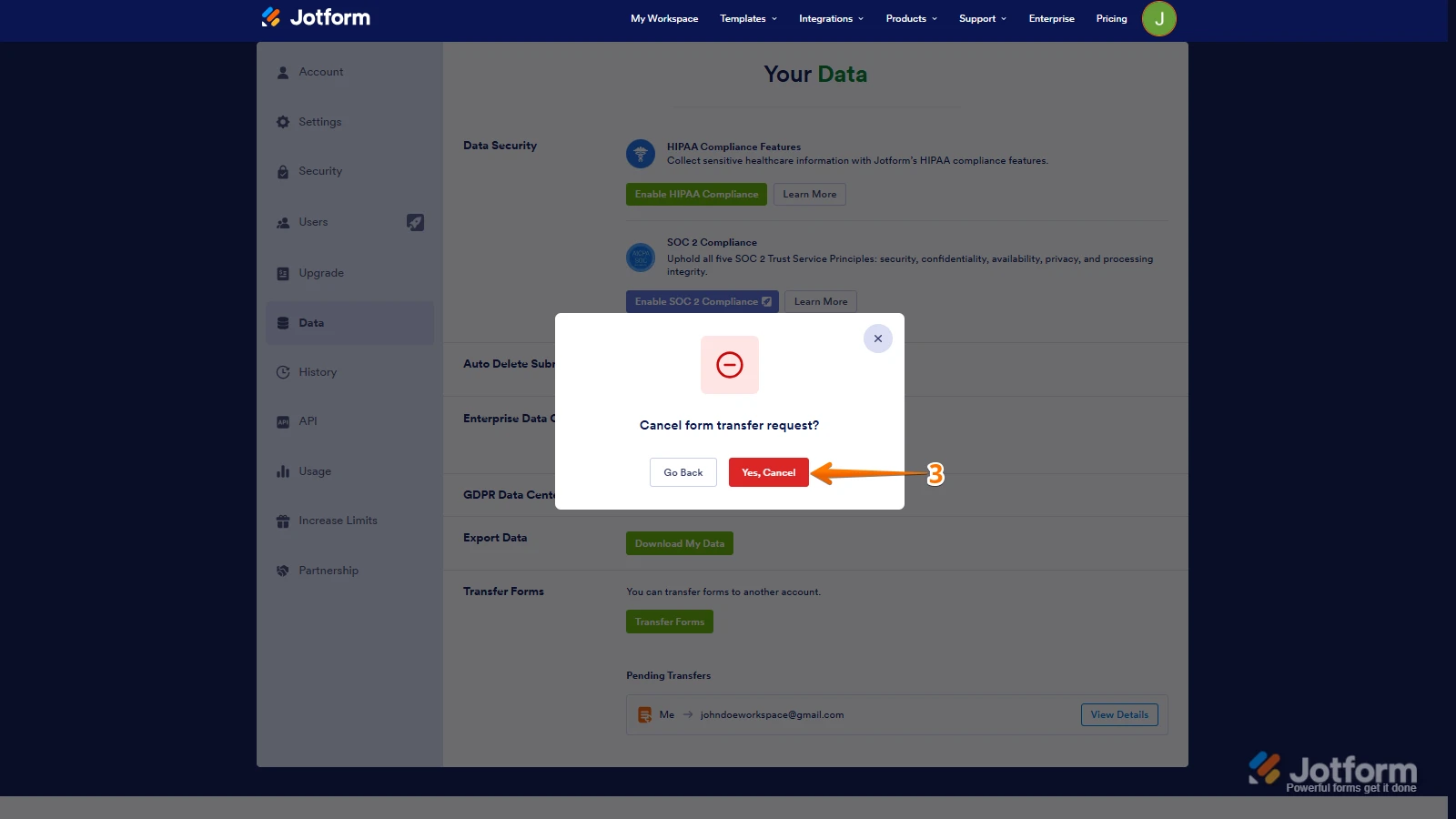 Once the forms are transferred, the owner of the account receiving the forms will get an email notification. From that email, they can click on the View Transfer button, then click on Accept to complete the transfer. Check out the screencast below: