-
 Expressform
Hi,
How do I calculate the 20% off the final price before taxes on this form, when the customer enter the promo code "SPRING"?
In example, if the customer select 1 Bedroom / 1 Bathroom cleaning is $148.20, but if the enter the promo code SPRING the get 20% off, ($29.64 discount) = $118.56
Thank you,
Armando

-
 Skylar
Hi there!
To do this, you can follow the following steps.
- Start out with assigning values to each selection using the single choice element. Once this is added to your form, go to the gear icon (properties) to the right and move to options. Here, you can assign calculation values for each option. ($148.20)
- Then, add a short text element that can be used for entering a promo code, as well as a number element for the total price of the selection.
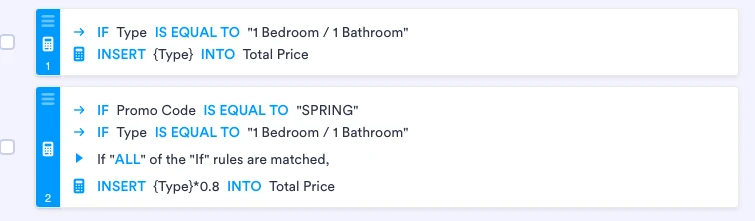
- From here, move over to conditions through settings > conditions > and add conditions. Here are the conditions I made for the choice you showed above. You can follow this for the following options as well, copying the promo code formula.
Test this out and let me know if it helps! When I did it on my end, it worked well. Thanks.
-
Expressform
Thank you for your answer, but I think I did not elaborated the right question, I can not assign calculation values since there are unlimited options according to the number of bedrooms and bathrooms that the customer select. I want to deduct 20% off the field "THIS SERVICE PRICE" if the customer select "one time regular cleaning" and enter promo code "Spring"
Thank you,
Armando
-
 Jeric_T
Hi Armando,
We can achieve that by adding a number field below THIS SERVICE PRICE. Then we will include that in the calculation and create a condition. Let me show you how:
1. In Form Builder, click on Add Element on the top left side.
2. Under Basic, click on Number and label it to your desire. I labeled it With Discount.
3. On the top right side, click on the Advanced Tab and set the Default Value to 1.
4. Next, turn on Hide Field.
5. Finally, click on Save
Next, we'll create a condition to calculate the value to 0.8 if the both conditions are met.
1. In Form Builder, in the orange navigation bar at the top of the screen, click on Settings.
2. Click on Conditions on the left side of the screen.
3. Select the Update/Calculate Field and create the condition as shown in the 2nd image below.
4. Finally, click on Save.
Finally, update your calculation and multiply the Number field we've just added, as shown below:
Here's the cloned version of the form that you can test.Give it a go and let us know if anything else comes up.