-
 bookdbrooke
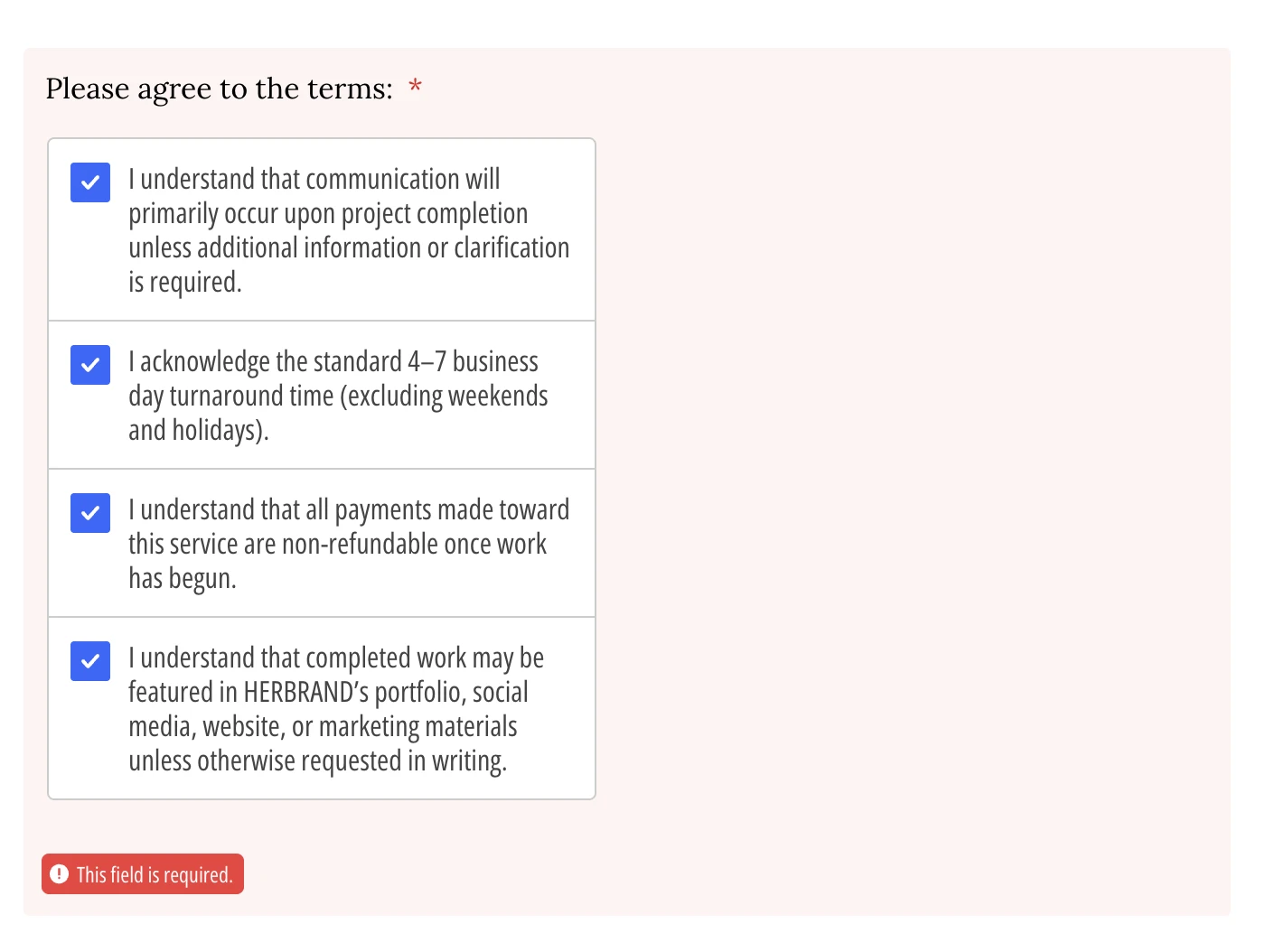
My multiple checkbox at the end of my form keeps saying there's an error but there aren't any errors and it doesn't even tell my clients what the error is...all checkboxes are checked so I'm not sure what the problem is.

-
 Podo: Support Specialist
Hi Destiny,
Thanks for reaching out to Jotform Support. I'm an AI assistant here to assist you.
Regarding the issue with your multiple checkbox field showing an error despite all checkboxes being checked, this often happens if there are selection limits set on the field. In Jotform, you can set minimum and maximum selection limits for multiple choice fields. If these limits are not met or exceeded, an error will appear, but sometimes the error message might not be clear to your clients.
Let me help you with that:
- Open your form in Form Builder.
- Click on the multiple checkbox field that is showing the error.
- Click the Gear icon to open the Multiple Choice Properties.
- Go to the Surveying tab and check if the Entry Limits option is enabled.
- If enabled, verify the minimum and maximum number of selections allowed. Make sure your clients can select within these limits.
If the minimum or maximum limits are set incorrectly or too restrictively, it can cause the error message even if all checkboxes appear checked.
Adjusting or disabling the entry limits should resolve the error message and allow your clients to submit the form without confusion.
Give it a try and let us know how it goes.
-
bookdbrooke
I don't know what the Multiple Choice Properties or Surveying tab is? Is there another option to check and agree to my policies ?
-
Podo: Support Specialist
Hi Destiny,
Thanks for your question about an alternative way to have users check and agree to your policies without using the Multiple Choice Properties or Surveying tab.
Jotform offers a Terms & Conditions widget that you can use to include your policies in the form and require users to accept them with a checkbox. This widget is easy to add and configure.
Here’s how to do it:
- Open your form in Form Builder.
- Click on the Add Element menu on the left side of the page.
- Select the Widgets tab.
- Search for "Terms & Conditions" and drag it into your form.
- In the Widget Settings window on the right, set up the label text, add the URL to your policies or terms, choose a theme, and customize the acceptance message.
- Click Update to save the widget settings.
This widget will display a checkbox for users to agree to your policies, and it will prevent form submission unless they check it.
Learn more about the Terms & Conditions widget in your form.
Give it a try and let us know how it goes.
-
bookdbrooke
Okay and I don't know what the Multiple Choice Properties or Surveying tab is?
-
Podo: Support Specialist
Hi Destiny,
The Multiple Choice Properties is a settings menu you access by clicking the gear icon when you select a Multiple Choice field in Form Builder. It allows you to customize various options for that field.
The Surveying tab is one of the tabs within those properties where you can set entry limits like minimum and maximum selections allowed for the multiple choice field.
Here’s a quick overview of how to access these:
- Open your form in Form Builder.
- Click on the Multiple Choice field you want to edit.
- Click the Gear icon that appears to open the Multiple Choice Properties menu.
- Look for the Surveying tab within that menu to adjust entry limits and other options.
This is where you can control how many options users must or can select, which might be causing the error message you see if those limits are not met.
If you want to learn more about assigning calculation values to multiple choice options, here is a helpful guide:
How to Assign Calculation Values to the Options in the Multiple Choice Element
Give it a try and let us know if you need more help.
-
 Joeni JotForm Support
Hi Destiny,
I cloned your form to see if I could repliacte the issue, and I ran with the same issue. Take a look at the screencast below:
-
DDestiny
hello any update?
-
 Reymae JotForm Support
Hi Destiny,
Our Developers are focused on getting this resolved for you. Thanks for your patience while they work on it. We’ll keep you posted about any updates we get.
-
 Calvin Technical Support Language Specialist
Hi Destiny,
Until our Developers come up with a fix, you can use the Multiple Choice element instead of the Checklist widget as a workaround. We just need to enable the Entry Limits feature so it works just like your widget. Here is how:
1. In Form Builder, click on Add Element on the left side of the page.
2. Then, in the Form Elements menu, under the Basic tab, scroll down the list and choose the Multiple Choice element.
3. Click on the Gear icon on the right side of the field to open Properties.
4. Next, in the menu on the right, click on Options and enter your terms to the Options section.
5. Then, click on the Surveying tab, toggle on Entry Limits, and enter 4 in the Minimum value field.
6. Finally, come back to the General tab, and toggle on Required.
Reach out again if you need any other help.
-
bookdbrooke
-
 Kris JotForm Support
Hi Destiny,
To keep the conversation organized, I moved your other question about the conditions to its thread, and someone from our Support Team will help you with it here.
Let us know if you have any other questions.

Your Reply
Something Went Wrong
An error occurred while generating the AI response. Please try again!