-
 apptage63
Hi,
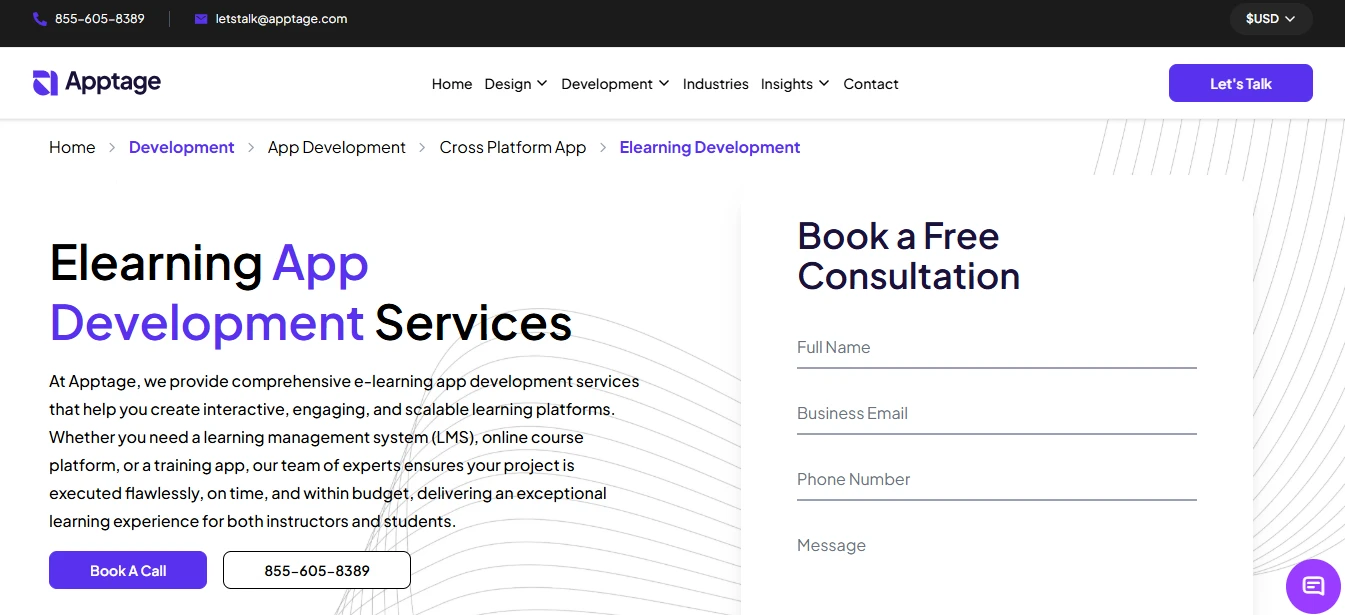
I would like to connect a Jotform form to my eLearning app development page (https://www.apptage.com/development/app-development/cross-platform-app/elearning-development/) so that users can submit inquiries directly from the page.
Can you please guide me on:
- How to properly embed the Jotform on my webpage?
- Which embed method is best (iframe, JavaScript, or API)?
- How to ensure form submissions are received correctly (email or dashboard)?
- Any best practices to avoid integration issues?
Thank you!

-
 Podo: Support Specialist
Hi,
Thanks for reaching out to Jotform Support. I'm an AI assistant here to assist you.
Let me help you with embedding your Jotform form on your eLearning app development page and related questions:
How to properly embed the Jotform on your webpage:
- Go to your Workspace page in Jotform and locate the form you want to embed.
- Click Edit Form to open the Form Builder.
- In Form Builder, click Publish in the top orange navigation bar.
- Select Embed from the menu on the left.
- Copy the JavaScript embed code by clicking Copy Code under the Embed section.
- Paste this JavaScript code into your webpage's HTML where you want the form to appear. For CMS platforms like WordPress, Wix, or Squarespace, use a custom HTML or code block to paste the code.
Which embed method is best (iframe, JavaScript, or API)?
- JavaScript embed is the default and recommended method. It dynamically loads the form in an iframe, automatically adjusting width and height, and reflects any form updates without needing to change your website code.
- Iframe embed is a reliable alternative that isolates the form from your webpage content, reducing conflicts. Use this if JavaScript embed has issues.
- API embed or full source code embed is for advanced use cases where you need to customize form code, but you must manually update your site code after form changes.
How to ensure form submissions are received correctly:
- Submissions are accessible in your Jotform account dashboard under the Submissions section of your form.
- You can set up email notifications in Form Builder under Settings > Emails to receive submission alerts directly to your email.
Best practices to avoid integration issues:
- Use the JavaScript embed method as it is widely supported and updates automatically.
- If the form is not working properly (e.g., buttons not clickable), try switching to the iframe embed method.
- Clear your browser cache and test the form on different browsers and devices.
- Ensure your website allows embedding scripts and iframes.
- Regularly check submission notifications and dashboard to confirm submissions are received.
Give it a try and let us know how it goes.