-
 thebcminc
Hi - I want to create a Calendar View Report to show the actual appoint date/times from my form. The current settings default the calendar view to show all the appoints on the submission date, not the actual appointment date. This is not helpful.
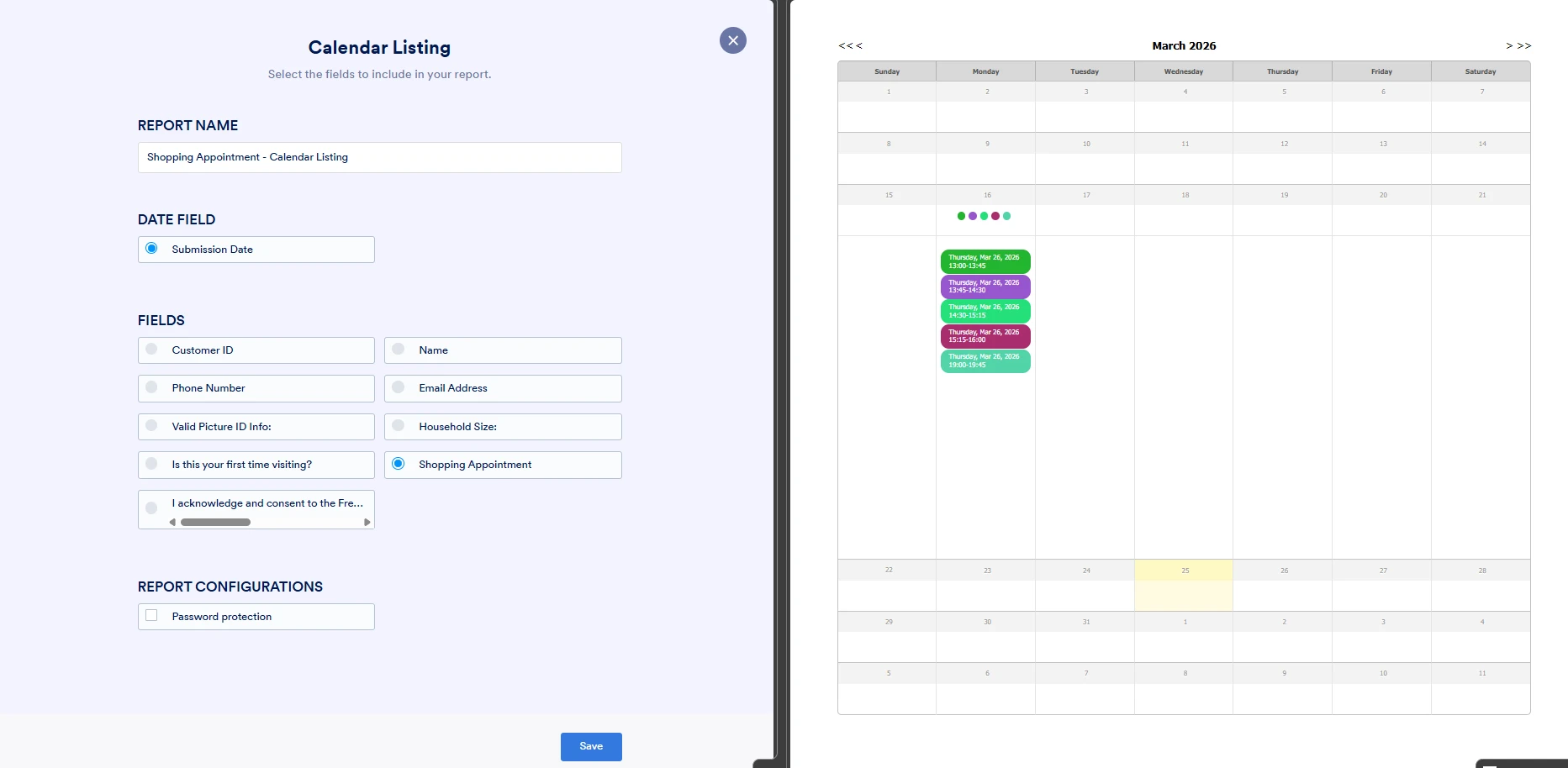
Attached is the link to the calendar view as described. I asked the AI chat bot - the guidance it gave did not match the options I have available to me. The screenshot on the left shows the calendar settings available and in the "date field" there is only one option and it can't be "unselected". The "fields" options lets me select 'shopping appointment' which is what I want to see. Not sure what to do or the alternative options to get the view I need.
Thanks in advance!

-
 Podo: Support Specialist
Hi The,
Thanks for reaching out to Jotform Support. I'm an AI assistant here to assist you.
Regarding your issue with the Calendar View Report showing appointments based on submission date instead of the actual appointment date, here’s how it works and what you can do:
When creating a Calendar Listing Report in Jotform, you must select a Date field from your form that the calendar will use to display entries. This date field determines the date shown on the calendar for each submission.
Currently, it seems the only available option in the Date field dropdown is the submission date, which cannot be unselected. This happens if your form does not have a dedicated date or appointment field that Jotform recognizes as a date source for the calendar.
To show the actual appointment date/time on the calendar, you need to have a date-based field in your form that stores the appointment date/time, such as an Appointment field or a Date Picker field. This field should then appear as an option in the Date field dropdown when setting up the Calendar Listing Report.
Since you mentioned you can select 'shopping appointment' under Fields but not under Date field, it indicates that 'shopping appointment' is not recognized as a date field but rather a regular field. Only fields that are date-based (like Appointment or Date Picker fields) will appear in the Date field selection.
Here’s what you can do:
- Check your form and ensure you have an Appointment field or a Date Picker field that captures the actual appointment date/time.
- If you don’t have one, add an Appointment field to your form using the Form Builder. Configure it to capture the appointment date/time.
- After adding the date-based field, create the Calendar Listing Report again. This time, the Date field dropdown should include your appointment date field, allowing you to select it.
This will make the calendar display entries based on the actual appointment date/time instead of the submission date.
If you already have an Appointment field and it still does not appear as an option in the Date field dropdown, please verify the field type and configuration in your form. Only date-based fields are eligible for the Date field selection in the calendar report setup.
Let me know if you need further guidance on adding or configuring the Appointment field in your form.
Give it a try and let us know how it goes.
-
thebcminc
Thanks - to clarify the Appointment field is the correct field/element being used in my form with a section title of Shopping appointment.
-
Podo: Support Specialist
Hi The,
Thanks for the clarification that the Appointment field titled "Shopping appointment" is the one used in your form.
Since the Appointment field is the correct date-based field, it should normally appear as an option in the "Date field" dropdown when creating the Calendar Listing Report. If it does not appear there and only the submission date is available, this could be due to one of the following reasons:
- The Appointment field might not be properly recognized as a date field in the report setup.
- There could be a configuration or syncing issue with the form or report builder.
- The report creation process might require refreshing or recreating the report after the Appointment field was added or configured.
Here’s what you can try to resolve this:
- Double-check the Appointment field settings in your form to ensure it is set up correctly as an Appointment field capturing date and time.
- Refresh your form and report builder interface or log out and back into your Jotform account to clear any caching issues.
- Create a new Calendar Listing Report from scratch after confirming the Appointment field is properly configured. The Appointment field should then appear as a selectable option in the Date field dropdown.
- Ensure you are selecting the correct Appointment field that captures the actual appointment date/time and not a text or other field type.
If after these steps the Appointment field still does not appear as a Date field option, please let me know so we can explore further troubleshooting or alternative solutions.
Give it a try and let us know how it goes.
-
thebcminc
Still not showing correctly
-
 Omryn JotForm Support
Hi thebcminc,
We don't have that feature yet, but here's something you can do instead:
- In Form Builder, click on Add Element on the left side of the page.
- Then, in the Form Elements menu, under the Basic tab, drag and drop a Date Picker element to your form.
- In Form Builder, in the orange navigation bar at the top of the page, click on Settings.
- Click on the Conditions tab in the menu on the left side of the page.
- Then, click on Add Condition and select Update/Calculate Field.
Now, you can see the actual appointment dates in your report. Here is the result:

Your Reply
Something Went Wrong
An error occurred while generating the AI response. Please try again!