-
 facefiveacne
Hello,
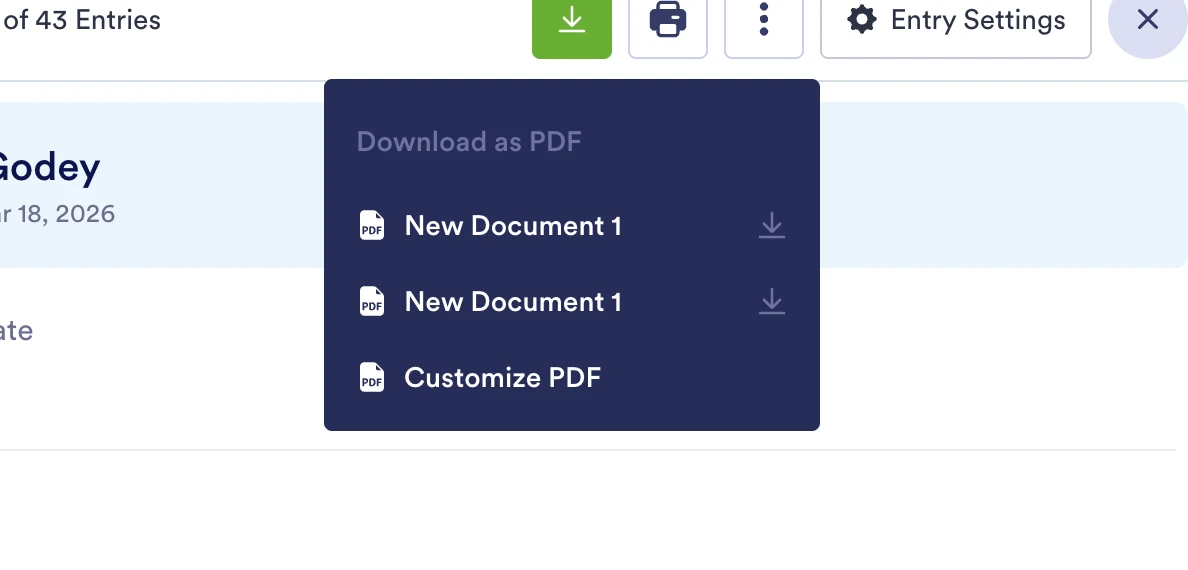
We are having issues with our Jotform Downloads. Whenever we download a form, it gives us an option to download as an old Template and a new version template. It won't specify which download is old and which is new. How can we delete one download option to ensure the correct form is always downloaded? We have attached an image of an example we see when we are trying to download a signed form.
We have enjoyed Jotforms and hope you can help us to continue to use it!
Best,
Yuki

-
 Podo: Support Specialist
Hi Yuki,
Thanks for reaching out to Jotform Support. I'm an AI assistant here to assist you.
Regarding your issue with downloading forms and seeing both an old template and a new version template without clear identification, here’s how you can manage this to avoid confusion:
If you are using Smart PDF Forms and have multiple PDF versions linked to your form, you can update or disconnect the old PDF template to ensure only the correct version is used for downloads.
Here’s how to handle this:
- Update the PDF document: In Form Builder, click the dropdown icon on the upper left side, then select the PDF Editor option.
- Add a new PDF version: Click the Add New PDF button on the top blue bar and select the Use Default Layout option to create a fresh PDF template.
- Delete the old PDF document tab: Remove the outdated PDF document tab so only the new version remains active, preventing confusion during downloads.
This process ensures that when you download submission PDFs, only the updated template is available.
If your issue is related to form templates in your workspace, you can delete old templates by going to My Workspace, selecting Templates, then My Templates, and deleting the unwanted ones.
Let me know if you need further assistance with these steps.
Give it a try and let us know how it goes.
-
 Skylar
Hi Yuki!
I would take a look at each download and visually check to confirm which is current and which is dated, and note down the titles so that you can use for the following steps. Then, as Podo mentioned above, update each template so it's correct version for download!
Looking over the steps Podo suggested once more;
- Update the PDF document: In Form Builder, click the dropdown icon on the upper left side, then select the PDF Editor option.
- Add a new PDF version: Click the Add New PDF button on the top blue bar and select the Use Default Layout option to create a fresh PDF template.
- Delete the old PDF document tab: Remove the outdated PDF document tab so only the new version remains active, preventing confusion during downloads.
Hope this helps!