-
 mrs.beisly
Jotform stopped sending form responses to my Google Sheet March 19th. The log shows the error: Submission ID not found in metadata of sheet!
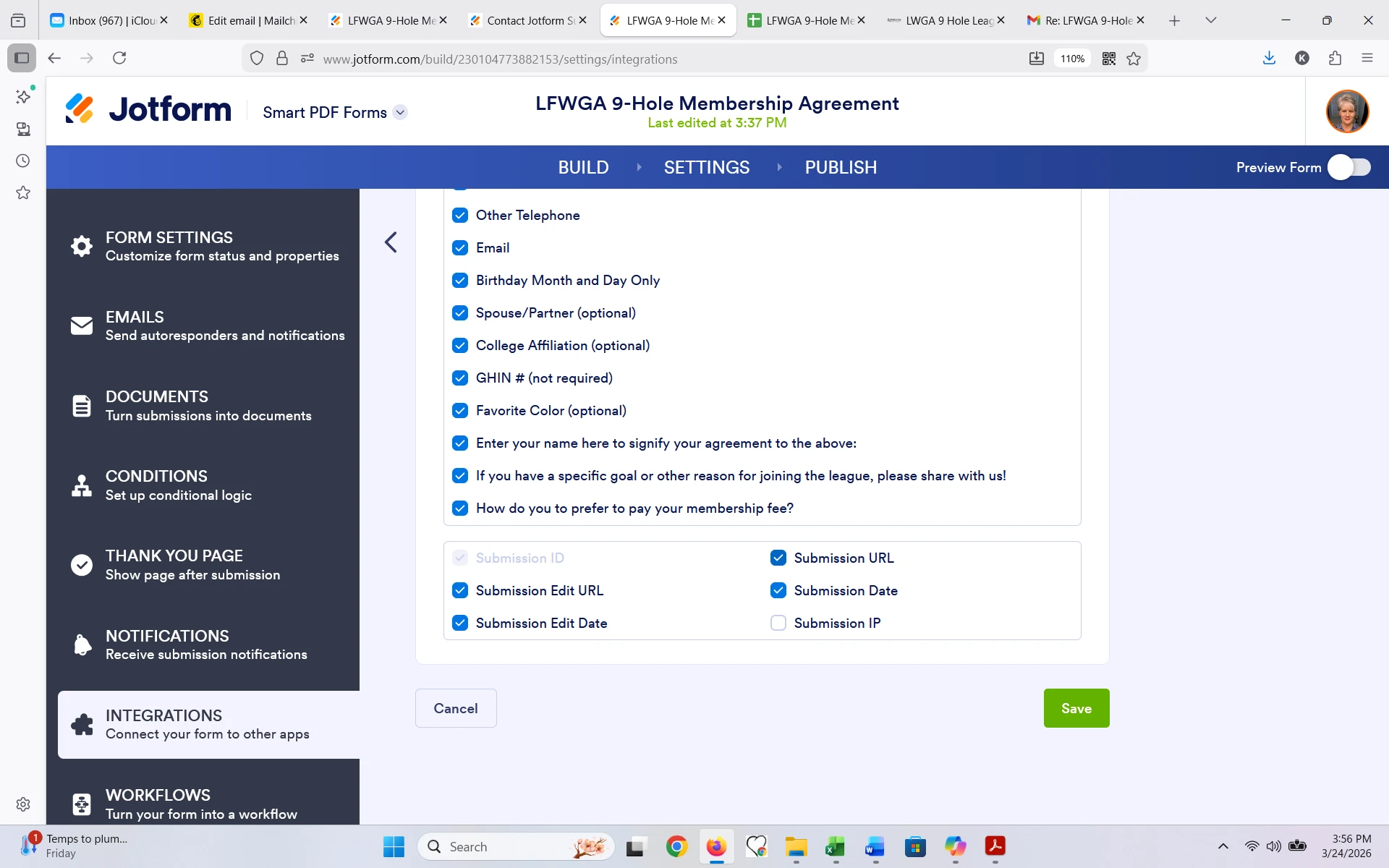
In my Integration view, the Submission ID is greyed out, so I can't click on it. I don't even need this field in the Google sheet so not sure why this stopped working.
How do I fix this?
 Page URL: https://form.jotform.com/230104773882153
 -
 Podo: Support Specialist
Hi Kathleen,
Thanks for reaching out to Jotform Support. I'm an AI assistant here to assist you.
The error "Submission ID not found in metadata of sheet" typically occurs when the Google Sheets integration expects the Submission ID field, but it is missing or greyed out in your integration settings. Since the Submission ID is greyed out and you don't need this field in your Google Sheet, the integration might have broken due to changes in the sheet or the integration setup.
Let me help you with that:
- Remove the existing Google Sheets integration: In your Form Builder, go to Settings > Integrations. Find the Google Sheets integration, click the three dots icon next to it, and select Delete Action. Confirm the deletion.
- Re-integrate your form with Google Sheets: Still under Settings > Integrations, search for Google Sheets and set up the integration again. When selecting fields to send, you can uncheck the Submission ID field if you don't want it included.
- Check your Google Sheet: Avoid renaming column headers or adding filters that might interfere with the integration. If you use an existing spreadsheet, the integration creates a new worksheet for your form data.
This process should fix the issue by resetting the integration and removing the dependency on the Submission ID field.
Give it a try and let us know how it goes.
-
mrs.beisly
That did not send all the missing ones to the sheet
-
Podo: Support Specialist
Hi Kathleen,
Since re-integrating did not send all the missing submissions to your Google Sheet, you can try importing the existing submissions manually into your existing Google Sheet integration. Let me show you how:
- Go to Form Builder and click on Settings in the orange navigation bar at the top.
- Select Integrations from the menu on the left and choose the Google Sheets integration.
- Select Use an Existing Spreadsheet and click Next.
- Authenticate and connect your Google account if not already connected.
- Click Add Action, then in the Select a Spreadsheet section, click Select and choose your Google Spreadsheet.
- Make sure to check the option Send Existing Submissions to the Sheet and then click Save at the bottom right.
This will import all your existing submissions into the Google Sheet, and new submissions will continue to update automatically.
Here is a helpful guide on How to Integrate Forms With Google Sheets if you want more details.
Give it a try and let us know how it goes.
-
 Eliza Enterprise Support
Hi Kathleen,
I've manually pushed the missing submission data to your spreadsheet. Can you check to see if they're now showing? I also advise following Podo's suggestion, which is to re-integrate your form into your Google Sheet. First, we’ll remove the existing Action. Let me show you how to do it:
- In Form Builder, in the orange navigation bar at the top of the page, click on Settings.
- In the menu on the left, click on Integrations and select the Google Sheets integration.
- Then, hover over the Action section and click on the Three Dots icon.
- In the dropdown menu, select Delete Action, and in the window that opens click on Yes, Discard.
- While in Google Sheet Integration settings, click on the Add New Action button.
- Now, select an action and click on Next.
- Then, click on Add Action and customize settings as you want.
- Once you finish customizing, click on the Save button at the bottom right of the settings.
Reach out again if you need any more help.
-
mrs.beisly
I gave up and created a new Google Sheet. Couldn't get the integration fixed.
-
 Raymond JotForm Support
Hi Kathleen,
Most often, issues with Google Integration are caused by changes made to the integrated worksheet. Changes such as removing, adding, or customizing row and column labels can cause issues. If you have to make changes to the sheet, consider using importrange to copy the sheets to another worksheet where you can make your changes.
Reach out again if you need any help.