-
JJeanette Schofield
I need help with opening up our allotment of signatures. We have been given an appointment time next monday, but would like to increase our online signatures now, as we have a lot of people trying to sign immediately. Please let me know if there is anything we can do to expedite the process. Thanks!
-
 Podo: Support Specialist
Hi Jeanette,
Thanks for reaching out to Jotform Support. I'm an AI assistant here to assist you.
Regarding your request to increase your allotment of signatures and expedite the process, here’s how you can communicate with your signers effectively while sending the document:
- Open your Document in Sign Builder, and then click on Send in the green navigation bar at the top of the screen.
- Under the Send to Sign tab, click on Send Document to Sign.

- Under the Recipients tab, click on the Message icon on the right side of the Signer window.
- Write your message in the text box, click on Send to Sign, and you're done.
Give it a try and let us know if you need any other help.
-
JJeanette Schofield
Thank you, but I need to open up the availability to submit a signature immediately. We are willing to discuss payment, but need some help asap
-
Podo: Support Specialist
Hi Jeanette,
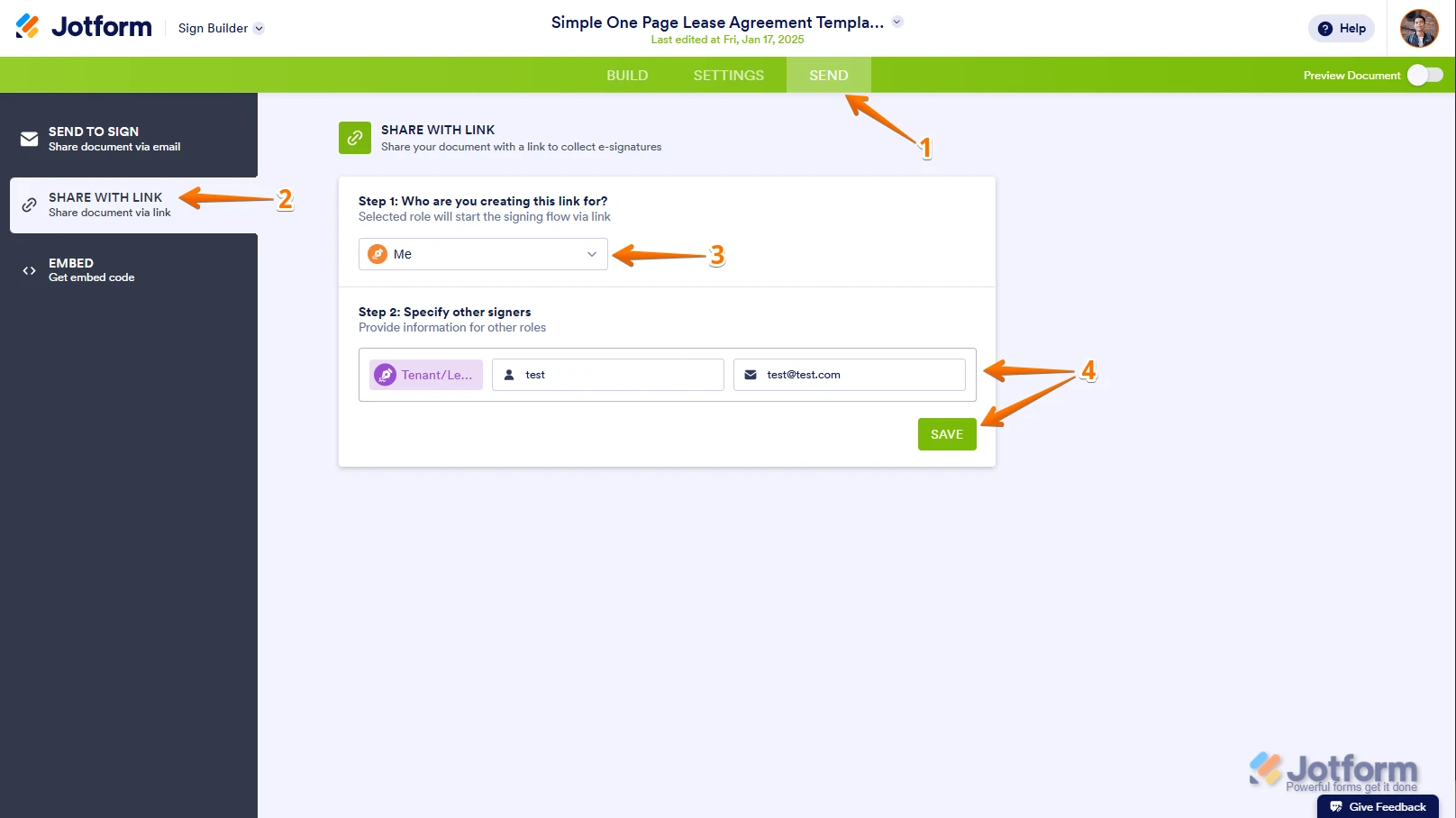
You can share your Sign Document publicly in just a few easy steps. Let me show you how:
- Open your document in Sign Builder, and then click on Send in the green navigation bar at the top of the page.
- In the menu on the left side of the page, click on Share with Link.
- Select the role that will start the signing flow from the Dropdown menu.
- If there are multiple signers, enter their details and click on Create Link.
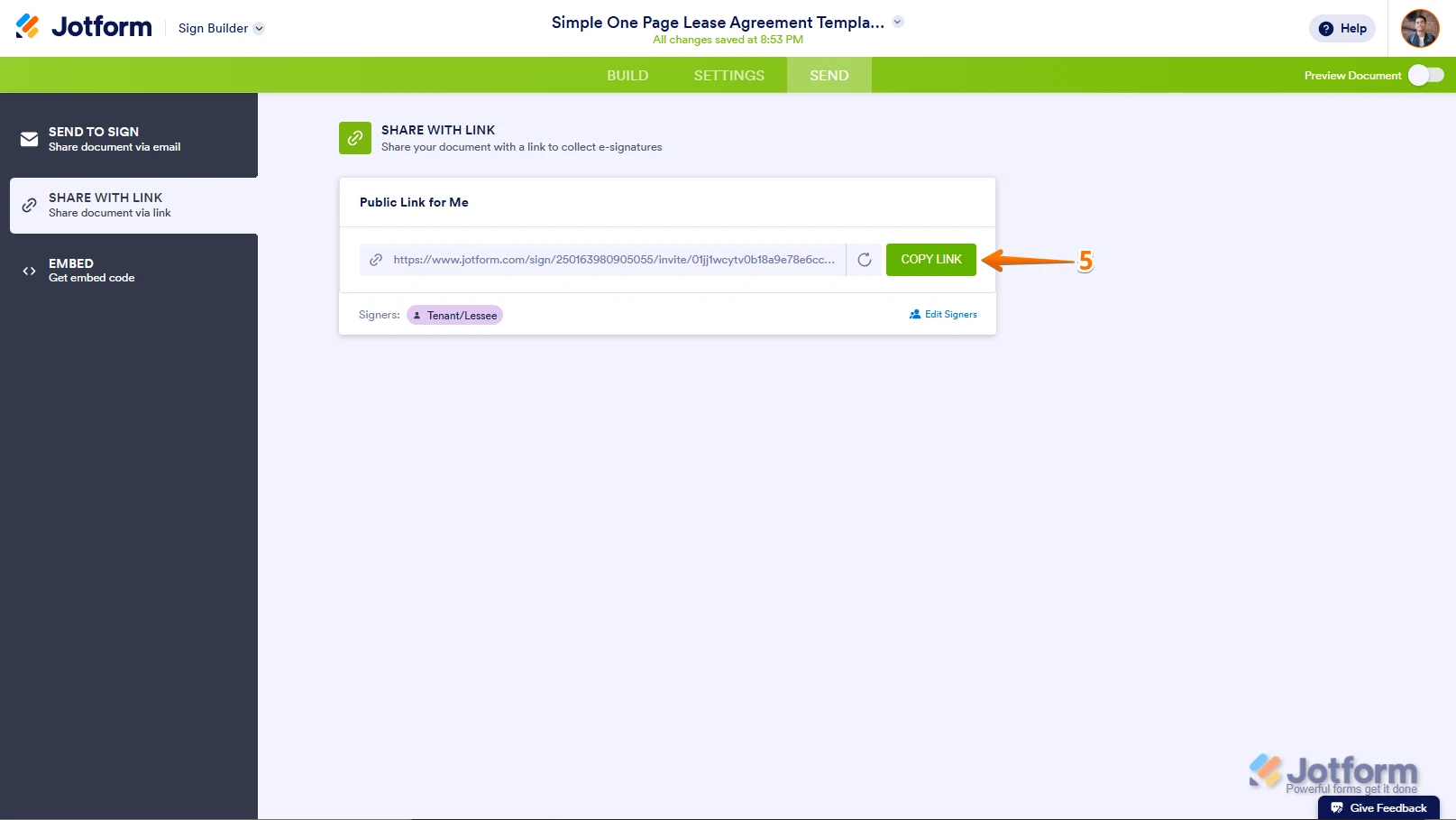
Click on Copy Link, and you're ready to share your document.
Now, when someone submits the document, it will automatically notify the other signers. You can also assign the first signer to enter the other signers instead of entering them manually each time. Let me walk you through it:
- While in the Share With Link menu, hover your mouse over either the Name or Email input field, and click on the Signator icon that appears on the right side of the box.
- Select the role from the Dropdown menu, and click on Save. That’s it, you’re done.
You can also check out our guide about How to Send a Document for Signature With Jotform Sign for more information.
Let us know if you need any other help.
-
 Jeric_T
Hi Jeanette,
There is no account under your email address. Unfortunately, we don't have an option to increase the Signed Document Submission Limit manually. The only option is to upgrade. Upgrading your account is easy. Let me show you how:
1. Log in to your Jotform account, go to the Pricing page, and click on Upgrade under the subscription plan you want.
2. In the Choose Your Payment Schedule section, select Yearly or Monthly.
3. Then, enter your billing details in the Billing details section.
4. In the Choose your Payment Method section, select Credit/Debit Card or PayPal.
5. If you choose Credit/Debit Card, you can enter your Credit/Debit Card information below the Credit/Debit Card option.
6. Next, in the top-right corner of the page, in the Summary section, tick the box next to I’ve read and agree to the Terms of Service, and click on Pay.
But, if you select PayPal as the payment, a PayPal Payment window will open, where you can log in and complete your payment after clicking on the Pay with PayPal button. Check out this screenshot below:After the subscription is successfully paid, the features and limits for the chosen subscription plan will be applied to your account right away.Reach out again if you have any other questions.