-
 info72_info872
I would like to add conditional logic to my form that uses the calendar month to determine whether a form field is hidden or displayed. I want to hide a form field on odd months and display that form field on even months. Is there a way to do this?
-
 Joeni JotForm Support
Hi info72_info872,
Thanks for reaching out to Jotform Support. Jotform’s conditional logic doesn’t have a built‑in way to check the calendar month and automatically show or hide fields. A simple workaround is to add a Date Picker field to your form and set it to default to the current date, so it fills in automatically when the form loads. From there, you can build conditional rules around that date to control whether a field is visible or hidden. Let me show you how:
- In Form Builder, click on the Add Element button in the upper left side of the panel and select the Date Picket element under the Basic tab.
- Now, add it to your form, click on the Gear icon and go to the Options tab.
- Then, select the Current option in the Default Date menu.

- In Form Builder, click on the Add Element button in the upper left side of the panel and go to the Widgets tab.
- Now, search for the Substring widget and add it to your form.
- Then, add #day_4 in the Source field ID input box, enter 0 Substring start and 2 in the Substring end.
- Finally, click on the Update button.
- In Form Builder, click on the Add Elements button and go to the Widgets tab.
- Now, select the Form Calculation widget, add it to your form and click on the Add Field button in the widget settings.
- Then, select the Substring widget in the Dropdown Menu and click on the Save button.

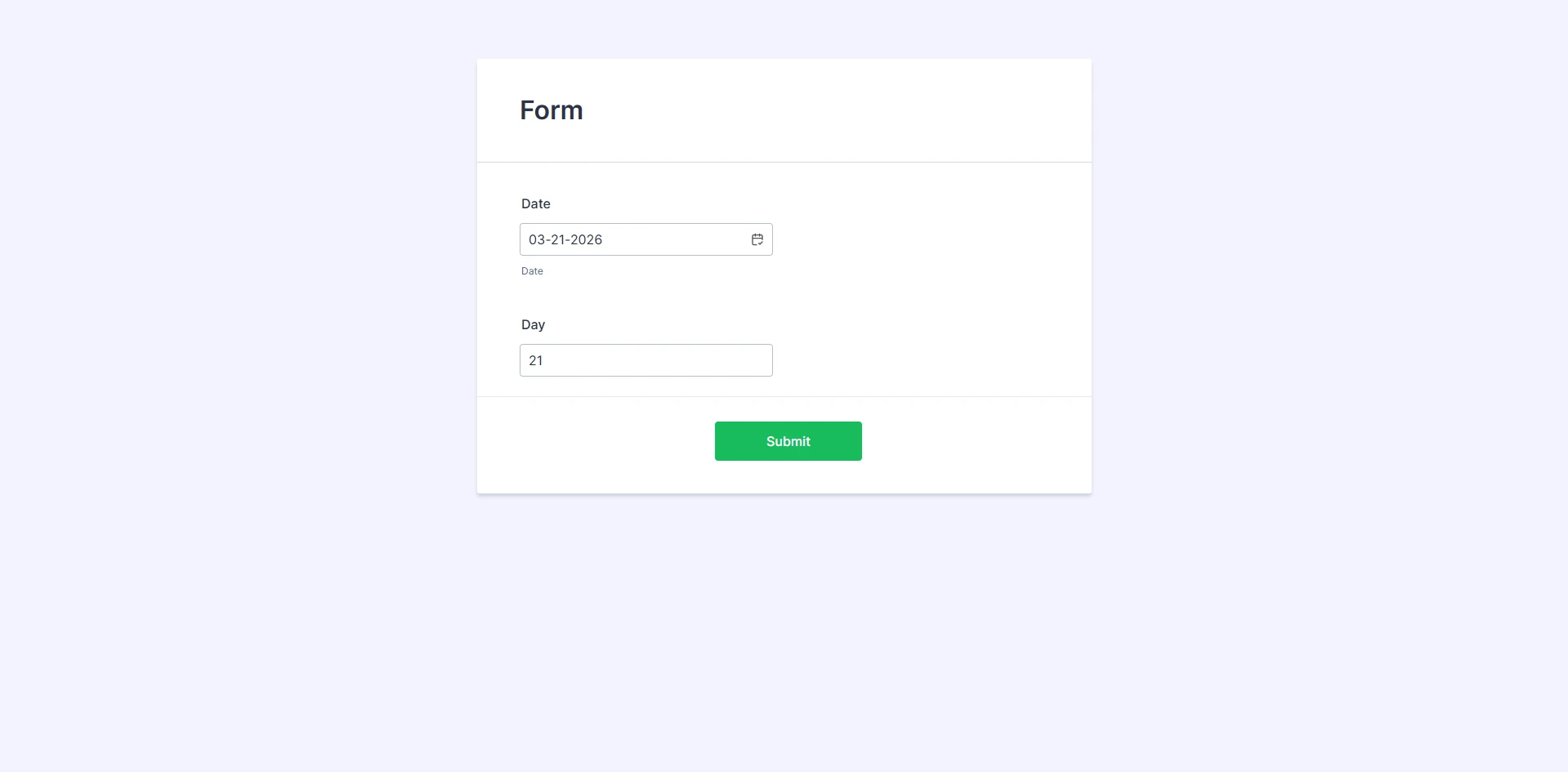 Give it a try and let us know how it goes.