-
 sequest
Need to turn submission into PDF, but need to be a full form so we can fill out the missing inputs ourselves when printed off
-
 Podo: Support Specialist
Hi sequest,
Thanks for reaching out to Jotform Support. I'm an AI assistant here to assist you.
In a few quick steps, you can create a fillable PDF version of your form. But keep in mind that some widgets and elements won't work in fillable PDFs. Here’s how to get started:
1. In Form Builder, in the orange navigation bar at the top of the page, click on Publish.
2. Next, click on PDF in the menu on the left.
3. Then, in the Download PDF section, click on Download.

4. After that, click on Continue in the Warning window that opens.
5. Now, in the upper-right corner of the page, click on Download.
-
 Christian Ice JotForm Support
Hi sequest,
You can enable the Print button on the Submit button in Form Builder to print the submissions as PDF. Here’s a quick how-to:
1. In Form Builder, scroll down to the Submit button and click on the Gear icon right next to it to open its Properties.
2. Go to the Advanced tab and toggle On the Print button.
You can also download your PDF files. Let me show you how:
1. In Form Builder, click on the Downward Arrow icon at the top-left side of the page and select PDF Editor.
2. In PDF Editor, click on the Download button at the top-right side of the page.
3. In the Dropdown menu, click on Download PDF or Download All. That's it.
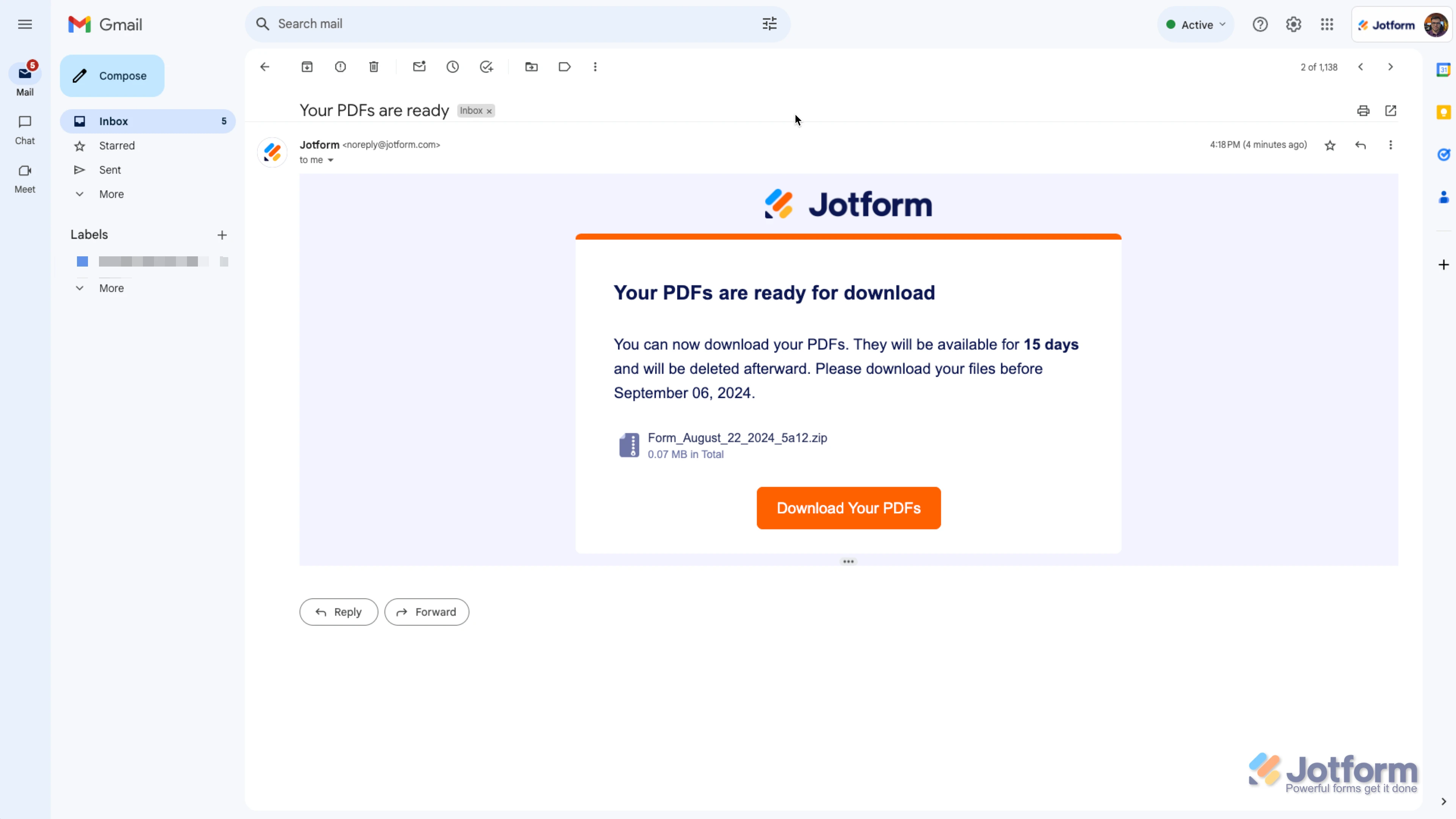
The Download PDF button will only download the PDF you are currently viewing in the PDF Editor. If you use the Download All button, it will email you a zip file containing all submissions in PDF format. Take a look at the screenshots below to see my examples:
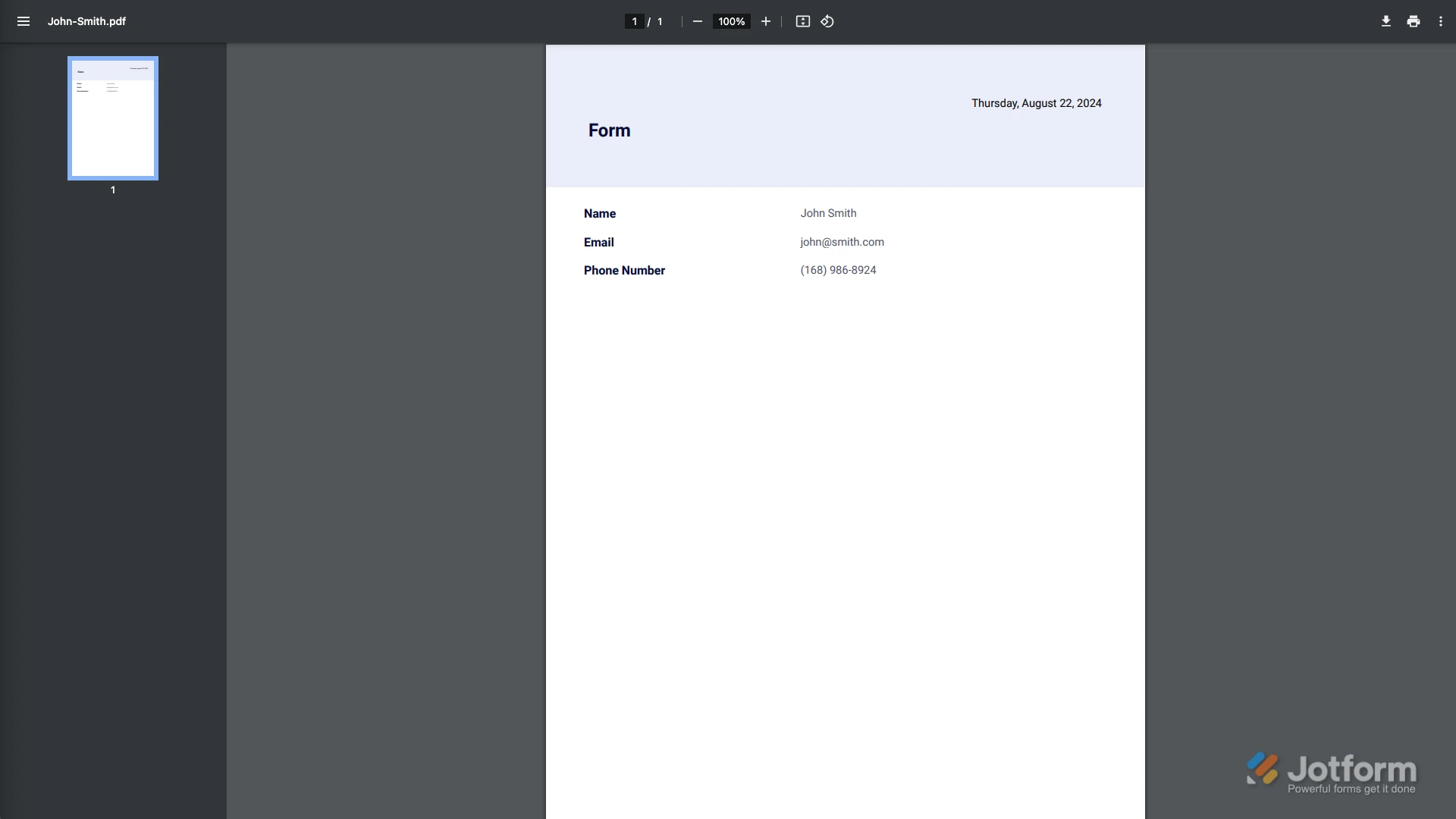
Example of how it looks when you open the document downloaded via the Download PDF button:
Example of how it appears in the email when you click on the Download All button:
Reach out again if you have any other questions.