-
 lindseylentocha
 Page URL: https://form.jotform.com/260615075129051
 -
 Podo: Support Specialist
Hi Lindsey,
Thanks for reaching out to Jotform Support. I'm an AI assistant here to assist you.
Regarding your issue with autoresponder emails failing to send, here are some common causes and troubleshooting steps to consider:
- Check the recipient email addresses: Ensure the email addresses in the autoresponder settings are correctly entered and valid.
- Check your spam or junk folder: Sometimes autoresponder emails may be marked as spam. Mark Jotform emails as "not spam" to prevent this.
- Check if the email addresses are on Jotform's bounce list: If an email address has bounced before, Jotform will stop sending emails to it. You can check and remove emails from the bounce list in your account settings.
- Whitelist Jotform's IP addresses and sender domains: Adding Jotform's IPs and domains to your email provider's whitelist can improve deliverability.
- Review your autoresponder email settings: In the Form Builder under Settings > Emails, verify the recipient email, sender name, reply-to email, and sender email settings. Using your own SMTP server for sending emails can also help if you experience issues with Jotform's default sender emails.
- Test the autoresponder: Make a test submission to your form to see if the autoresponder email is sent successfully.
Since you mentioned multiple valid email addresses are not receiving the autoresponder, it is likely related to bounce list issues, spam filtering, or sender email configuration.
Give it a try and let us know how it goes.
-
 Ronald JotForm Support
Hi Lindsey,
Let me take a look at this for you. To do that, we’ll need your permission to access your account. Don’t worry, you can turn it off again once we’re done. Let me show you how to do it:
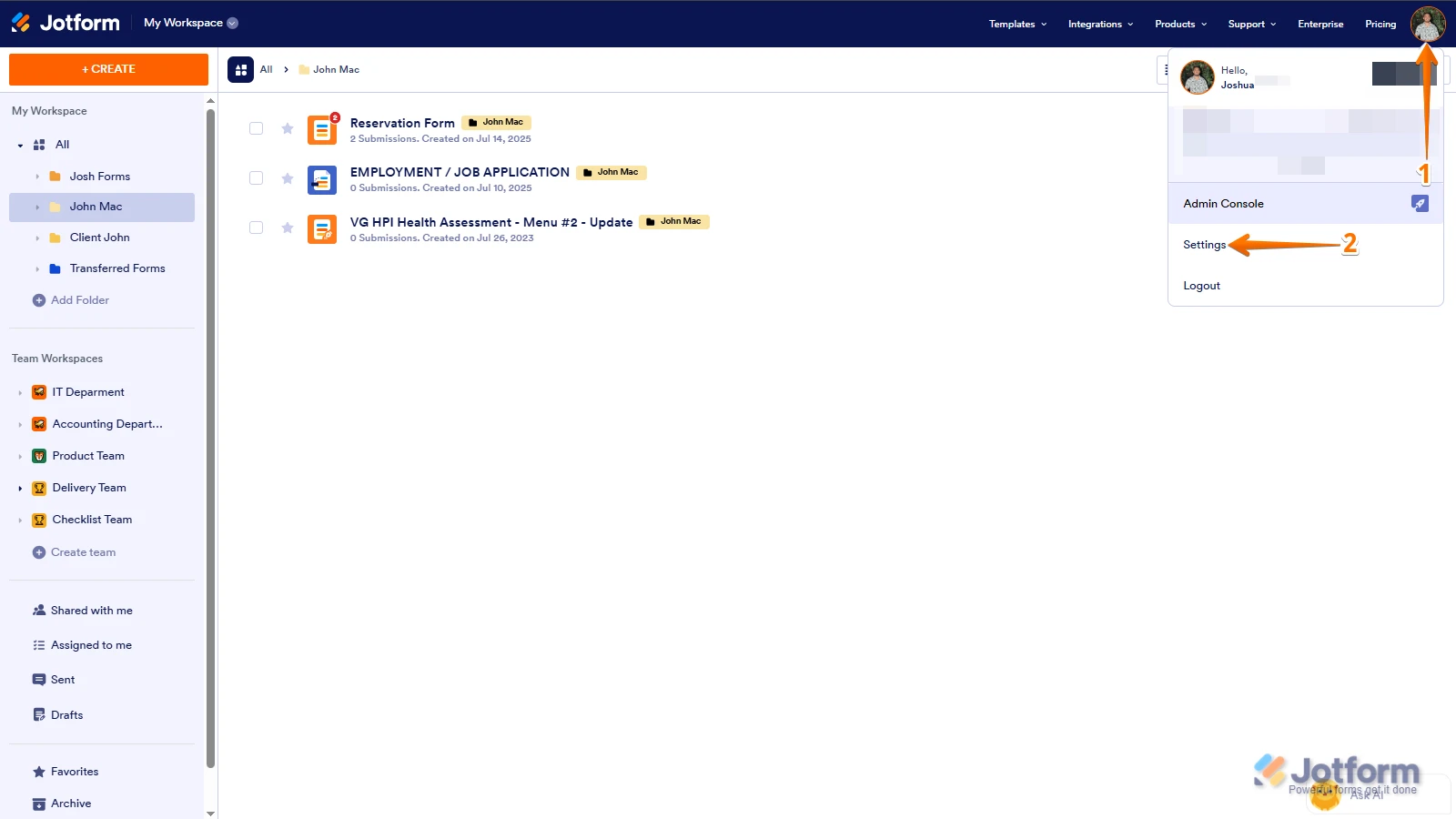
1. In the top-right corner of your Workspace page, click on your Avatar/Profile Image icon.
2. Then, in the Dropdown menu that opens, click on Settings.
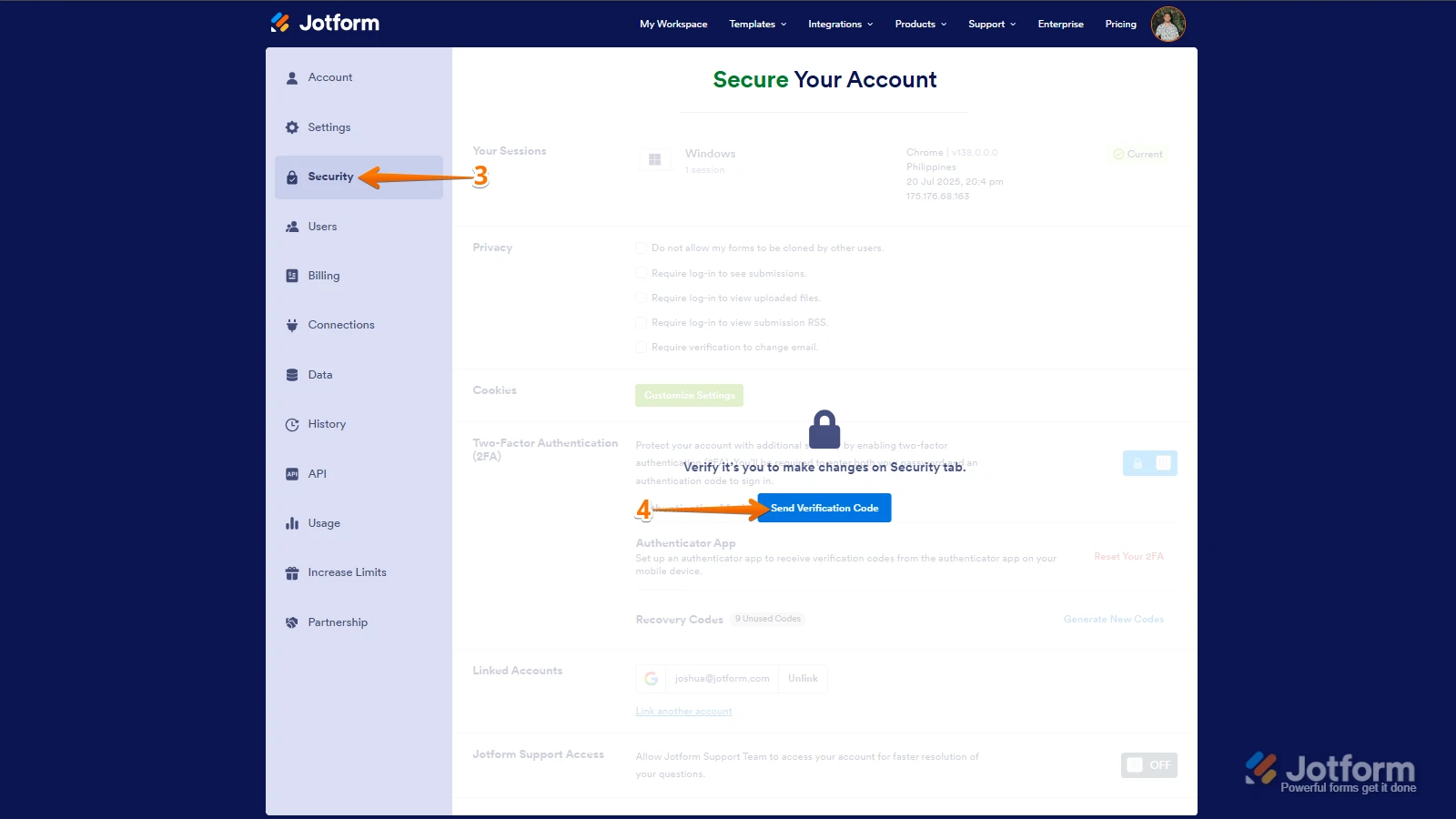
3. Next, in the panel on the left, click on the Security tab.
4. If you haven’t opened your Security page in a while, it’ll ask you to verify. To do that, click on Send Verification Code.
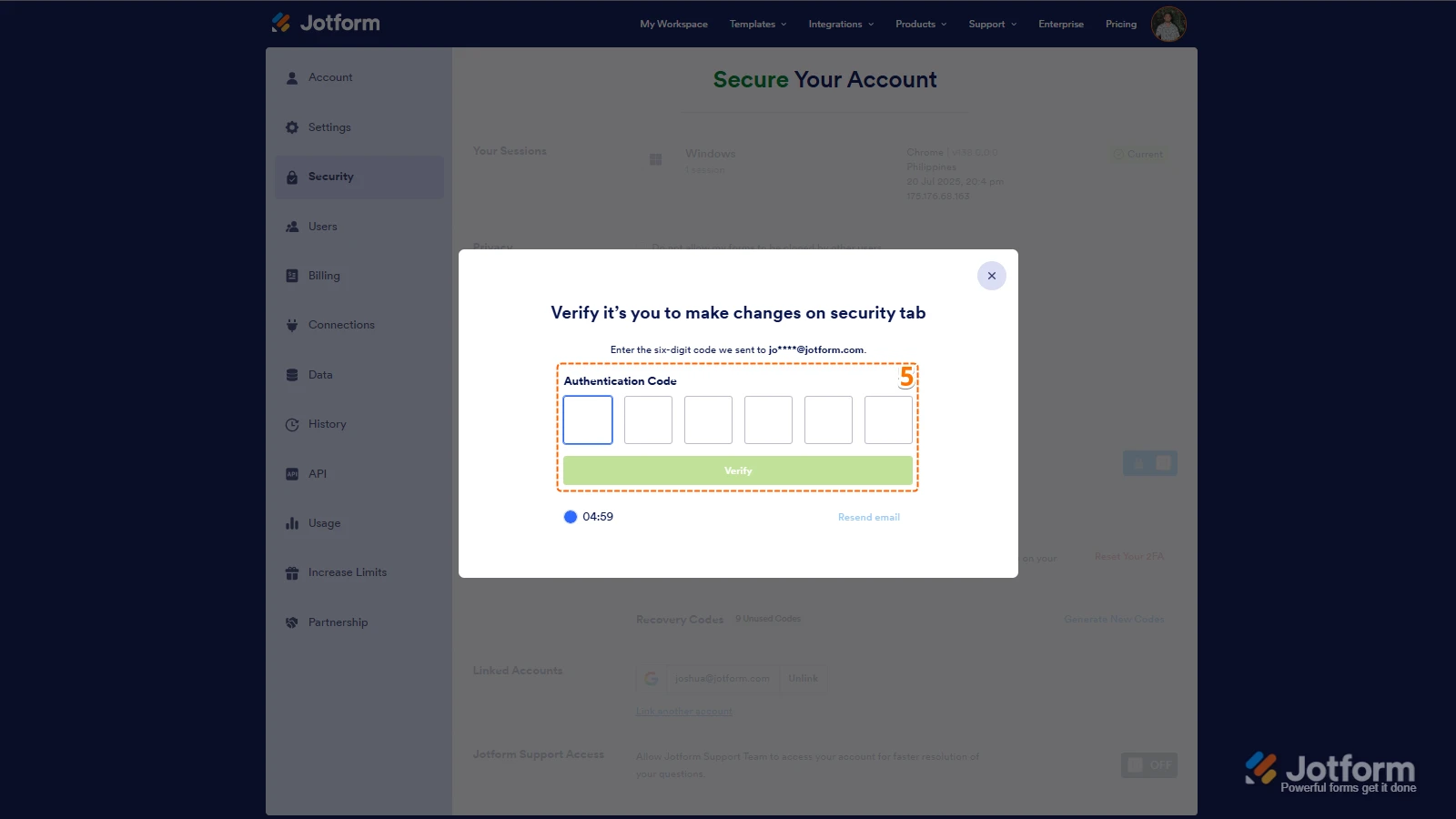
5. Then, enter the Verification Code you receive in your email.
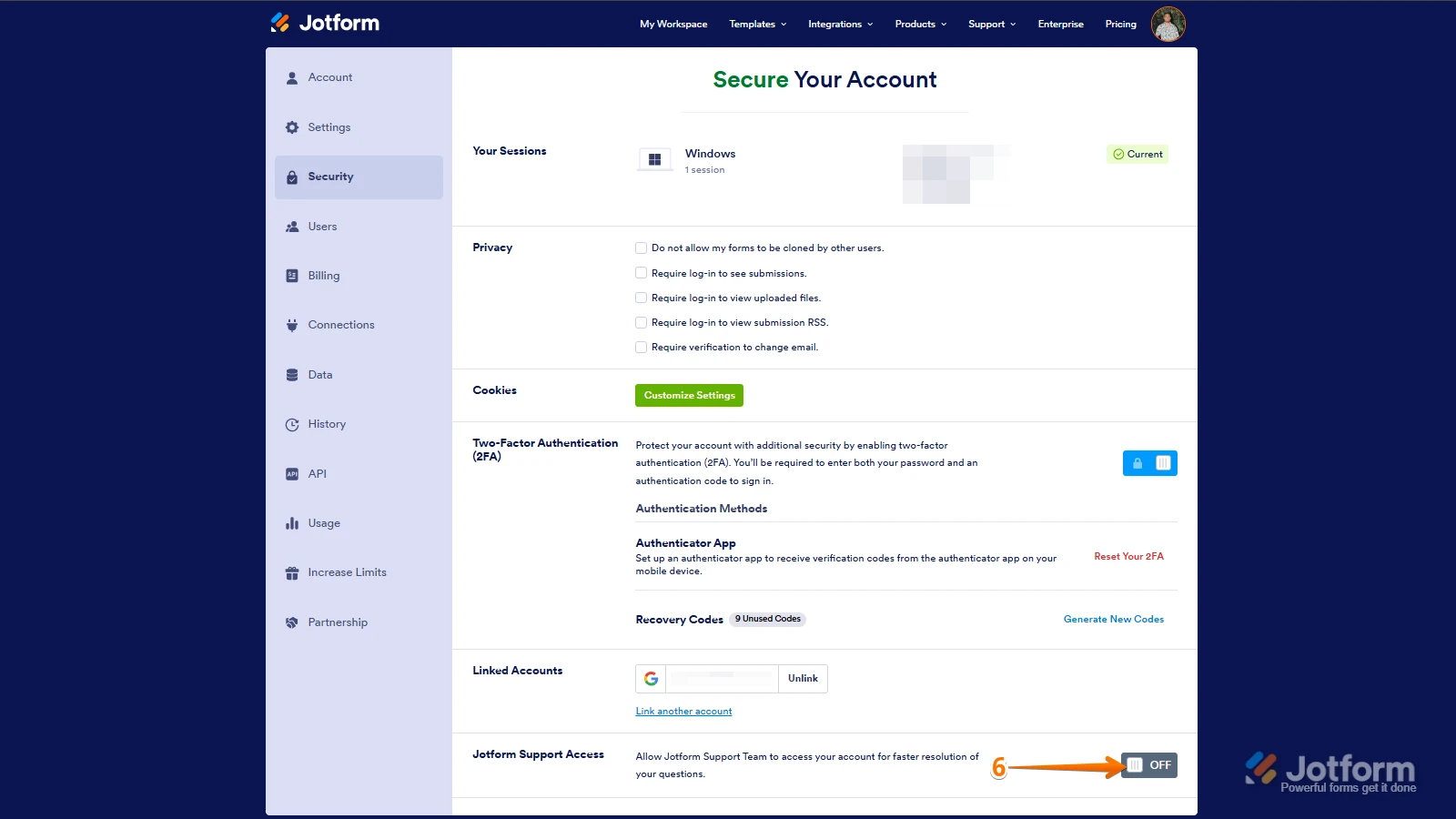
6. Finally, at the bottom of the page, toggle on Jotform Support Access.
After we hear back from you, we’ll have a better idea of what’s going on and how to help. -
lindseylentochaDone, please help
LINDSEY LENTOCHA
Marketing Director
Lindsey.Lentocha@searay.com<lindsey.lentocha>
860.920.8245 cell
www.searay.com<http: />
[A black and white logo AI-generated content may be incorrect.]<https:>
This data is internal to Brunswick.
________________________________
</https:></lindsey.lentocha>... -
Ronald JotForm Support
Hi Lindsey,
I checked the email logs on your account and it shows that the emails were sent succesfully to the recipients. Take a look at the screenshot below to see my results:
Can you go ahead and try it again and let us know how it goes? If you’re still having the same issue, we’ll look into it more to see if we can figure out what’s going on.Let us know if there’s anything else we can do for you.
-
lindseylentochaWhy did they initially say fail, get delayed, and are now sending? See screenshot showing all emails failing:
[cid:26998703-c204-4167-b9ce-d1a60ae6ca7f]
LINDSEY LENTOCHA
Marketing Director
Lindsey.Lentocha@searay.com<lindsey.lentocha>
860.920.8245 cell
www.searay.com<http: />
[A black and white logo AI-generated content may be incorrect.]<https:>
This data is internal to Brunswick.
________________________________
</https:></lindsey.lentocha>... -
Ronald JotForm Support
Hi Lindsey,
Looks like the screenshot got lost along the way. Can you share it again? Let me show you how to post a screenshot to our Help Center:
1. On the Help Center page, scroll down to the Your Answer section and click on the Image icon.
2. Drag and drop your image into the Upload box, or click on it and select your file.
3. Then, click on the Add button in the bottom-right corner of the window.
4. To resize it, click on your screenshot and then click on one of the boxes in the corners, and drag it inward.
5. Once you're finished, click on the Post Answer button at the bottom right of the Your Answer section.


 After we hear back from you, we’ll have a better idea of what’s going on and how to help.
 Can you go ahead and try it again and let us know how it goes? If you’re still having the same issue, we’ll look into it more to see if we can figure out what’s going on.