-
 John_Fleming
Hello Team
I have been searching for this but can't find what I'm looking for, so I thought I would ask.
I have a form, where I would like my staff to be able to pick their name from a drop-down list, which would then limit the options in the following drop-down list. For example.
Mike picks his name from List A. Then in List B, he can only see Option 1, Option 3 and Option 5.
Can you please advise if this is possible and if so how to do it?
Basically I need to be able to limit my staff to be only pick the items in List B that they are approved for.
Thank youJohn
-
 Kris JotForm Support
Hi John,
Thanks for reaching out to Jotform Support. Are you working on this form? Dynamically hiding options on form elements like Single Choice, Multiple Choice, Dropdown, and some widgets is unsupported. This means hiding options depending on the previous answer won't work. Instead, you can create multiple form elements and use the Show/Hide Field condition.
Create conditions that'll show specific form elements or widgets depending on the previous answer. You can display questions based on selected answers in a few simple steps. Let me first show you how to add the questions:
- In Form Builder, click on Add Element and drag-drop the fields you want to use as follow-up questions (I used Short Text fields in this example)
- Next, click on the Type a Question text and change it to the question you want to use.

Now, let's set up the conditions:
1. In Form Builder, in the orange navigation bar at the top of the page, click on Settings.
2. Next, click on Conditions on the left of the page.
3. Now, click on Show/Hide Field to create your condition (if you already have a condition, first click on Add Condition and then click on Show/Hide Field).
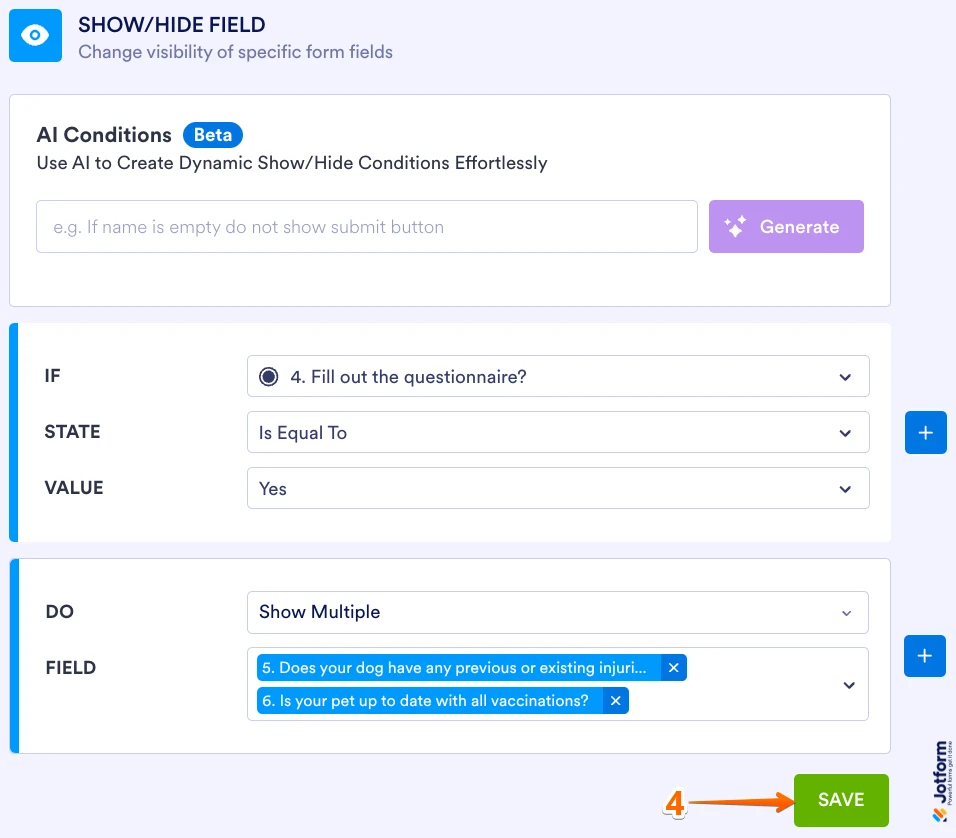
4. Set the conditions like you see below and click on Save:
The condition is set to show the follow up questions when the user selects Yes. Check out the screencast below to see what happens when the condition is met or not met:
If that’s not exactly what you’re looking for, can you give us more information so I can help you better?
Reach out again if there’s anything else we can help you with.
-
John_Fleming
Hi Kris,
Thanks heaps for the information. I did look at that. There problem is 2 fold. I have MANY Options in Drop Down List B, and it is expanding, so it would make for a very untidy solution, but also, once the correct option is selected, it gets dropped in a specific location on the PDF - Which I guess is OK, as only the one selected would show. So I could just layer them all on top of each other.
The first problem is the big one. There is currently 23 items in List B, so would I need to create 23 fields, a and this list is due to grow. Will likely be 50 by the end by the year. :(
The reason for this workflow is that the instructor is the one filling in the form. They need to select their name from List A, and I only want them to see the items they are approved to train. This prevents them from selecting something they are not approved for, and signing off on it - If that makes sense.
-
 Lorenz JotForm Support
Hi John,
You can use the Dynamic Dropdown widget instead. It allows you to set up a nested dropdown menu. Let me walk you through on how to add this to the form:
1. In Form Builder, in the left side of the page, click on Add Element button.
2. In the Add Element panel on the left, go to the Widgets tab.
3. Then, search for Dynamic Dropdown and add it to your form.
Let us know if there's anything else we can help you with.
-
John_Fleming
Hi Lorenz.
I looked at this, but not sure this will work either.
I have 18 instructors.
Out of the 23 courses, they all have access to some of them. Some have access to all of them.
The Matrix to set this up would mean I would need a crazy amount of grouping and config to make this work. It might be doable, but I think it might be crazy! LOL!
-
Kris JotForm Support
Hi John,
Since there are options that aren't available for specific users, as mentioned earlier, creating conditions to dynamically hide options is unsupported. You can duplicate multiple form elements and update them to lessen the work. Let me show you how to do this:
- In Form Builder, click on the form element. Then press and hold the CTRL or Shift key on your keyboard.
- Then select the other form elements you'd like to duplicate.
- In the top right corner, click on the Duplicate button and select whichever you prefer them to be added to.
Reach out to us if you need any more help.
-
John_Fleming
OK... I have created the dymanic drop downs and it appears to be working. It states the form may crash if too many options, but it appears to be OK - for now. Will keep testing
Thanks for everyones help!