-
 Masalamedia
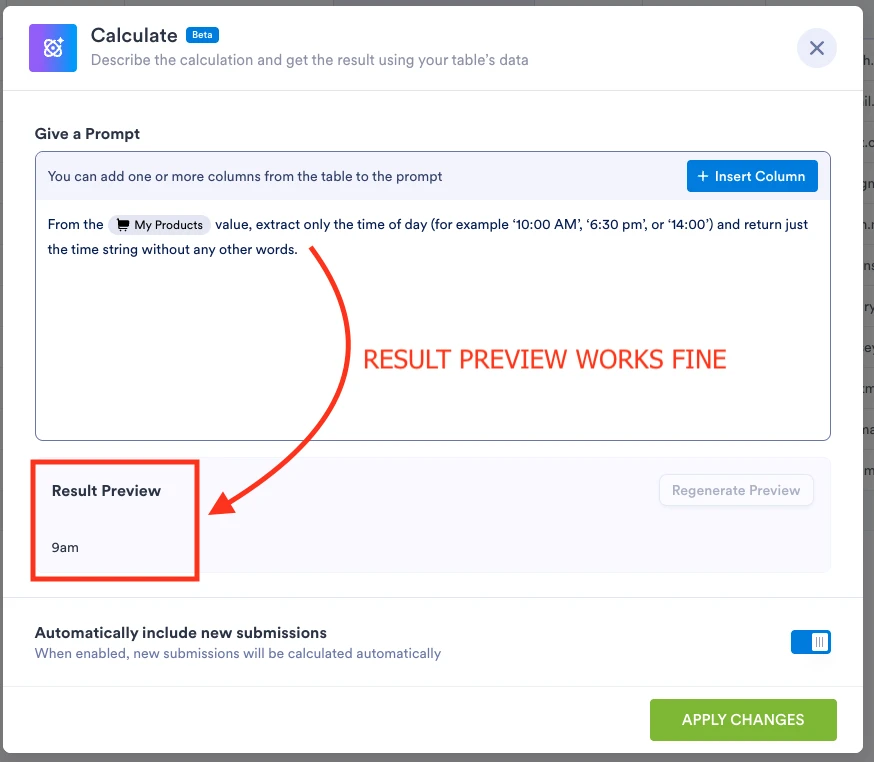
Podo told me to use this prompt to create a column that will show the time of the courses I am selling on one of my forms:
From the My Products value, extract only the time of day (for example ‘10:00 AM’, ‘6:30 pm’, or ‘14:00’) and return just the time string without any other words.”
This prompt correctly generates the desired data in the PROMPT PREVIEW box but when I attempt to REGENERATE the value from the table view, there is no result.
 Page URL: https://form.jotform.com/251395193921966
 -
Masalamedia
Although the PREVIEW works OK, the REGENERATE button over on the table - where I really need it - fails to produce results.
-
 Shirized JotForm Support
Hi Masalamedia,
Thanks for reaching out to Jotform Support. Can you give me a few more details so I can understand what you need? Can you give me full details of what you would like to accomplish so I can guide you? In the meantime, if the regenerate function still fails, try deleting the current AI column and creating a new one with the same prompt. This can sometimes resolve glitches.
Also, clear your browser cache. Sometimes, browser cache can interfere with table updates. Clearing your browser cache or trying a different browser might help. If you’re still having the same issue, we’ll look into it more to see if we can figure out what’s going on.
Give it a try and let us know how it goes.
-
Masalamedia
The REGENERATE button doesn't work.
I can't flush my browser cache every time I need to manipulate my data in the table. That is impractical.
-
 Jeric_T
Hi Michael,
I cloned your form and tested it to see if I could replicate the issue, but everything was working properly. Check out the screenshot below to see my results:
Based on your screenshot, only one row does not have a time value. Is this a new submission? Now, we can look into this further. We'll just need access to your account to do that. Don't worry, you can disable that again after we're done checking things out. Let me show you how to do it:1. In the upper-right corner of your My Forms page, click on your Avatar/Profile Image icon.
2. In the small window that opens, click on Settings.
3. In the panel on the left, click on the Security tab.
4. Then, on the bottom-right side of the page, toggle Jotform Support Access to the On position.
After we hear back from you, we’ll have a better idea of what’s going on and how to help.

 Based on your screenshot, only one row does not have a time value. Is this a new submission? Now, we can look into this further. We'
