-
 HavaneseRescueInc
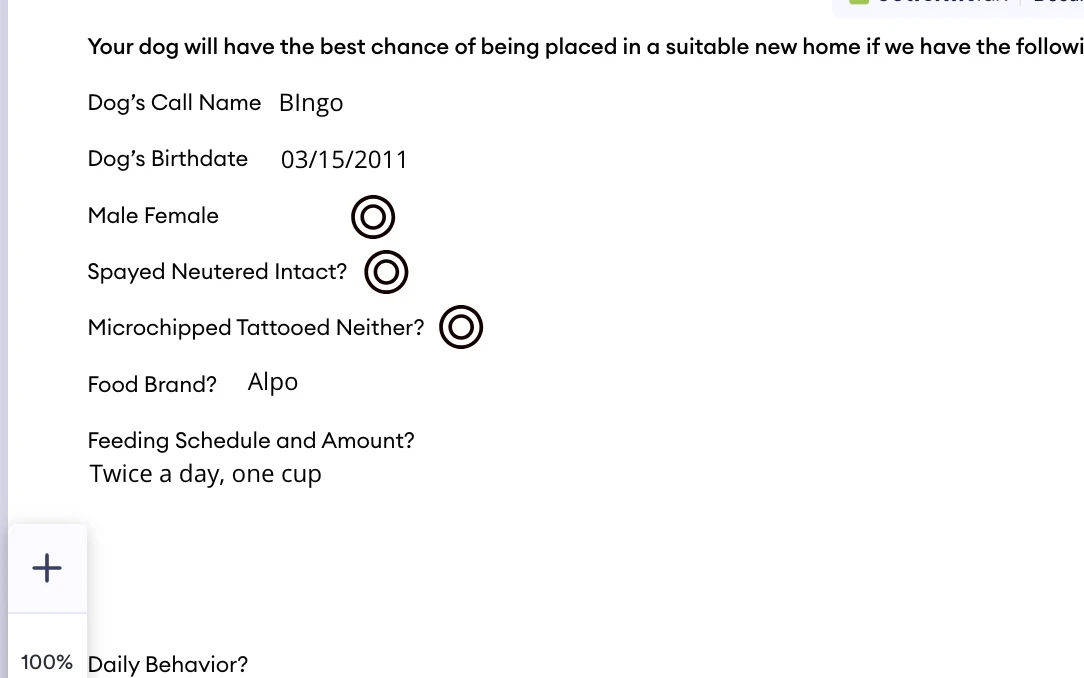
The button is showing up but not the field label. There is now way to see what the single choice button is selecting. ie: Male, Female, yes, no.
Thanks

-
 Podo: Support Specialist
Hi HavaneseRescueInc,
Thanks for reaching out to Jotform Support. I'm an AI assistant here to assist you.
Regarding your issue with the single choice button field labels not showing up on the final signed PDF, this is related to how Jotform Smart PDF Forms handles field mapping. When you add a single choice field to your online form, the corresponding fields appear as green boxes on the PDF, which you can drag and resize. However, for single choice or multiple choice fields, you need to map each selection box individually to the checkboxes in the original PDF to ensure the labels (like Male, Female, Yes, No) appear correctly.
If the labels are not showing, it might be because the individual options are not properly mapped to the PDF fields. You can manually adjust these mappings by dragging the fields in the PDF editor to the correct positions and ensuring each choice is linked to its corresponding checkbox.
Also, note that some fields cannot be mapped to the PDF, but single choice fields should be supported with proper mapping.
Let me help you with that:
- Open your form in the Form Builder.
- Go to the PDF Editor or Smart PDF Forms section.
- Check the mapping of your single choice field options to the PDF checkboxes. Make sure each option (Male, Female, Yes, No) is linked to a corresponding field on the PDF.
- Drag and resize the fields on the PDF as needed to make the labels visible.
- Save your changes and test the signed PDF again.
This should allow the field labels to appear alongside the buttons on the final signed PDF.
Give it a try and let us know how it goes.
-
HavaneseRescueInc
Where is the PDF Editor or Smart PDF Forms section? How do I access that?
-
Podo: Support Specialist
Hi HavaneseRescueInc,
Let me help you with that:
You can find your Smart PDF Forms in the Workspace page under All Forms. Here's how you can access it:
- Go to the Workspace page in your Jotform account.
- Click the Filter button located at the top of the page and select only Forms.
- Look for forms with a blue color, which indicates they are Smart PDF Forms.
If you want to create Smart PDF Forms from your PDF document:
- Click the Create button at the top-left side of the Workspace page.
- Select Form and then choose Document to Form.
- Upload your PDF or .docx document to create a form from your document.
This is where you can manage and edit your Smart PDF Forms.
Give it a try and let us know how it goes.
-
HavaneseRescueInc
I am working on a My Sign Document. This is a green form. What are you talking about referring to a blue form.
-
Podo: Support Specialist
Hi HavaneseRescueInc,
The green form you are referring to as a "My Sign Document" is different from the blue forms, which are Smart PDF Forms. The blue forms are created and managed in the Smart PDF Forms section in the Workspace, while the green forms are Sign Documents managed in the My Workspace under the Sign Documents filter.
My Sign Documents (green forms) are specifically designed for e-signature workflows and have different editing and management interfaces compared to Smart PDF Forms (blue forms).
If you are working with a My Sign Document (green form), the PDF Editor or Smart PDF Forms section I mentioned earlier does not apply to these. Instead, you manage and edit these documents within the Sign Builder interface for Sign Documents.
Let us know if you need guidance on managing or editing My Sign Documents specifically.
Give it a try and let us know how it goes.
-
HavaneseRescueInc
I need single choice field labels to show up on a My Sign Document when the are sent to different people to sign.
-
Podo: Support Specialist
Hi HavaneseRescueInc,
For My Sign Documents (green forms), the Sign Builder interface is used for managing and editing the document content. Currently, Jotform does not provide a direct feature to show single choice field labels on the signed document automatically.
However, you can add descriptive text or instructions above or below the single choice field using a separate Paragraph element in the Sign Builder to serve as a label or explanation. This way, the label will be visible to signers when they receive the document.
Here’s how to add a label or description:
- Open your My Sign Document in the Sign Builder.
- Click the Add PDF Element button and select the Paragraph element.
- Place the Paragraph element near your single choice field.
- Edit the Paragraph text to include the labels or instructions (e.g., Male, Female, Yes, No).
- Save and exit the Sign Builder.
This approach allows you to provide clear labels for single choice options on your My Sign Document when sent to different people for signing.
Give it a try and let us know how it goes.
-
HavaneseRescueInc
Where is the Add PDF Element button located?
-
Podo: Support Specialist
Hi HavaneseRescueInc,
Let me help you with that:
In the Sign Builder for My Sign Documents, the Add PDF Element button is located within the editing interface when you are customizing your sign document template.
Here’s how to find it and use it:
- Open your My Sign Document in the Sign Builder.
- Click the Edit Template button on the right side of the page to load the PDF Editor within the Sign Builder.
- Look for the Add PDF Element button in the PDF Editor interface. This button allows you to add elements such as Text, Heading, Image, Line, Signature, Empty Space, Box, or Page Break to your document.
- Click Add PDF Element and select the Paragraph element to add descriptive text or labels near your single choice fields.
- After adding and positioning the element, save your changes and exit the editor to return to the Sign Builder.
This will let you add labels or instructions to your single choice fields so they are visible to signers.
Give it a try and let us know how it goes.
-
HavaneseRescueInc
I don't see the Edit Template button when I open the My Sign Document. I selected "edit form" from my workspace. Is the next screen not the Sign Builder?
-
Podo: Support Specialist
Hi HavaneseRescueInc,
When you select "Edit Form" from your workspace for a My Sign Document, the next screen you see is not the Sign Builder but the Form Builder interface. The Sign Builder is a separate interface specifically for editing the sign document template itself.
To access the Sign Builder for your My Sign Document, you need to open the document through the Sign Documents section in My Workspace and then choose the option to edit the sign template. This will take you to the Sign Builder where you can find the Edit Template button and the Add PDF Element button for customizing your document.
If you are only seeing the Form Builder after clicking "Edit Form," you are editing the form fields, not the sign document template.
Let us know if you need detailed steps on how to open the Sign Builder for your My Sign Document.
Give it a try and let us know how it goes.
-
HavaneseRescueInc
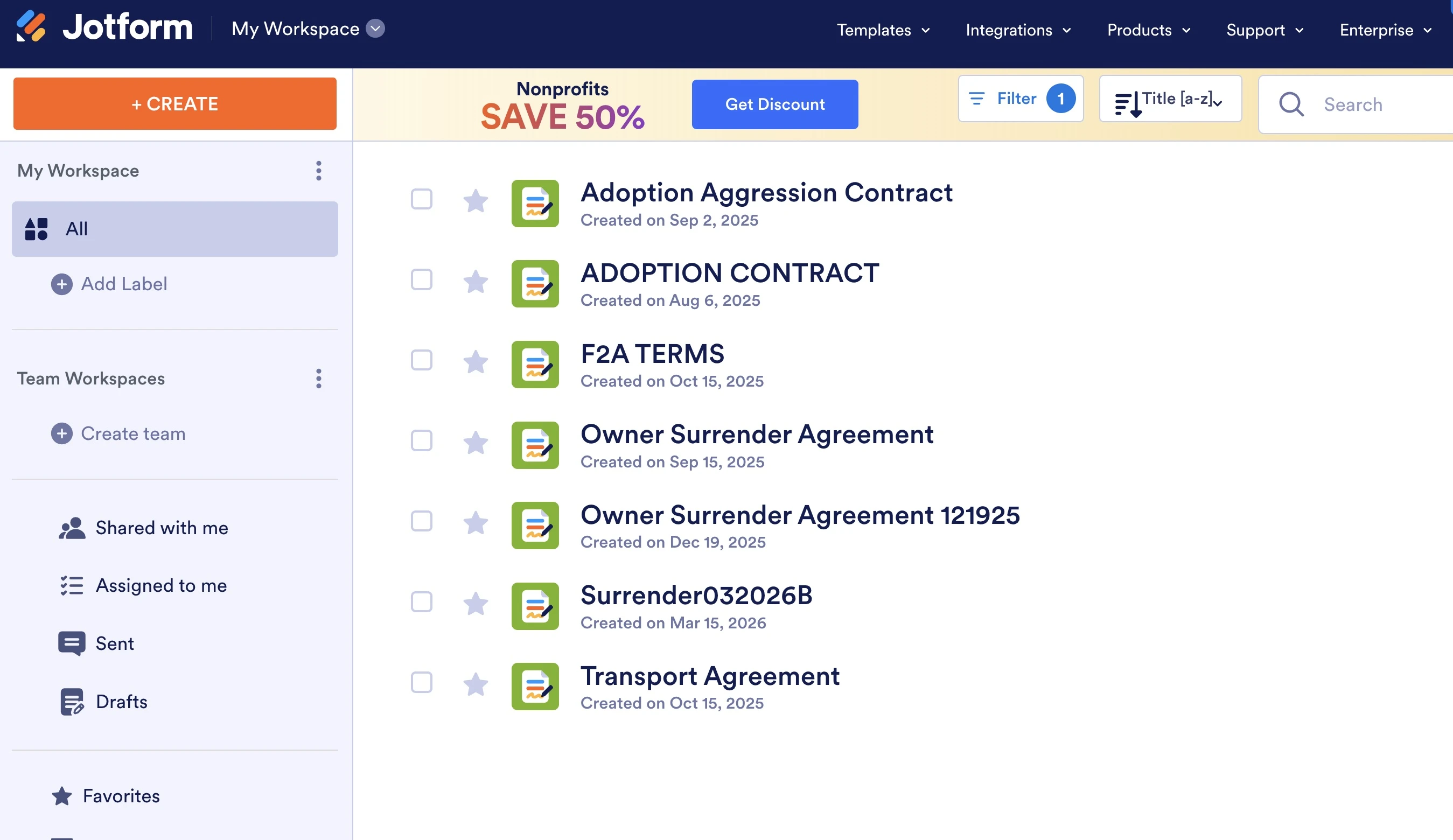
Is this where I am supposed to access Sign Builder?
-
Podo: Support Specialist
Hi HavaneseRescueInc,
You can find your Sign Documents on the My Workspace page. To find it:
- Go to My Workspace.
- Click on Filter at the top and in the dropdown menu, uncheck all boxes except Sign Documents so only those are shown.
- Select the Sign Document you want to work on.
To edit a sign document template and access the Sign Builder:
- Go to the Jotform Sign templates page.
- Click "Use Template" on the template you want to use. This will redirect you to the Sign Builder.
- In the Sign Builder, click the Edit Template button on the right side of the page to open the PDF Editor within the Sign Builder.
- Customize your document by adding elements like text, images, and signatures.
- Save changes and exit the editor to return to the Sign Builder.
Please note that the Sign Builder does not allow you to customize an uploaded document directly; using a Sign Template is recommended for full customization.
Give it a try and let us know how it goes.
-
HavaneseRescueInc
I am in Sign Builder per the pull down menu labeled Sign Builder next to the JotForm logo in the upper left corner. I still do not see JotForm Sign templates page in the screen. Is it on the pulldown menu labled Sign Builder? I have three options on the left side of the screen, General Settings, Email Settings and Integrations. Where do I find JotForm Sign templates?
-
Podo: Support Specialist
Hi HavaneseRescueInc,
You can find your Sign Documents on the My Workspace page. To find it:
- Go to My Workspace.
- Click on Filter at the top and in the dropdown menu, uncheck the boxes next to all the assets except Sign Documents so only those are shown on the page.
- Select the Sign Document you want to work on.
To edit a sign document template and access the Sign Builder:
- Go to the Jotform Sign templates page.
- Click "Use Template" on the template you want to use. This will redirect you to the Sign Builder.
- In the Sign Builder, click the Edit Template button on the right side of the page to open the PDF Editor within the Sign Builder.
- Customize your document by adding elements like text, images, and signatures.
- Save changes and exit the editor to return to the Sign Builder.
Please note that the Sign Builder does not allow you to customize an uploaded document directly; using a Sign Template is recommended for full customization.
In the Sign Builder interface, the left side options you see such as General Settings, Email Settings, and Integrations are for managing the overall document settings and sending options, not for template editing.
The Jotform Sign templates page is separate and accessed outside of this interface, typically from the Jotform website or your workspace where you choose templates to use and edit.
Give it a try and let us know how it goes.
-
HavaneseRescueInc
If the My Sign document was created from a PDF I uploaded, can this be converted into a template? When I originally set up this My Sign form it gave me two options, Upload a document or use template. I chose upload a document and uploaded a PDF.
-
Podo: Support Specialist
Hi HavaneseRescueInc,
To convert your My Sign Document created from an uploaded PDF into a template, follow these steps:
- Go to your Workspace page and click on Type at the top-right side of the page, then select only Sign Documents.
- Hover over the document you want to convert and click on Edit to open the Sign Builder.
- Click on the Edit Template button (green pencil icon) on the right side of the page.
- Click on the Blue Paint Roller icon on the right side of the page and select Share as Template.
- Fill out the required fields and click on Add.
This process will allow you to use the document as a template for future sign requests.
Give it a try and let us know how it goes.
-
HavaneseRescueInc
I don't hve a green pencil icon available. Should I follow the instruction below? What is not supported in my upload?
If the Button is Missing: If you uploaded a document and cannot see the green Edit Template button, it may be because Jotform Sign currently does not support editing the layout of some uploaded files directly. You may need to remove the page, modify the original document, and create a new Sign Document. -
Podo: Support Specialist
Hi HavaneseRescueInc,
If you do not see the green Edit Template button after uploading your PDF document, it is likely because Jotform Sign currently does not support editing the layout of some uploaded files directly. This limitation means you cannot convert that uploaded PDF into a fully editable template within the Sign Builder.
In such cases, the recommended approach is to:
- Remove the problematic page(s) from your uploaded document.
- Modify the original PDF document outside of Jotform using a PDF editor to adjust the layout or content as needed.
- Create a new Sign Document by uploading the modified PDF again.
This process helps ensure compatibility with Jotform Sign's editing capabilities and allows you to access template editing features.
Give it a try and let us know how it goes.
-
HavaneseRescueInc
What do I need to change in my PDF document to make it editable?
-
Podo: Support Specialist
Hi HavaneseRescueInc,
To make your uploaded PDF document editable in Jotform Sign, you need to ensure the document is compatible with Jotform's editing capabilities. Here are some general guidelines:
- Remove any complex elements such as scanned images or flattened content that cannot be recognized as editable fields.
- Ensure the PDF contains selectable text rather than just images of text. If your PDF is a scanned image, use OCR (Optical Character Recognition) software to convert it to selectable text.
- Simplify the layout by avoiding overlapping elements, complex backgrounds, or non-standard fonts that might interfere with field detection.
- Use standard form fields in the original PDF if possible, as these are more likely to be recognized and editable.
- Modify the PDF outside of Jotform using a PDF editor to adjust or remove unsupported elements before uploading it again.
If your PDF does not meet these criteria, Jotform Sign may not allow you to edit the template directly, and you might need to create a new Sign Document after modifying the PDF.
Give it a try and let us know how it goes.
-
HavaneseRescueInc
I see that I have the option to upload a .DOC file. Would that be better than a PDF?
-
Podo: Support Specialist
Hi HavaneseRescueInc,
Uploading a .DOC file instead of a PDF for your My Sign Document can sometimes be better if you want more flexibility in editing the document within Jotform Sign. DOC files are often easier to edit because they are not flattened like PDFs, allowing for easier placement and adjustment of fields and elements.
However, PDFs are widely used and supported for e-signature workflows, especially if your document layout is finalized and you want to preserve the exact formatting.
If you upload a DOC file, you might find it easier to make changes before sending it for signatures, but the choice depends on your specific needs for editing and layout preservation.
Give it a try and let us know how it goes.
-
HavaneseRescueInc
Is size a factor in making a PDF not editable in JotForm? What if my PDF file is a lot of pages?
-
Podo: Support Specialist
Hi HavaneseRescueInc,
Regarding your question about PDF file size and number of pages affecting editability in Jotform Sign:
For Jotform Smart PDF Forms, there are page limits depending on your account type: up to 25 pages for Starter, Bronze, and Silver accounts, and up to 50 pages for Gold and Enterprise accounts. If your PDF exceeds these limits, you may encounter errors during import.
However, for My Sign Documents created by uploading PDFs, there is no specific mention that file size or number of pages directly affects editability. The main factors affecting editability are related to the PDF content structure, such as whether the text is selectable or if the document contains scanned images or complex elements.
If your PDF is very large or has many pages, it might impact performance or loading times, but it does not inherently prevent editing unless it violates the page limits mentioned for Smart PDF Forms.
Give it a try and let us know how it goes.
-
HavaneseRescueInc
If I change the font of my PDF would that enable editing? If so what fonts to you recommend?
-
Podo: Support Specialist
Hi HavaneseRescueInc,
Changing the font in your PDF may help with editability if the current font is non-standard or causing issues with field recognition. Jotform's Smart PDF Forms allows you to customize font types, sizes, and styles in the PDF Editor for better appearance and compatibility.
Here’s what you can do:
- Use standard, widely supported fonts such as Arial, Times New Roman, or Helvetica to ensure compatibility.
- Avoid decorative or custom fonts that might not be recognized properly by the editor.
- Adjust font size and style in the PDF Editor or your original document before uploading.
In Jotform's PDF Editor, you can change font settings under Layout Settings, including Font Family, Font Size, and Text Style.
Using standard fonts helps ensure your PDF is more editable and fields are recognized correctly.
Give it a try and let us know how it goes.