-
KKeval
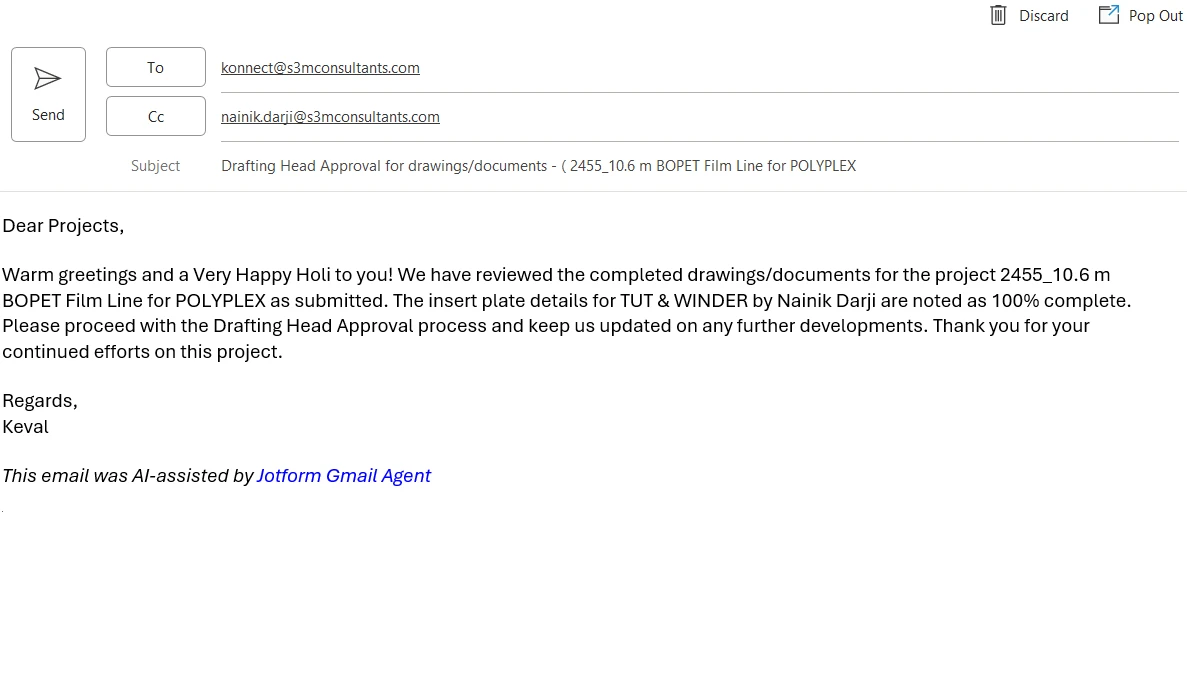
Your agent is still active in my Gmail and still drafting mails automatically , this is annoying and it is taking my time to delete that drafts rather helping me out, please delete the integration at the earliest.

-
 Sheena JotForm Support
Hi Keval,
Thanks for using Jotform. I checked your account and it is still active. It’s easy to disconnect your Gmail AI Agent in just a few steps. Let me show you how:
- In AI Agent Builder, in the blue navigation bar at the top of the page, click on Publish.
- Then, in the menu on the left, select Gmail Agent.
- Now, under the Connected Account section, click on the Three Dots icon on the right side of the page and select Disconnect Account.
- Next, in the Confirmation window that appears, click on Disconnect.
- On your Teams Workspace, put a check in the box next to the Assets you want to delete.
- In the menu at the top, under the cover page, click on Move to Trash.
- Finally, in the Confirmation window that opens, click on Delete Items.
- On your Teams Workspace, in the menu on the left, scroll to the bottom and click on Trash.
- Then, put a check next to the Assets you want to purge.
- Next, in the top-left side of the page, click on Purge.
- Finally, in the Confirmation window that opens, click on Confirm.