-
 kfadick
On my form it shows time slots are faded out but one booked those time slots? Can you fix please?
kimberly fadick
-
 Podo: Support Specialist
Hi Kimberly,
It’s common for time slots to appear faded out if they are already booked or if there are settings limiting availability. Let me help you with two common reasons and how to check them:
- Minimum Scheduling Notice: Sometimes a minimum notice period is set to prevent last-minute bookings, which can cause slots to appear unavailable. You can check this in your form's Appointment field settings under the Limits tab.
- Rolling Days Limit: Another setting might limit how far in advance appointments can be booked. This also causes some time slots to be unavailable if they fall outside the allowed booking window.
Here’s how to check and adjust these settings:
- In Form Builder, click on the Appointment field, then click the Gear icon to open its menu.
- On the right side, click the Limits tab.
- Review and adjust the Minimum Scheduling Notice and Rolling Days settings as needed to allow bookings for the desired time slots.

Adjusting these should help make the correct time slots available again. Reach out again if there’s anything else we can help you with.
-
kfadick
But these slots are not booked. And I checked and they should be available
-
Podo: Support Specialist
Hi Kimberly,
If the time slots are faded out but not actually booked and should be available, there might be other settings affecting their availability. Let me help you check another possibility:
- Block out Dates: Sometimes specific dates or time slots are blocked out as vacations, holidays, or unavailable times. This will cause those slots to appear faded out even if they are not booked.
- Check Appointment Field Settings: In Form Builder, click on the Appointment field, then click the Gear icon to open its menu.
- On the right side, click the Limits tab and review the Vacation and Holidays settings to see if any dates or times are blocked.
Checking and adjusting these settings should help resolve the issue with the faded out time slots. Reach out again if you need any other help.
-
kfadick
I think someone tried to book these time slots and changed their mind. How can I make them available?
-
Podo: Support Specialist
Hi Kimberly,
If someone tried to book those time slots and changed their mind, the slots might still appear as unavailable due to the form's settings or temporary holds.
To make those time slots available again, you can check and adjust the following:
- Clear any temporary holds or pending bookings if your form or appointment widget supports that feature.
- Review the Minimum Scheduling Notice and Rolling Days settings in the Appointment field to ensure they are not restricting availability.
- Check for any blocked dates or times under the Vacation and Holidays settings in the Appointment field Limits tab and remove any that might be affecting those slots.
Here’s how to access these settings:
- In Form Builder, click on the Appointment field, then click the Gear icon to open its menu.
- On the right side, click the Limits tab.
- Adjust the Minimum Scheduling Notice, Rolling Days, and Vacation and Holidays settings as needed.
Adjusting these settings should help make the time slots available again. Reach out again if there’s anything else we can help you with.
-
kfadick
How can I clear temporary holds?
-
Podo: Support Specialist
Hi Kimberly,
Currently, Jotform does not have a specific feature to manually clear temporary holds on appointment time slots if someone started booking but did not complete it. However, here are some steps you can take to make those slots available again:
- Check for any incomplete or pending submissions in your form submissions and delete them if they are holding the slots.
- Review the Appointment field settings for any restrictions such as Minimum Scheduling Notice, Rolling Days, or blocked dates under Vacation and Holidays that might be causing the slots to appear unavailable.
- Adjust these settings as needed to ensure the slots are open for booking.
If the issue persists, it might be related to how the appointment field manages availability internally, and you may need to wait for the system to release the hold automatically.
Let us know if you need further assistance with this.
-
kfadick
I have parents needing to sign up urgently can this be resolved now?
-
Podo: Support Specialist
Hi Kimberly,
To help you make appointment slots available urgently, you can check and adjust the following settings in your form:
- Limit appointments based on rolling days: This setting controls how far in advance appointments can be booked. Increasing the rolling days limit can open up more available slots.
- Limit appointments by start and end date: You can set a specific date range for when appointments can be scheduled. Adjusting these dates can help make slots available sooner.
- Minimum scheduling notice: This setting prevents last-minute bookings. Reducing the minimum notice period can allow bookings closer to the current time.
Here’s how to do it:
- In Form Builder, click on the Appointment field, then click the Gear icon to open its menu.
- On the right side, click the Limits tab.
- Adjust the Rolling Days, Start & End Date, and Minimum Scheduling Notice settings as needed.
Adjusting these settings should help make the slots available urgently. Reach out again if there’s anything else we can help you with.
-
 Kyle JotForm Support
Hi Kimberly,
If the time slots are still unavailable, review your submission to see if a slot has already been reserved. If so, you can delete that reservation to make the time slots available again. Let me first show you how to delete a submission:
- In Jotform Tables, select the submission you want to delete.
- Next, click on Delete at the top right side of the Tables page.
- Now, in the Confirmation window that opens, click on Move to Trash.
Before deleting, make sure to download the submission first so you have a backup copy. Deleting submissions won’t free up space on your account, and they can be recovered within 30 days. After 30 days, they will be permanently removed. Then you can purge the submissions to free up the appointment slots. Let me show you how:
- In Jotform Tables, click on the Three Dots icon next to your form title in the tabs.
- Then, click on Trashed Entries.
- Next, in the window that opens on the right side of the page, select the submission you want to delete, and then click on Delete Forever.
- Now, in the Confirmation window that opens, click on Delete.
Try that out and get back to us if you have any issues.
-
kfadick
The time slots are not reserved, but they are still faded and not available.
-
 Keenly JotForm Support
Hi Kimberly,
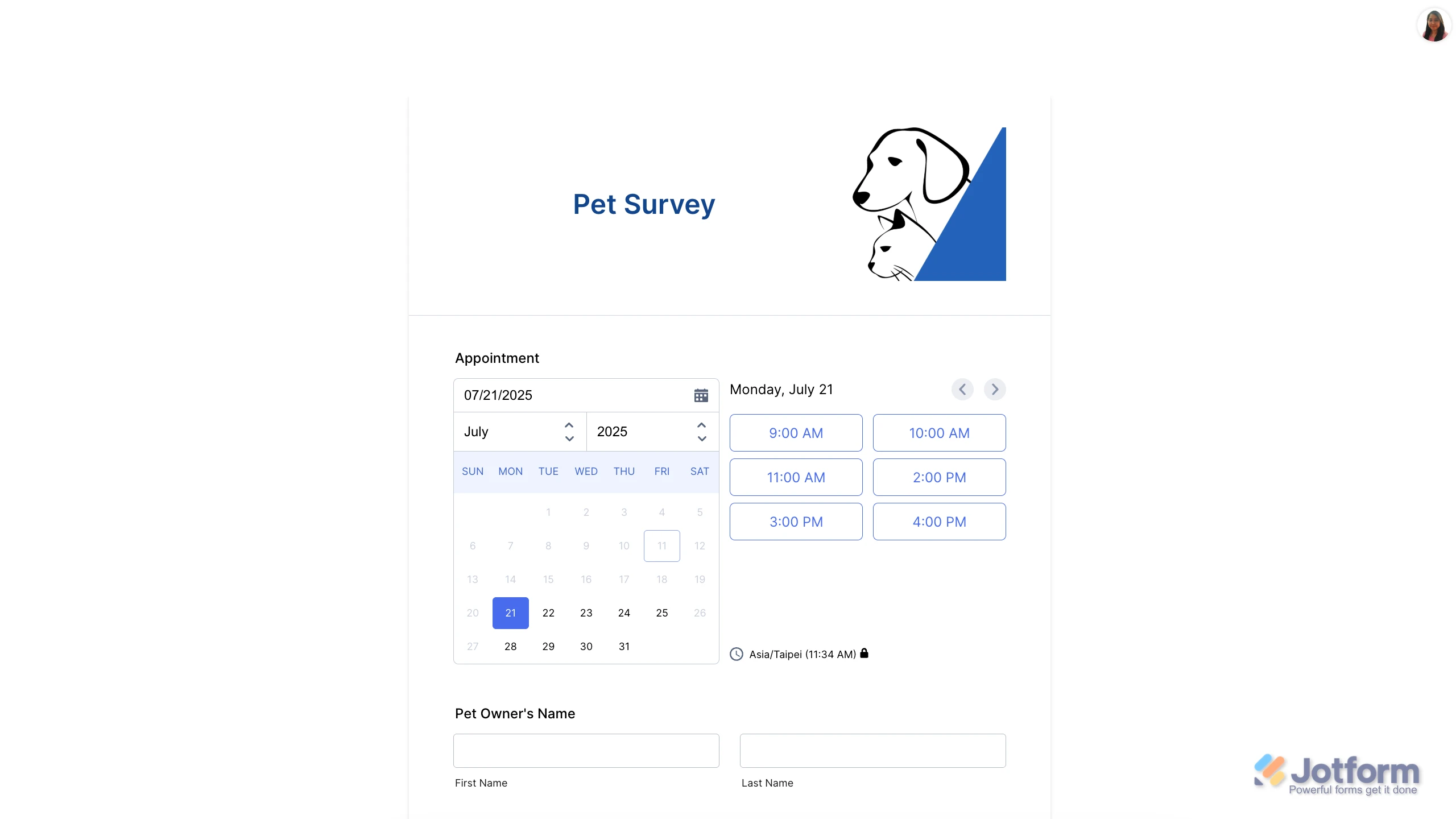
I can see that you have 3 submissions in your Brush Creek Elementary School Talent Show form, so could you check and confirm the dates selected for these submissions? You can View Your Form Submissions from your Jotform Submissions Table in just a few easy steps. Let me show you how:
- On your Workspace page, check the box next to the form you want to view submissions for.
- Then, in the menu on the upper-left side of the page, click on Submissions to see all the submissions for that form in your Tables.
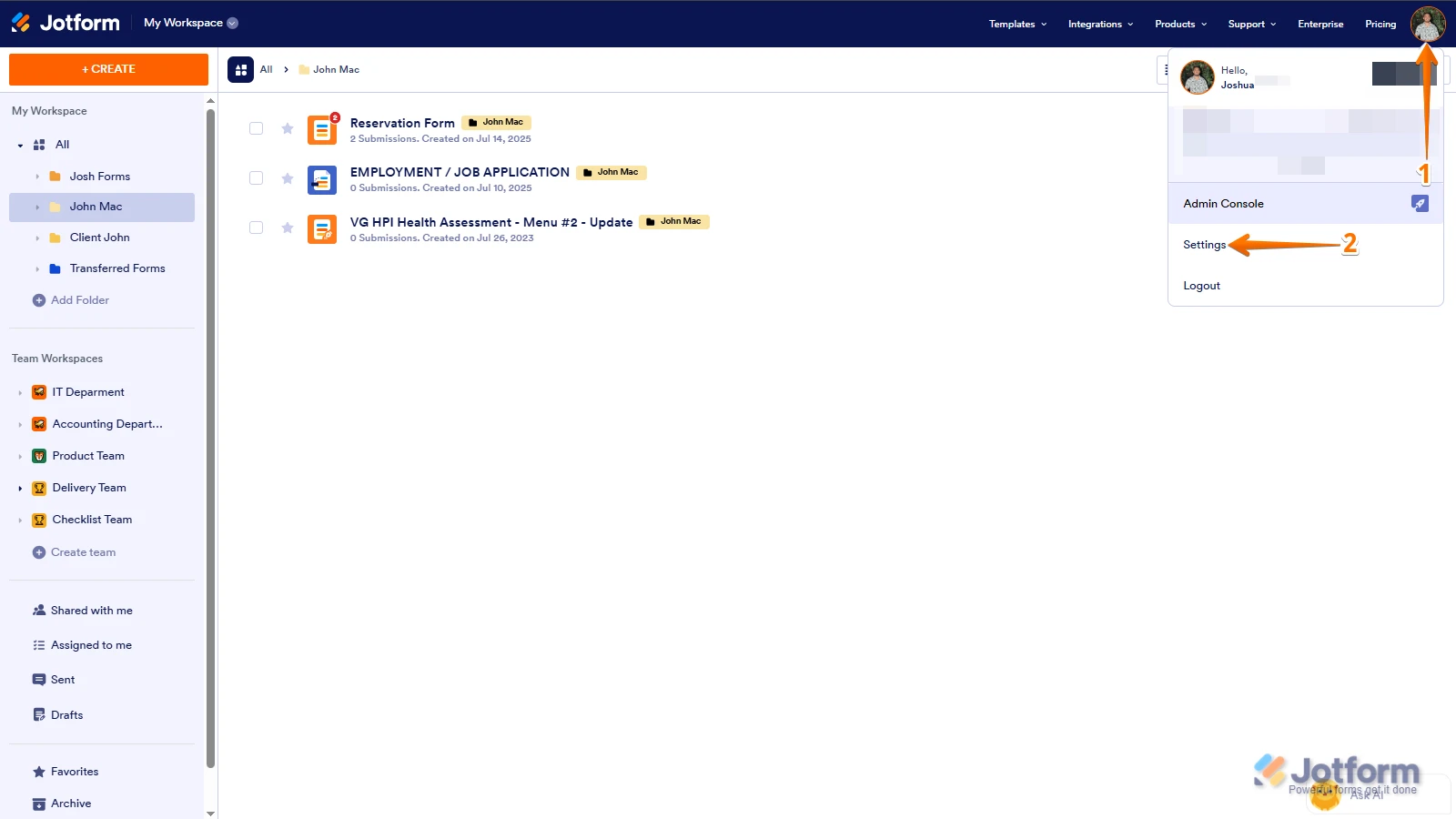
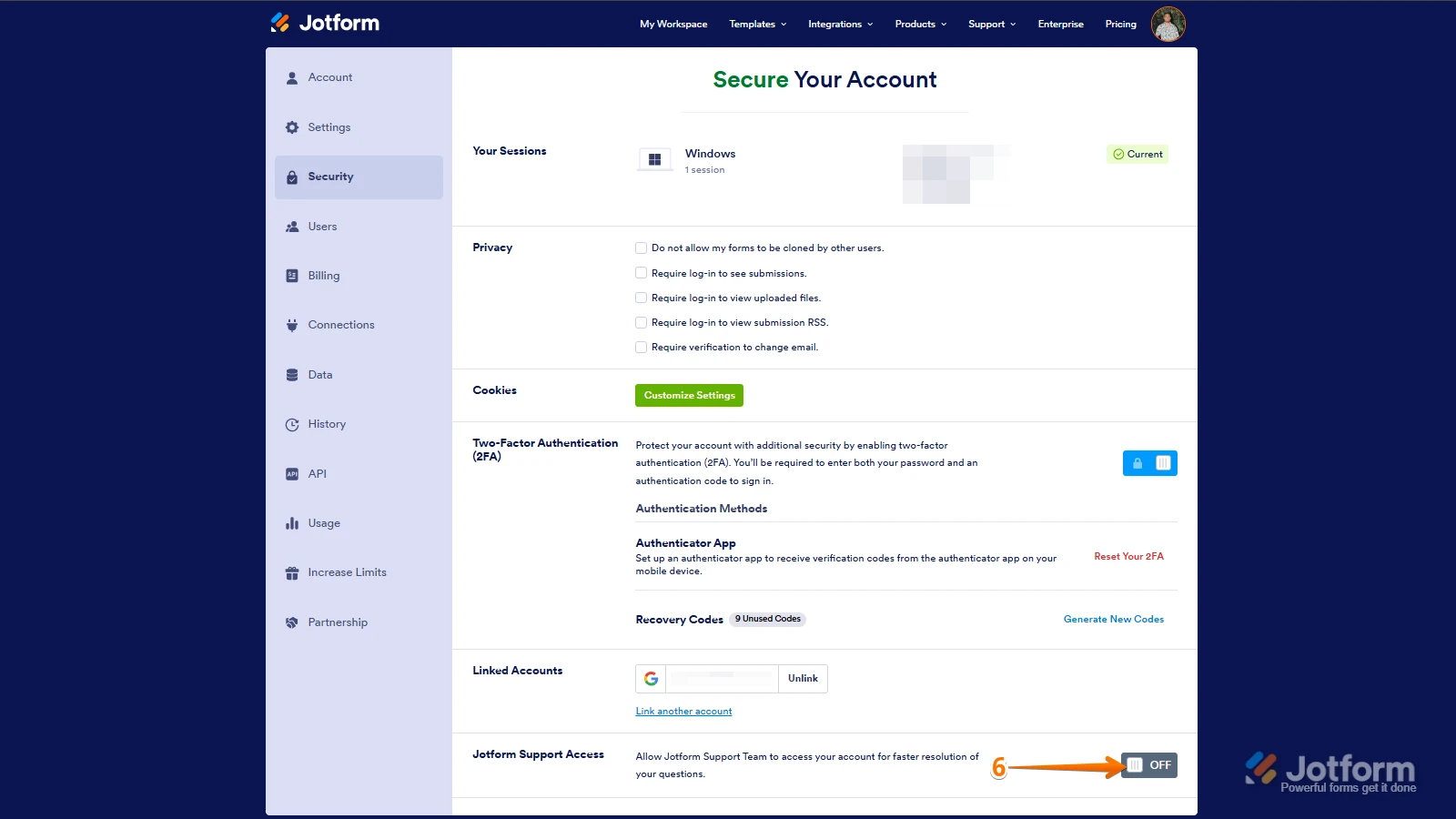
1. In the top-right corner of your Workspace page, click on your Avatar/Profile Image icon.
2. Then, in the Dropdown menu that opens, click on Settings.
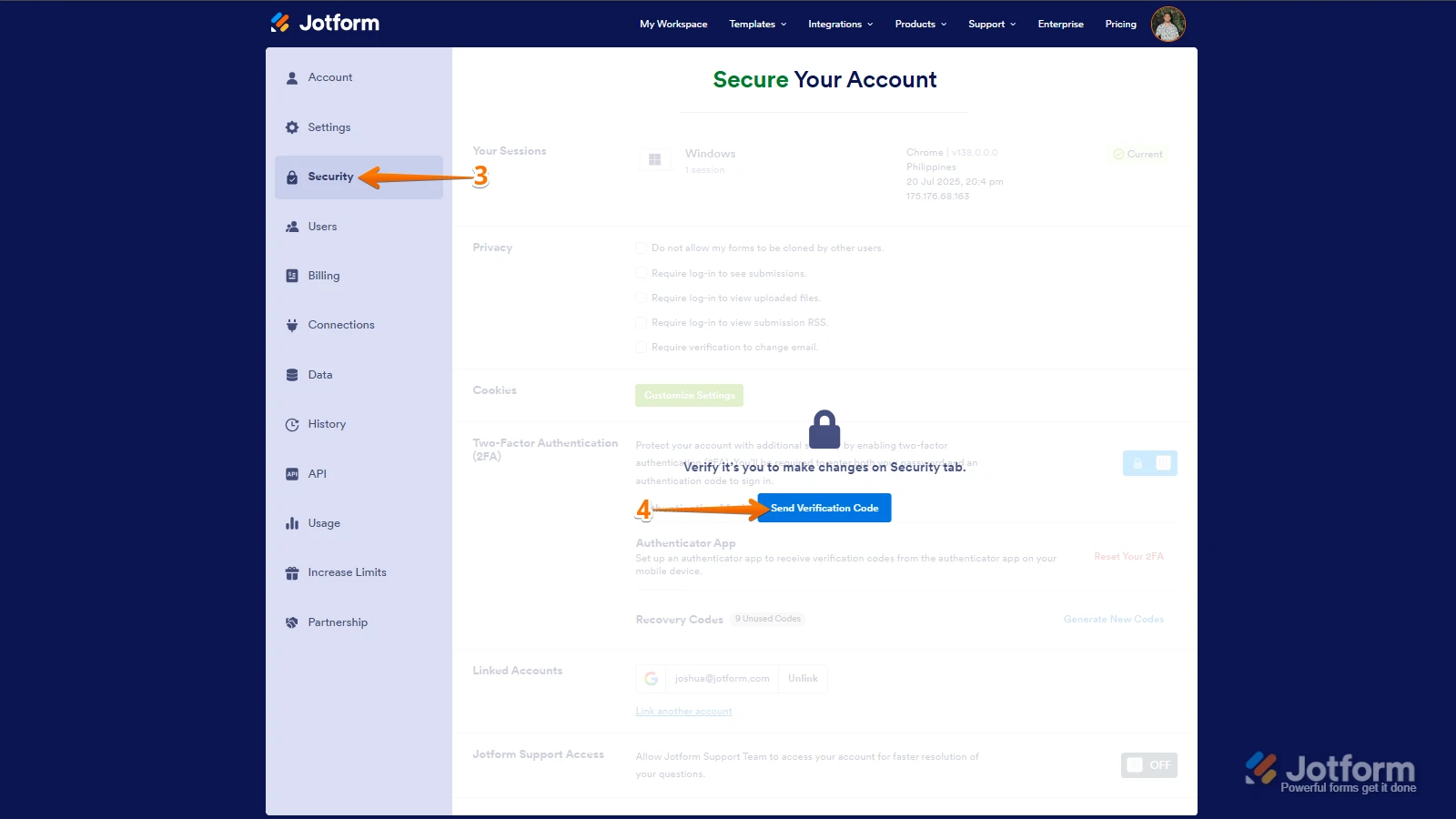
3. Next, in the panel on the left, click on the Security tab.
4. If you haven’t opened your Security page in a while, it’ll ask you to verify. To do that, click on Send Verification Code.
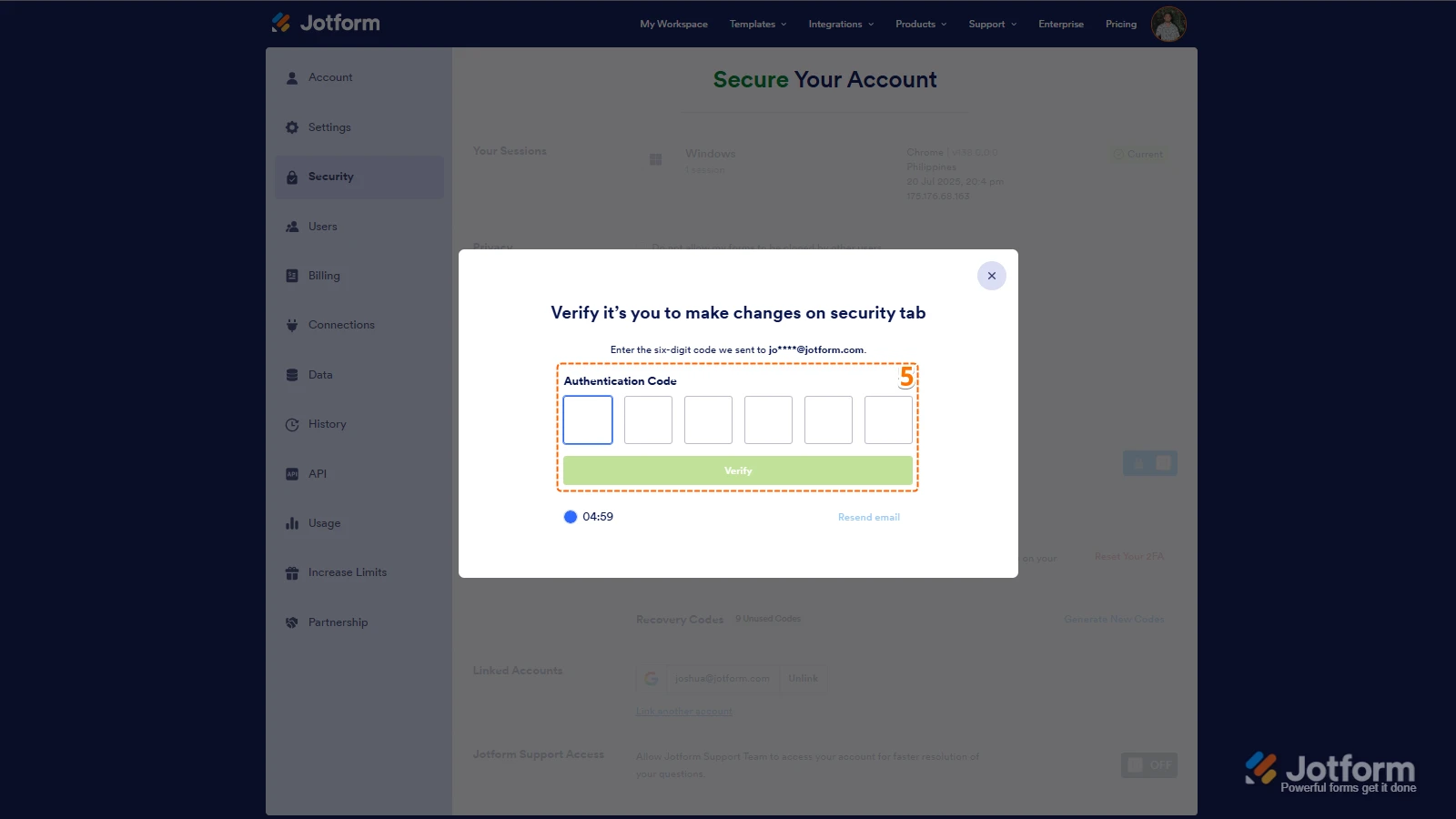
5. Then, enter the Verification Code you receive in your email.
6. Finally, at the bottom of the page, toggle on Jotform Support Access.
Keep us updated and let us know if you need any more help. -
kfadick
Hello,
I have allowed access to my account. Can you please make these time slots available:
March 31 at 3:00 and 3:15pm
April 1 at 4:30 and 4:45pm
Also I need help and wondering why this person cannot register her child in the form. Attached is a screen shot of what keeps happening. She's tried several times.
-
Kyle JotForm Support
Hi Kimberly,
I reviewed your form and noticed that the Appointment fields currently have availability limits set for March 31, 2026, and April 1, 2026. Check out my screencast below to see the result:
To avoid conflicts and ensure smooth scheduling, I recommend consolidating these into a single Appointment field that covers both March and April. This way, you won’t need separate fields for each date, and users will have a clearer, more consistent booking experience without issues in availability.
Try that and reach out again if you need more help.
-
kfadick
Fine I did that, but there are still time slots that are not booked that are greyed out/shadowed out. How can those be made available so that people can book their child in those time slots?
-
kfadick
The time slots are 3:00pm/3:15pm on March 31st
-
Keenly JotForm Support
Hi Kimberly,
I tested it but couldn’t replicate the issue, so I created a ticket and escalated this to our Developers. We’ll circle back with an update when there is one.

 Keep us updated and let us know if you need any more help.
Your Reply
Something Went Wrong
An error occurred while generating the AI response. Please try again!