-
DDarin Rader
This is Darin Rader from the Bloom-Vernon Local Schools. We're trying to put our open enrollment form on Jotforms and have parents fill it out to where it will send a PDF to a google drive so we can see and print them. I have all of that setup and working properly but we're having one issue. We have a portion of the form at the bottom that is 'For Office Use Only' that needs filled out by someone from our administration after the form is submitted. How do we get that to show up at the end of the PDF once it is submitted to the drive? It's not bringing those empty fields over once the document is submitted because it only brings over fields that were typed in. Is this possible?
-
 Sheena JotForm Support
Hi Darin,
Thanks for using Jotform. It's easy to show the empty fields in the PDF. Here's how:
- In Form Builder, click on the Downward Arrow icon next to the Jotform Logo and select PDF Editor.
- On the right side of the screen, click on Gear icon.
- Finally, uncheck the checkbox next to Hide empty form fields.

Give it a try and let us know if you need any help.
-
 darinrader
I don't see the settings wheel when I got to PDF editor.
-
 Nikola JotForm Support
Hi Darin,
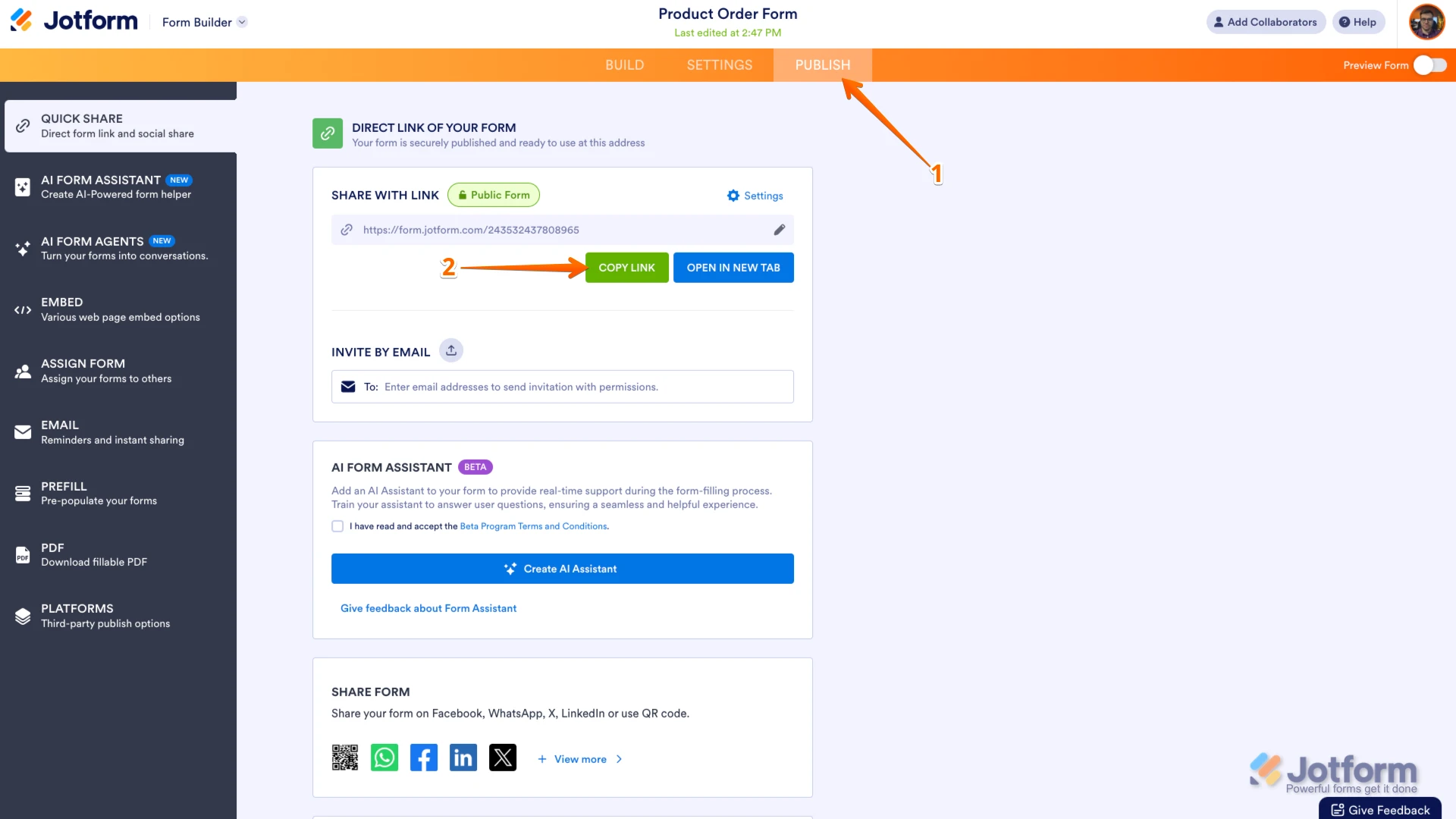
I checked your account, but I didn't find any form. Can you share the URL of the form you're working on? You can easily find your form's URL in Form Builder. Let me show you how:
- In Form Builder, in the orange navigation bar at the top of the page, click on Publish.
- In the Quick Share tab, click on Copy Link in the Share With Link section.
Once you share the form URL with us, we’ll be able to help you better with this. -
DDarin Rader
It's actually on one of our secretary's accounts. Traci Martin - traci.martin@bvjeeps.org
-
Sheena JotForm Support
Hi Darin,
I see you're referring to this form. If you can take a screenshot of what’s happening, that'll help us to understand better what’s going on. Let me show you how to post a screenshot to our Help Center:
1. On the Help Center page, scroll down to the Your Answer section and click on the Image icon.
2. Drag and drop your image into the Upload box, or click on it and select your file.
3. Then, click on the Add button in the bottom-right corner of the window.
4. To resize it, click on your screenshot and then click on one of the boxes in the corners, and drag it inward.
5. Once you're finished, click on the Post Answer button at the bottom right of the Your Answer section.
-
DDarin
When we click on PDF editor this is what we see. There's no cog wheel on the right side.
-
 Elif
ElifHi Darin Rader,
Thanks for reaching out to Jotform Support. Clearing Your Form Caches it can help resolve common performance issues and get things running smoothly again. Let me show you how:
1. On your Workspace page, click on your Avatar/Profile Image icon.
2. In the dropdown menu, click on Settings.
3. In the Settings menu, click on Clear Cache. And that's it, you're done.
Give it a try and let us know if you need any other help. -
DDarin Rader
We just did that and the cog wheel is still not there to change settings.
-
 Otto JotForm Support
Hi Darin,
You cannot see the gear icon in the PDF Editor because you have the Jotform Sign Automation feature enabled. You just need to disable this feature. It's easy to set up. Let me show you how:
- In Form Builder, in the orange navigation bar at the top of the page, click on Settings.
- In the menu on the left side of the page, click on Jotform Sign.
- Then, toggle off the Disable Jotform Sign Automation option.
Please let us know if you have any other questions.
-
DDarin Rader
We toggled that off and still do not get the cog wheel so we can uncheck the hide empty fields option in PDF editor. This is a form that was automatically created after we uploaded a PDF of our enrollment form. Is that maybe a cause for not being able to change it? We need those empty fields to show up in the PDF because those fields are marked as 'for office use only'.
-
 Jan JotForm Support
Hi Darin,
I checked the screenshot, and I can confirm that you are using a fillable PDF form. If the Gear icon does not appear on your current field, you can add a new field from the Fields tab and hide it instead. It is easy to do. Let me walk you through it:
- In Form Builder, add the fields you want to hide in the Fields tab of the Add Elements menu.
- Then, select the field and click on the Gear icon.
- Now, in the Field settings, go to the Advanced tab.
- Disable the Hide field option.
Give it a try and let us know if you need any help.
-
DDarin Rader
I gave that a try and it still hides the 'for office use only' section once the form is submitted. Does the gear icon not appear in PDF builder if you used an already created form and uploaded it to Form Builder? That's what we did because if we create a form from scratch the gear icon is there for us to uncheck hide empty fields?
-
 Ronald JotForm Support
Hi Darin,
The Gear icon will not show as you're working on a Fillable PDF and not a PDF document. You can follow Jan's reply to show or Hide fields in a Fillable PDF or create a New PDF document that allows you to view the Gear icon. It is very easy to do. Let me show you how:
- In PDF Editor, click the Add new PDF in the Blue Navigation bar.
- Select Default Layout from the pop up modal.
Doing this will let you see the Gear icon on the right part of the screen.
Give it a try and let us know if you need any help.
-
DDarin Rader
We already have a PDF created for when the form is submitted. There's no way to go in to that form and have those fields show on the PDF that's created once the form is submitted?
-
 Podo: Support Specialist
Hi Darin Rader,
Your request has been answered and the thread is closed.
If you have another question or need more help, feel free to reply here and we'll assist you right away.
-
DDarin Rader
We figured it out. We had to upload the form again and now it's working properly. Thanks everyone for your help!
 Once you share the form URL with us, we’ll be able to help you better with this.


 Take a peek at our guide on

