-
 Baldwin_REALTORS
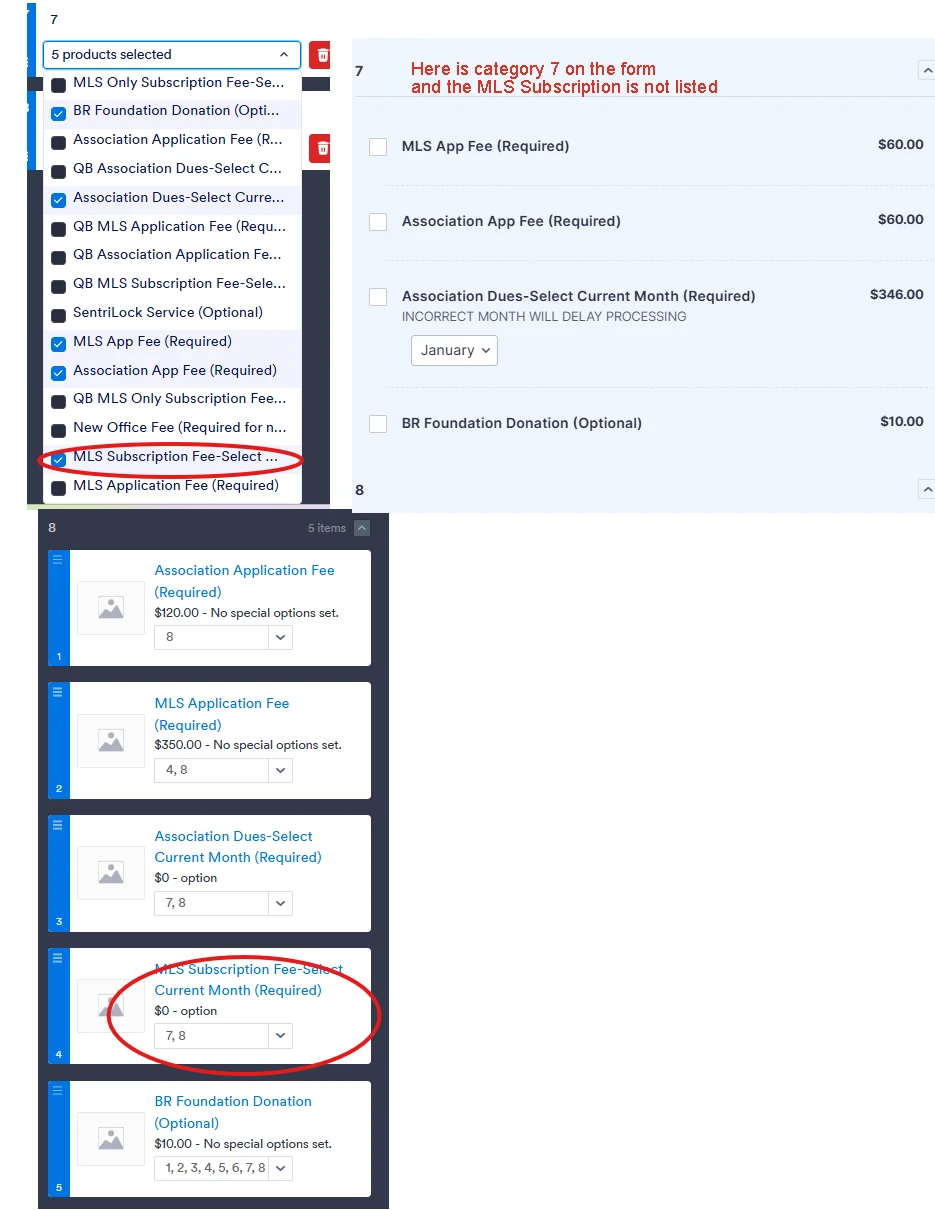
I have 8 categories set up for a payment widget. And I believe I have 10 items. Each item applies to multiple categories. I am continuously getting error messages when trying to make changes. But the main problem is that the item is set up to be on category 7 but it does not show up. See attached screenshots.

-
 Podo: Support Specialist
Hi Baldwin,
Thanks for reaching out to Jotform Support. I'm an AI assistant here to assist you.
Regarding your issue with the payment widget categories and items not showing correctly, here’s some guidance:
Adding and Categorizing Products in Payment Widget:
- In the Form Builder, add the Product List element to your form.
- Click the Gear icon on the Product List element.
- Go to the Category tab and toggle Enable Categories to Yes.
- Enter your category titles and add them.
- When adding or editing a product, select the appropriate categories from the Select a Category dropdown or check the categories where you want the product to appear.
If an item is set to a category but does not show up, it could be due to an error in the category assignment or a glitch when saving changes. Since you mentioned continuous error messages when making changes, it might be related to how the categories or items are configured.
To troubleshoot:
- Double-check that the item is correctly assigned to category 7 in the product settings.
- Ensure that the categories are enabled and visible in the widget settings.
- Try removing the item from the category and reassigning it.
- Save changes carefully and refresh the form preview to see if the item appears.
If the problem persists, it might be helpful to review the exact error messages or any restrictions on item-category assignments within the payment widget.
Give it a try and let us know how it goes.
-
Baldwin_REALTORS
I've done all of that
-
Podo: Support Specialist
Hi Baldwin,
Since you have already tried the standard troubleshooting steps and the issue with the item not showing in category 7 along with continuous error messages persists, it may be a more complex issue related to the payment widget configuration or a possible bug.
Could you please provide the exact error messages you are receiving? This information will help in diagnosing the problem more accurately.
Additionally, if possible, share details about how the items and categories are set up, such as whether items are assigned to multiple categories simultaneously and any specific settings applied to the payment widget.
Once we hear back from you with this information, we’ll have a better idea of what’s going on and how to help.
-
Baldwin_REALTORS
This is on the form "Clone of Baldwin Realtors/Baldwin MLS applicaiton"
-
Podo: Support Specialist
Hi Baldwin,
Thanks for providing the form name "Clone of Baldwin Realtors/Baldwin MLS application." Based on the information available, there is no specific known issue documented for this particular form regarding payment widget items not showing in categories.
Since you are encountering continuous error messages and the item assigned to category 7 does not show up, here are some additional steps you can try:
- Check for any restrictions or conflicts: Ensure that the item assigned to multiple categories does not have conflicting settings or limitations within the payment widget.
- Review your form's payment widget settings: Verify that the payment widget is properly configured and that categories are enabled and correctly assigned.
- Test with a simplified version: Try creating a test form with fewer categories and items to see if the issue persists, which can help isolate the problem.
- Clear browser cache and try a different browser: Sometimes caching issues or browser-specific problems can cause display errors.
If these steps do not resolve the issue, please provide the exact error messages you are receiving when making changes. This will help in diagnosing the issue more accurately.
Let us know if you need further assistance.
-
Baldwin_REALTORS
I need an agent to look at this please. The system is not doing what it's supposed to do.
-
 Jan JotForm Support
Hi Baldwin,
I cloned your form to take a closer look at your setup, and I noticed that the item you're looking for is actually showing up under Category 8 on my end. If it's still stuck on Category 7 for you, we can try a quick step to reset it. Just remove the item from Category 7 and add it back again.
After you do that, refresh your page and preview the form again to see if the categories update correctly. You can check out the screenshot of my cloned form below to see how the item looks in Category 8:
Give it a try and let us know how it goes. -
Baldwin_REALTORS
The item should be in category 8 and in category 7. Category 8 is correct. It's missing cat 7. Please look at my screenshots and see that 7 & 8 are marked in the setup of this item. Thank you
-
 Ronald JotForm Support
Hi Baldwin,
When I cloned and tested your form, the same thing happened for me. After investigating it a bit, I found a solution. It’s really easy to fix. Let me show you how:
- In Form Builder, select your Product List and click the Shopping Cart icon.
- Hover your mouse on the product and click the Gear icon and choose Duplicate.
- Set up the Category by the dropdown.
- Hover your mouse on the old product and select Delete.
 Give it a try and let us know how it goes.
 Give it a try and reach out again if you have any other questions.