-
 reportcybercrimehyd
Hello,
We are currently facing an issue while trying to download the Excel file for the Bharosa Case Intake Form. For the past two days, the file has not been downloading successfully.
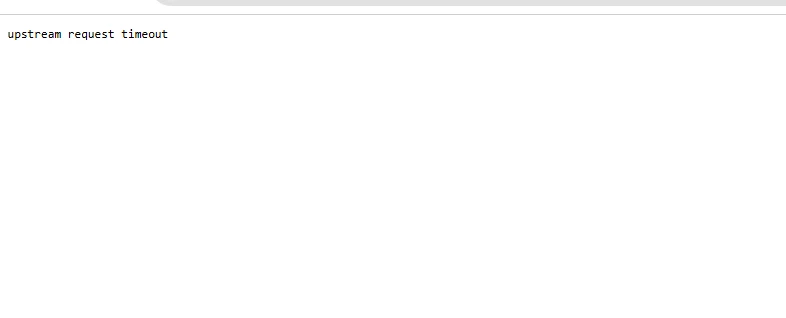
Whenever we attempt to download it, the system shows the error message “Upstream request timeout.”
Due to this issue, we are unable to access and process the required data. Kindly check the issue from your end and resolve it at the earliest.

-
 Podo: Support Specialist
Hi reportcybercrimehyd,
Thanks for reaching out to Jotform Support. I'm an AI assistant here to assist you.
Let me show you how to download your submissions as an Excel file:
- On your My Forms page, select your form and click on Submissions in the upper-left corner next to the Create Form button. (This will take you to the form's Tables view.)
- In Jotform Tables, click on Download All on the upper-right side of the page and then select Download as Excel.
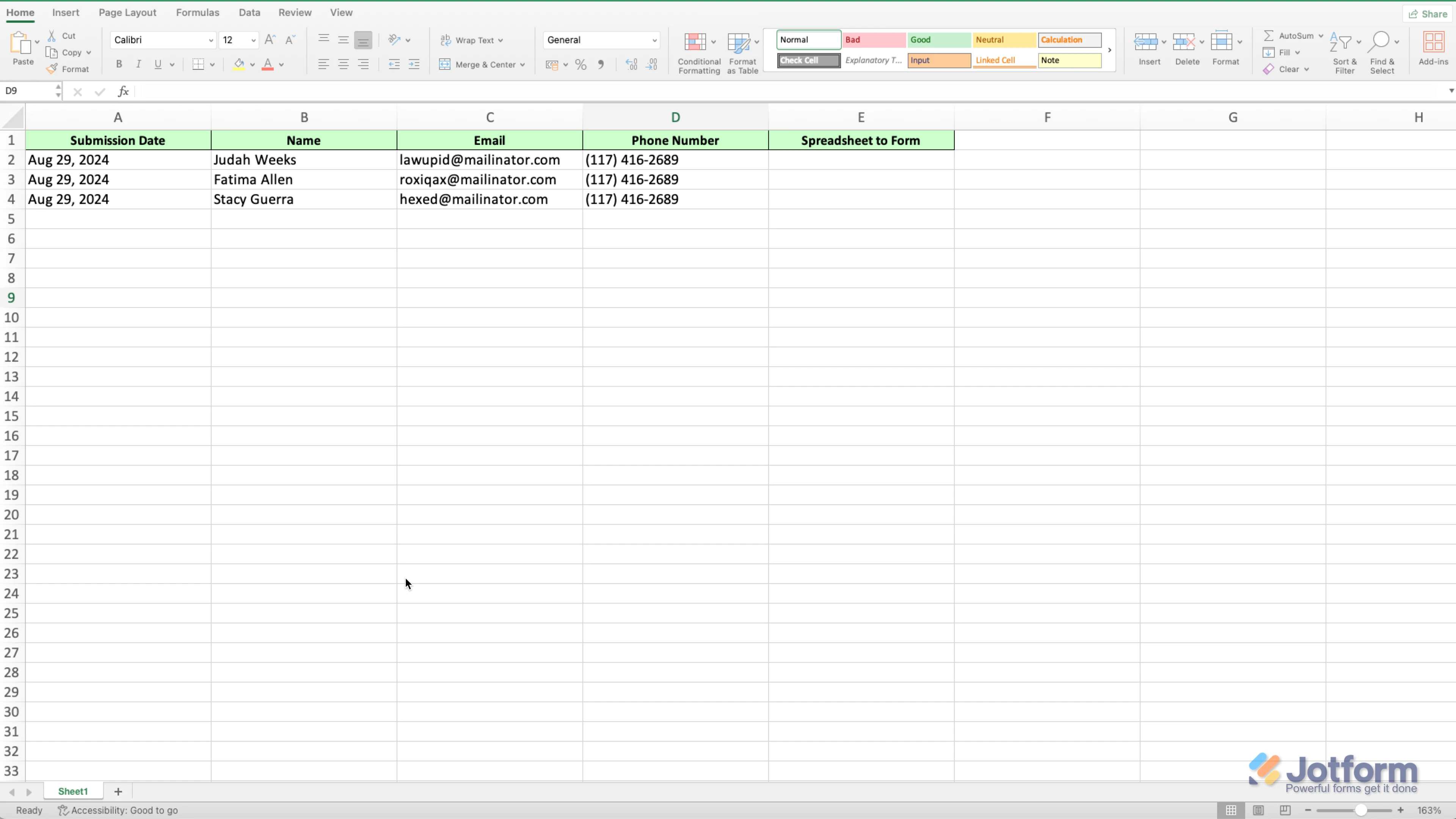
You can open the downloaded document and view your submissions using a program like Microsoft Office. The columns will appear the same as they do in Jotform Tables. Check out the screenshot below to see how it'll look:
We also have a guide about How to Download Form Submissions as Excel/CSV/PDF that you can check out.
Give it a try and let us know if you need any help.
-
 Eddie JotForm Support
Hi reportcybercrimehyd,
Thanks for using Jotform. We'd like to check this through your Jotform account. Since the Jotform Support Access feature is already enabled in your Jotform account settings, we're asking for permission to view the Report Builder through your Jotform account. And at the same time, can you try to download your file in an incognito/private browser window?
When we hear back from you, we’ll be ready to move forward.
-
reportcybercrimehyd
Hello Team,
The suggested workaround to manually download submissions from the Tables view does not address our actual issue.
Our system relies on Jotform’s Excel links for automated integrations. These links are connected to another platform that powers our dashboards and scheduled daily imports. For the past two weeks, the Excel links have stopped working, returning an “Upstream request timeout” error.
Because of this, our dashboards are not updating and all scheduled imports are failing. This is directly impacting our daily operations.
We are not looking for a manual download solution. We need the Excel link functionality to be restored to its previous working state.
Kindly investigate this issue on priority and resolve the Excel link failure at the earliest.
Please let us know if any additional details are required from our side.
Regards,
Laxmikanth
-
 Raymond JotForm Support
Hi Laxmikanth,
Can you clarify which link you're referring to? Did you create an excel report, and the download link is not working? If so, I suggest disabling the Require log-in to see submissions option. It only takes a few simple steps. Here’s how:
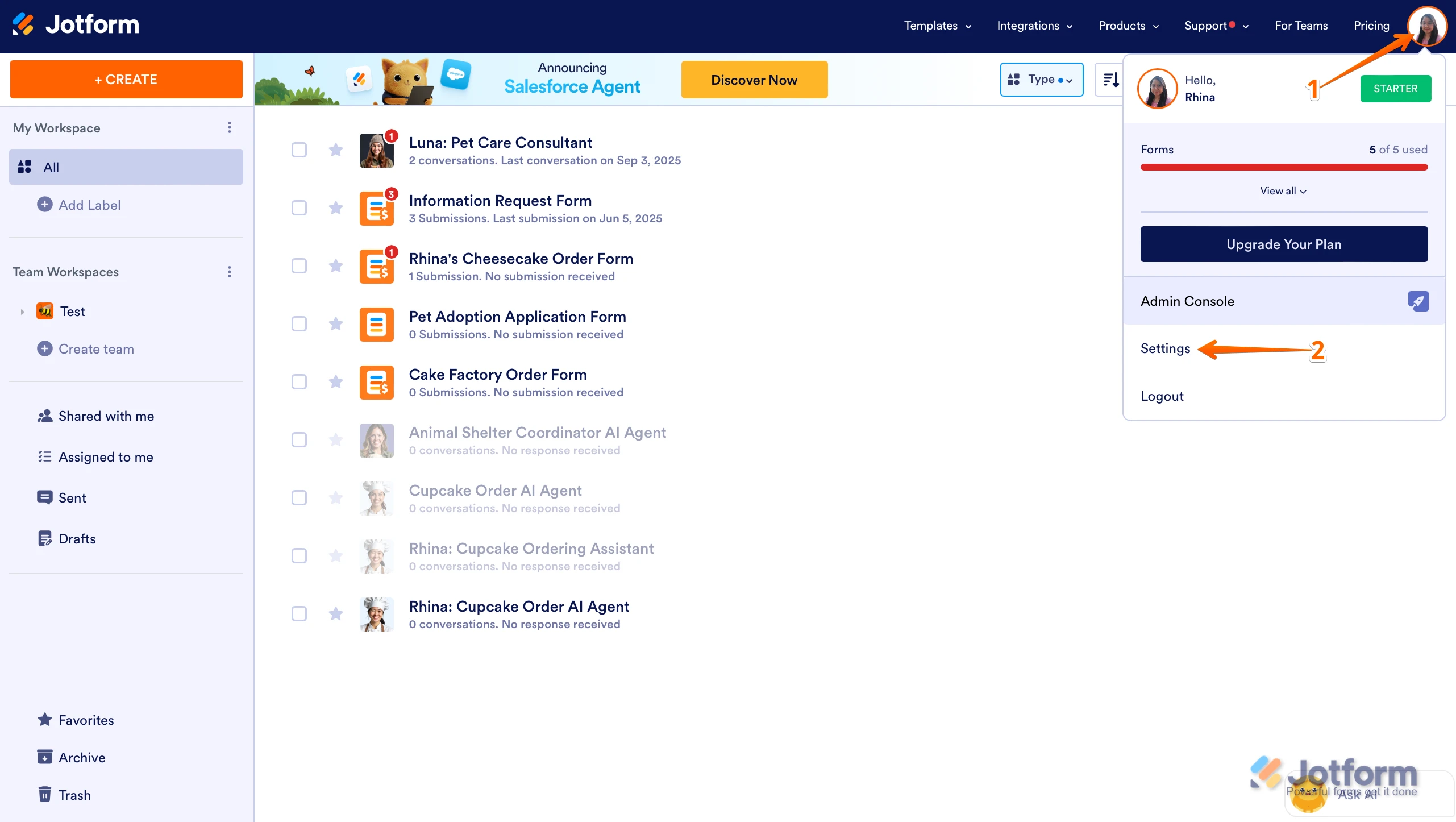
1. On your Workspace page, click on your Avatar/Profile Image in the top-right corner of the screen.
2. In the Dropdown menu that comes up, click on Settings.
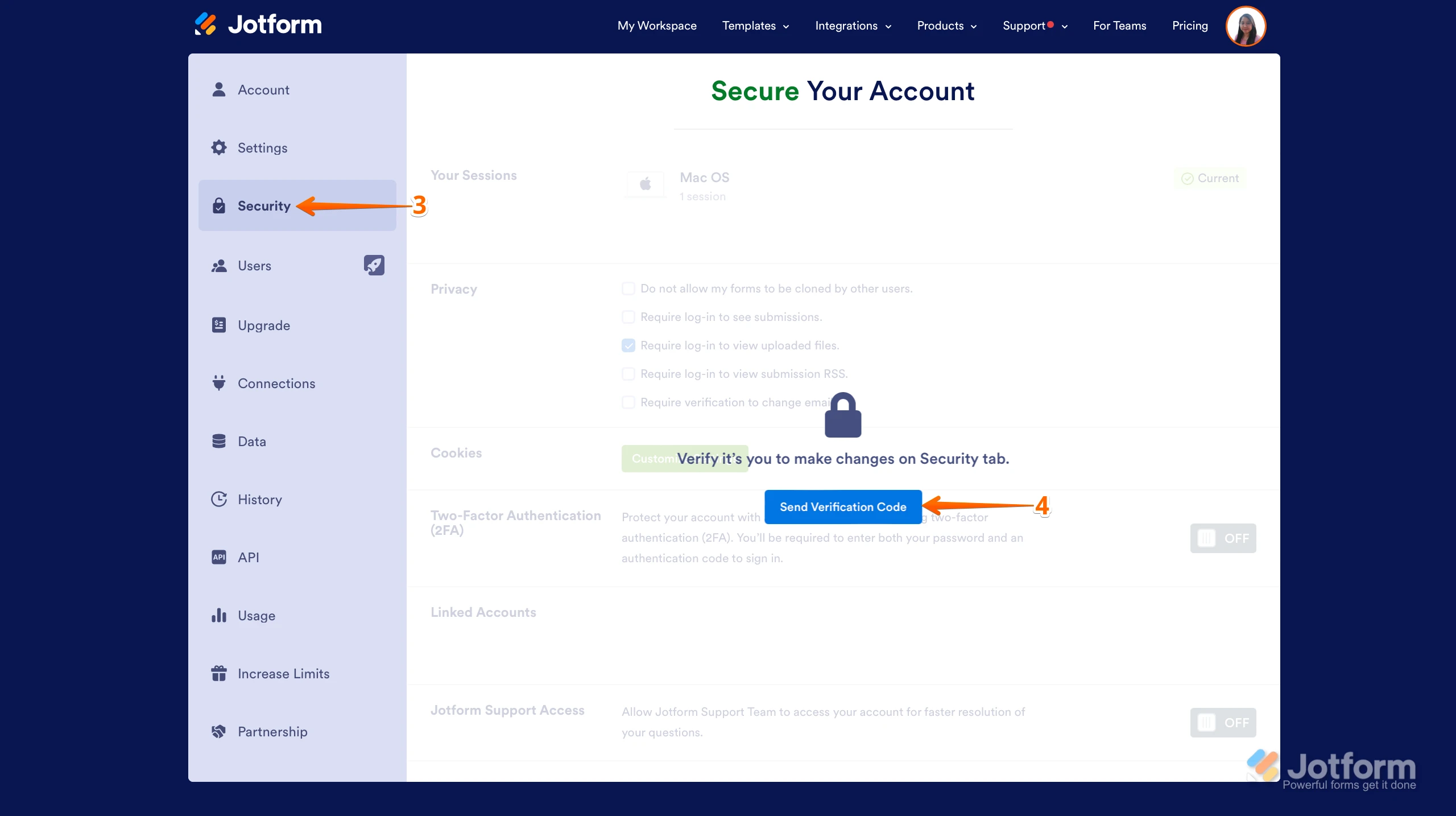
3. Next, click on the Security tab on the left side of the page.
4. Then, click on Send Verification Code.
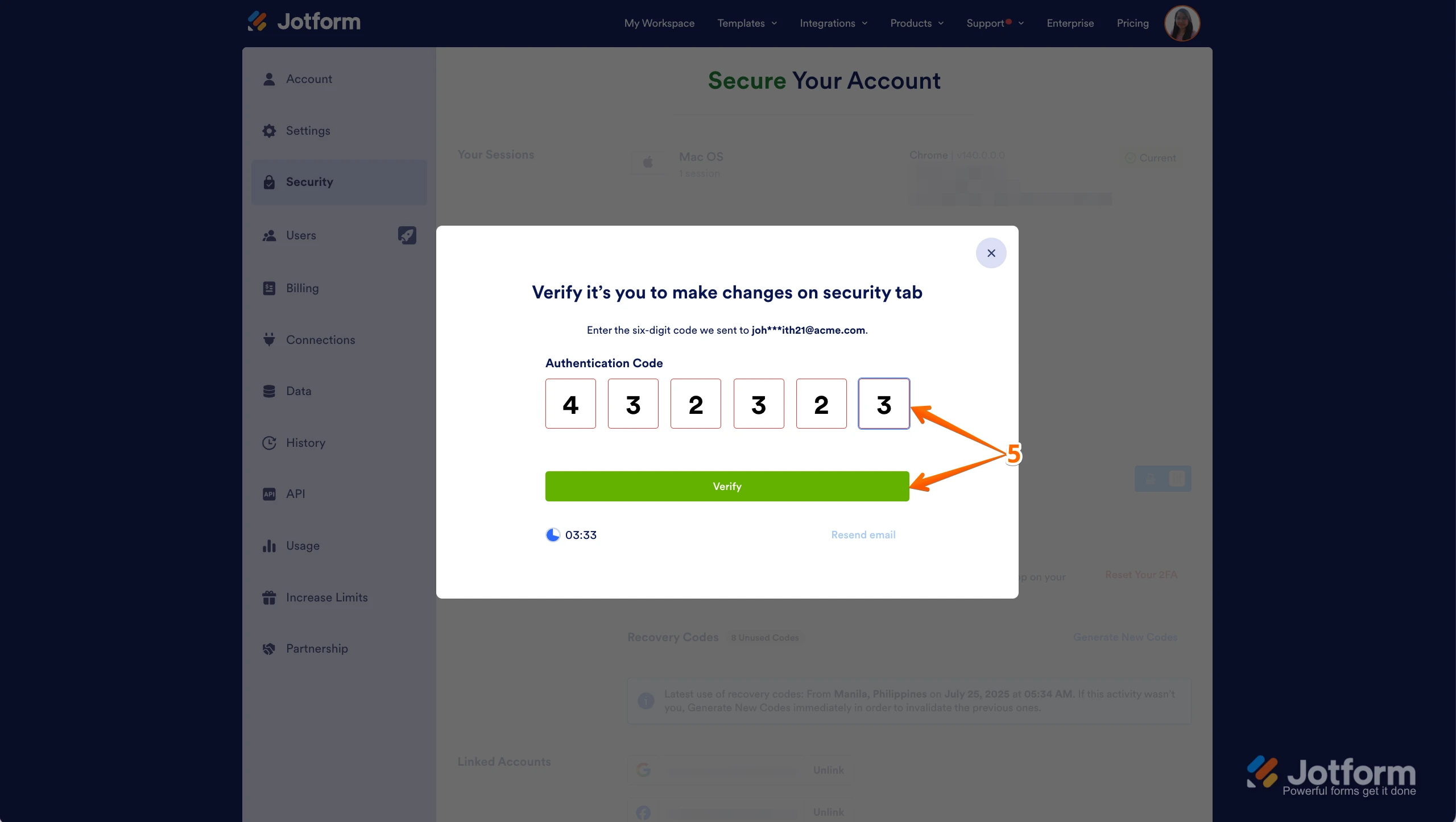
5. In the Confirmation window that opens, enter the Authentication Code sent to your email and click on Verify.
6. Now, uncheck the box next to Require log-in to see submissions. That’s it. You’re done.
Reach out again if there’s anything else we can help you with.