-
AAllison Wiers
I have enabled stock control and set the available stock. Is there a way to run a realtime report to list out my products, see the number sold, and see the number available?
-
 Raymond JotForm Support
Hi Allison,
Thanks for reaching out to Jotform Support. It's not possible to run a report that shows the remaining stocks and sold out products in your form but you can easily check the Current Stock Level in just a few easy steps. Let me show you how:
- Open your form in Form Builder and select the Product List field.
- Then, click on the Wand icon on the right side of the field to open Payment Settings.
- In the menu on the right, hover your mouse over a product and click on the Pencil icon.
- Now, click on the Stock tab and check out the Available Stock section.

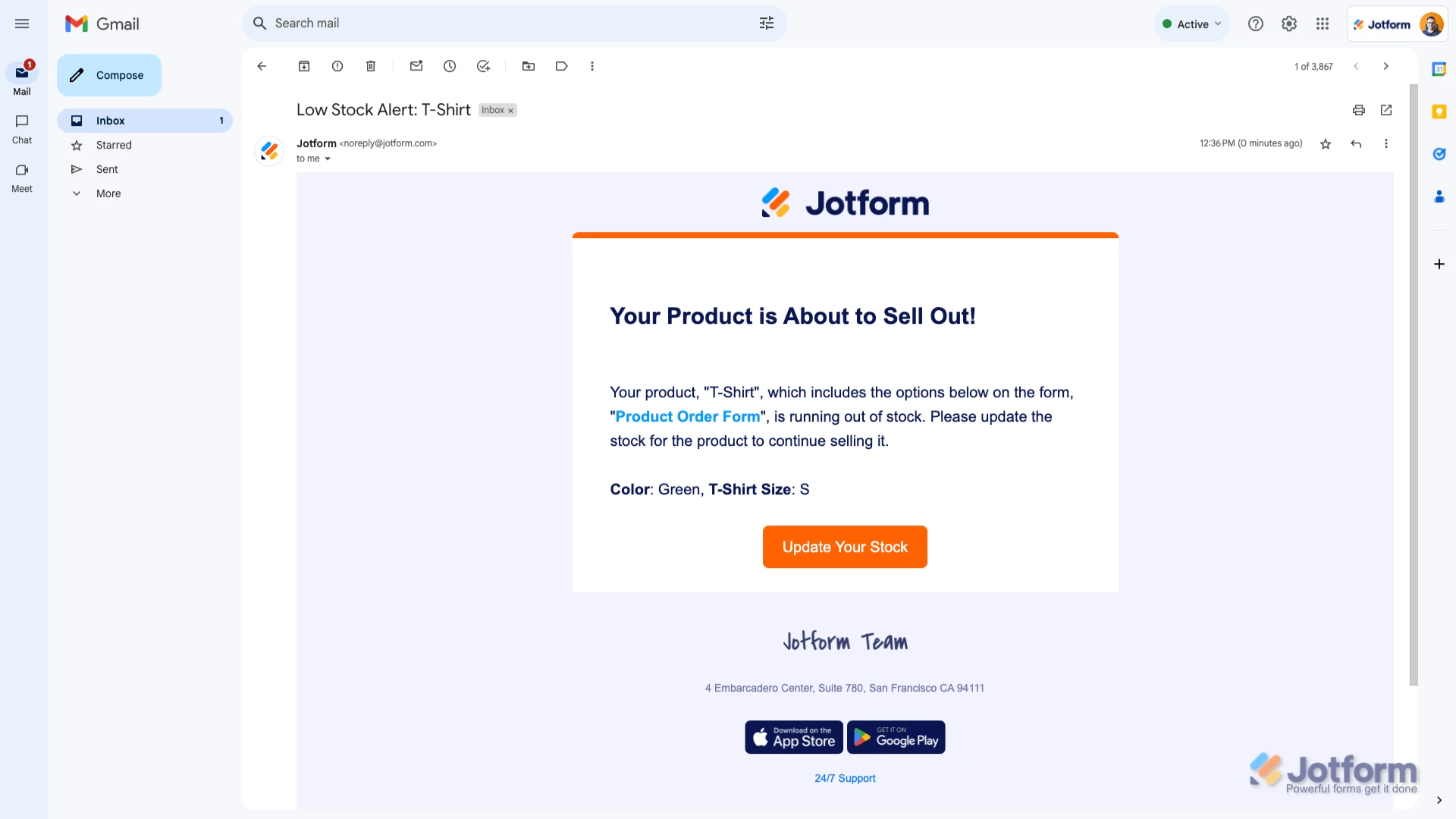
- While in the Payment Settings menu on the Stock tab, scroll down to the Enable Low Stock Alert section.
- Now, toggle the Enable Low Stock Alert feature to Yes and enter the number you want.
- Then, click on the Save button at the bottom of the menu and that's it.
Let us know if you need any more help.
 You can also check out our