-
FFranco Lo
I am using the form calculation widget, there are 80 sub-fields. But the window can show only 73 sub-fields and cannot move to the bottom. So, I cannot save my setting.
-
 Arif Can
Hi Franco Lo,
Adding multiple columns or rows at once in the Input Table element is easy. Let me show you how to do it:
- In Form Builder, click on the Input Table element, and then click on the Gear icon.
- Now, in the menu that opens on the right side of the page, click on Fields at the top.
- Then, in the Rows or Columns section, click on Add Multiple Rows to add rows, or click on Add Multiple Columns to add columns.
- Next, enter the names of the rows or columns, then click on Add Rows to add rows or Add Columns to add columns.

-
 hrDoskocil
I'm having the same issue as OP and I think you may have misunderstood the problem.
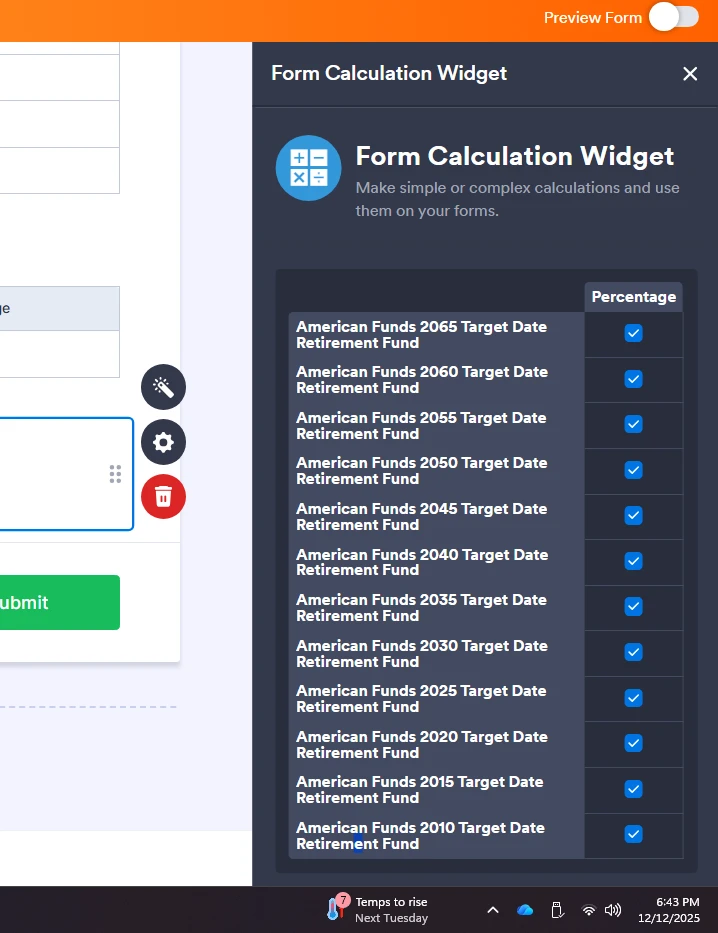
Adding more rows is easy, but when you have a lot of rows, the FORM CALCULATION widget does not show the save button and you can't make it scroll down.
My workaround was zooming out on my browser to reveal the save button. I attached a picture of the problem I'm talking about.
-
 Kris JotForm Support
Hi hrDoskocil,
I’ve gone ahead and moved your question to a separate thread to keep things tidy and to avoid any potential confusion with the user who opened this support ticket. Someone from our Support Team will help you out with it here.
Thank you for your patience and understanding, we appreciate it.